
Key Points
To log in, open a web browser, go to your organisation's FlowLogic web address, enter your username and password, and click Sign in.
Your system admin provides the web address. Your username is most commonly firstname.lastname.
If you've forgotten your password, click Forgot password? on the login page to get a one-time password by email.
If your system uses 2FA, you'll then enter a 6 digit code. Tick Remember this device to skip the code on that device for a set number of days.
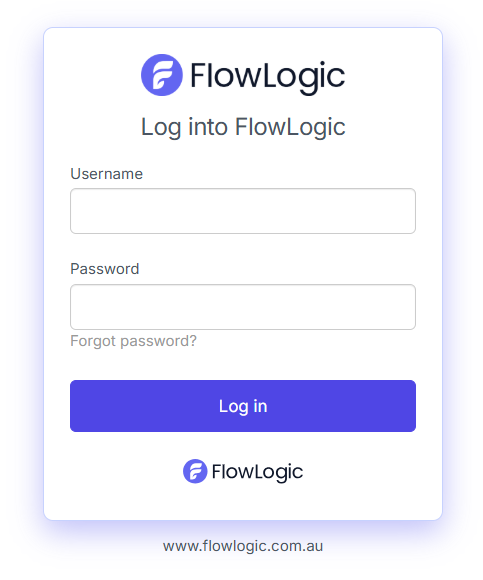
Login Process
- Open any web browser of your choice on your phone, laptop or desktop computer (Chrome, Safari, Internet Explorer, Firefox etc.)
- Navigate to the FlowLogic web address provided to you by your system admin (For example http://example.flowlogic.com.au)
- Type in the username provided to you (Most commonly firstname.lastname), along with the password provided.
- Click “Sign in”
If you've forgotten your password
If you have forgotten your password to FlowLogic, click Forgot password? under the Password box on the login page. Enter your username and click Send via email. FlowLogic emails you an 8-digit one-time password to enter on the login page, then you create a new password.
For the full steps, see How do I reset my FlowLogic password?
2FA Authentication
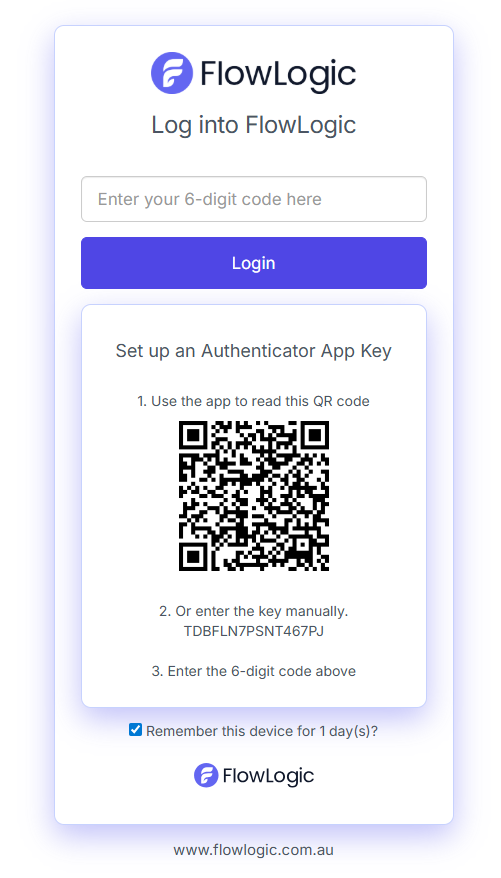
Depending on the Two Factor Authentication (2FA or MFA) method implemented on your system, after a successful username and password entry you will then be prompted to enter a 6 digit code to further authenticate yourself to the system. Enter the 6 digit code in the box provided an click "Please enter your six digit code"
You can also tick Remember this device so FlowLogic doesn't ask for a code again on this device for a set number of days. Your organisation chooses how long this is, up to 30 days, so the number of days you see may be different from the screenshot above. If you have financial access (such as exporting timesheets, invoices or payroll), it's always 1 day.
More Information on the 2FA implementation in FlowLogic in can be found here.