
Key Points
Two-factor authentication (2FA, also called MFA) asks for a six-digit code after your username and password. You set it up the first time you log in, by scanning the QR code on the Set up an Authenticator App Key screen with your authenticator app and entering the code it shows.
Users with financial access must use an authenticator app and enter a code every day. Other users can tick the option to remember the device, for a period your organisation chooses of up to 30 days.
Depending on your organisation's settings, you get your code from an authenticator app, or by email or SMS. We recommend Google Authenticator or Microsoft Authenticator.
If you're setting up on your phone, you can't scan your own screen - press and hold the key under the QR code to copy it, then add it to your authenticator app by hand.
If you've lost or replaced your phone, ask your FlowLogic admin team to reset your 2FA.
Two-factor authentication (2FA), also called multi-factor authentication (MFA), checks that it's really you when you log in to FlowLogic. After your username and password, you enter a six-digit code from an authenticator app, or a code sent to you by email or SMS.
How often will I be asked for a code?
- Users with financial access (such as exporting timesheets, invoices or payroll) - must use an authenticator app and enter a code every day. FlowLogic only remembers their device for 1 day, whatever your organisation's setting. Since 1 July 2025 this has been required for all users with financial access, to meet Australian Taxation Office (ATO) requirements.
- All other users - can tick the option to remember the device when they log in, so they're only asked for a code again after a set number of days. Your organisation chooses how long this is, up to 30 days (the options are Never, 1, 3, 7, 15 or 30 days).
FlowLogic remembers each device and browser separately. You'll be asked for a code again if you clear your cookies, use a private or incognito window, or log in on a different device or browser.
Which 2FA methods can I use?

Depending on your organisation's settings, you'll get your code by:
- Email or SMS only
- An authenticator app, email or SMS
- An authenticator app only
Users with financial access always use an authenticator app. If you're not sure which method your organisation uses, ask your FlowLogic admin team.
Which authenticator app should I use?
We recommend Google Authenticator or Microsoft Authenticator. Both are free on the App Store and Google Play. Other authenticator apps, such as Authy, also work but aren't officially supported.
How do I set up 2FA the first time I log in?
- Open your FlowLogic web address in a web browser. We recommend Google Chrome or Microsoft Edge. On an iPhone, use Chrome or Edge for setup rather than Safari - you can go back to Safari once you're set up.
- Enter your username and the password you were given, then click Sign in.
- The Set up an Authenticator App Key screen shows a QR code with a key underneath.
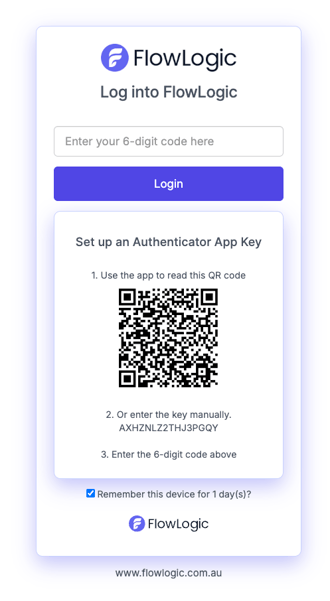
- Link FlowLogic to your authenticator app:
- On a laptop, desktop or tablet - open the authenticator app on your phone and scan the QR code. Scan it from inside the authenticator app, not with your phone's camera app.
- On your phone - you can't scan your own screen, so press and hold the key under the QR code to copy it, then add it to your authenticator app by hand (see the steps below).
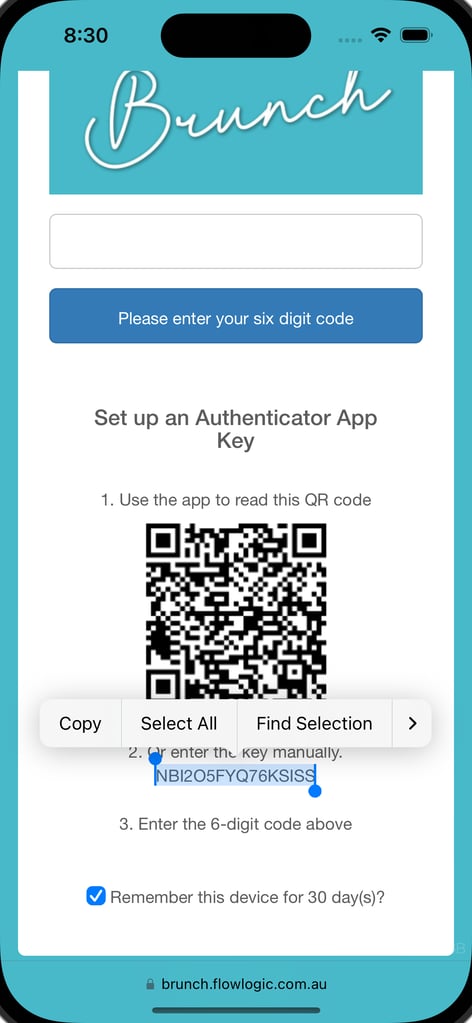
- Your authenticator app now shows a six-digit code for FlowLogic that changes every 30 seconds. Enter the current code on the FlowLogic login screen.
- If your password has also expired, you'll be asked to set a new one. Follow the password requirements on screen and enter your new password twice to confirm.
You're now logged in. Next time, enter your username and password, then the current code from your authenticator app.
If you leave the setup screen open for more than 45 minutes, the QR code changes. Reload the page and scan the new QR code.
How do I add FlowLogic to Microsoft Authenticator by hand?
- On your phone, open the Microsoft Authenticator app.
- On the Accounts screen, tap Add account.
- Tap Other account (Google, Facebook, etc.).
- If you're asked to allow the app to take pictures and record video, tap Allow.
- Scan the QR code. If you can't scan it:
- Tap Or enter code manually.
- In Account name, enter a name for your FlowLogic account, for example FlowLogic.
- In Secret key, enter the key shown under the QR code on the FlowLogic login screen.
- Tap Finish.
How do I add FlowLogic to Google Authenticator by hand?
- On your phone, open the Google Authenticator app.
- Tap +.
- Tap Enter a setup key.
- Enter a name for the account, for example FlowLogic, and the key shown under the QR code on the FlowLogic login screen.
- Check the key type is Time based.
- Tap Add.
What if I get a new phone or my code doesn't work?
If you've lost or replaced your phone, ask your FlowLogic admin team to reset your 2FA - see How do I reset a user's 2FA? If your code isn't accepted, see Why isn't my 2FA code working?
If you're a FlowLogic admin and you're locked out of your own 2FA, contact FlowLogic Support at support@flowlogic.com.au.