
Key Points
On the FlowLogic login page, click Forgot password?, type your username and click Send via email. Enter the 8-digit one-time password from the email, then choose a new password.
Your new password must have at least one uppercase letter, one lowercase letter, one number and at least 10 characters.
If you're already logged in, click your name in the User Menu and select Change Password.
Changing your password signs you out everywhere you were logged in, including the FlowLogic Workforce app.
If your new password doesn't work, clear your browser's cache and cookies or reinstall the Workforce app, then contact your organisation's FlowLogic admin team if it still fails.
If you are unsure or have forgotten your password, you can request a reset email to be sent to your registered email address. The email contains a one-time password (a code) that you enter on the login page.
If your system administrator resets your password for you instead, the email they send contains a link rather than a one-time password. If you're an admin resetting a password for someone else, see How do I reset another user's password?
Resetting your password from the login page
- Open your preferred web browser.
- Go to your FlowLogic web address, provided to you by your system administrator. It usually looks like yourorganisation.flowlogic.com.au.
- On the login page, click Forgot password? under the Password box. The Request a one-time password page opens.
- Type in your username (Most commonly firstname.lastname)
- Click Send via email. A message starting "If an account exists for that username" confirms the request.
- Open your email and find the email from support@flowlogic.com.au. The subject starts with "One-time password for". If the email doesn't arrive, ask your FlowLogic admin team to check your username and the email address on your account.
- On the Enter your one-time password page, type the one-time password from the email into the One-time password box. The one-time password is 8 digits, which is different from the 6-digit code used for 2FA.
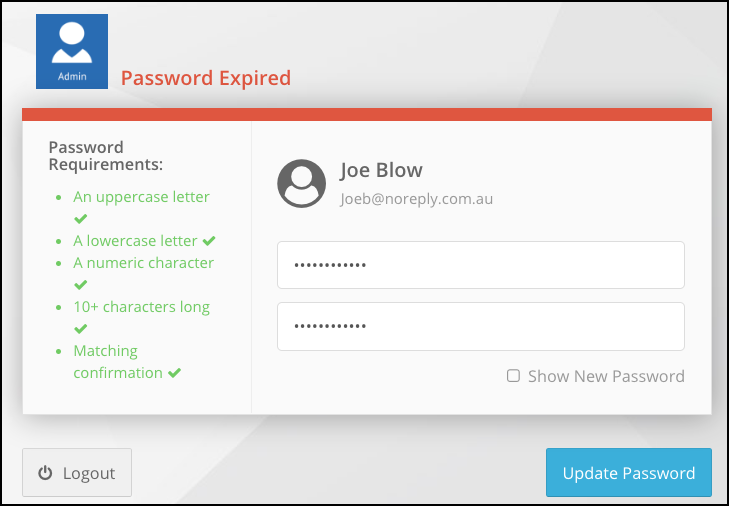
- A new password screen opens. Enter your new password twice to confirm. It must contain
- At least one uppercase letter
- At least one lowercase letter
- At least one number
- At least 10 characters
Changing your password after logging in
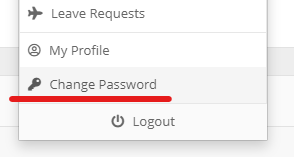
You can also change your password from the User Menu after logging in to FlowLogic, by clicking on your name and selecting “Change Password”.
When your password changes, FlowLogic signs you out everywhere you were logged in, including the FlowLogic Workforce app. Log in again with your new password.
Still can't log in after resetting your password?
If your new password isn't working, try these steps in order.
- If you use a web browser: clear your browser's cache and cookies, close the browser, then open your FlowLogic web address again and log in with your new password. If your organisation uses 2FA, you'll be asked for a code again, because clearing cookies means FlowLogic no longer remembers your device.
- If you use the FlowLogic Workforce app: delete the app from your phone, reinstall it from the App Store or Google Play, then sign in with your new password.
- If it still doesn't work: contact your organisation's FlowLogic admin team. They can reset your password for you, and you'll get an email with a link to set a new one.
If you're a FlowLogic admin and no one else in your organisation can reset your password, contact FlowLogic Support at support@flowlogic.com.au.