
Key Points
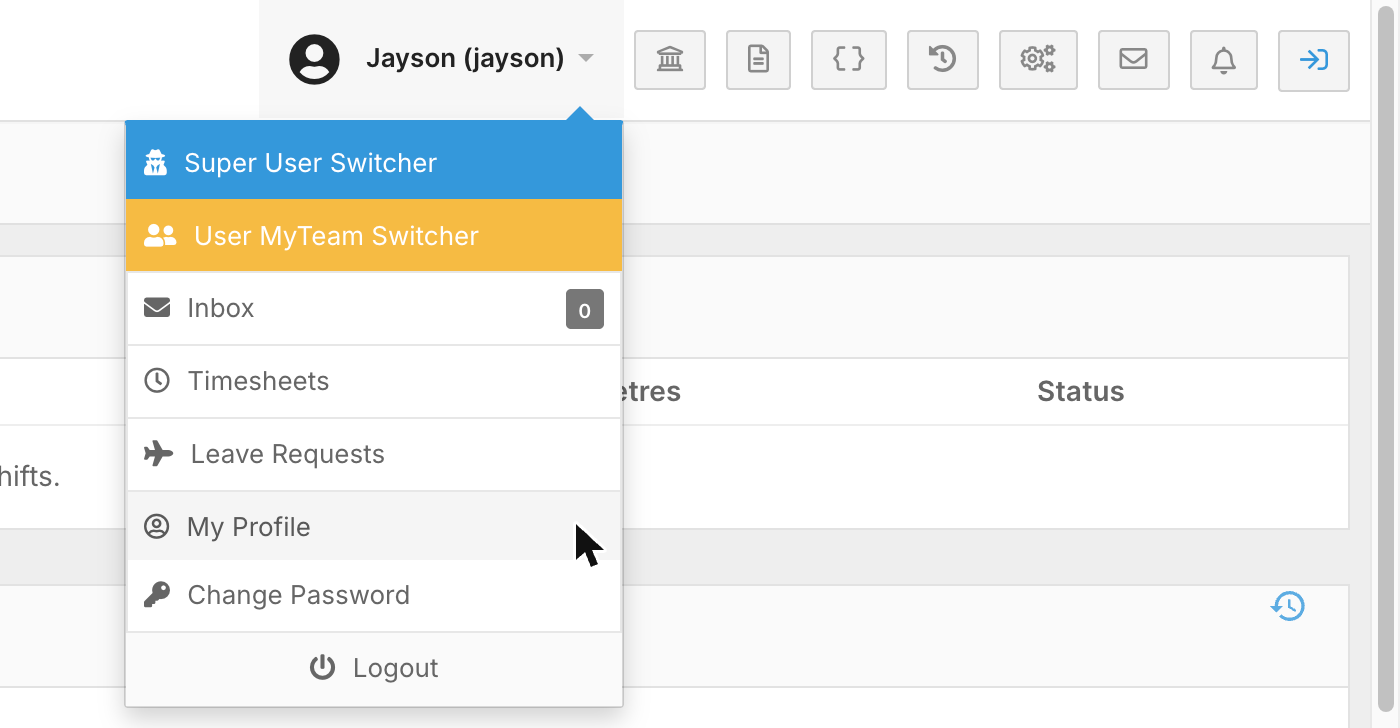
Open My Profile by clicking your name in the top-right corner and selecting My Profile. It holds your own details and preferences, and changes there only affect you.
My Profile is split into tabs. After changing anything on a tab, click Save Preferences.
On the My Availability tab, choose Unavailable or Maybe Available and drag across the times that apply. Availability repeats in a cycle until you change it, and your managers see it when they build the roster.
To change your email, update Email on the General tab, then click the link in the confirmation email. Resetting your password before clicking the link cancels the change.
To change your password, click Change Password at the top of My Profile or in the menu under your name. You can't update your availability in the Workforce app.
My Profile holds your own details and preferences. Changes you make here only affect you, not anyone else in your organisation.
How do I open My Profile?
- Click your name in the top-right corner.
- Select My Profile.
What can I change in My Profile?
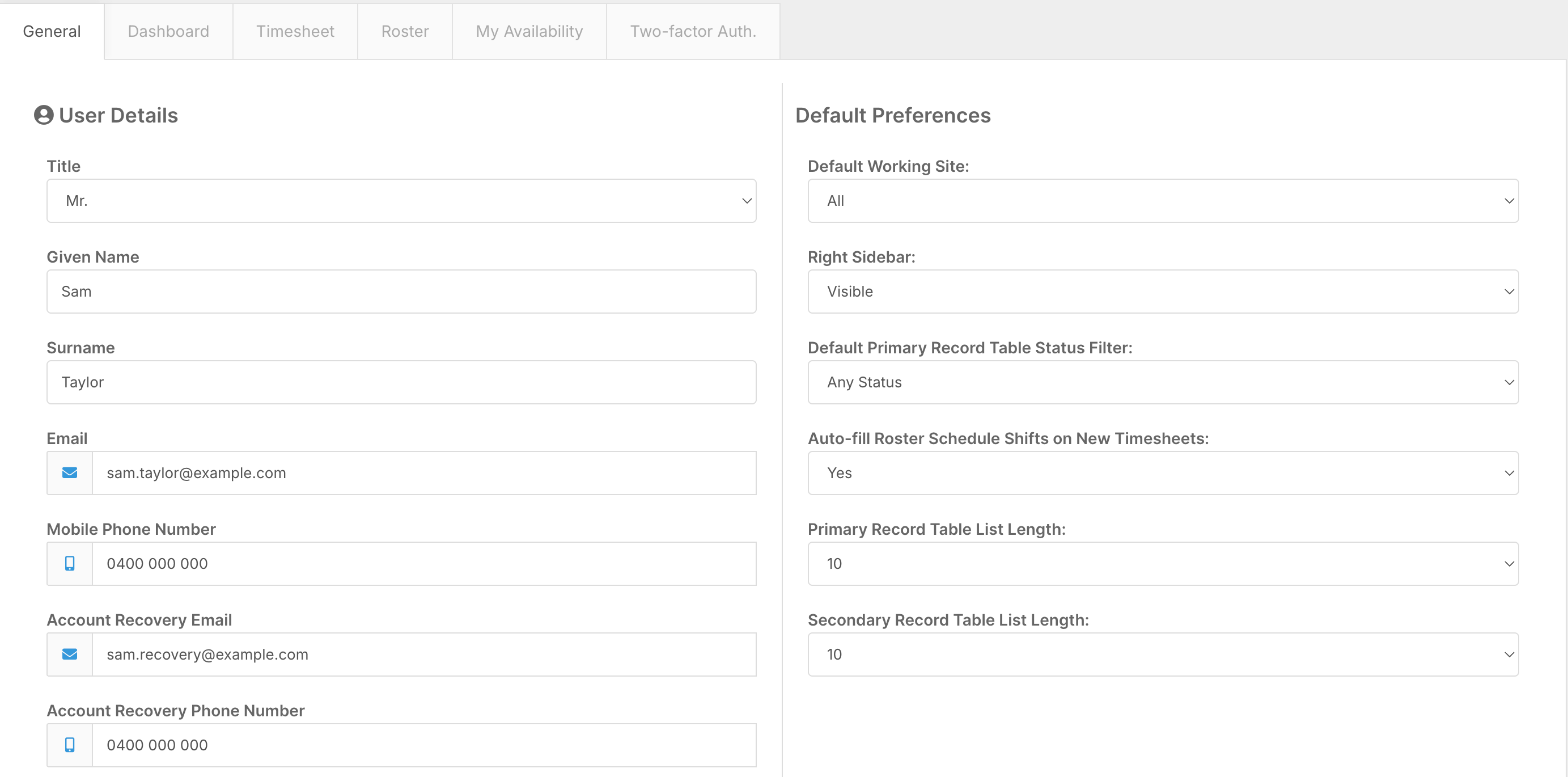
My Profile is split into tabs. After changing anything on a tab, click Save Preferences.
| Tab | What you can change |
|---|---|
| General | User details: your title, given name, surname, email and mobile phone number, plus an account recovery email and phone number. FlowLogic uses the recovery details for resetting your password and other security features, so keep them up to date. Default preferences:
|
| Dashboard | Which forms show in the record tables on your dashboard. See How do I customise my dashboard and add widgets? |
| Timesheet | Your usual work hours: a default start and end time, and start and end times for each day of the week. |
| Roster | How the roster opens for you: Default View (staff or client), Default Roster Period (for example weekly) and Back/Forward Navigation. Each one can follow your organisation's setting. |
| My Availability | When you're available to work. See below. |
| Two-factor Auth. | How you receive your two-factor authentication (2FA) codes, and a Read a new QR code button if you've lost or replaced your phone. See How do I set up 2FA for my FlowLogic account? |
How do I set my availability?
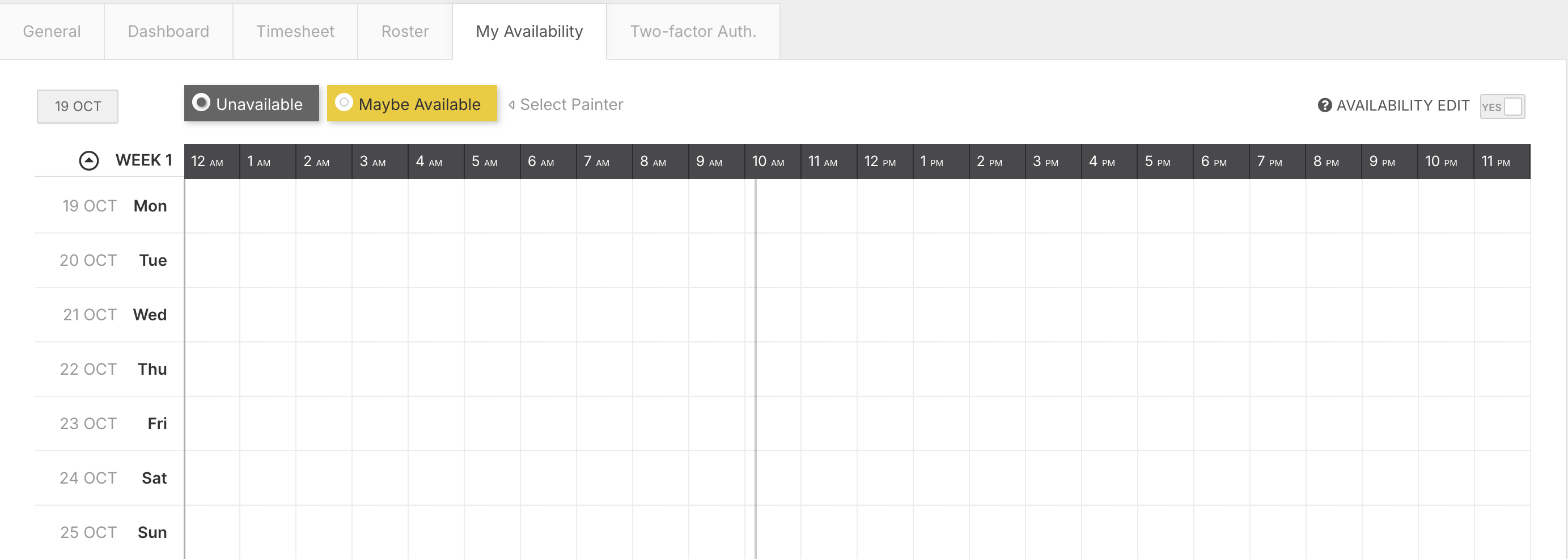
- Open My Profile and select the My Availability tab.
- Choose Unavailable or Maybe Available at the top, then click and drag across the times that apply. Any time you leave blank counts as available.
- Click Save Preferences.
Availability repeats in a cycle, such as 1, 2 or 4 weeks, depending on your organisation. The cycle's start date is in the top-left corner. Once it's set, it keeps repeating until you change it.
Your managers see your availability when they build the roster. Whether you can edit it yourself depends on your organisation's settings. See How do I check staff availability when rostering?
How do I change my email address?
- Open My Profile and stay on the General tab.
- Type your new address in Email and click Save Preferences.
- If FlowLogic asks for your current password, enter it and click Save.
- FlowLogic sends a confirmation email to the new address. Open it and click the link.
Your email changes in FlowLogic once you click the link. Until then, FlowLogic keeps using your old address. If you reset your password before clicking the link, the email change is cancelled and you'll need to make it again.
How do I change my password?
Click Change Password at the top of My Profile, or in the menu under your name. For the full steps, see How do I reset my FlowLogic password?
Is My Profile the same in the Workforce app?
No. In the FlowLogic Workforce app, My Profile is under Menu and covers your inbox, timesheets, leave requests, password, PIN and location settings. You can't update your availability in the app, so use FlowLogic in a web browser for that.