
Key Points
Staff availability helps managers understand when staff are available or unavailable to work.
Availability can be viewed directly from the staff profile or within shift details.
Availability warnings appear when creating shifts.
Whether you can assign a shift to someone who is unavailable depends on how your system is set up.
The Who’s Working tool helps identify available staff when filling shifts.
Organisations may choose to control whether staff can edit their own availability.
Viewing Staff Availability
Staff availability can be viewed from the Roster Schedule.
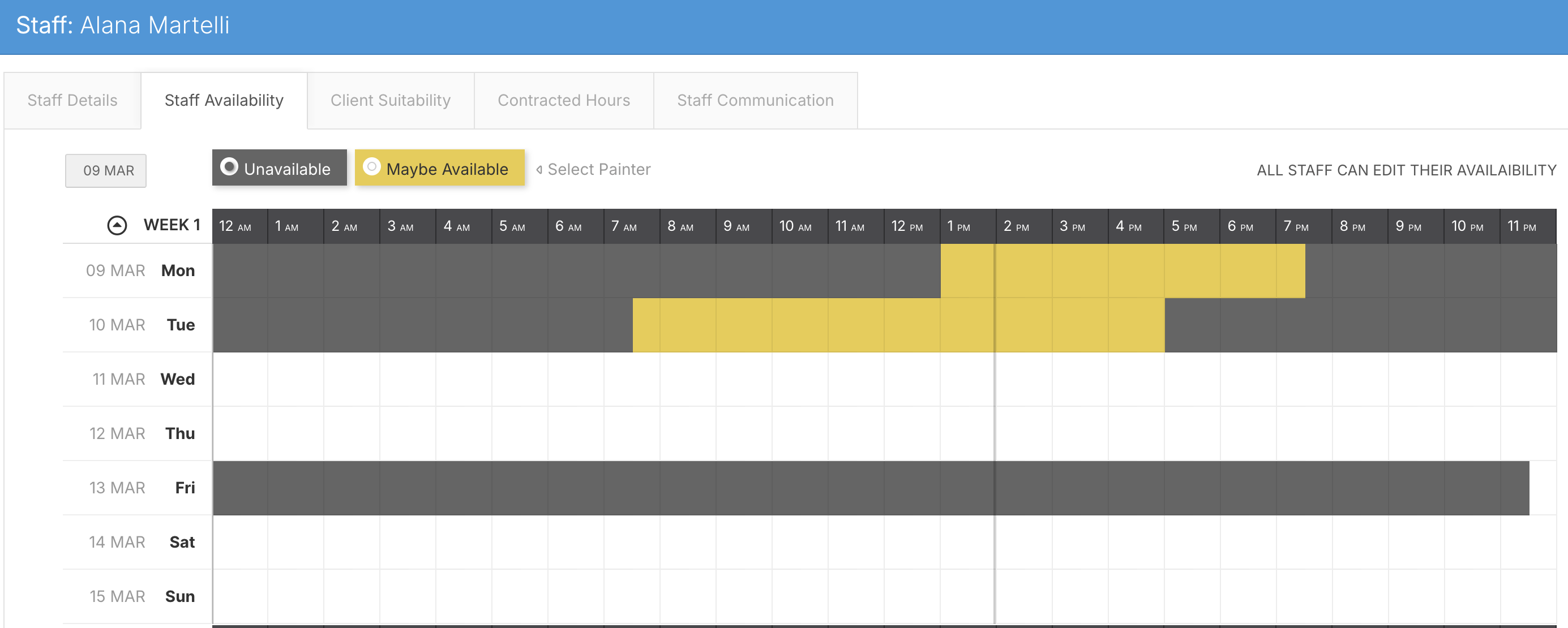
To view availability for a staff member:
-
Locate the staff member on the left-hand side of the roster.
-
Click on the staff member’s name.
-
Open the Staff Availability tab.
This section displays the availability that the staff member has submitted.
Rostering staff can also edit the availability here, then click Update Staff to save it.
Availability typically includes:
Days they are available to work
The times they are unavailable
Recurring availability patterns
This information helps managers make informed rostering decisions.
Staff Editing Their Availability
Staff can sometimes update their own availability depending on system permissions.
Within the Staff Availability tab, you will see an Allow Edit toggle in the top-right corner.
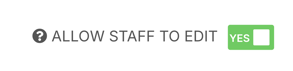
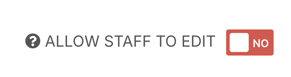
If the toggle is active, staff can modify their own availability.
However, it is important to note that availability changes do not automatically notify the rostering team.
Because of this, many organisations prefer to:
Restrict staff from editing their availability directly
Instead, request availability changes through an internal process
This ensures the rostering team remains aware of any availability changes.
Availability Warnings When Creating Shifts
When creating a shift for a staff member, FlowLogic checks their availability.
For example:
If you create a shift for Tuesday from 8:00 AM to 4:00 PM, the system may display a warning if the staff member is unavailable during part of that time.
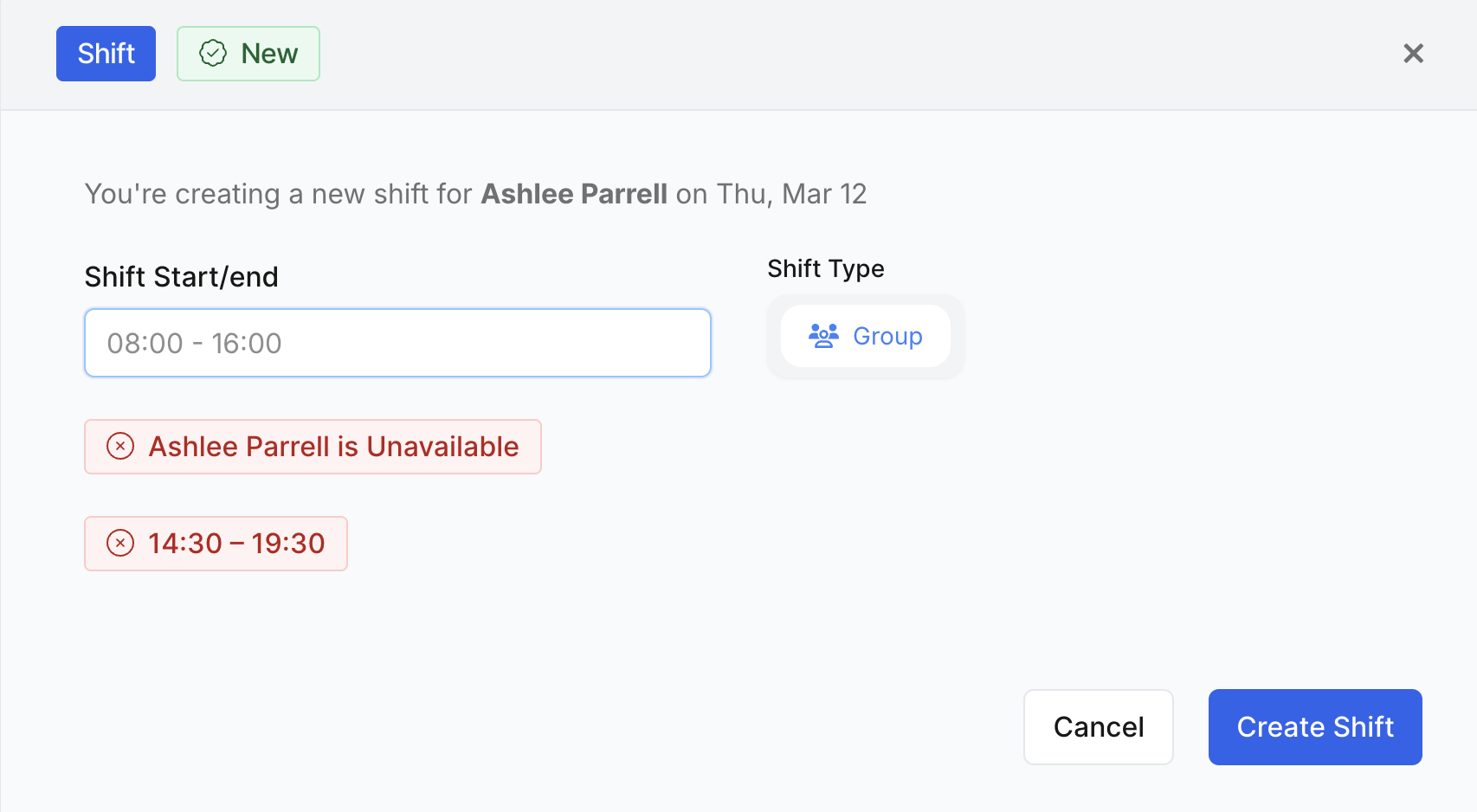
This alert helps you identify potential conflicts.
Viewing the Availability Overview
If a warning appears, you can review the staff member’s availability in more detail.
Inside the Shift Details screen, select the Availability Overview button in the top-right corner.
This view displays:
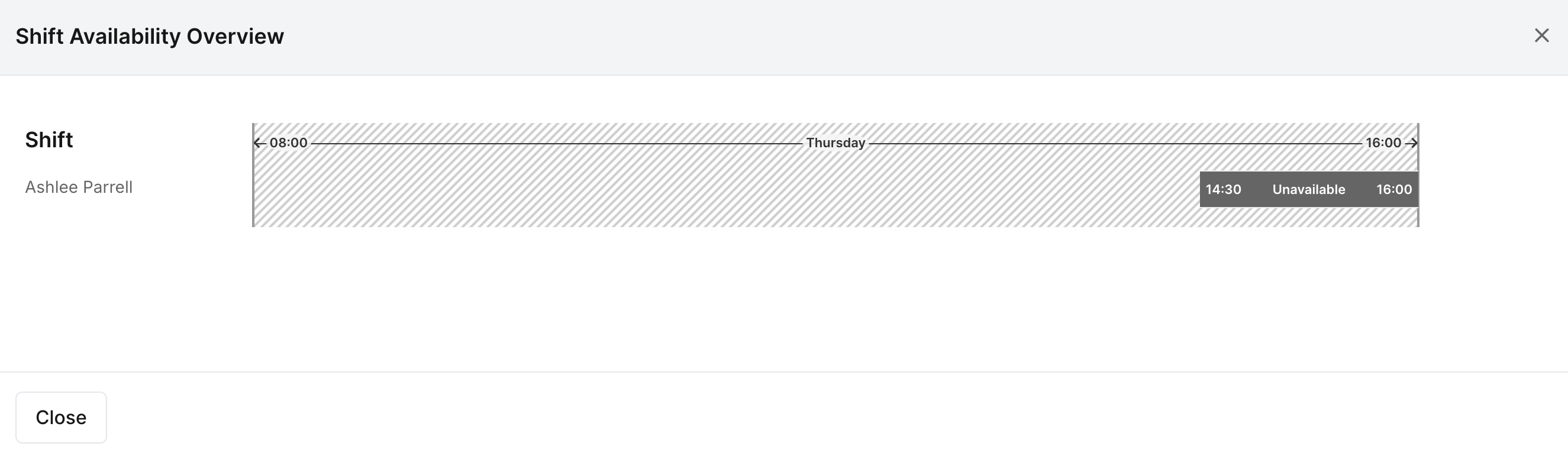
Unavailable times
Availability blocks
Potential conflicts with the proposed shift
Using this overview helps you adjust the shift if necessary.
For example, if the staff member is unavailable after 1:00 PM, the shift could be adjusted to finish earlier.
Assigning Shifts Outside Availability
What happens when you assign a shift to someone who is unavailable depends on how FlowLogic Support has set up your system:
Override with a reason: FlowLogic asks for a reason. Enter a short note on why the staff member is being rostered anyway, then save the shift. Your system may also ask for a reason for Maybe Available times.
No override: the shift can't be saved to that staff member. Choose someone who is available, or change the shift times.
To change which option your organisation uses, contact FlowLogic Support.
For a one-off day or time they can't work, staff can submit a leave request using your organisation's unavailability leave type, instead of changing their regular availability.
Finding Available Staff
When filling a shift, the Who’s Working section can help identify suitable staff members.
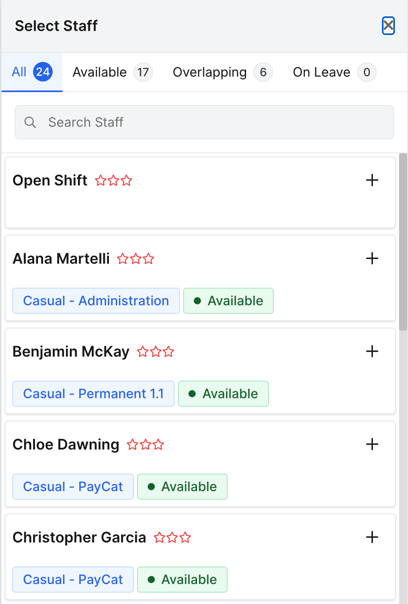
To access this feature:
-
Scroll to the Who’s Working section in the shift details.
-
Click Add Staff.
A panel will appear displaying all staff members.
Under each staff name, FlowLogic indicates whether the staff member is:
Available
Unavailable
This allows managers to quickly identify staff who may be able to work the shift.
Additional Staff Filters
Within the staff selection panel, additional tabs help identify scheduling conflicts.
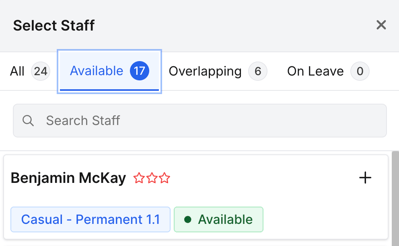
These tabs include:
Staff with overlapping shifts
Staff who are currently on leave
These filters help ensure shifts are assigned to staff who are realistically able to work them.
Saving the Shift
Once you have selected the appropriate staff member and finalised the shift details:
-
Click Save in the bottom-right corner.
-
Complete the remaining shift creation steps.
The shift will then appear on the roster.