
Key Points
Roster Suitability controls how suitable a staff member is for a specific client.
Suitability can be viewed and edited from both the roster and shift details.
Suitability levels are:
Preferred
Acceptable
None
Disallowed
FlowLogic automatically improves suitability based on rostering history.
Disallowed suitability must be set manually.
Suitability is visually represented using star ratings when rostering.
Editing Roster Suitability
Open Suitability
From the roster:
Click on the staff name or client name
Select the Client Suitability tab
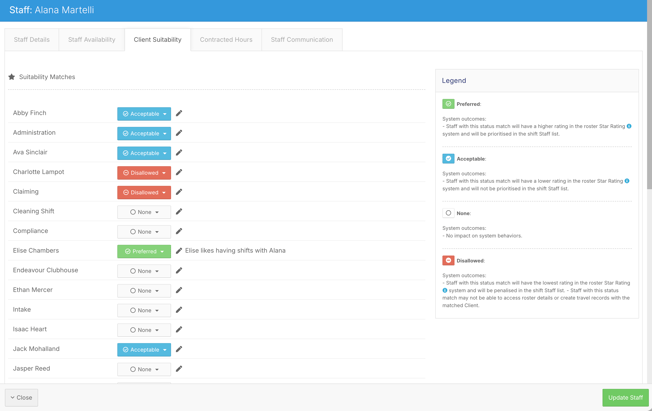
Review Suitability Matches
Inside the Client Suitability tab:
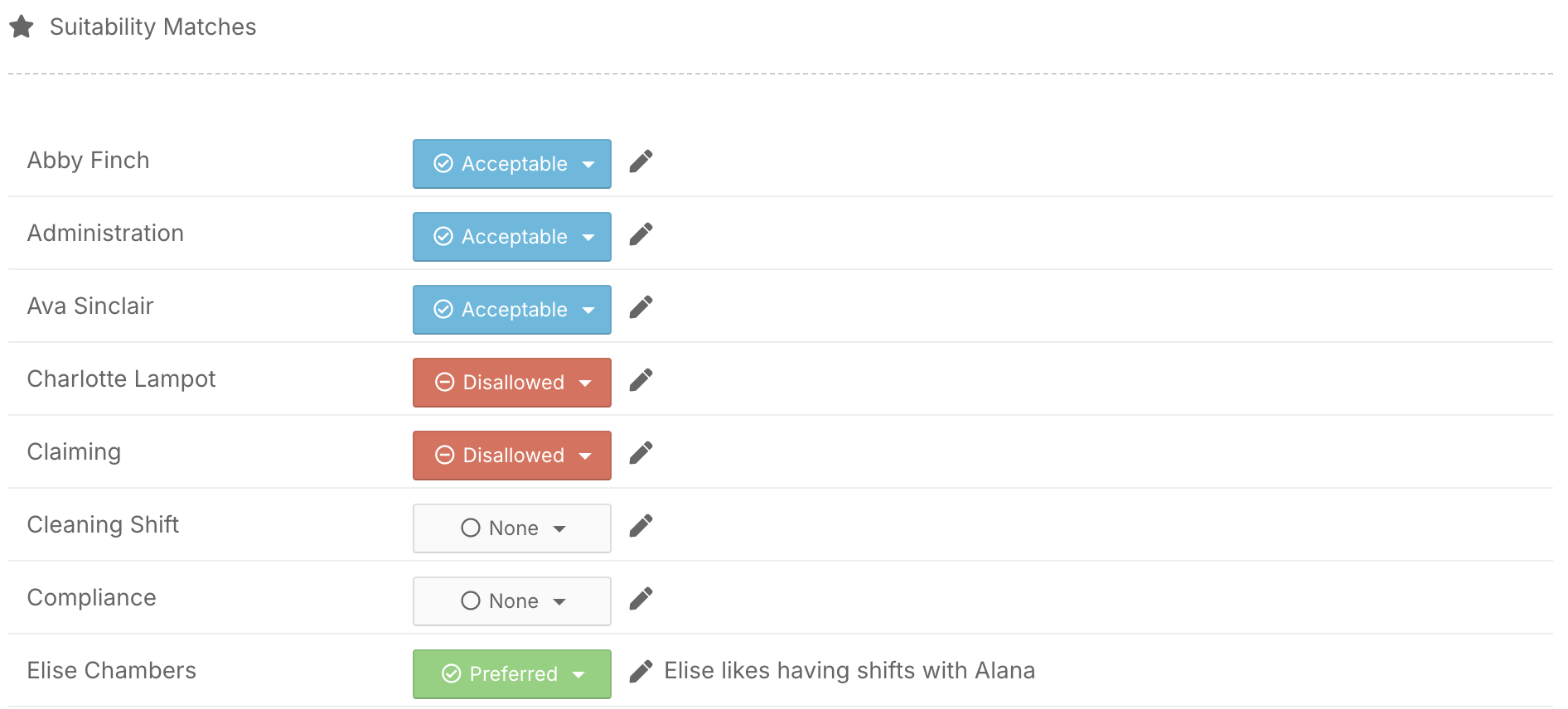
The left-hand side shows matches between staff and clients
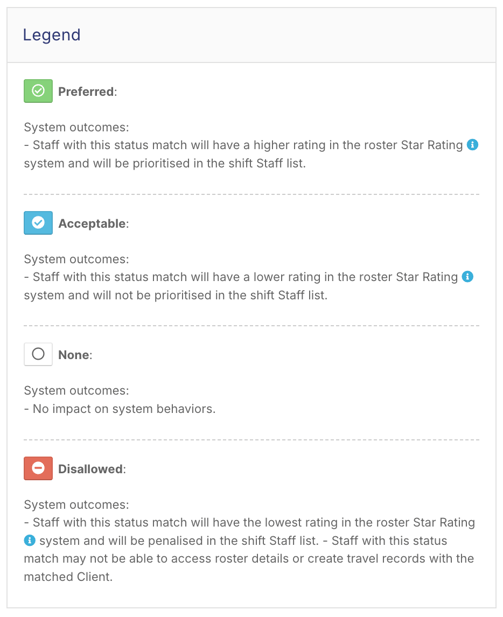
The right-hand side displays a legend explaining each suitability level
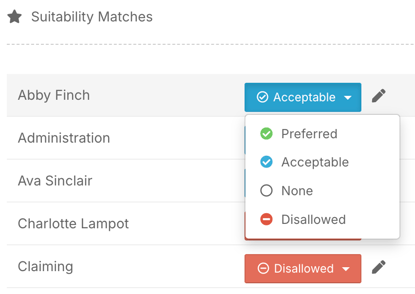
Suitability options include:
Preferred – best match. Staff get a higher star rating and are listed first when you add staff to a shift.
Acceptable – suitable but not ideal. Staff get a lower star rating and aren't prioritised in the staff list.
None – neutral. It has no effect on the star rating or the staff list.
Disallowed – should not be rostered together. Staff get the lowest star rating and are listed last. They may also be unable to see roster details or create travel records for that client.
Automatic Suitability Updates
As staff are rostered with clients:
FlowLogic automatically builds suitability
Repeated pairings improve suitability over time
This helps streamline rostering by highlighting good matches.
Manually Adjust Suitability
You can manually change suitability at any time.
This is the only way a staff–client match becomes disallowed.
Manual adjustments override system-generated suitability
Add Notes (Optional)
Click the pencil icon next to a suitability level to add a note explaining why it was chosen.
This is useful for:
Behavioural considerations
Client preferences
Safety or compliance reasons
Save Changes
Click Update in the bottom right-hand corner to save changes.
Viewing Suitability on Shifts
View Suitability in Shift Details
When editing or creating a shift:
Scroll to the staff member’s name
You will see star icons next to each staff member
Star meanings:
More stars = higher suitability
Red, unfilled stars = Disallowed staff
Viewing Suitability When Adding Staff
When you click Add Staff:
All staff appear in a list
Suitability star ratings are shown beside each name
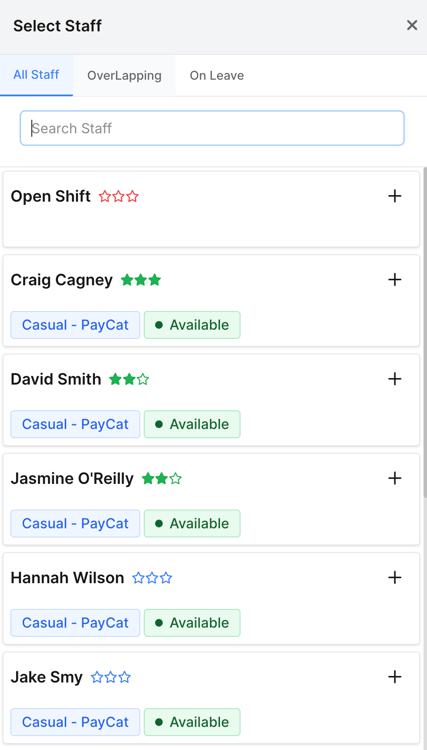
This helps you quickly identify the most suitable staff for the client before assigning the shift.
When you add staff to a shift, staff with a higher suitability for that client are listed higher. Suitability is a guide only: Disallowed staff can still be rostered. To stop a staff member being rostered with a client, set up a Record Affinity rule. See How do I set up Record Affinity rules?
Why Roster Suitability Matters
Roster suitability helps you:
Make better staffing decisions
Respect client preferences
Avoid inappropriate staff–client pairings
Improve consistency and care quality
Reduce rostering errors
You now know how to:
✔ View and edit roster suitability
✔ Understand suitability levels and star ratings
✔ Manually adjust and document suitability
✔ Identify suitable staff when rostering shifts
Roster Suitability gives you greater confidence that the right staff are matched with the right clients, every time.