
Key Points
To apply for leave, open Leave Requests under your name in the top right of the Dashboard, then select Create Leave Request.
On the leave request form, choose the Leave Type, the Leave Area you're assigned to and the Leave Period, and add Notes about why you need the time off.
Use Leave Attachments to attach a medical certificate if required. If it's enabled in your setup, you can also choose a specific Approving Officer.
Click Save and Close to submit the request. You can check its approval status on the main Leave Requests screen.
For questions about the right Leave Type, Leave Area or the status of your request, contact your organisation's HR department.
Creating a leave request
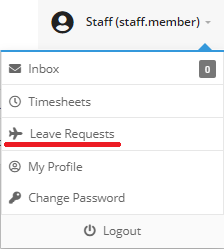
Access “Leave Requests” under your name on the top right hand side of the “Dashboard”.
Select “Create Leave Request” button. From there you will be given a leave request form that you can fill out.
You can also add a leave request from the FlowLogic Workforce app: tap Menu, then My Profile, then Leave Requests. This opens the same leave request page in the app, so the steps are the same as below.
Filling in the leave request form
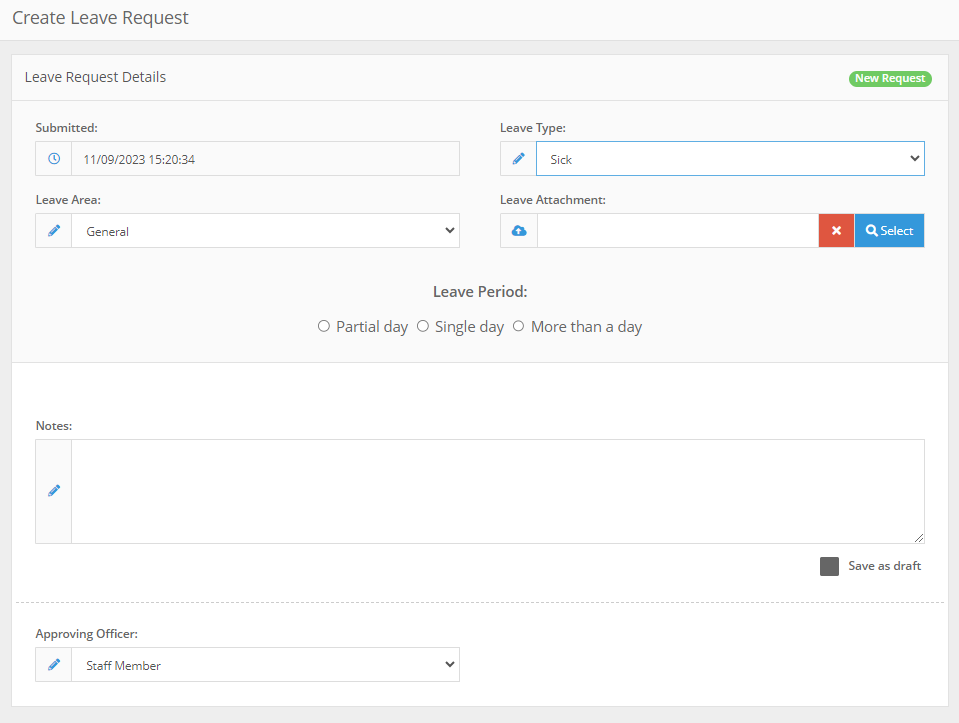
When filling in the leave request form, you will have to select a “Leave Type” as applicable for the leave you are looking to take, the “Leave Area” that you are assigned to, “Leave Period” the amount of time you require off, "Leave Attachments" to attach a Medical Certificate if required, “Notes” a short description about why you require that time off. If required and enabled on your setup of FlowLogic, you can also select a specific “Approving Officer”.
Submitting your request
Once completed, click "Save and Close" and your leave request will be processed by the applicable member of your organisation. You can see this leave requests Approval status through the main Leave Request's screen. For any enquiries regarding the correct Leave Type, Leave Area or any questions regarding the Status of your leave application, please contact your organisation's HR department.