
Key Points
Admins manage user accounts in User Management, opened from the system menu. Here you can create and edit users, allocate Areas and Groups, give a user access by sending a password reset to their email, and allocate their award.
Each user account has sections for User Details, Access Keys, Signature, Groups and Staff Availability.
To change a user's email, go to System Menu > Users, choose Edit User, enter the new Email, click Save User Details and confirm with your own password. The change takes effect once the user clicks the link in the confirmation email.
Each user needs their own email address. Wait until the user has clicked the confirmation link before sending a password reset, because a reset cancels a pending email change.
Every user is automatically in the ALL Group, which holds the basic functions of FlowLogic and can't be removed.
User Management
In User Management, you can create and edit users for the system. This will allow you to allocate areas and groups to specific users, rather than allocating users to a group or area.
Here, you can also give the user access to the system by sending a password reset request to their email. You will also allocate their award here.
You can access the User Management Section in the system menu, as shown below.
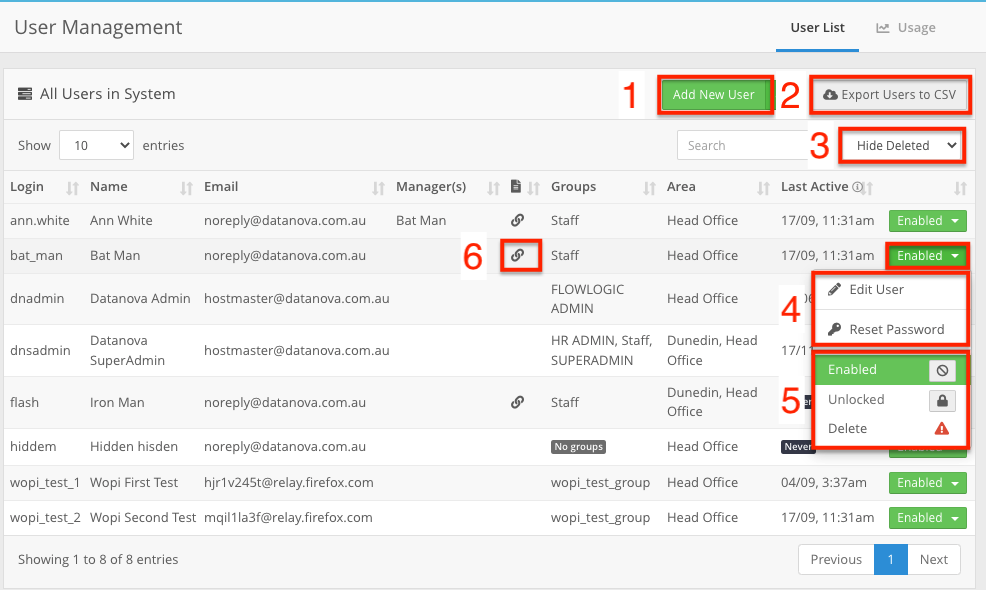
- Add a new User account
- Export the full User list to CSV.
- A filter to hide/show users who have been deleted.
- Edit Users / reset passwords
- Alter the status of the user: Enabled, Blocked or Locked, or Delete. Locked is set automatically after too many failed login attempts - see How do I reset another user's password?
- Indicates whether the user has been linked to a staff record.
User Details
This is where you can find the basic details of the user, as well as their allocated cost category.
Similar to the record sections, the User Account is separated into several tabs. However, these tabs are not editable.
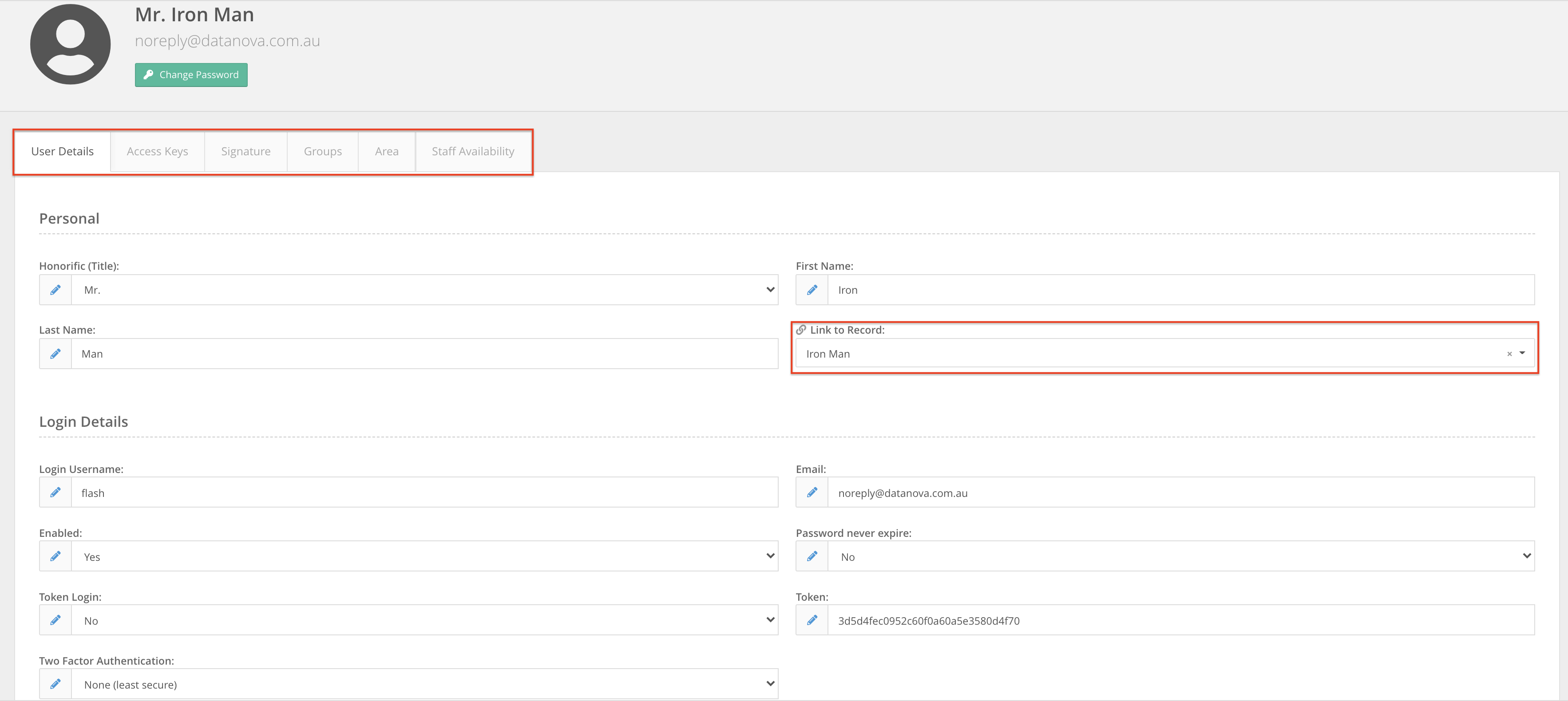
The link to record field will only appear for existing users, so if you are adding in new users you must save the user before this will be visible.
Changing a user's email address
- Go to System Menu > Users, click the Enabled button next to the user and select Edit User.
- Under Login Details, type the new address in Email.
- Click Save User Details.
- In the Confirm Your Password box, enter your own current password and click Save. FlowLogic asks for this whenever you change a user's email, account recovery email, mobile phone or account recovery phone.
FlowLogic sends a confirmation email to the new address. The user's email changes once they click the link in that email. Until then, FlowLogic keeps using the old address.
- Each user needs their own email address. FlowLogic won't save an address another user already has.
- Wait until the user has clicked the link before you send them a password reset. A password reset cancels a pending email change. See How do I reset another user's password?
Access Keys
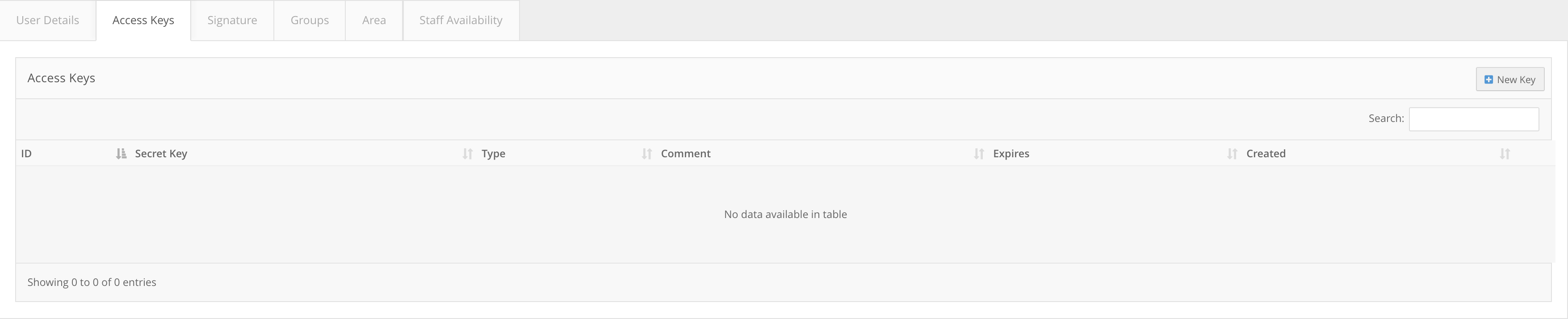
This tab is used for external custom development and unique API connections.
Signature
This will allow you to store a copy of the users signature. This is for reference and will not be used in the system itself.

Groups
The group tab will allow you to add this user to group/s.
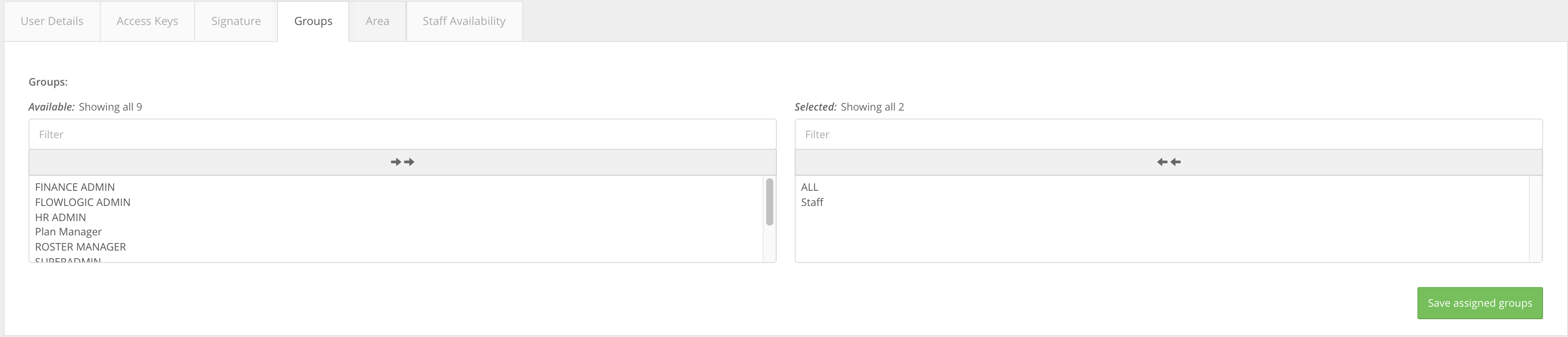
Every user will automatically be part of the ‘ALL’ group. This group holds all of the basic functions of FlowLogic and cannot be removed from a user.
Staff Availability
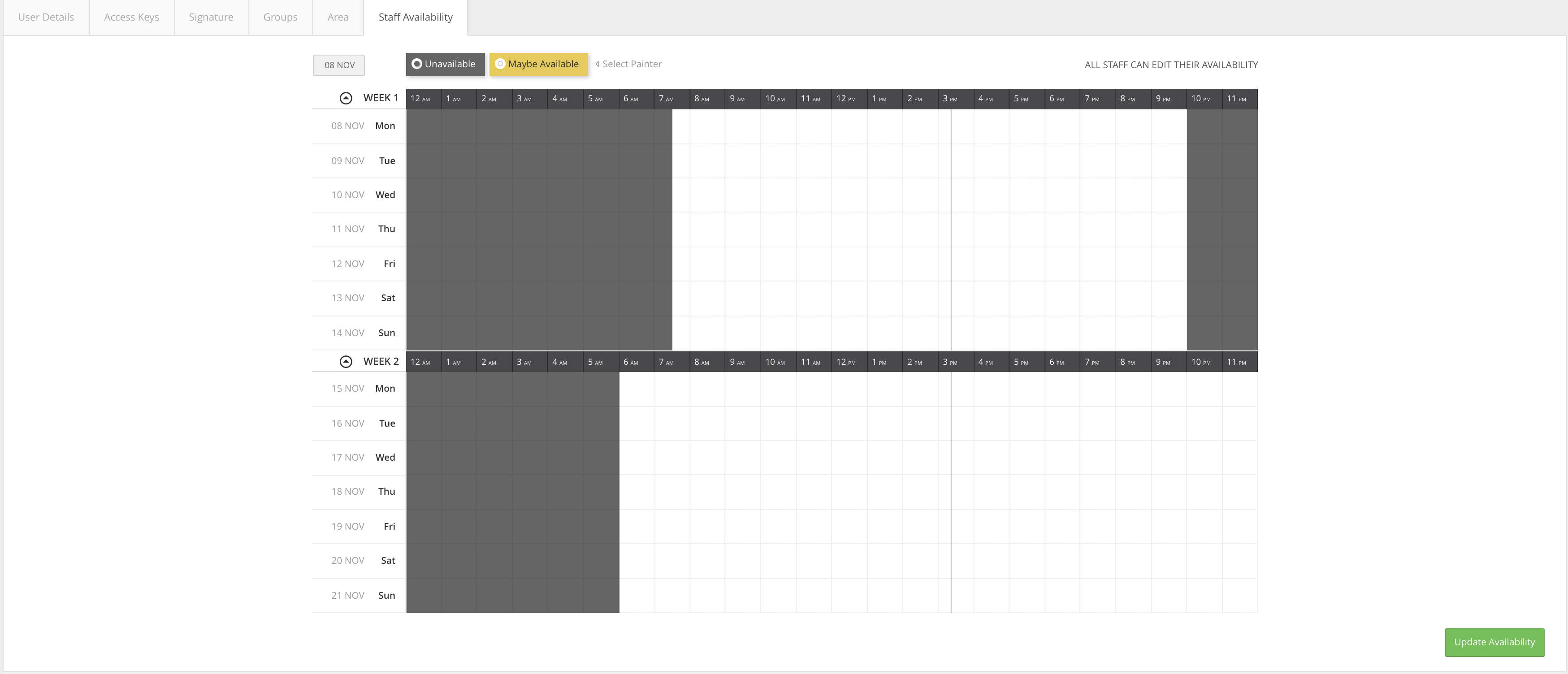
This will allow you to set up the user's recurring availability. This can also be found in the Profile Settings for the user themselves, as well as in the roster.
In the example above, the user is unavailable at set times each day. The pattern keeps repeating until it's changed.