
Key Points
-
A user account (System Menu > Users) controls whether someone can log in. A Staff Profile (their record in the Staff Section) holds their details, forms and history. They're separate, so when someone leaves you usually need to update both.
-
When someone leaves, archive their Staff Profile, then disable their user account. Reassign or delete any future shifts they're still rostered on.
-
Disabling and archiving are the safest options. Their records stay in FlowLogic and you can switch them back at any time.
-
Deleting a user account removes their access to the system. We recommend disabling instead unless you're sure you won't need the account again.
-
No record in FlowLogic is ever permanently deleted. A record marked as deleted can be restored from Record Management.
-
To stop all emails, notifications and SMS messages to someone who has left, archive the Staff Profile, disable the user account and make sure your automations only send to Active staff.
-
To reset a staff member's password or unlock their account, see How do I reset another user's password?
User account vs Staff Profile
Most staff in FlowLogic have two linked parts:
-
User account: found under System Menu > Users. This is their login. It controls their username, password, 2FA, Groups and Areas, and whether they can access FlowLogic and the FlowLogic Workforce app.
-
Staff Profile: their record in the Staff Section. This holds their details, Tabs and Forms, and is what appears as a staff resource on the Roster Schedule.
The user account is joined to the Staff Profile with Link to Record. This link is what lets staff see their roster and lets their timesheets connect correctly. Some users, such as auditors or admin-only users, have a user account with no Staff Profile.
Because they're separate, changing one doesn't automatically change the other. Archiving a Staff Profile doesn't stop the person logging in, and disabling a user account doesn't take them off the roster. You can set up an automation to keep them in step (see Disable the user automatically when a staff member becomes inactive below).
Your options when someone leaves
-
Disable the user account (System Menu > Users): stops them logging in. The account and its settings stay in place. You can enable it again at any time.
-
Set the Staff Profile to Inactive (status label next to their name on the staff record): marks them as no longer active. Reports and automations that filter on Active status leave them out. You can set them back to Active.
-
Set the Staff Profile to Archived (status label next to their name on the staff record): takes them out of active staff lists and is used in place of deleting the record. It also archives their roster resource. Their record and history are kept, and you can change the status back.
-
Delete the user account (System Menu > Users): removes their access to the system. You can restore it later (see Restoring a deleted user below).
For most people who leave, we recommend you archive the Staff Profile first, then disable the user account. This removes their access and tidies up your roster while keeping everything you may need for payroll, audits or a future rehire.
Before you start
Before you remove someone's access, it's worth checking:
-
Final timesheets: approve their last timesheets. Approved timesheets still export after their account is disabled.
-
Future shifts: archiving doesn't remove their future shifts. They stay on the roster with the person still on them, so reassign or delete them yourself.
-
Teams they manage: if they were a team leader or manager, move their team to someone else using the Manage Teams tool.
Disabling a user account
You'll need access to User Management to do this.
-
Click the System Menu (top right) and select Users.
-
Search for the user.
-
Click the green Enabled button next to their name.
-
Click Enabled in the menu to switch it off. The account then shows a red Blocked button.
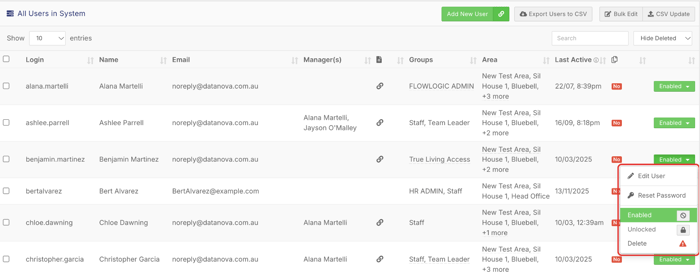
The user can no longer log in. Their user account, Groups, Areas and link to their Staff Profile stay in place.
You can also click Edit User, set Enabled to No on the User Details page, then click Save User Details.
Disable the user automatically when a staff member becomes inactive
If you'd rather not do this by hand each time, you can create a record automation that disables the linked user account when a staff member's status changes.
-
Open Automations (bottom left of the menu) and click the + button to create a new automation.
-
Choose a record automation and give it a clear name.
-
Select your staff details form (for example Staff Basic Information or Staff Basic Details, depending on your setup).
-
Set the trigger to Change Status and choose Archive (or Inactive).
-
Set the action to modify the linked user account and set its status to disabled.
-
Click Save.
You can create a matching automation that re-enables the account when the staff member is set back to Active.
Archiving a Staff Profile
-
Open the Staff Section and click View on the staff member.
-
Click the coloured status label next to their name at the top of the record (for example active). The Change Status window opens.
-
Choose Archive (or Inactive if you want to keep them visible for now) and click Select.
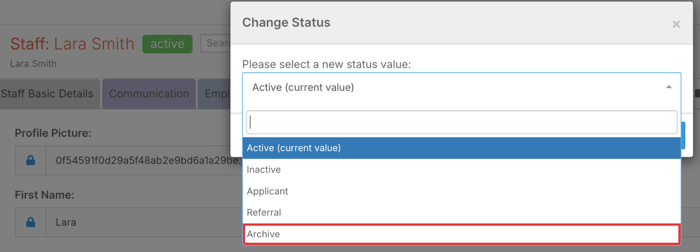
Archiving the Staff Profile also makes their roster resource inactive and archived, so you don't need to change it separately on the Roster Schedule.
Finding archived staff later
In the Staff Section, use the status filter at the top of the list (Only Archive or Only Inactive) to find them. Open their record and change the status back to Active if they return.
What happens to their records
When you disable a user or archive a Staff Profile, nothing is removed. FlowLogic keeps:
-
Their Staff Profile and all its Tabs and Forms, including notes, documents and other secondary records
-
Their shifts on the Roster Schedule
-
Their timesheets, which stay in Timesheet Management
-
Records they created or edited for clients, such as progress notes and case notes. Disabling their account doesn't change these.
If you delete a user account
Deleting a user account stops them logging in and removes them from staff dropdown lists. It doesn't delete their Staff Profile, which is a separate record, but the link between the two is no longer used. Records connected to the user are hidden rather than destroyed, and come back if you restore the user. Their shifts stay on the roster.
Because the effects of deleting aren't easy to reverse, we recommend you disable the account instead. If you do need to delete it:
-
Go to System Menu > Users and search for the user.
-
Click the green Enabled button and select Delete at the bottom of the menu.
-
Read the pop-up, then click Yes to confirm.
If you delete a Staff Profile
Records are deleted from Record Management (top right, next to the logs and System Menu), not from the Staff Section. Marking a Staff Profile as deleted:
-
Hides it from the Staff Section list
-
Also marks all of its secondary records as deleted
-
Doesn't permanently remove anything. You can restore it at any time.
For staff who have left, archiving is usually better than deleting. Archived staff are still easy to find from the Staff Section, while deleted records can only be found in Record Management.
Restoring a user or record
Re-enabling a disabled user
-
Go to System Menu > Users and search for the user.
-
Click the red Blocked button and select Edit User.
-
Set Enabled to Yes and click Save User Details.
-
Check their Groups and Areas are still correct. If they've forgotten their password, see How do I reset another user's password?
Restoring a deleted user
-
Go to System Menu > Users.
-
Change the filter at the top right from Hide Deleted to Show Deleted.
-
Find the user, click their Deleted button and select Restore User.
Restoring a deleted record
-
Open Record Management (top right).
-
Select Primary Records and search for the record by name or UID. Use the deletion status filter to show deleted records.
-
Click Edit on the record.
-
Set Primary Record Deleted back to No and save. This also brings back the records linked to it.
To restore a single secondary record (such as one form entry), use the All Records tab instead.
Archived staff still showing in reports
If staff who have left are still showing as active in a report, check the following:
-
Their Staff Profile status: disabling the user account doesn't change their staff status. Open their record and make sure it's set to Inactive or Archived.
-
The report's status filter: edit the report and add a status filter so it only includes Active staff.
-
Older secondary records: add the Latest SID filter if you only want each staff member's most recent form entry.
See How do I create a report? for more on report filters.
Archived staff still getting reminders
Reminder emails, SMS and notifications usually come from automations. They stop once you archive the Staff Profile, disable the user account and make sure your automations only send to Active staff. Check:
-
Record automations (for example expiry reminders for police checks or first aid): add an If condition of Staff Status = Active so only active staff are notified.
-
Scheduled reports: if the person is a recipient of a report automation, remove them from the recipient list.
-
Roster and timesheet automations: add a staff status condition so they only send to Active staff.
-
Their Staff Profile and user account: check the Staff Profile is archived and the user account is disabled (it shows a red Blocked button).
If you're not sure which automation is sending the reminder, check the Mail Logs to see what was sent, then look for the matching automation in Automations.