
Key Points
Mail Logs track all emails sent from FlowLogic.
Provides full visibility into:
- Sent emails
- Recipients
- Delivery status
Useful for:
- Troubleshooting
- Auditing communications
- Validating automations
Detailed logs include message content, attachments, and metadata.
What Are Mail Logs?
Mail Logs store a complete record of every email sent from FlowLogic.
They allow you to:
- Confirm emails were sent
- Review message content
- Audit system communications
This makes them an essential tool for support, compliance, and troubleshooting.
How to Access Mail Logs
To access Mail Logs: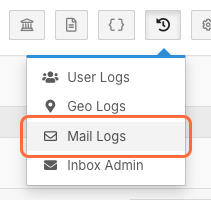
- Go to Logs (top right menu)
- Select Mail Logs
This opens a full list of all sent emails.
Navigating the Mail Log List
The main screen displays a table of all email activity.
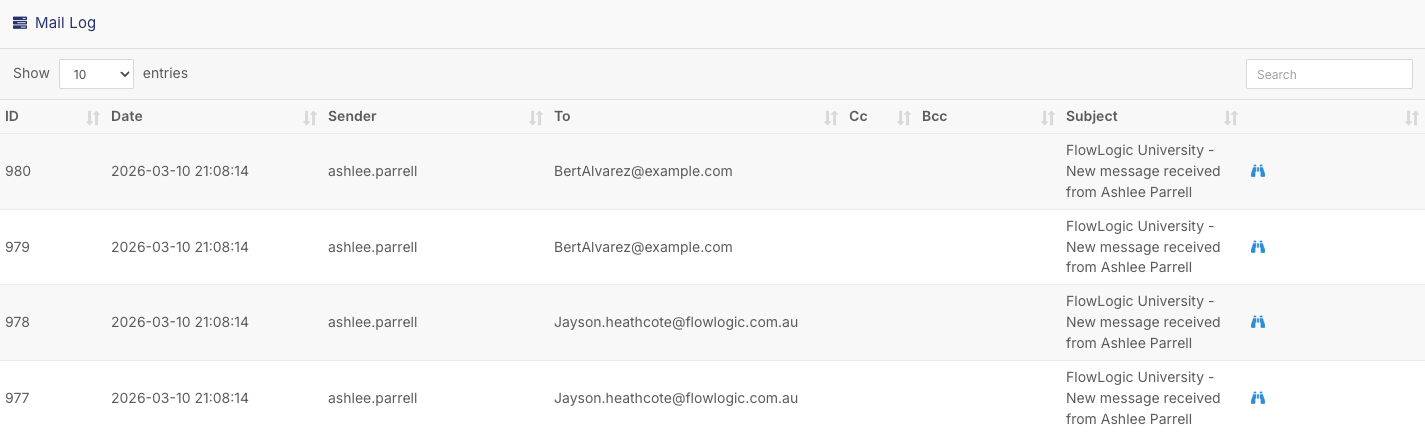
Available Controls
Entries Per Page
- Adjust how many records are shown
Search Bar
- Quickly find specific emails
- Search by subject, sender, or recipient
Understanding the List View
Each row represents a single email sent from the system.
Key Fields in the Table
Log ID
- Unique identifier for the email
Date Sent
- When the email was triggered
Sender
- Who sent the email
Recipient (To)
- Primary recipient
CC / BCC
- Additional recipients
Subject Line
- Email title
This view provides a quick overview of communication activity.
Viewing Detailed Email Logs
To view full details:
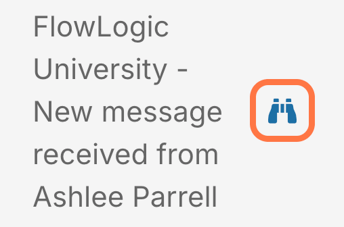
➡️ Click the binoculars icon on the right-hand side
Detailed Information Includes
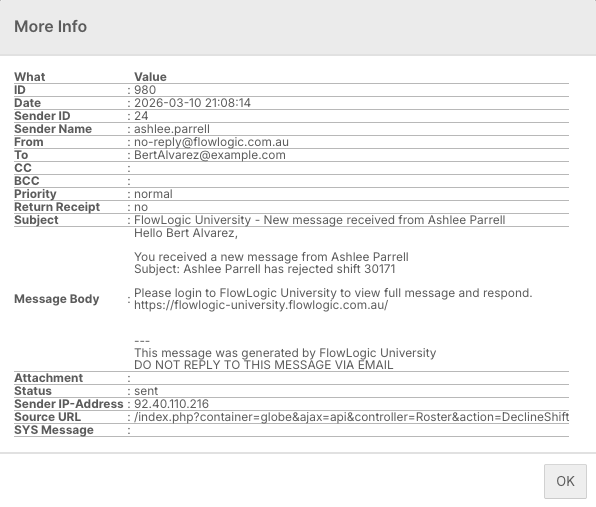
Message Details
- Subject
- Full email body
- Attachments
Sender Information
- Sender ID
- Sender name
- Sender email
Recipient Information
- To
- CC
- BCC
Technical Data
- Delivery status
- Sender IP address
- Source URL
- System message
This level of detail allows for complete audit visibility.
Delivery Status & Troubleshooting
One of the most important fields is:
Delivery Status
What It Helps With
✔ Confirm if an email was sent successfully
✔ Identify failed or undelivered emails
✔ Diagnose communication issues
Common Scenarios
User didn’t receive an email
- Check if it was sent
- Confirm the correct email address
- Review delivery status
Automation not working
- Check if email triggered
- Verify timing and conditions