
Key Points
FlowLogic notification emails come from three places: leave request notifications, roster notification settings (open shifts and shift reminders) and automations your organisation has set up.
Leave request notifications go to the people who manage leave. Your system can be set so each manager only sees and is notified about their own team's leave, based on Managed Teams.
Open shift and shift reminder notifications are switched on or off in the roster notification settings. Contact our Support team to change these.
To notify staff when a shift is published or changed, or to send any other custom email, use a Roster Automation.
If someone who has left still gets emails, archive their Staff Profile, disable their user account and make sure your automations only send to Active staff. Also remove them from Managed Teams and Groups, and check any automations that name them as a recipient.
Use Mail Logs to see exactly who an email was sent to and whether it was delivered.
The FlowLogic Workforce app doesn't send push notifications for shifts. Shift notifications come by email, SMS or the FlowLogic Inbox.
Where notification emails come from
Before you change who receives an email, work out what sent it. Most notification emails in FlowLogic come from one of these sources:
Leave requests: emails to approvers when leave is submitted, and to staff when their request is approved, declined or returned.
Roster notification settings: open shift notifications and shift reminders sent to staff.
Automations: Record, Roster, Timesheet and Report Automations your organisation has built. These can send an email, SMS or internal notification to individual staff, Groups or roles such as the employee on the roster.
The quickest way to find the source is to check Mail Logs.
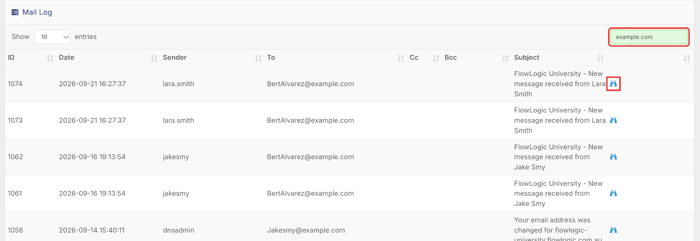
Go to Logs in the top right menu and select Mail Logs.
Search by subject, sender or recipient to find the email.
Click the binoculars icon on the right of the row to see the full message, the recipients (To, CC and BCC) and the delivery status.
The subject line and message usually tell you whether it came from a leave request, a roster setting or an automation. If it matches the name or message of one of your automations, you'll find it in the Automations section.
Leave request notifications
Who is told when someone applies for leave
When a staff member submits a leave request, FlowLogic notifies:
The Approving Officer, if your system lets staff select one on the leave request. This field may be optional or mandatory, depending on your setup.
The staff member's manager, if they're set up in Managed Teams. Managed Teams send the leave notification directly to the assigned manager instead of everyone who can manage leave.
Everyone in a Group with access to Leave Management. If your system is set to use team managers, only the staff member's own manager (set in Managed Teams) is notified, and managers only see their own team's leave. Contact our Support team to turn this on.
Leave notifications appear in the FlowLogic Inbox and notification bar. Your system can also send the approver an email letting them know there's a new message. Contact our Support team to change this.
We are not told when someone applies for leave
If no one is being notified about new leave requests, check these in order:
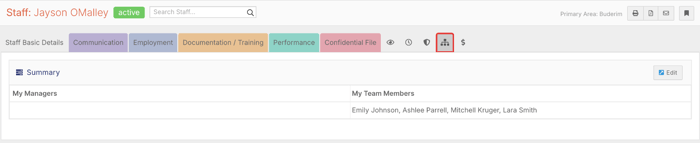
Open the staff member's profile in the Staff Section and click the Manage Teams icon (the org chart icon under the record's tabs). Check that someone is listed under My Managers.
If your system uses an Approving Officer, check the leave request to see who was selected.
Check that the manager's user account has the correct email address. Go to the System Menu, select Users and open their user details.
Check Mail Logs to see if an email was sent and where it went.
If nothing was sent, contact our Support team to check your leave notification settings.
How staff are told their leave was approved
When the status of a leave request changes, the staff member who submitted it gets a notification. They can see it in their FlowLogic Inbox by clicking their profile menu in the top right corner and selecting Inbox. Depending on your settings, they may also get an email. Contact our Support team if you want to change this.
Change who approves and is notified about leave
The easiest way to direct leave notifications to the right person is with Managed Teams. You need the Teams Manage permission to make changes.
Go to the Staff section and open the staff member's profile.
Click the Manage Teams icon (the org chart icon under the record's tabs).
Click Edit in the top right.
Assign or change the manager, or add or remove team members.
Save your changes.
If a manager is away for a long time, transfer their team so leave notifications go to someone else.
Edit the Managed Team.
Select Switch to Transfer.
Choose the new manager.
Save your changes.
Shift and roster notifications
Open shifts and shift reminders
FlowLogic has roster notification settings that can:
Notify eligible staff when a new open shift is available.
Send staff a reminder before their scheduled shift.
Each of these has its own message. To turn either notification on or off, or change the message staff receive, contact our Support team.
Notify staff when a shift is published or changed
Publishing a shift makes it visible on the staff member's roster in FlowLogic and the FlowLogic Workforce app. Publishing doesn't email staff by default, and the FlowLogic Workforce app doesn't send a push notification.
If you want staff to receive an email, SMS or internal notification when a shift is published or changed, set up a Roster Automation.
Go to the Automations section. It's at the bottom of the left-hand menu.
Click the Plus (+) button in the top right corner.
Choose Roster Automation.
Give the automation a clear name, for example "Shift Published".
Add any conditions, for example Shift is Published.
Choose the action, for example Send Email, Send SMS or Send Internal Notification.
Set the recipient to Employee on the roster. You can also add supervisors, team leaders or coordinators.
Choose a sender, then enter the subject and message. You can add dynamic fields such as the staff name and shift date.
Click Save.
Keep automations to the notifications your team really needs. Too many alerts can lead to staff ignoring them.
Change who receives automation emails
If an automation is sending emails to the wrong people, edit its recipients. You need access to the Automations section. If you can't see it, ask your administrator.
Go to the Automations section.
Expand the automation to view its conditions and actions.
Edit the rule and update the recipients. Recipients can be people linked to the record or shift (such as the Record Holder or the employee on the roster), specific users or Groups.
Save the automation.
If the automation sends to a Group, everyone in that Group gets the email. To stop one person getting it, remove them from the Group or change the recipient.
To stop an automation sending emails altogether, edit it and set it to Disabled, or remove it.
Click Logs in the top right corner of the Automations page to see when each automation ran and what it did.
Stop emails to staff who have left
If a staff member who has left is still getting emails, work through these steps.
1. Archive their Staff Profile
Automations send to the email address on the person's Staff Profile, not their user account. Open their record in the Staff section, click the status label next to their name, choose Archive and click Select.
2. Disable their user account
Click the System Menu in the top right and select Users.
Search for the user.
Click the green Enabled button and click Enabled in the menu to switch it off. The account then shows a red Blocked button.
Disabling the account stops the person logging in. Only delete the user if you're sure you no longer need the account.
3. Remove them from teams and Groups
If they managed a team, transfer their team to a new manager in Managed Teams so leave notifications go to the right person.
If they were a team member, remove them from their manager's team.
Remove them from any Groups that automations send to.
4. Check automations
Check whether any automation sends to them by name and update the recipients.
Add a condition to your automations that the staff status is Active. With the Staff Profile archived and the user account disabled, this stops emails, notifications and SMS messages being sent to them.
5. Confirm in Mail Logs
Leave the email address on their account as it is. Search Mail Logs for it. This shows which emails are still being sent to them and helps you find the source.
Stop these emails
Use this quick guide to stop or change a notification email.
Leave request emails to approvers or staff: update Managed Teams, or contact our Support team to change the leave notification settings.
Open shift or shift reminder emails: contact our Support team to turn these off or change the message.
Emails from an automation: edit the automation's recipients, or set the automation to Disabled.
Emails to someone who has left: archive their Staff Profile, disable their user account and follow the steps above.
If you can't tell where an email is coming from, find it in Mail Logs and send the details to our Support team.