
Key Points
Shifts must be published before staff can see them.
A hollow star on a shift tile means the shift is not published.
A solid coloured star means the shift is live and visible to staff.
You can publish shifts:
In bulk for the entire schedule
Using Bulk Actions for more control
Individually at the shift level
Bulk Actions allow publishing specific shifts, staff, or date ranges.
Identifying Unpublished Shifts
When viewing the roster:
A hollow (unfilled) star in the corner of a shift tile indicates the shift is not published.
A solid coloured star indicates the shift has been published and is visible to staff.
Staff will only see their assigned shifts once they have been published.
Publishing the Entire Schedule
Bulk Publish Schedule Button
This is the most common method.
Go to the roster view.
Click Bulk Publish Schedule in the top right-hand corner.
Confirm the action.
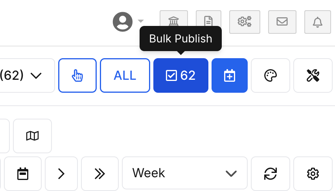
All shifts in the currently viewed week or fortnight will be published.
You will see the star icons change to solid coloured stars, confirming they are live.
Bulk Actions Tool
The Bulk Actions tool provides more flexibility.
Click the Multi-select Tool (hand icon) at the top right of the roster, then select the shifts. Click All to select every shift in the current view.
Click the Bulk Action button (lightning bolt).
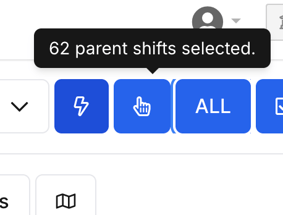
Choose Publish (or Unpublish) and click Apply.
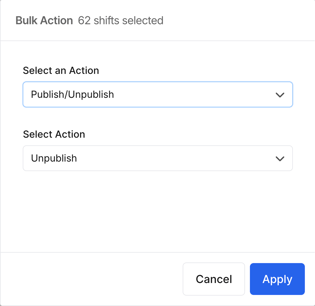
This allows you to:
Publish the entire schedule
Publish selected shifts only
Publish specific date ranges
Publish shifts for certain staff members
This method is useful if you don’t want to release the full schedule at once.
Publishing Individual Shifts
Publish a Single Shift
You can also publish shifts individually.
To do this:
Open the shift details (or right-click the shift tile).
Scroll to the bottom of the shift panel.
Select Publish Shift.
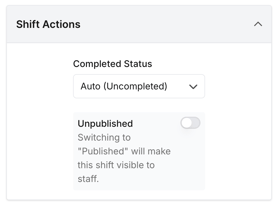
Save the shift.
Only that specific shift will be published.
Unpublishing Shifts
Using Bulk Actions, you can also choose to Unpublish shifts if changes need to be made before they are visible to staff.
You now know how to:
✔ Identify unpublished shifts
✔ Bulk publish an entire schedule
✔ Use Bulk Actions for flexible publishing
✔ Publish individual shifts
✔ Unpublish shifts if required
Understanding publishing options ensures staff only see shifts when they are ready, helping maintain clear communication and roster accuracy.