
Key Points
The Roster Schedule controls all staff and client scheduling.
Access and visibility depend on your user permissions.
You can view the roster by Staff or Client.
Filters, views, and tools help you manage large schedules efficiently.
Bulk tools, templates, and admin options streamline planning.
The roster is configurable to suit your workflow.
Accessing the Roster
Go to the Section Menu on the left-hand side and select Roster Schedule (usually near the bottom).
The roster window will load. If you manage a large number of shifts, it may take a moment.
What you see on screen depends on your permissions. Some users will see fewer tools to maintain security and simplicity.
Switching Between Staff and Client Views
By default, you may land in Staffing View.
Use the toggle in the top left to switch between:
Staff View
Client View
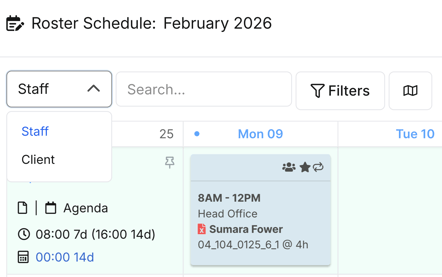
Both views show the same shifts, just from different perspectives.
You can set your preferred default view in My Profile.
Searching and Filtering
Search Bar
Use the search field to quickly locate staff or clients by typing a few letters.
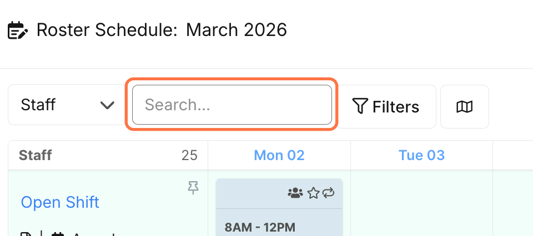
Filters
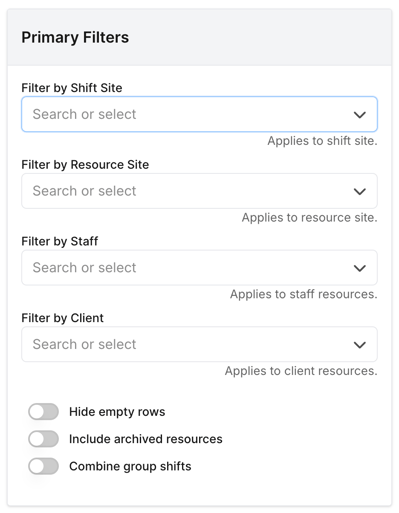
Filters allow you to narrow down what is visible.
You can filter by:
Shift site
Resource site
Staff
Client
Additional toggles include:
Hide empty rows
Include archived resources
Combine group shifts
Quick Filters
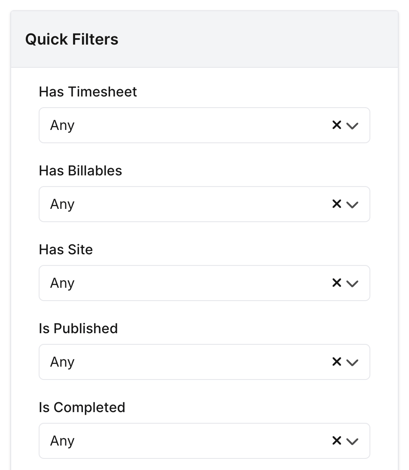
Quick filters allow you to highlight:
Billable shifts
Published shifts
Cancelled shifts
Shifts with notes
When active, filters remain on until manually turned off.
The filter button will turn blue to indicate active filters.
Navigation and Date Controls
You can navigate through the roster using:
Forward and backward arrows (week or fortnight)
Date picker (jump to specific date)
Today button (return to current date)
Roster Views
You can switch between multiple layout views:
Daily View
Weekly View
Fortnight View
Overlapping Views
Gantt Daily View
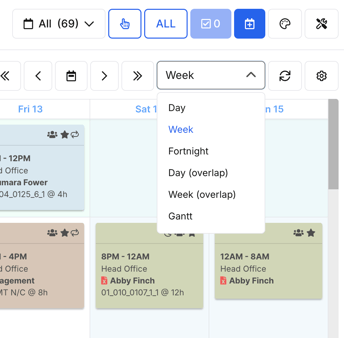
Each view works for both staff and client perspectives.
You can also set your default roster view in My Profile.
Refresh and Roster Modules
Refresh Button
The roster refreshes automatically, but you can manually refresh if needed.
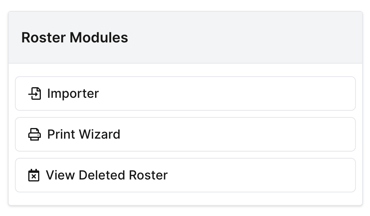
Modules and Tools
To the right of refresh, you will find:
Roster Importer – import shift templates
For more information on the Roster Importer, click herePrint Wizard – print the current roster view
Deleted View – restore deleted shifts
Display Preferences
Display preferences allow you to customise the roster appearance.
You can:
Hide shift colours
Hide sites
Hide billing information
Adjust font size
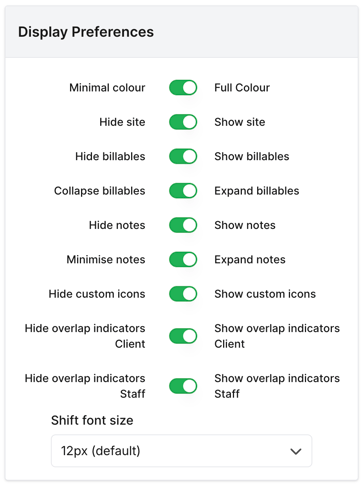
Display preferences remain active until changed and apply to printed versions.
Bulk Tools and Templates
Bulk Select Tool
Allows you to:
Select multiple shifts
Perform actions in bulk (publish, unpublish, update)
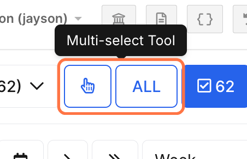
Bulk actions only apply to visible shifts, meaning active filters will limit selection.
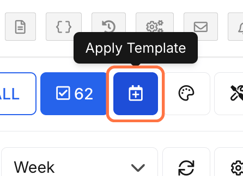
Apply Template
Insert pre-built shift templates directly into the roster.
Palette Manager
Manage colour coding for shift types.
Colour coding improves visual clarity.
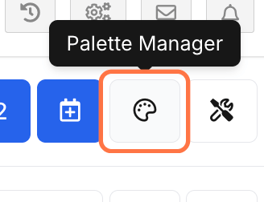
For more information on the Palette Manager, click here
Admin Tools
The Admin Tools section includes:
Roster Overview – compare each staff member's rostered hours with their contract. See How do I check my team's rostered hours against their contracts?
Clock On/Off Status – real-time attendance
Resources Page – view all staff resources
For more information on Roster Resources, click hereTemplates – manage roster templates
For more information on Templates, click hereSchedules – create schedules and assign shifts to them
For more information on Schedules, click herePublic Holidays – maintain holiday dates
For more information on Public Holidays, click here
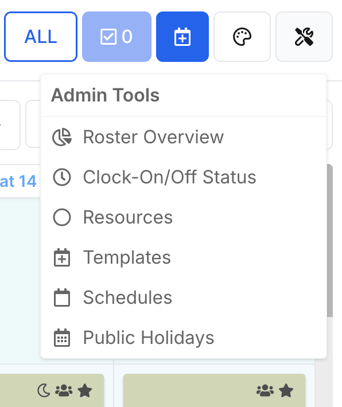
These features support deeper roster management and compliance.
Staff & Client Resource Panel
On the left-hand side, you’ll see staff or client names.
Clicking a name allows you to:
View availability
Check suitability
Access agenda view
The details window has a tab for each area:
Staff: Staff Details (resource area, the linked staff record and user, and Hourly Rate, which is the staff member's cost category), Staff Availability, Client Suitability, Contracted Hours and Staff Communication. Click Update Staff to save changes.
Clients: Details, Roster of Care (RoC) if it's switched on, Colour, Staff Suitability and Contracted Hours. Click Update Resource to save changes.

The page icon under a name opens that person's staff or client record.
Agenda View
Provides a compact list version of shifts.
Available in:
Daily
Weekly
Fortnightly
Monthly view
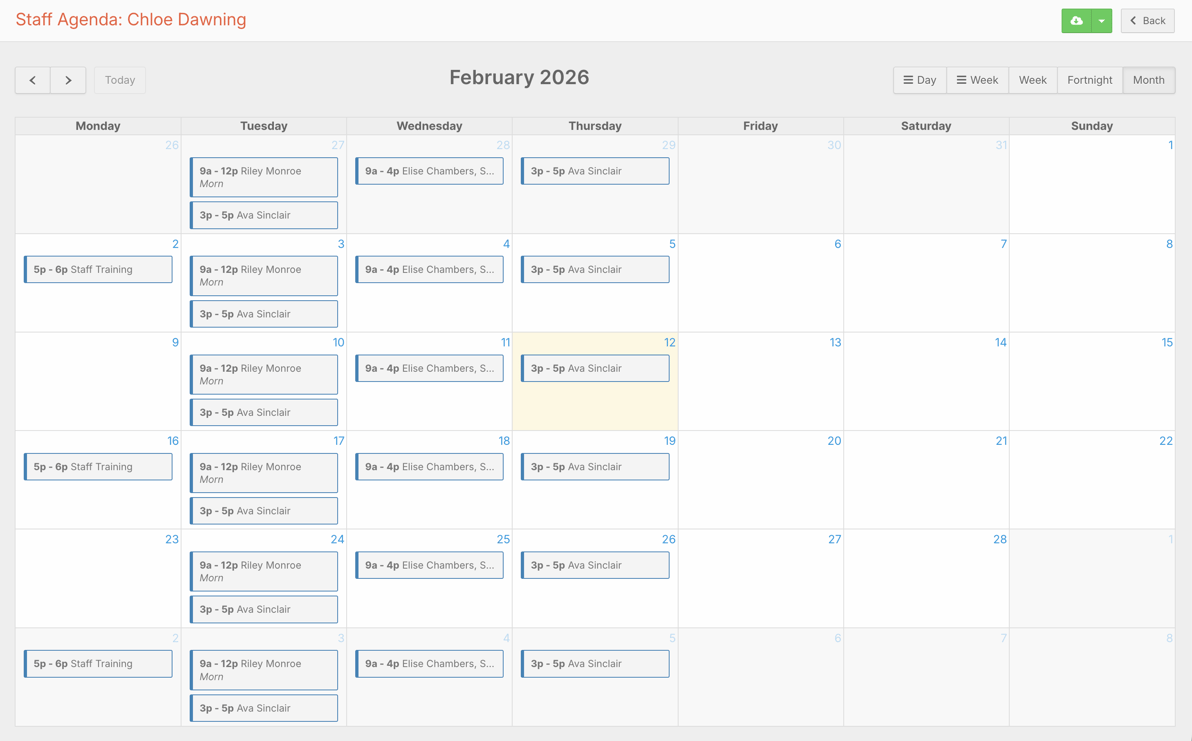
Can be downloaded as a PDF.
Scheduled vs Contracted Hours
Under each name, you’ll see:
Scheduled hours
Contracted hours
Click the contracted hours to view contract details.
Scheduled hours count active hours only. Sleepover (inactive) hours, Free shifts and leave aren't included, and overlapping time is only counted once. To compare hours across your team, see How do I check my team's rostered hours against their contracts?
Shift Management
Clicking on a shift opens the Shift Modal, where editing and management occur.
You can also:
Pin important shifts (e.g., open shifts)
Keep key shifts visible while resolving roster gaps
To repeat a shift on a regular pattern, see How do I repeat a shift and change or end a repeating series?
You now understand:
✔ How to navigate the roster
✔ How to switch between staff and client views
✔ How to search, filter, and customise your view
✔ Where to find Bulk edit tools and templates
✔ Where to find admin tools and reporting features
The roster is one of the most powerful tools in FlowLogic.
With practice, it becomes faster, clearer, and easier to manage complex scheduling needs.