
Key Points
The Colour Palette Manager controls all colours used in the roster.
Colours can be used to visually organise shifts and improve roster readability.
Administrators can create custom colours, manage cancellation colours, and edit system colour labels.
Each colour can be assigned a priority level, which determines how colours display on group shifts.
Colours can be applied directly to shifts from the Shift Details screen.
Accessing the Colour Palette Manager
The Colour Palette Manager is accessed through the Roster Administration tools.
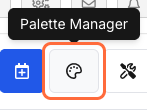
To open it:
Navigate to the Roster Schedule.
Open the Admin menu.
Select Palette Manager.
This will display the full list of colours currently available in the roster.
Understanding Palette Sections
The Colour Palette Manager contains three main sections: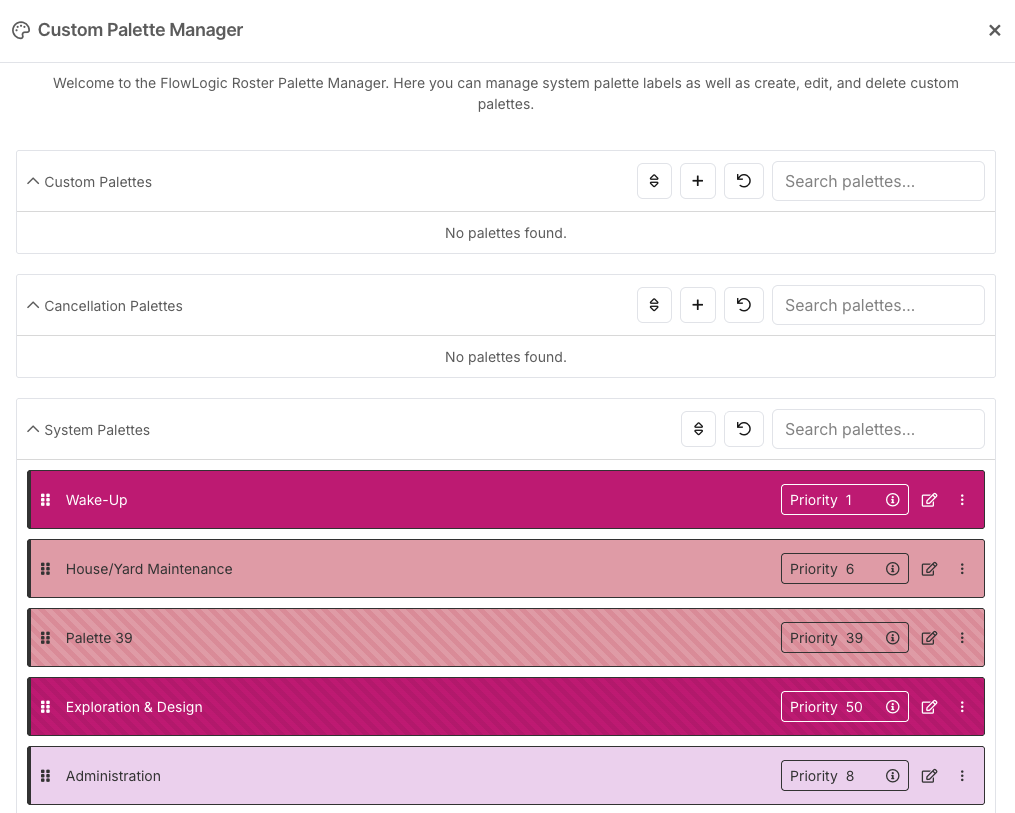
Custom Palettes
Cancellation Palettes
System Palettes
Each section controls a different aspect of how colours are used within the roster.
Custom Palettes
Custom palettes allow you to create new colours for use on shifts.
These colours can help visually organise the roster and highlight specific types of work.
Examples include:
Training shifts
Admin shifts
Special projects
Team assignments
Creating a Custom Colour
To create a new custom colour:
Click the Plus (+) button under Custom Palette.
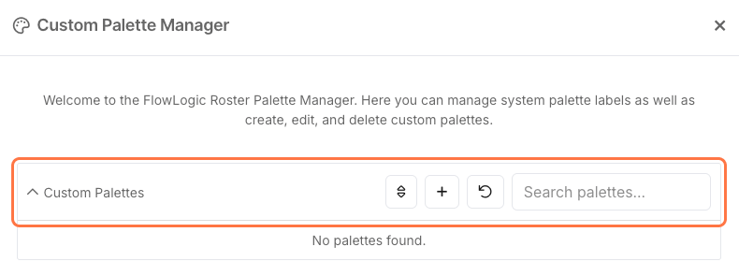
Use the colour selector to choose a colour.
You can either:
Select a colour by dragging within the colour box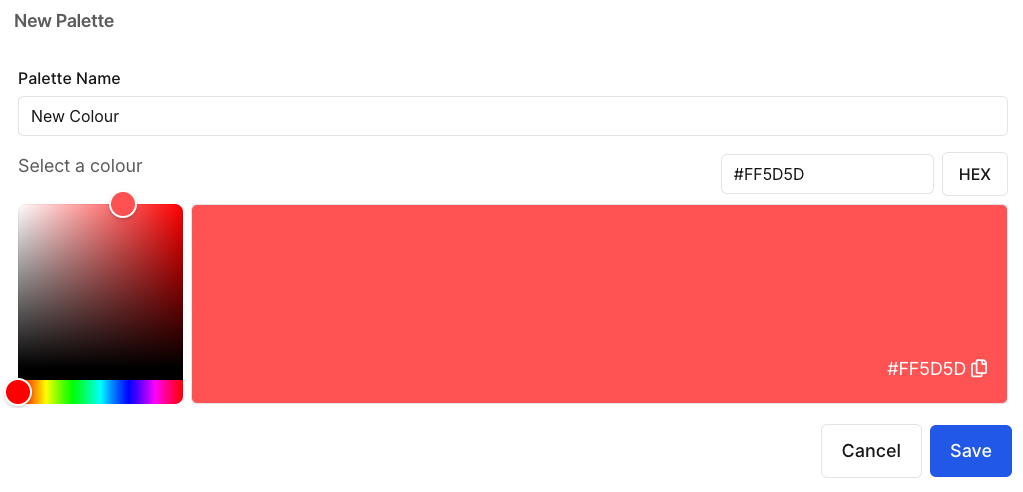
Or enter a specific HEX or RGB colour code


Give the colour a clear name.
Click Save.
The new colour will now appear in the Custom Palette list.
Managing Cancellation Colours
The Colour Palette Manager also allows you to customise colours used for shift cancellations.
Cancellation colours help rostering teams quickly identify why a shift was cancelled.
To add a cancellation colour:
Click the Plus (+) button under the Cancellation Palette section.
Select a colour.
Assign it to a specific cancellation reason.
FlowLogic includes five different cancellation reasons.
For consistency, it is recommended to assign colours to all cancellation types so that cancelled shifts can be easily identified in the roster.
System Palette Colours
FlowLogic includes a default set of system colours.
These colours are automatically available in the roster.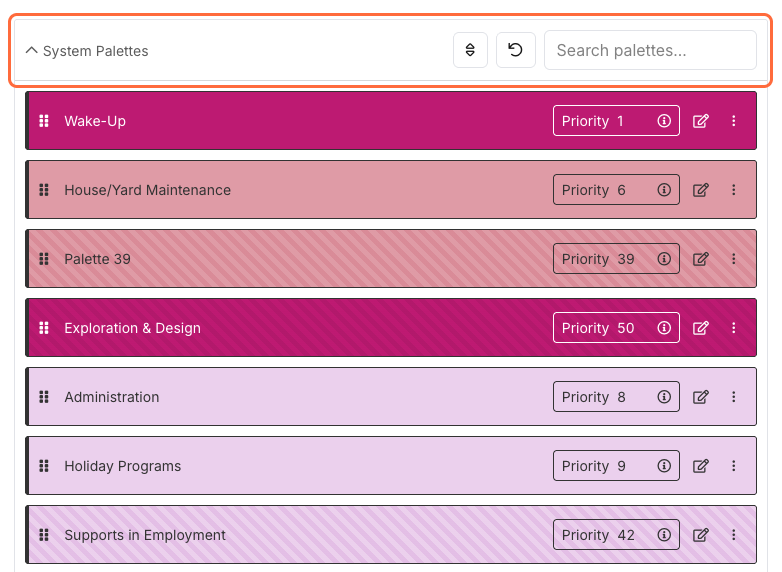
While system colours cannot always be removed, they can be customised in several ways.
Administrators can:
Rename colour labels
Set default shift colours
Copy colour codes for reuse
Renaming colours can make them easier for rostering staff to understand and apply consistently.
Colour Priority
Each colour has a priority value.

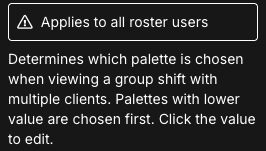
Priority determines which colour appears when multiple colours apply to a single group shift.
For example, if a shift includes multiple clients with different colours assigned, the system will display the colour with the highest priority.
Priority works using numeric values.
Colours with lower numbers take precedence over colours with higher numbers.
Administrators can adjust priority by editing the value next to each colour.
Applying Colours to Shifts
Once colours are configured, they can be applied directly to shifts.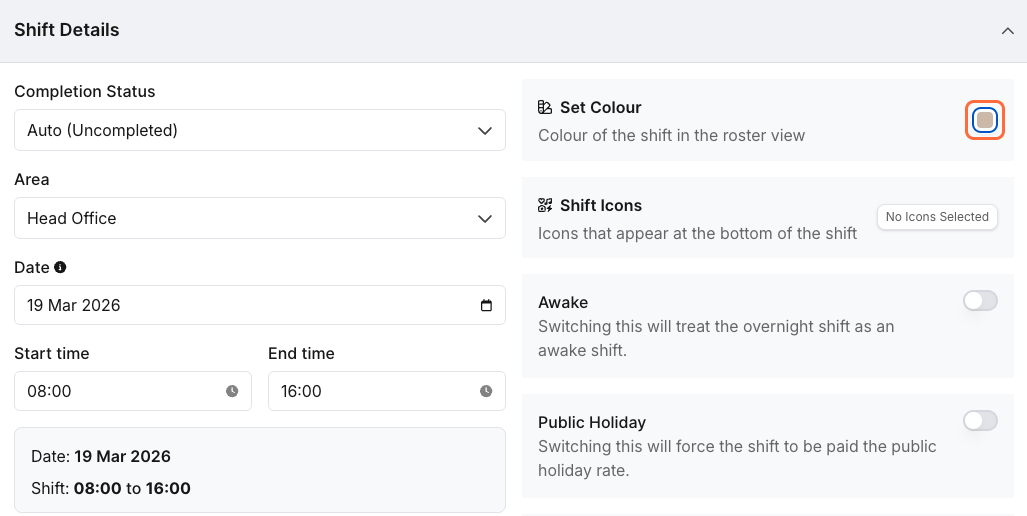
To apply a colour:
Open a shift in the Roster Schedule.
Enter the Shift Details screen.
Locate the Colour toggle or colour selector.
Choose a colour from the palette.
The selected colour will now appear on the shift in the roster.
This allows shifts to be visually categorised for easier management.
Setting a Default Colour for a Client
Switch the roster to Client view and click the client's name.
Open the Colour tab.
Tick the colour you want for this client.
Click Update Resource.
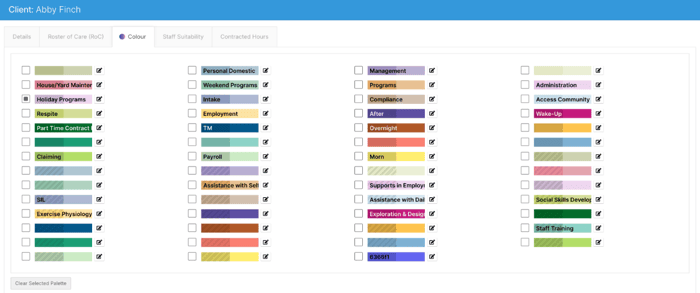
Shifts with this client use the colour unless the shift has its own colour set. To remove the client's colour, click Clear Selected Palette and then Update Resource.
Best Practice Recommendations
✔ Create colours for commonly used shift categories
✔ Keep colour names clear and descriptive
✔ Assign colours to all cancellation reasons for consistency
✔ Use colour priority carefully for group shifts
✔ Avoid creating too many colours to maintain clarity