
Key Points
Schedules allow you to create filtered views of the roster.
They help organise shifts by program, team, service type, or operational group.
Schedules can be created, edited, or deleted in the roster administration tools.
Shifts can be assigned to schedules directly within the shift details screen.
The Schedule filter allows managers to quickly switch between roster views.
Understanding Roster Schedules
Schedules provide a way to create different perspectives of the same roster.
Instead of viewing every shift in one large roster, schedules allow organisations to segment shifts into manageable views.
Common examples include:
Vehicle schedules
Service type schedules
Department schedules
Program schedules
Team-based schedules
This makes it easier to manage large rosters by focusing on the specific shifts relevant to a particular group or function.
Accessing Schedule Management
Schedules are managed through the Roster Administration menu.
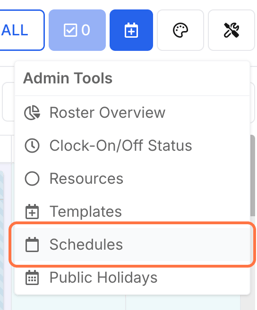
To access this section:
Open the Roster Schedule.
Click the Admin menu in the top-right corner.
Select Schedules.
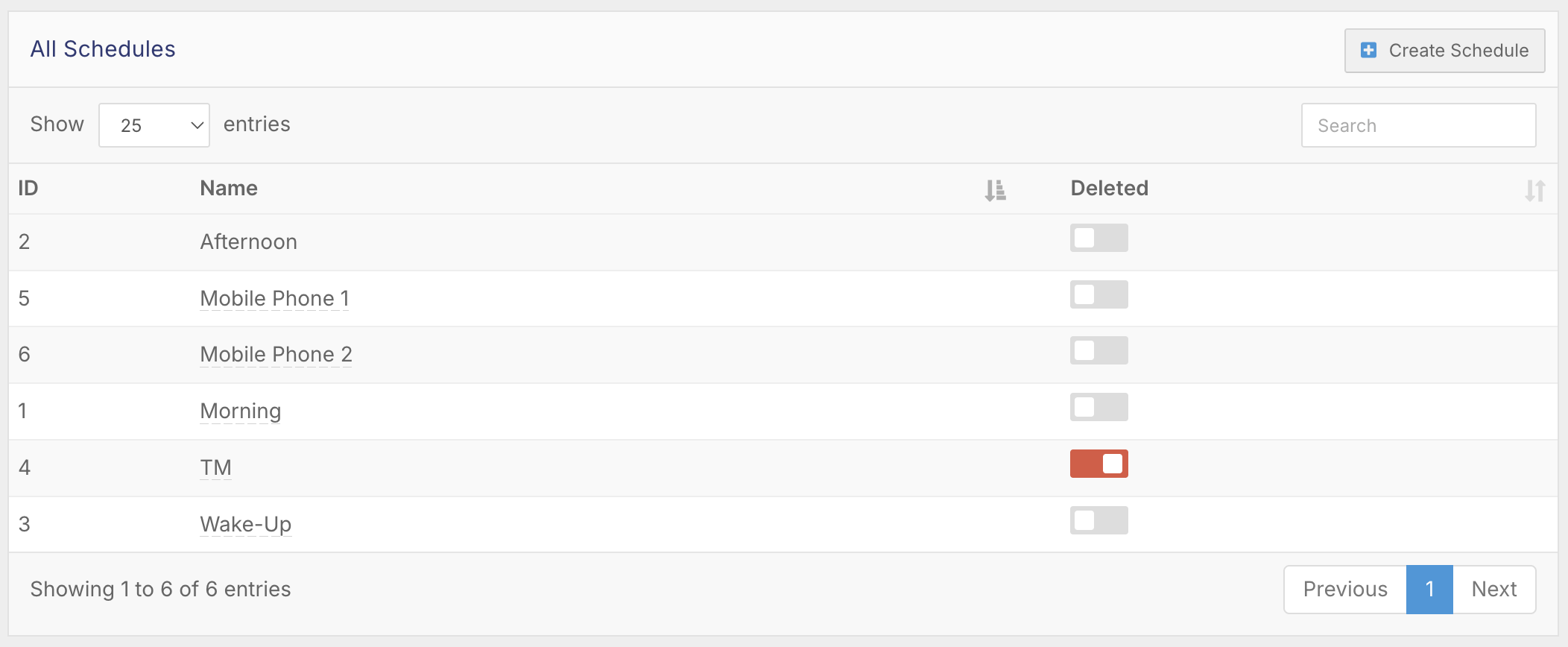
This opens the Schedule Management screen, where all existing schedules are listed.
Viewing Existing Schedules
The Schedule Management screen displays all schedules currently configured in the system.
From this screen, administrators can:
View all available schedules
Edit existing schedules
Delete schedules that are no longer required
To update a schedule:
Click on the schedule name and adjust the settings as needed.
To remove a schedule:
Use the delete toggle on the right-hand side.
Creating New Schedules
New schedules can be created to support different operational views of the roster.
This is particularly useful when organisations want to manage rostering across:
Different departments
Different service programs
Separate operational teams
By creating multiple schedules, managers can switch between roster views quickly and efficiently.
Create a Schedule
Click the Admin Tools menu (spanner icon) in the top right corner of the roster and select Schedules.
Click Create Schedule in the top right corner.
Enter a name for the schedule and save it.
Delete or Restore a Schedule
To delete a schedule, switch on the Deleted toggle next to it. The schedule stays in the list, so you can restore it later by switching the toggle off again.
Assigning Schedules to Shifts
Schedules are applied directly at the shift level.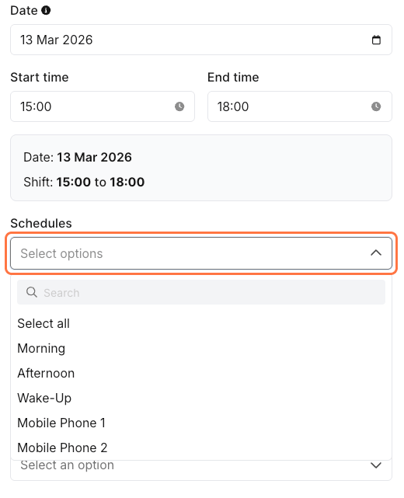
To assign a schedule:
Open a shift in the roster.
Locate the Schedule dropdown within the shift details.
Select the appropriate schedule from the list.
Save the shift.
Once assigned, the shift will be associated with that schedule.
This allows shifts to be grouped under the correct operational category.
Filtering the Roster by Schedule
Schedules can be used as roster filters.
To view shifts from a specific schedule:
Open the Roster Schedule view.
Locate the Schedule filter in the top-right corner.
Select the schedule you want to view.
The roster will then display only the shifts assigned to that schedule.
This makes it easier to focus on a particular set of shifts without distraction from unrelated roster entries.
When to Use Schedules
Schedules are particularly helpful when managing:
Large teams
Multiple service programs
Complex rostering environments
They allow organisations to maintain a single master roster while still providing separate operational views for different teams or functions.
Best Practice Recommendations
✔ Create schedules for major operational groups
✔ Use schedules to simplify large rosters
✔ Assign schedules during shift creation
✔ Review schedules regularly to remove unused ones
✔ Use the schedule filter when reviewing or managing shifts