
Key Points
The Roster Overview shows each staff member's rostered hours for a pay period, compared with their contracted hours.
Open it from Admin Tools > Roster Overview on the Roster Schedule. Your system may also show it as a widget on your dashboard.
Each staff member has a card showing their total, worked, remaining, pending, cancelled and leave hours.
The card colour shows whether their hours are under their contract, within it, or over the maximum allowed.
The Roster Overview is for checking hours only. It doesn't change pay or billing.
Open the Roster Overview
Go to the Roster Schedule.
Click the Admin Tools menu (spanner icon) in the top right corner.
Select Roster Overview. The Roster Team Overview opens in a new tab.
Your organisation may also have a Roster Overview widget on the dashboard for managers. Our Support team switches the widget on for the groups that should see it. Contact them if you'd like it added.
Choose what to show
Use the options at the top of the Roster Team Overview:
Keep TBA at Top of sorting: show open shifts (TBA) first.
Sort Order: sort staff Alphabetically, or by Total Hours, Cancellation Hours, Leave Hours or Contract Delta (the difference between rostered and contracted hours).
Show only managed staff: show all staff, or only the team of a chosen manager. This uses the managers set up for your staff. See How do I set up teams with the Manage Teams tool?
Date: choose the pay period, from the current pay period to up to 10 pay periods before or after it.
Read the overview
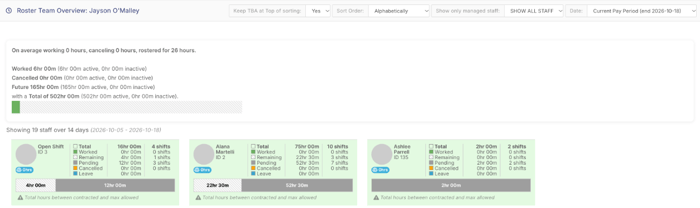
The summary at the top shows the average hours per staff member, then the hours Worked, Cancelled and still to come (Future) for the period, split into active and inactive (sleepover) hours.
Below it, each staff member has a card showing:
Total hours and number of shifts in the period
Worked, Remaining, Pending, Cancelled and Leave hours
a bar showing the split, and their contracted hours if they have a contract
What the card colours mean
Green: total hours are between their contracted hours and the maximum allowed.
Red: total hours are less than their contracted hours.
Orange: total hours are greater than the maximum allowed.
No colour: there's nothing to compare, for example because the staff member has no contract.
A short message on each card also explains the colour, for example Total hours between contracted and max allowed.
What's counted
The Roster Overview counts published shifts.
Sleepover hours are shown as inactive hours, and leave and cancelled hours are shown separately.
The totals are rostered hours. They aren't the hours that will be paid, which come from approved timesheets.
To set up or change a staff member's contract, see How do I set up staff contracts on the roster?