
Key Points
Contracts let you set a defined number of hours or shifts for a staff member over a weekly or fortnightly period. FlowLogic then automatically calculates how many hours have been rostered and how many remain.
To create one, open the staff member's roster, click Contract (next to the calculator icon), fill in the contract type, start and end dates (both required), measurement method, leave hours and description, then click Save.
A contract tracks contracted hours against rostered hours - it doesn't add shifts to the roster.
To change a contract, click Contract again and click + next to the existing contract, or set up a new one.
You can also set up a contract for a client in Client view, on the client's Contracted Hours tab.
Viewing Scheduled Hours
When you open a staff member's roster, you'll see a summary of their scheduled hours on the left-hand side just below the Agenda button. This gives you a quick snapshot of how much they've been rostered before you set up or review their contract.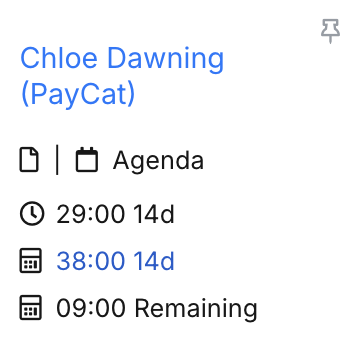
Creating a Contract
Click the Contract button, found next to the calculator icon below the scheduled hours summary. This opens the contract setup screen.
Fill in the following:
- Contract type - choose weekly or fortnightly depending on how your organisation's roster is structured
- Start date and end date - both are required for the contract to activate. Set the end date well into the future if you want the contract to continue automatically
- Measurement method - choose from:
- Fortnightly hours or fortnightly shifts
- Daily hours for Week 1 and Week 2, which lets you specify expected hours on each individual day if the staff member's schedule varies
- Leave hours - toggle on or off depending on whether your organisation counts leave toward contracted hours
- Description - add a note describing the contract type, such as "part-time contract". This is especially useful if a staff member has had multiple contracts over time
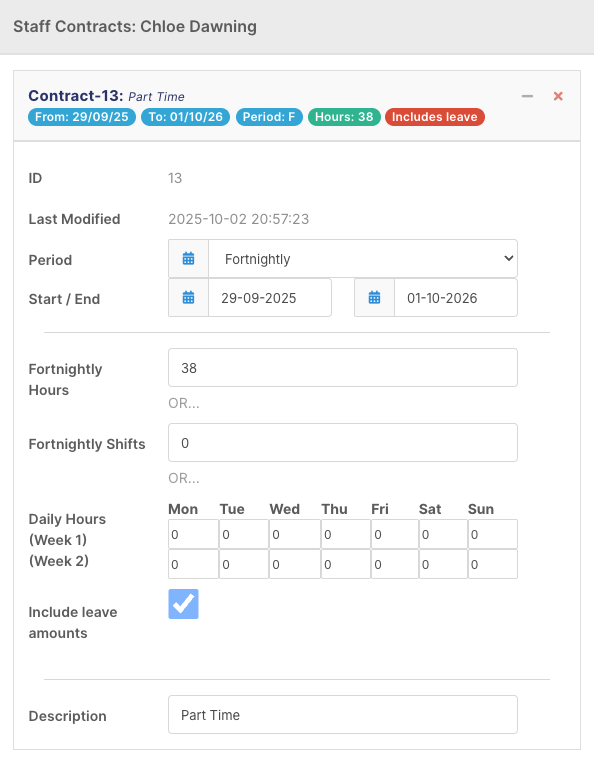
Once everything is filled in, click Save.
A contract tracks contracted hours against rostered hours. It doesn't add shifts to the roster. To roster the same pattern of shifts every week or fortnight, see How do I repeat a shift and change or end a repeating series?
After Saving
Once the contract is saved, the details will appear on the left-hand side of the roster. You'll see the total contracted hours for the period alongside how many hours have been rostered so far and how many remain. FlowLogic calculates this automatically as shifts are added.
Editing a Contract
If you need to make changes - such as updating the hours, adjusting the dates, or changing employment status - click the Contract button again. From here you can edit an existing contract by clicking the + button next to it, or set up a new one if circumstances have changed.
Client Contracts
You can also set up a contract for a client, to check they're getting the hours of support they need.
Switch the roster to Client view and click the client's name.
Open the Contracted Hours tab.
Under New Contract, choose the Period and the Start / End dates.
Enter the total hours for the period, or the hours for each day in week 1 and week 2.
Tick Include leave amounts if leave should count towards the contract.
Add a Description and click Update Resource.
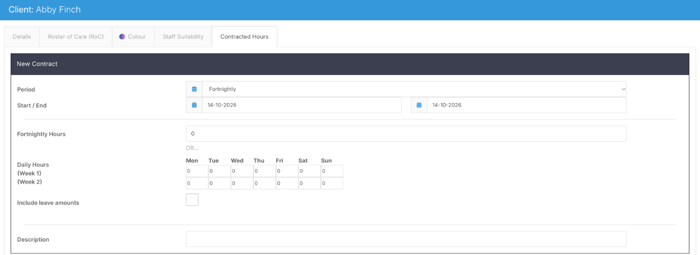
The client's contracted hours then show under their name in Client view.