
Key Points
-
Creating reports requires specific permissions set by an administrator.
-
Reports are built using a primary form and optional secondary forms.
-
Clear naming, categories, and descriptions make reports easier to find and use.
-
Permissions control who can view and edit each report.
-
Filters and sorting help ensure reports only show relevant, actionable data.
-
Reports can be refined over time as needs change.
-
System reports can't be edited or copied. To get extra columns, build your own report.
Open Reports
Navigate to the Reports section in FlowLogic.
If you do not see this section:
-
You likely do not have permission to create reports
-
You may still see shared reports, but you cannot create or edit them
-
Contact your administrator to request access if required
Permissions are set this way to protect sensitive data and ensure only authorised users can make changes.
Click Create New Report
In the top right-hand corner of the Reports screen, click Create New Report.
This opens the Report Builder, where all configuration takes place.
Name and Categorise the Report
Enter:
-
Report name (e.g. Staff First Aid)
-
Category (e.g. Requirements or HR Requirements)
-
Description explaining what the report shows
Clear naming helps users quickly understand the report’s purpose.

Choose Private or Public
-
Private: Only visible to you and higher-level users
-
Public: Visible to users you assign access to
Even public reports still require permissions to control who can view or edit them.
Add Forms
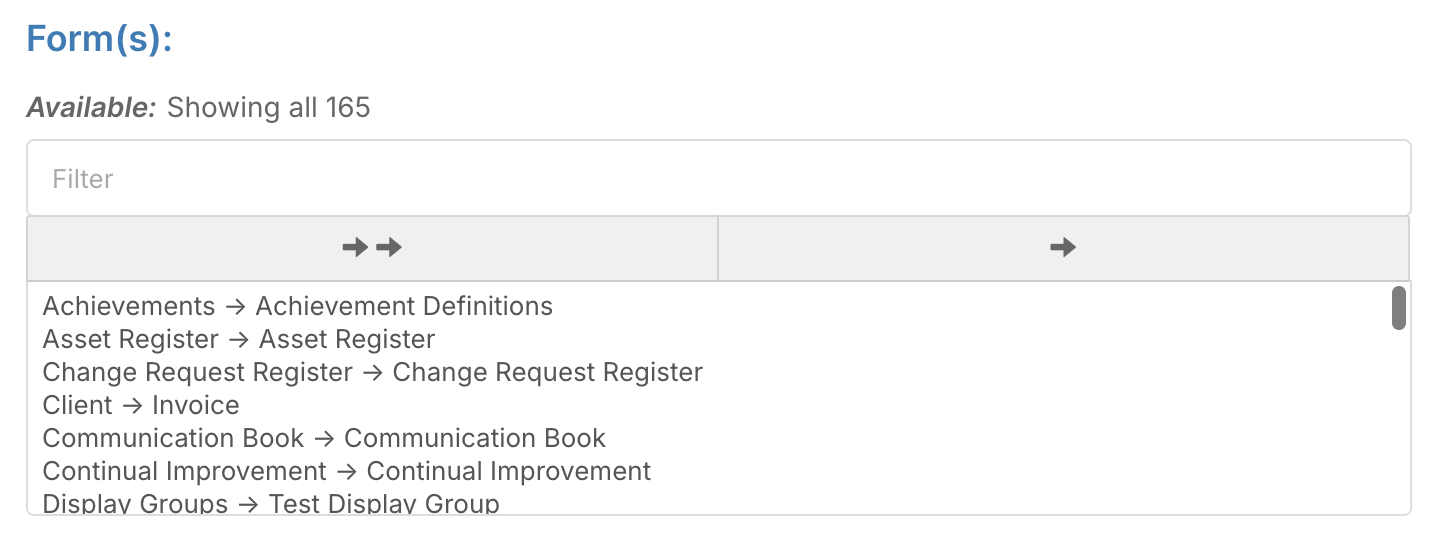
Select which form the report will pull data from.
-
Always start with the primary form
-
Example: Staff Basic Details
-
-
Add secondary forms for additional information
-
Example: First Aid
-
Forms are moved from the left-hand list to the right-hand list.
Select Columns
Choose which fields appear in the report.
Examples:
-
From Staff Basic Details:
-
First name
-
Last name
-
Gender
-
Date of birth
-
-
From First Aid:
-
Certificate name
-
Completion date
-
Expiry date
-
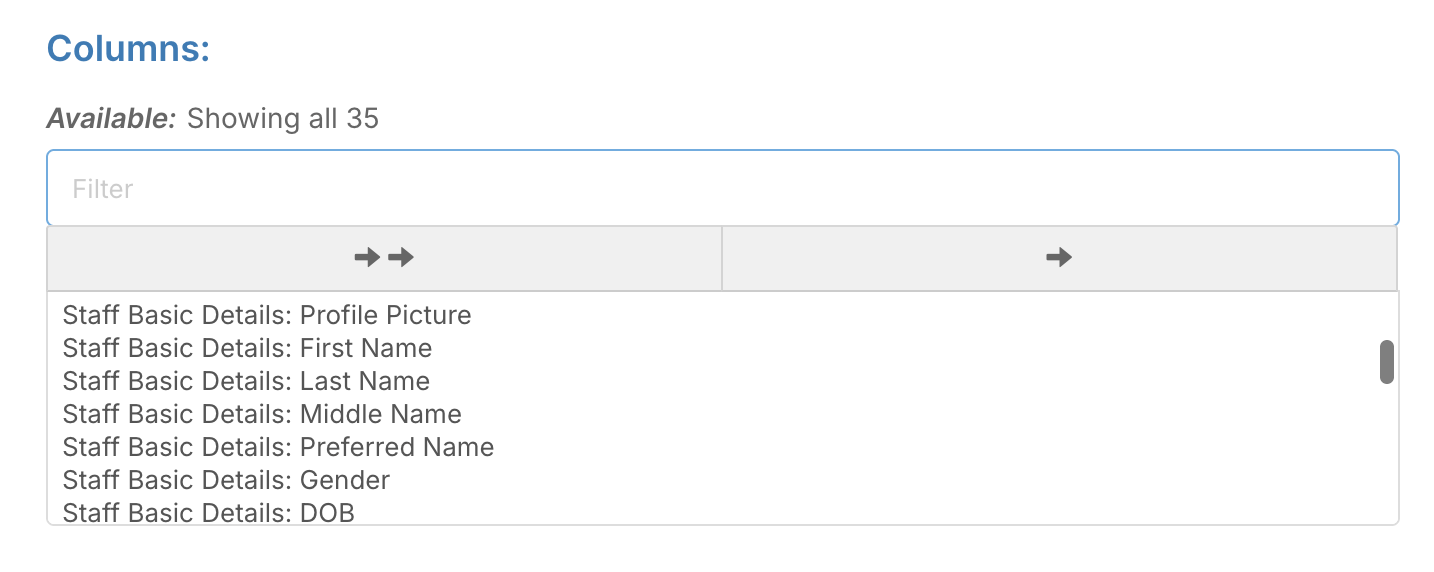
Columns can be reordered to prioritise important information.
Configure Viewing Access
Assign read-only access to users who need to view the report but not edit it.
This ensures sensitive information is only visible to appropriate staff.
Configure Edit Access
Assign edit permissions to users who should be allowed to:
-
Modify columns
-
Change filters
-
Update the report structure
You can also pin users to retain access while adjusting other permissions.
Pinning is useful when only specific users within a group should keep access.
Add Common Filters
Filters limit the data shown in the report.
Common filters include:
-
Status filter (e.g. Active staff only)
-
Latest SID filter (ensures only the most recent secondary record is shown)
These filters are widely used and prevent outdated or irrelevant data from appearing.
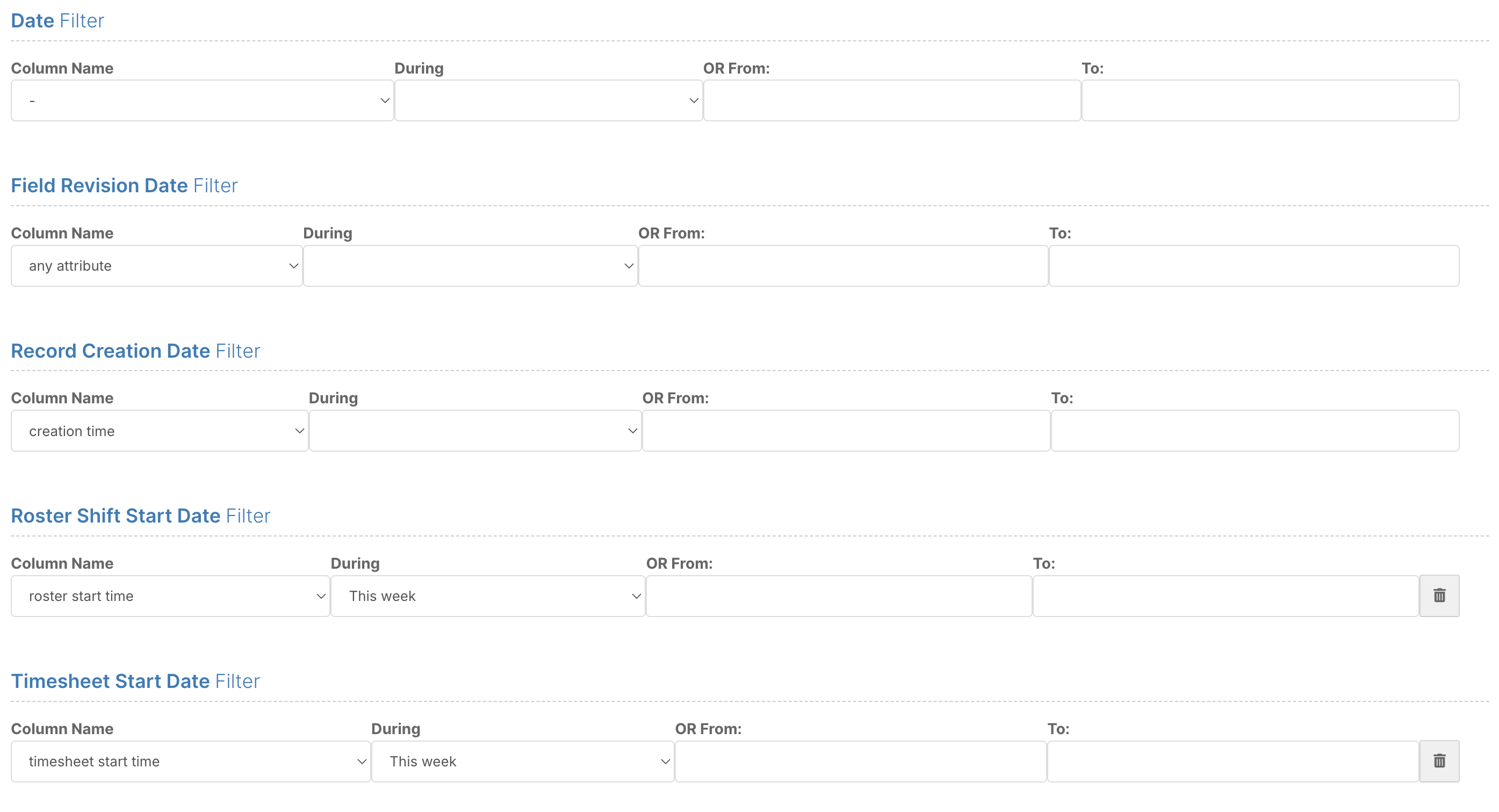
Use Date Filters
You can filter by:
-
Custom date fields (e.g. start date, end date, date of birth)
-
Preset system dates such as:
-
Record creation
-
Roster and shift dates
-
Timesheets
-
Leave
-
Invoicing
-
Date filters help focus the report on the most relevant timeframe.
Advanced Filters
Advanced filters allow you to refine data further using:
-
Contains/does not contain
-
Yes / no conditions
-
Field-based logic from any included form
It’s best to keep initial reports simple and layer in advanced filtering later to avoid removing important data unintentionally.
You can also filter by site if required.
For this example, only:
-
Active status
-
Latest SID
will be used.
Set Sorting Rules
Choose how the report should be ordered, such as:
-
First name (ascending)
-
Last name (descending)
Sorting helps organise data before viewing.
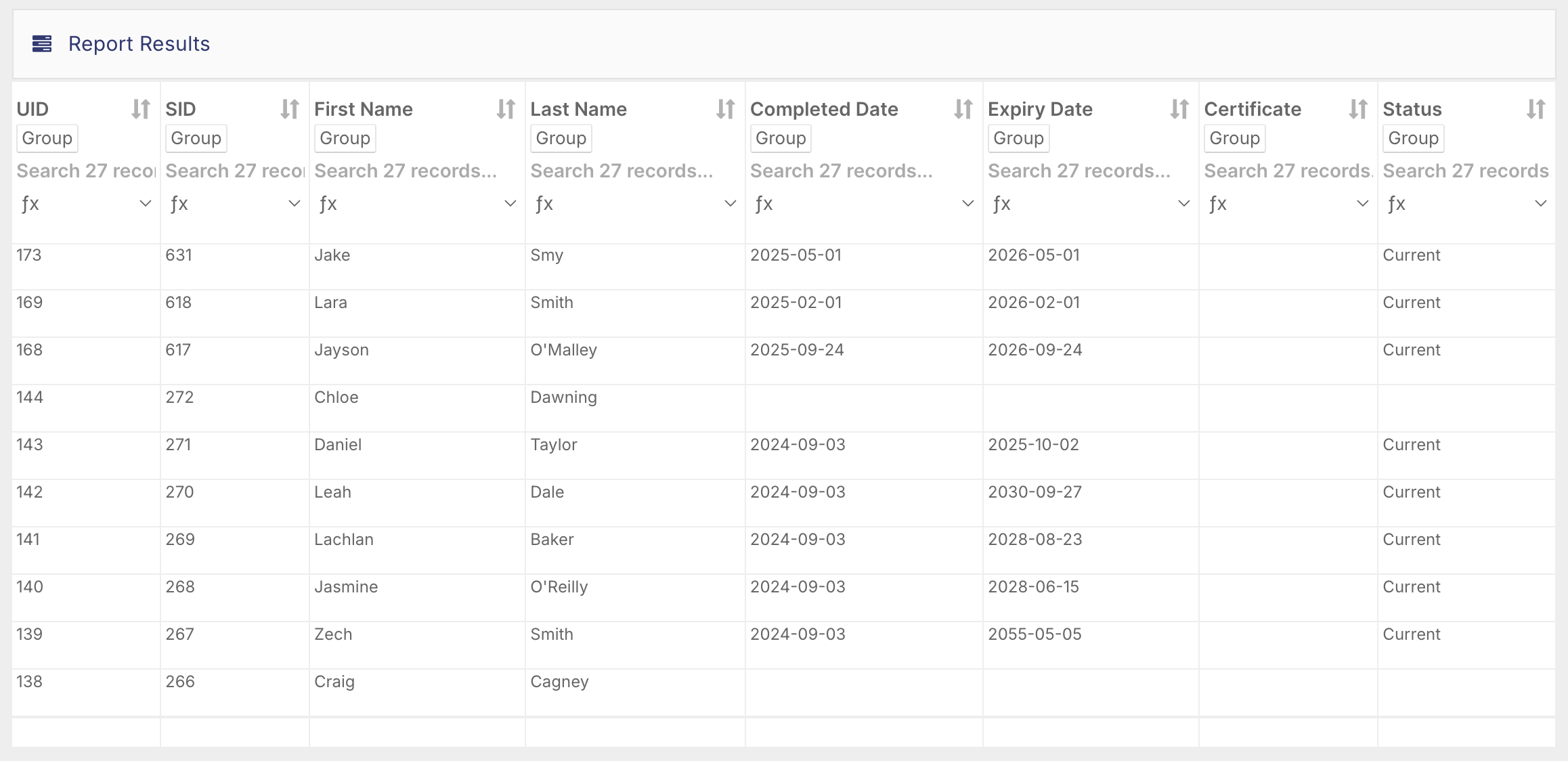
View Report
Click View Report in the bottom right-hand corner to generate the report.
Review the data to ensure:
-
Columns are correct
-
Filters are working as expected
-
No important information is missing
Save the Report
Once satisfied, click Save Report.
Your report is now created and ready for ongoing use.
You now know how to:
✔ Create a new report in FlowLogic
✔ Select forms and columns correctly
✔ Assign viewing and editing permissions
✔ Apply filters and sorting
✔ Save and manage custom reports
With these steps, you can confidently build reports that are secure, accurate, and easy for your team to use.
Can I change a system report or add a column to it?
No. System reports are the pre-built reports that come with FlowLogic. They can't be edited or copied, and columns can't be added to them on request.
Instead, you can:
Hide the columns you don't need. When you run the report in the New View, click a column name to hide it. See How do I filter, group and export report results?
Build your own report. Create a new report with the Forms and columns you need, using the steps in this article. You can edit your own reports at any time.
A report can only show information that's stored in a Form. If a column you need isn't available, contact our Support team.