
Key Points
The Roster Importer allows organisations to upload multiple shifts at once using a CSV file.
Imports must follow the correct template structure to ensure shifts are mapped correctly.
Only shifts within the current roster period can be imported.
A single import file can contain up to 1,000 shifts.
Import configurations allow you to save field mappings for repeated imports.
Billing items are not included in imports and must be added after shifts are created.
Accessing the Roster Importer
The Roster Importer is located within the Roster Modules section.
To access it:
Open the Roster Schedule.
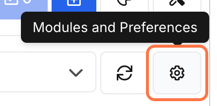
Navigate to Modules and Preferences on the right-hand side of the screen.
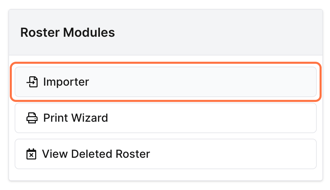
Click Importer under Roster Modules.
Access to the importer depends on user permissions.
If Importer isn’t visible, an administrator needs to add the massadd_roster and roster_importer Rights to a Group the user belongs to. See Which Rights control access to the Roster Schedule?
Preparing an Import File
Roster imports require a CSV file formatted using the correct column structure.
If you do not already have a prepared file, you can download the example template from the importer screen.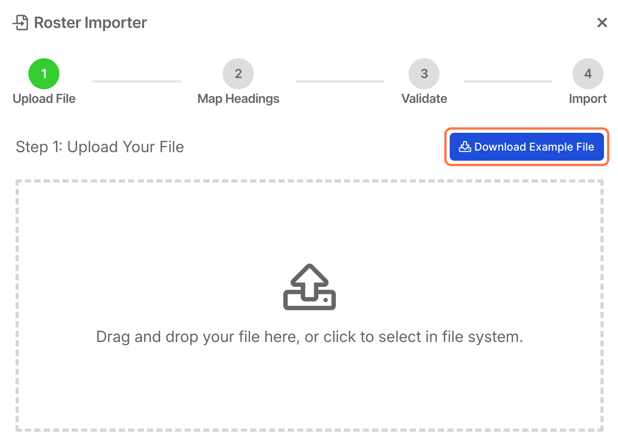
The template provides the correct structure and includes the required columns.
Typical columns include:
Shift Start Date
Shift Start Time
Shift End Date
Shift End Time
Site Name
Staff Name
Client Name
Published Status
Publish Reason
Using the template helps reduce formatting errors and ensures the system can correctly interpret the data.
Import Limitations
There are a few limitations to keep in mind when importing shifts.

Roster Period Restriction
Only shifts that fall within the current roster period can be imported.
Any shifts outside of that period will be rejected by the system.
Maximum File Size
Each import file can contain a maximum of 1,000 shifts.
If you need to upload more than 1,000 shifts, you can perform multiple imports using separate files.
Uploading the CSV File
Once your CSV file is prepared:
Click Select File.
Upload your CSV file.
The system will generate a data preview.
The preview displays important shift details such as:
Shift dates
Start and end times
Site locations
Staff assignments
Client allocations
Published status
Review this preview carefully before proceeding.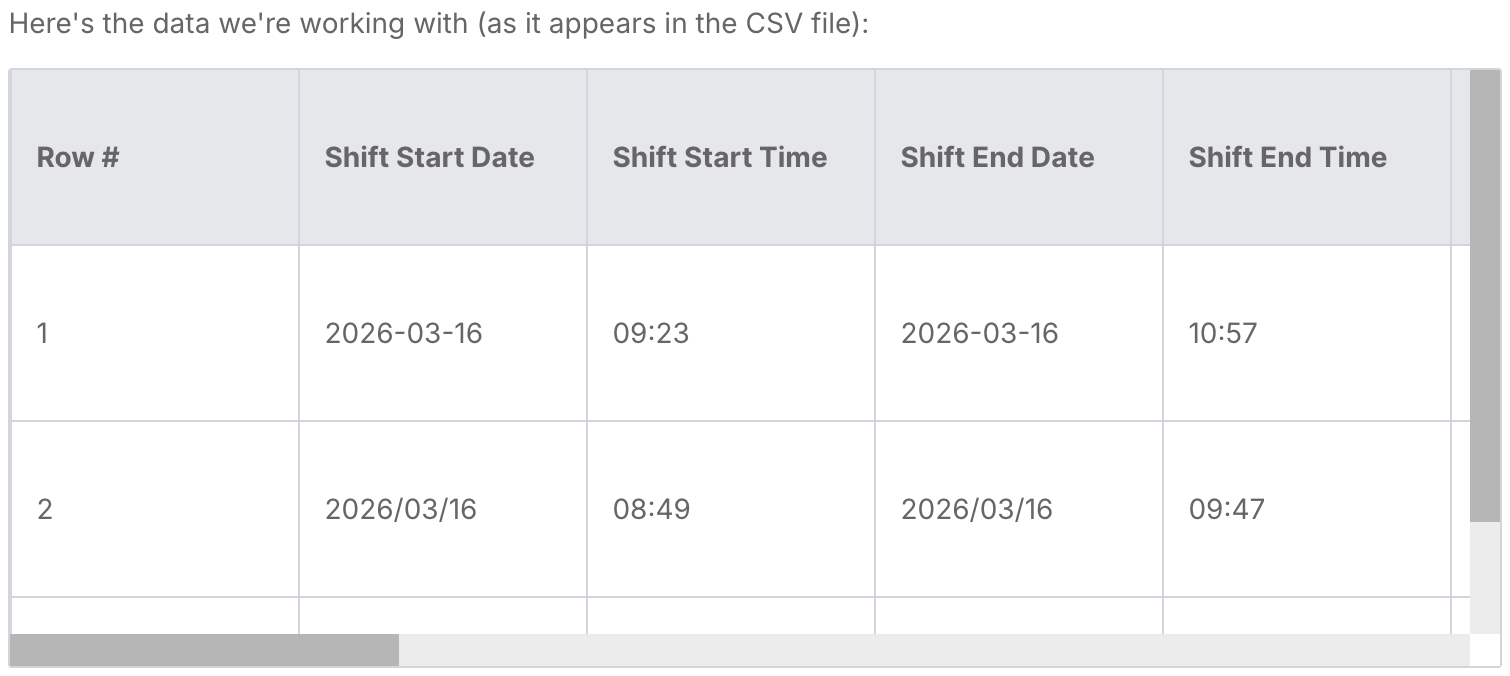
If everything appears correct, click Next to continue.
Import Configurations
Import configurations define how the system maps CSV data to roster fields.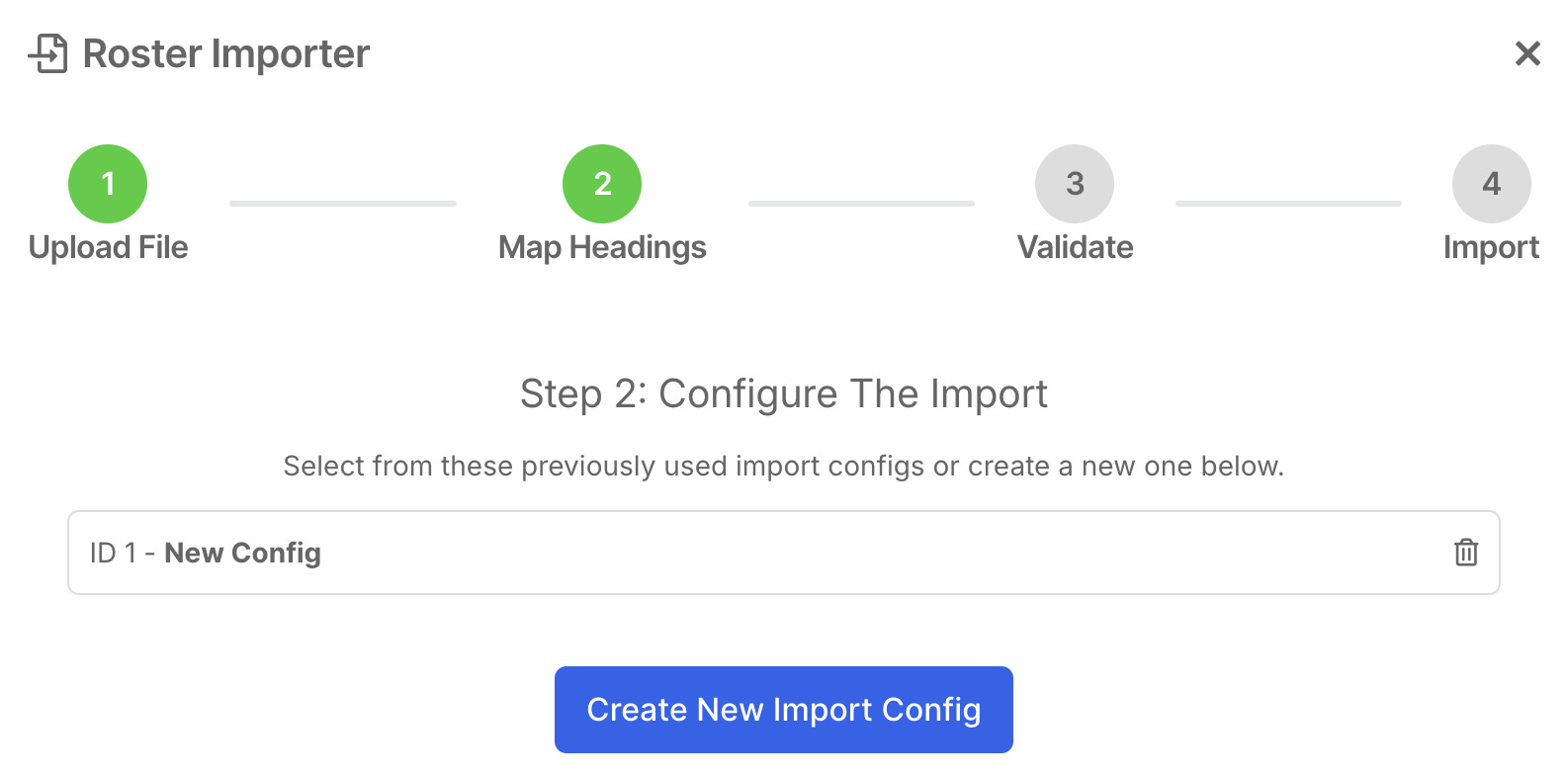
If a configuration already exists, you can select it.
Otherwise, choose Create New Import Config.
A configuration allows you to define:
Configuration name
Default resource for unassigned shifts (e.g., Open Shifts)
Default publish status
Configurations are useful because they allow you to reuse the same mapping settings for future imports, reducing setup time.
Mapping CSV Fields
The next step is mapping the columns from your CSV file to the corresponding roster fields.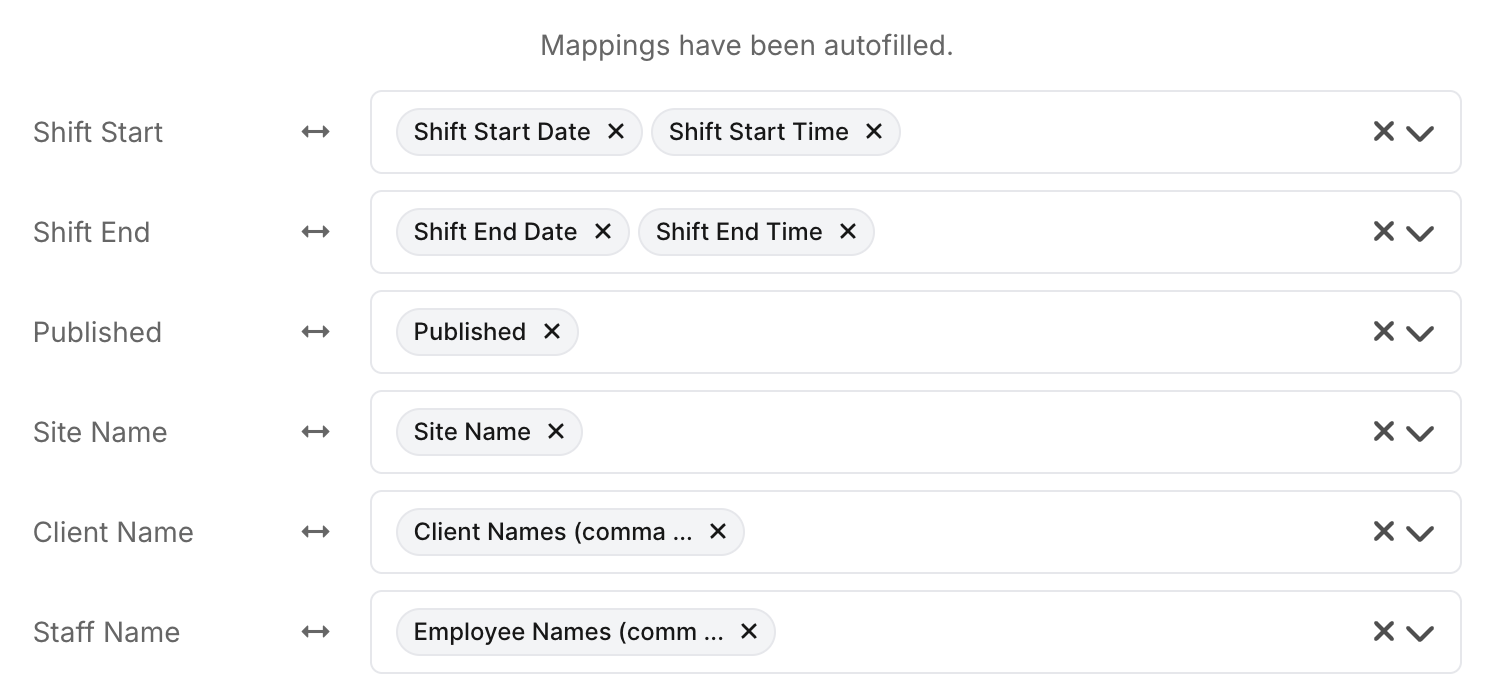
Mappings include:
Shift Start Date
Shift Start Time
Shift End Date
Shift End Time
Site Name
Client Name
Staff Name
Publish Reason
TBA Resource Name
When mapping date and time fields, ensure that the date is mapped before the time.
Incorrect mapping may cause the import to fail.
It is important to review each field mapping carefully to prevent:
Incorrect staff assignments
Incorrect client allocations
Import errors
Validating the Import
Before importing the shifts, the system will perform a validation check.
This check identifies potential issues such as:
Overlapping shifts
Invalid roster data
Missing information
If conflicts are detected, the system will display warnings.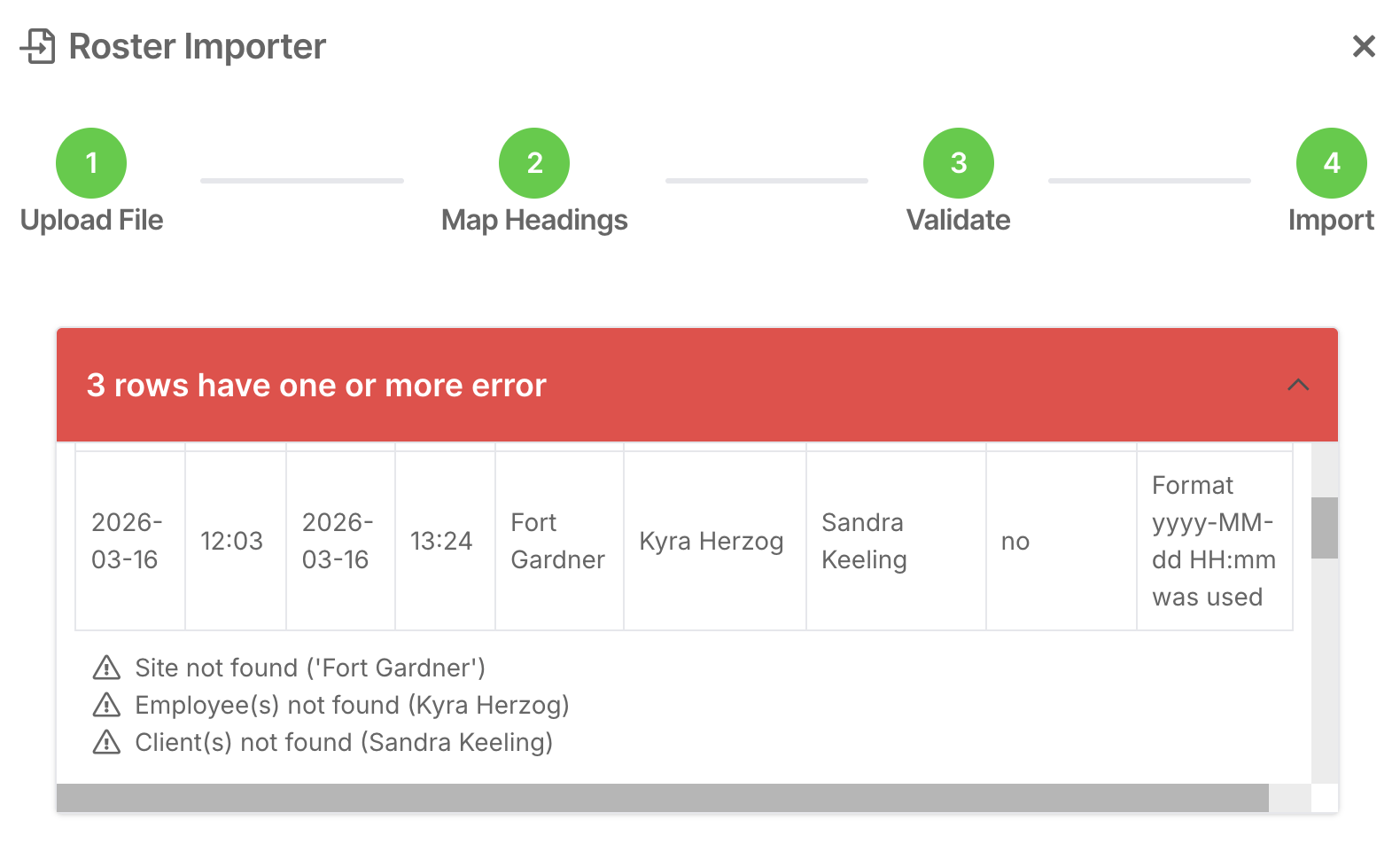
If some of the rows allow you, you can then choose to:
Skip conflicting shifts
Proceed with importing all shifts
This flexibility allows you to control how the importer handles potential issues.
Completing the Import
Once validation is complete:
Click Proceed with Import.
The system will begin uploading the shifts into the roster.
If necessary, you can return to earlier steps to modify the CSV file or adjust field mappings before finalising the import.
Reviewing Imported Shifts
After the import is completed, the shifts will appear in the Roster Schedule.
You should review the roster to confirm that:
Staff assignments are correct
Client allocations are accurate
Shift times are correct
Publish status is applied correctly
Billing After Import
The importer does not include billing items.
Once shifts are imported, billing details must be added manually within each shift.
However, other information such as:
Overnight shifts
Staff assignments
Client allocations
Published status
will be imported correctly.
Best Practice Recommendations
✔ Always use the provided import template
✔ Review the data preview before importing
✔ Keep each import file under 1,000 shifts
✔ Create reusable import configurations
✔ Validate imports carefully before proceeding
✔ Review shifts after importing to confirm accuracy