
Key Points
-
Billing on roster shifts comes from a client’s Funding Allocation.
-
Allocations determine which service items are available and where invoices are exported.
-
Service items must be selected from the Allocated Items List.
-
Funding tracking helps prevent over-provisioning client budgets.
-
Billing details can be expanded on a shift to review funding status.
Understanding Where Billing Comes From
Before adding billing to shifts, it’s important to understand where the billing information originates.
Billing details are pulled from the client’s Funding Allocations.
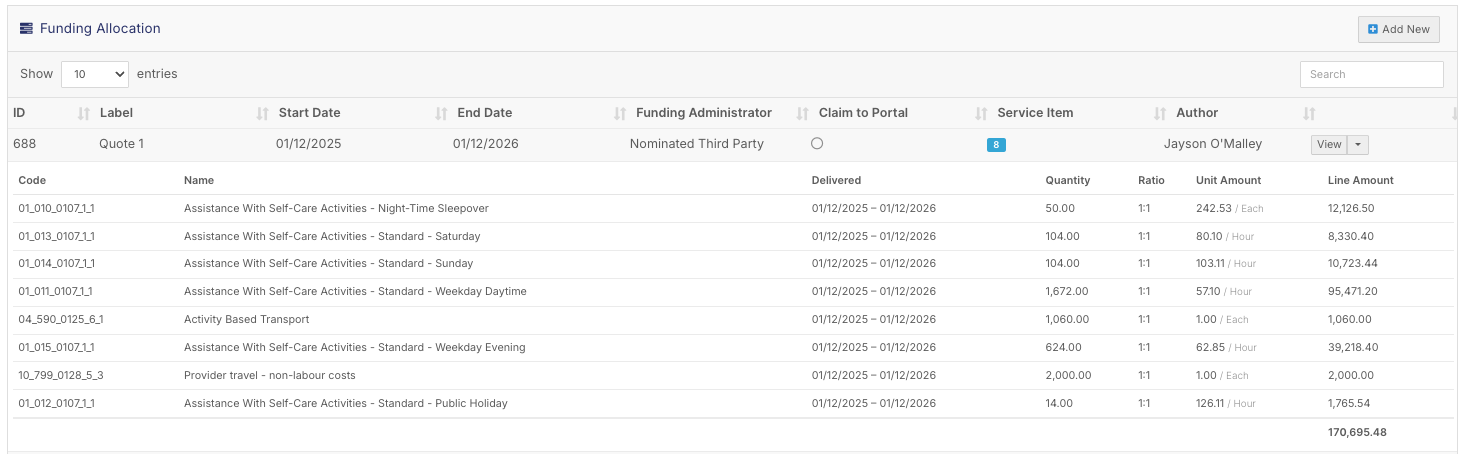
To view this:
-
Open the Client Profile.
-
Navigate to the Funding tab.
-
Open the Funding Allocation form.
This form acts as the source of truth for all funding related to that client.
Funding Allocation Overview
In the example shown, the client Abby Finch has three funding allocations:

-
Self Managed
-
Plan Managed / Third Party Managed
-
PRODA / Funding Body Managed
The allocation type determines where invoices will export when leaving FlowLogic.
Each allocation contains key information, including:
-
Start Date
-
End Date
-
Funding Administrator
-
Service Items
-
Allocated Quantities
Understanding Service Items
Each service item includes:
-
Item Code
-
Item Name
-
Allocated Quantity
These service items are what appear when billing is added to roster shifts.
Missing Service Items
If a service item does not appear when rostering, it is usually because:
-
The service item has not been added to the client’s funding allocation
-
The allocation has expired
-
The service item has expired
If you have permission, you can update the allocation yourself.
Otherwise, contact the person responsible for managing funding allocations.
Adding Billing to a Shift
Now that we understand where funding originates, we can apply billing to a shift.
Create a Shift
-
Navigate to the Roster Schedule.
-
Create or open a shift for the client.
In this example, we create a shift for Abby Finch.
Open the Billing Section
Scroll down to the Billing section of the shift.
Click Add Billable.
A billing line will appear showing:

-
Billing Flag
-
Ratio
-
Quantity
Select a Service Item
Click the Billing Icon / Dollar Symbol on the right side of the billing line.

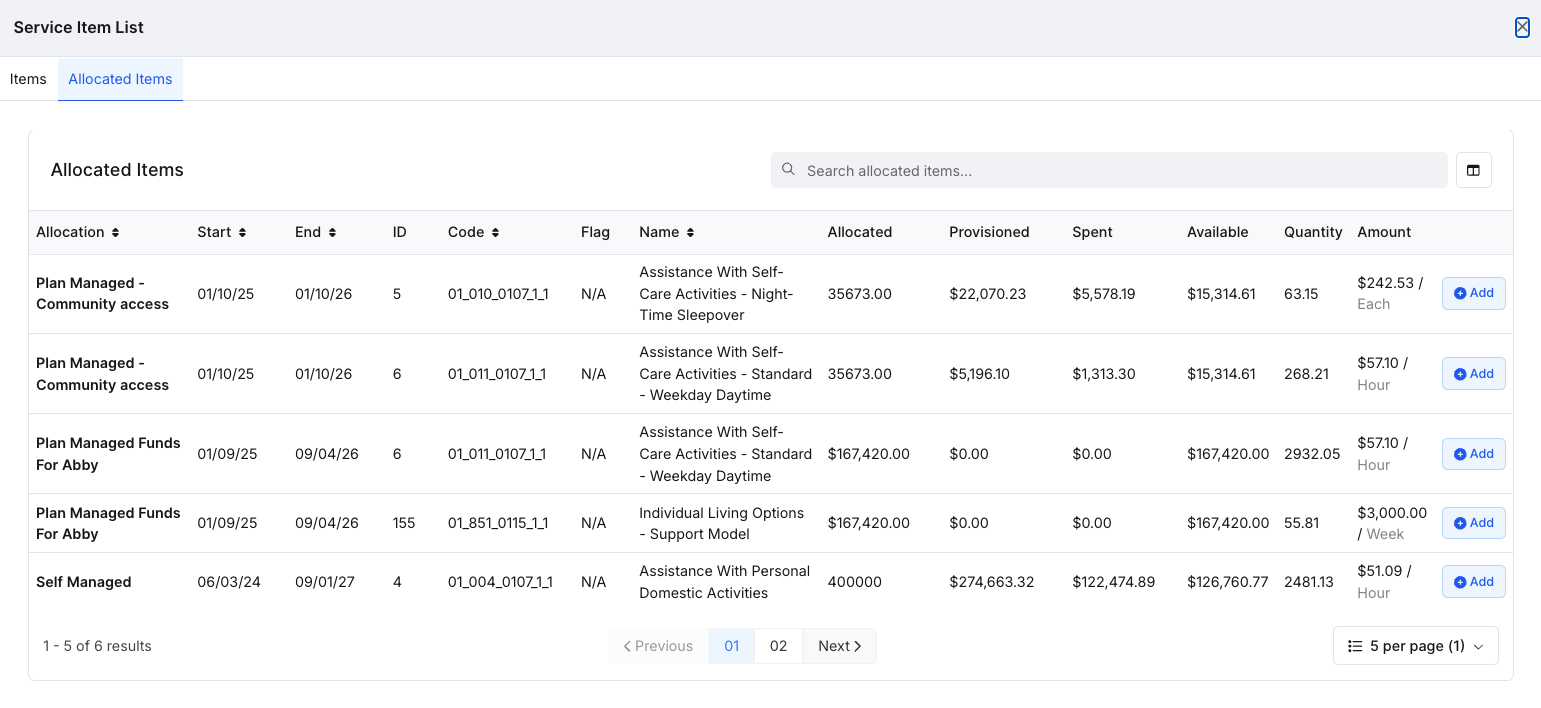
This opens the Service Item List.
Important Rule for Billing Codes
Always select service items from the Allocated Items List.
This list contains the service items connected to the client’s funding allocations.
If you select from All Items instead:
-
The billing line will not link to the funding allocation
-
FlowLogic will not know where to export the invoice
This can cause billing errors.
The All Items list is mainly useful when building templates, but should not normally be used when rostering.
Understanding the Service Item List
The service item list contains several columns of useful information.
These include:
-
Allocation Name
-
Start Date
-
End Date
-
Item Code
-
Item Name
You can customise the table view using the Column Toggle in the top right.
Viewing Funding Tracking
When enabled, additional columns show: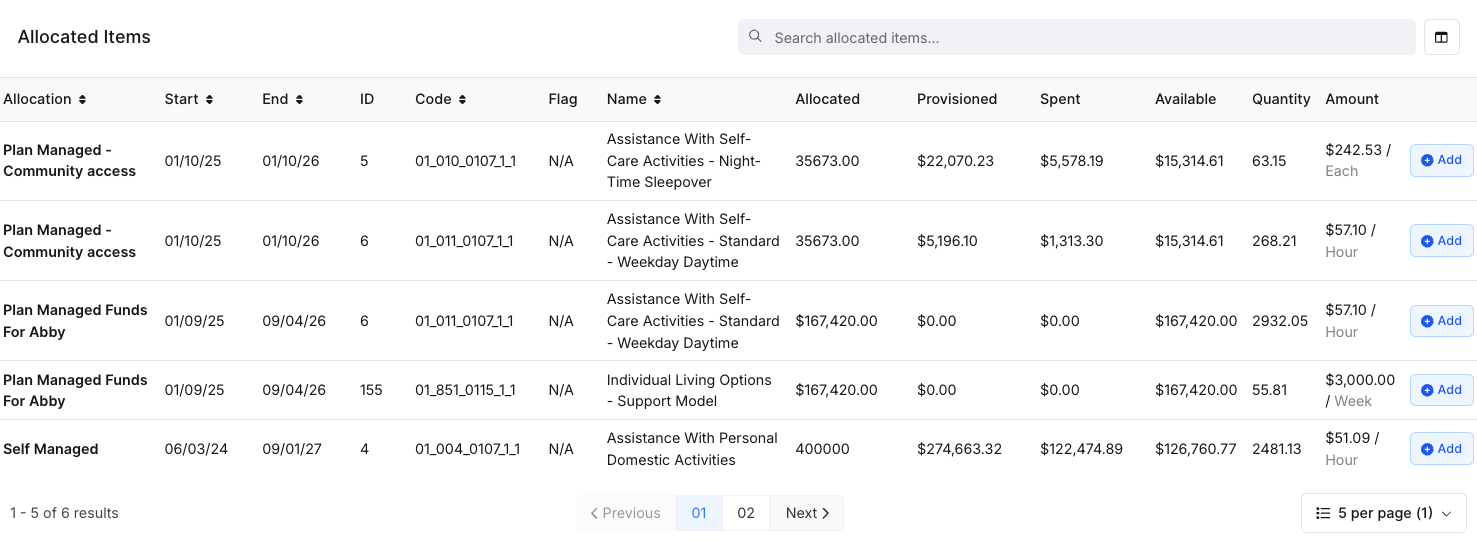
-
Allocated Funding
-
Provisioned Amount
-
Spent Amount
-
Remaining Funding
This information helps ensure you do not over-provision the client’s budget.
Monitoring these values is important when scheduling ongoing supports.
Additional Table Features
You can also:
-
Increase items per page (bottom right)
-
Search for service items (top right)
-
Filter service items
These tools make it easier to locate the correct billing item.
Expanding Billing Details
Once service items are added to the shift, you can expand them within the Shift Details Screen.
The expanded view shows additional funding information, including:
-
Expiry Dates
-
Provisioned Amounts
-
Spent Amounts
-
Remaining Funding
These values are also colour-coded to help quickly identify funding status.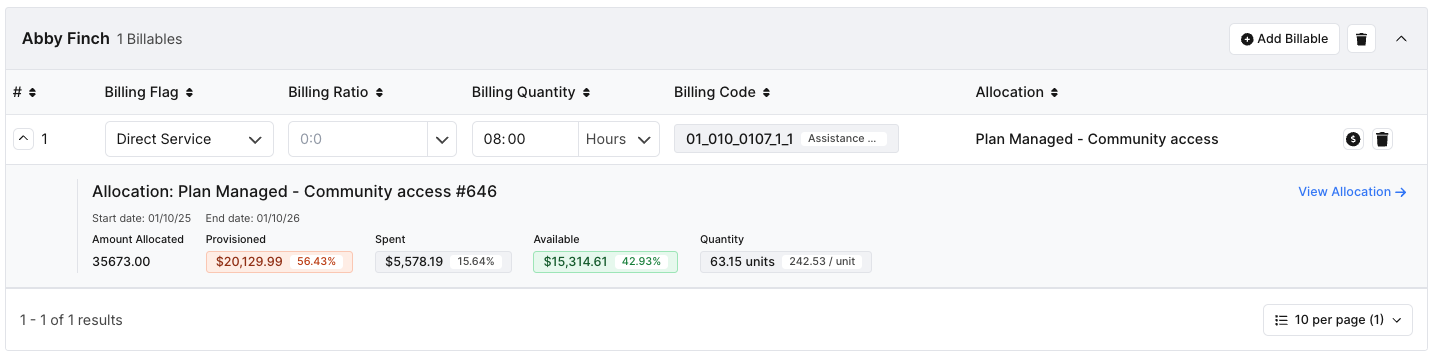
Understanding Funding Status
The system will show whether funding is:
-
Fully available
-
Approaching limits
-
Over-provisioned
In some cases, a service item may be over-provisioned on the roster, but still have enough funding available for the current shift.
The system shows:
-
Percentage values
-
Dollar amounts
This helps you make informed rostering decisions.
Billing Quantity and Billing Flags
The billing quantity starts at the length of the shift. If you change the shift's times later, FlowLogic reminds you to check the quantity, but it doesn't change it for you.
The billing flag describes the type of charge, for example a standard service or a cancellation (CANC). It's used when claims and invoices are exported. Whether a flag is required depends on how your system is set up.
Saving the Shift
Once you are satisfied with the billing details:
-
Review the service items applied to the shift.
-
Confirm the funding availability.
-
Click Save in the bottom right corner.
The shift will now be created with the correct billing attached.