
Key Points
-
Every client's budget in FlowLogic comes from their Funding Allocations. The allocated quantities and totals you enter there are what FlowLogic tracks spending against.
-
Use the Tracking and Utilisation view on the client's profile to see how much of each allocation is provisioned, spent and remaining.
-
When you add billing to a shift, the billing section shows the funding status of each service item, so you can spot over-provisioning before you save.
-
FlowLogic warns you when a shift or repeat series would overspend an allocation. Depending on your setup, the warning either lets you continue or stops the shift being saved.
-
The Allocation Top Up report shows budgets across all clients in one place, so you can find who is running low or due to expire.
-
To top up or extend funding, edit the allocated quantity or total on the current allocation, or add a new allocation for the new date range.
-
FlowLogic only shows and tracks the figures your organisation enters. It does not decide what a client is funded for. Always check amounts and dates against the client's plan or agreement.
Where a client's budget comes from
A client's budget is set up in their Funding Allocations. Each allocation includes:
-
Start Date and End Date
-
Funding Administrator details
-
The Service Items covered by the allocation, with an allocated quantity or dollar amount for each
-
A total allocated amount
As you enter quantities against service items, FlowLogic calculates the total amount allocated. If you don't know the quantities, you can enter a total dollar amount at the bottom of the allocation instead.
To view a client's allocations:
-
Go to the Participant Section from the left-hand menu and open the client's profile.
-
Open the Funding tab.
-
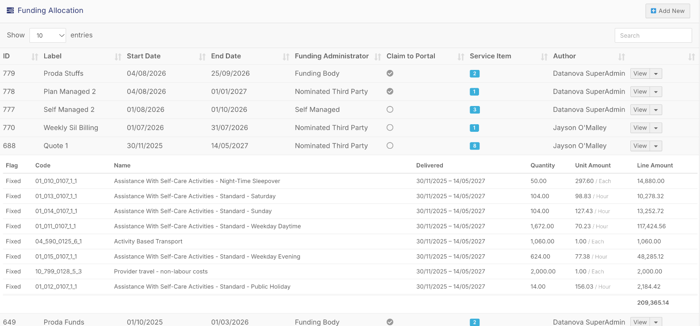
Find the Funding Allocation form. Each allocation shows its label, start and end dates, funding administrator and claim status.
-
Click the service item button on an allocation to expand it and see each service, its quantity and price.
For Support at Home clients, allocations are on the Support at Home or Aged Care tab instead. If you can't see this tab, contact our Support team.
Checking how much funding is used and left
Tracking and Utilisation on the client's profile
The Tracking and Utilisation view is the quickest way to check one client's budget.
-
Open the client's record.
-
Click the Tracking icon (a pie chart) in the row of icons under the record's tabs. The Tracking and Utilisation page opens.
-
The top of the page shows the client's funding totals and a summary line for each allocation. Click an allocation to open its details below.
-
Check the Funding Allocation card on the left. It shows the allocation's total amount and its start and end dates.
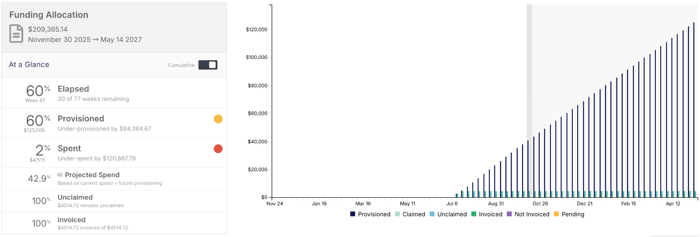
Under At a Glance you'll see:
-
Elapsed: how much of the allocation's date range has passed, as a percentage and in weeks remaining.
-
Provisioned: what's forecast to be used, based on shifts already rostered. It tells you whether the allocation is under-provisioned or over-provisioned, and by how much.
-
Spent: what has been spent to date, and whether the allocation is under-spent or over-spent.
-
Projected Spend: current spend plus future provisioning, as a percentage of the whole allocation.
-
Unclaimed and Not Invoiced: how much is still to be claimed or invoiced.
The graph shows the same figures over time. Use the Cumulative switch to change between running totals and spend by week. The key underneath explains each colour: Provisioned, Claimed, Unclaimed, Invoiced, Not Invoiced and Pending.
The Charges table at the bottom lists each service used through shifts or forms, with its service item code, date, quantity, unit amount and total.
Tip: Compare Elapsed with Projected Spend. If the projected spend is well ahead of the time elapsed, the client's funding may run out before the end date.
For self-managed allocations that aren't claimed through the Funding Exchange, the unclaimed amount will show as 100%. This is expected and can be ignored.
Funding status on a shift's billing
When you add billing to a shift on the Roster Schedule, you can check the funding for each service item before you save.
-
Create or open a shift for the client on the Roster Schedule.
-
Scroll to the Billing section and click Add Billable.
-
Click the dollar symbol on the billing line to open the service item list, and choose from the Allocated Items list.
-
Use the Column Toggle in the top right to show the funding tracking columns: Allocated Funding, Provisioned Amount, Spent Amount and Remaining Funding.
-
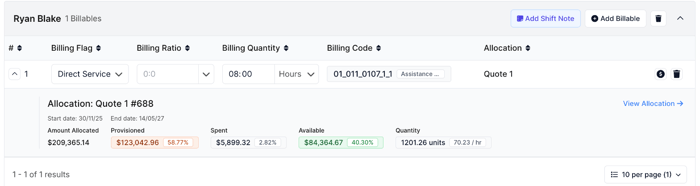
After you add the service item, click the arrow next to it in the shift details to see its allocation, start and end dates, and its Amount Allocated, Provisioned, Spent and Available amounts.
These values are colour-coded so you can see at a glance whether funding is fully available, approaching its limit or over-provisioned. Both percentages and dollar amounts are shown.
A service item can be over-provisioned across the roster but still have enough funding left for the current shift. Use the figures to decide whether to go ahead.
Note: Always pick service items from the Allocated Items list. Items chosen from All Items aren't linked to an allocation, so they won't count against the client's budget.
Checking budgets across all clients with reports
To check budgets for many clients at once, use the Allocation Top Up report.
-
Click Reports in the left-hand menu.
-
Search for Allocation Top Up using the search bar.
-
Click New View on the report to open it.
-
Scroll down to the results, then scroll right to see all the columns.
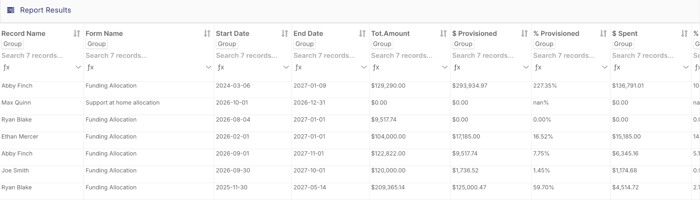
The report lists allocations with the allocation label, form, start and end dates and total budget. It also shows provisioned, spent, unprovisioned and remaining amounts, as dollar values and percentages.
To make it easier to act on:
-
Group by client to see each client's budgets together.
-
Use the quick filters to narrow results by expiry date range, service type or allocation label, so you can prioritise clients due for a top-up.
-
Export to Excel to share with your finance or coordination team.
The Roster Services by Allocation report is also useful. It shows which allocation each shift's billing is linked to, with allocation start and end dates and IDs.
Spotting overspend
Overspend warnings when rostering
If you add billing to a shift that would use more than the funding left in the allocation, FlowLogic shows a warning when you try to save the shift.
The same check applies when you create a repeat series. If repeating the shift over the period you've chosen would overspend the allocation, FlowLogic warns you before the series is created.
Your organisation's setup decides how strict this is:
-
Warning only: FlowLogic alerts you to the overspend, but you can still save the shift if you decide it's needed.
-
Enforced: FlowLogic won't let you save the shift until the billing fits within the remaining funding.
Which of these happens depends on how your system is set up. This is a system setting that only FlowLogic can change, so contact our Support team if you want it changed.
What to do when you see a warning
-
Check the billing quantity on the shift is correct.
-
Check the service item came from the right allocation in the Allocated Items list.
-
Open Tracking and Utilisation to see how much is already provisioned by future rostered shifts.
-
If the client's funding has changed, update the allocation (see below). If it hasn't, review the rostered shifts with the person who manages the client's funding before saving.
Keeping ahead of low or expiring budgets
-
Run the Allocation Top Up report regularly, filtered by expiry date, to find allocations ending soon.
-
Set up a Record Automation on your funding allocation Form to remind you before an allocation ends or is due for review. Use a Schedule trigger on the End Date or Review Date field, set in weeks (for example 8 weeks before). If you want more than one reminder, join them with Or. You need access to Automations to do this. See How do I create a record automation?
-
If your organisation uses the KPI Widget, it can track client funding allocations alongside other documents and highlight ones that are expiring or expired.
Topping up or extending an allocation
You need the right Rights to change Funding Allocations. If you can't edit an allocation, contact the person in your organisation who manages client funding.
Before you change anything, confirm the new amounts and dates against the client's plan or service agreement. FlowLogic records what you enter but can't tell you what a client is funded for.
Increase the amount on the current allocation
Use this when the funding period stays the same but the amount changes.
-
Open the client's profile and go to the Funding tab.
-
Open the client's record and go to the Funding tab. Under Funding Allocation, click the arrow next to View on the allocation and select Edit.
-
Update the allocated quantity or dollar amount on each service item. FlowLogic recalculates the total as you type. If the allocation uses a single total instead of quantities, update the total amount at the bottom.
-
To add a service item that isn't on the allocation yet, add it to the service items list and enter its quantity.
-
Review the changes, then click Save and Close.
The new figures flow through to Tracking and Utilisation, the shift billing columns and reports.
Extend the end date
If the same funding continues for longer, update the End Date on the allocation and save. The end date controls whether the allocation appears on the Roster Schedule and whether invoicing can happen, so shifts after the old end date won't pick up the allocation until it's updated.
Add a new allocation for a new funding period
Use this when the client has a new plan or funding period.
-
On the Funding tab, click Add New on the Funding Allocation form.
-
Enter a Label, Start Date, End Date and, if you use one, a Review Date. Keep labels consistent so allocations are easy to tell apart in rosters and reports.
-
Set the Funding Administrator, Funding Administrator's Name and Claim to Portal to match how the funding is managed.
-
Add the service items with their quantities or a total amount.
-
Click Save and Close.
-
Open the old allocation and set its End Date to the day before the new one starts, so the two don't overlap.
If you have the Rights, you can also open the current allocation, change the details, and click Save as NEW to create the new allocation without re-entering everything. You still need to end the old allocation yourself.
Note: Overlapping allocations for the same services can cause billing and reporting problems. Check the dates line up before you roster against the new allocation.
Future shifts that were already rostered keep the billing from the old allocation. Open the shift, re-select the service item from the Allocated Items list, and apply it to future shifts in the series so they link to the new allocation. If you're only extending the same funding, changing the old allocation's End Date avoids this.
Support at Home: quarterly repeating allocations
Support at Home allocations can be set up to repeat each quarter automatically using Create repeating record. If the client's funding or classification changes mid-quarter, edit the current allocation, click Save as NEW, then end the old allocation the day before. The repeating series then uses the latest allocation for future quarters. For the full steps, see How do I set up a Support at Home allocation to repeat quarterly?
Troubleshooting
If the budget figures don't look right, check:
-
Is the shift or claim within the allocation's start and end dates? Has the end date passed?
-
Are the right service items on the allocation?
-
Was the billing picked from the Allocated Items list rather than All Items?
-
Has the invoice been exported? Amounts only count as spent once the invoice is exported.
-
Do two allocations overlap for the same services?
If you've checked these and the figures still aren't right, contact FlowLogic Support.