
Key Points
Service items are created and managed in Finance and Payroll > Service Items. Click Add New Item to create one, or Edit to change an existing item.
Each service item defines how a service is priced, billed and exported, including its label, service and export codes, unit price and unit type, and classification.
If you can't find a service item or NDIS support item code, it may be archived. Turn on Show Archived, edit the item and change Item Status to Active.
The Price Revision History keeps past prices, so FlowLogic applies the correct rate based on the service date.
FlowLogic doesn't update pricing automatically. When a new price guide is released, you must request the update, and custom or non-NDIS items must be updated manually.
The Service Item List is one of the most important configuration areas in FlowLogic. It controls how services are billed, how claims are generated, and how funding aligns across the system.
Every service your organisation delivers is defined here, including pricing, units, funding categories, and export behaviour. Keeping this section accurate is critical to ensure correct billing and compliance.
Accessing Service Items
To access the Service Item List:
- Go to Finance and Payroll
- Select Service Items
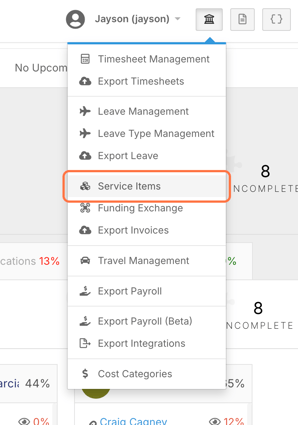
This opens a full list of all service items in your system.
Access to this section is permission-based, so if it is not visible, an administrator will need to enable it.
Understanding the Service Item List
The list view provides a high-level overview of each item.
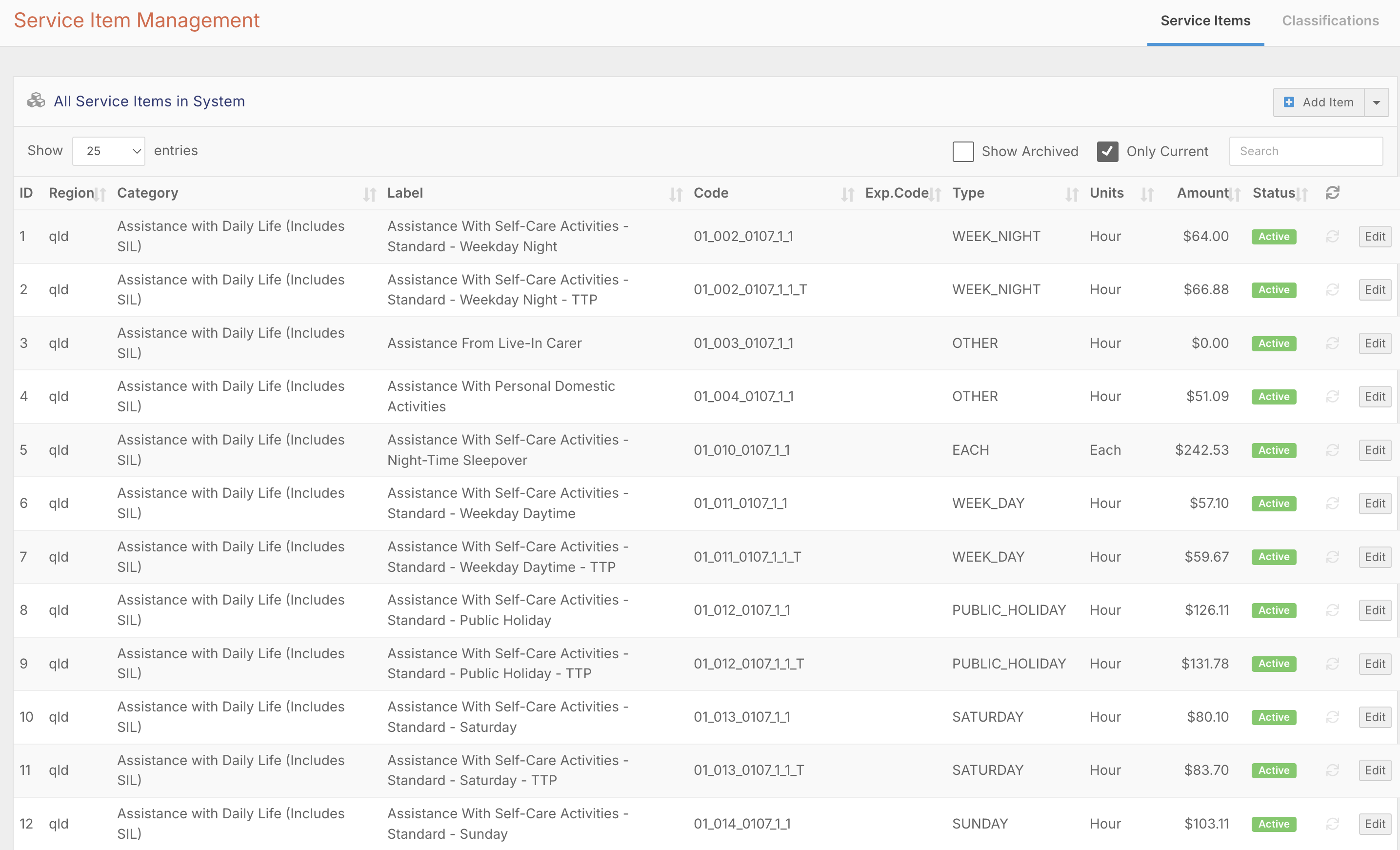
You will see details such as:
- Item ID and region
- Category and label
- Service item code and export code
- Unit type and price
- Status (active or inactive)
- Auto-update indicator
This allows you to quickly review all available billing items and identify any missing or outdated configurations.
At the top of the screen, you can:
- Show or hide archived items
- Add new service items
- Access Classifications for category and funding setup
Creating and Managing Service Items
New items can be created using the Add New Item option.

This is commonly used for:
- Custom services
- Internal billing items
- Non-NDIS supports
You can also manage classifications through the Classifications tab, where funding categories, regions, and streams are defined.
Editing a Service Item
Clicking Edit on any item opens the detailed configuration screen.

Here you can define:
- Item label and service code
- Export code (if different for finance systems)
- Unit price and unit type (hour, day, km, etc.)
- Description for internal clarity
- Classification (funding category)
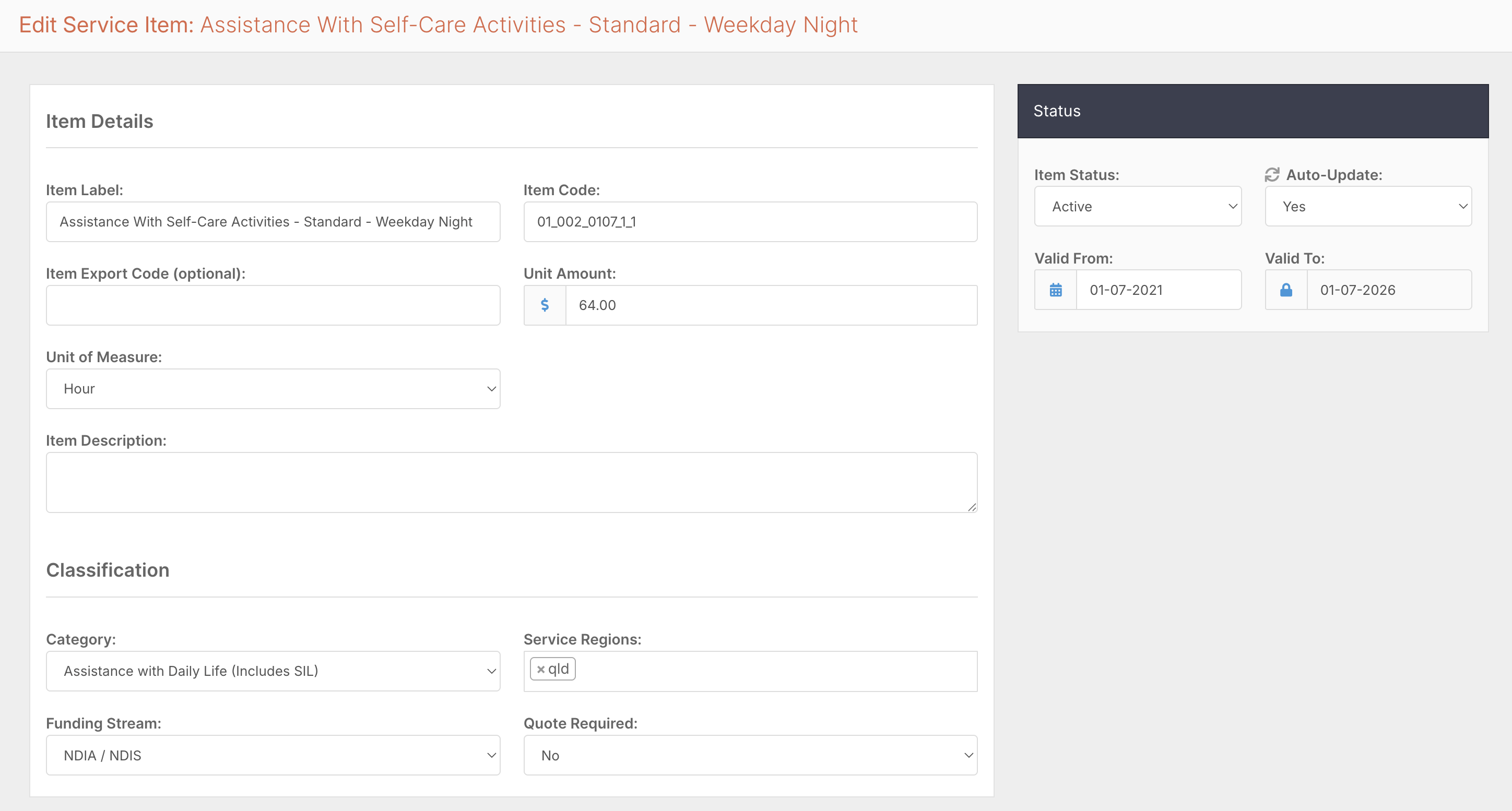
You can also assign:
- Service regions
- Funding streams
- Quote-only status if required
This configuration determines how the item behaves across rostering, billing, and claiming.
Making an archived service item active
An archived service item is hidden from funding allocations and shift billing. If you can't find a service item or an NDIS support item code (for example a SIL code such as 01_799_0138_1_1), it may be archived, and you can make it active yourself.
Go to Finance and Payroll and select Service Items.
Turn on Show Archived, then search for the support item code or name.
Click Edit on the item.
Change Item Status from Archived to Active.
Click Save Item.
To bill the item, add it to the client’s funding allocation, then choose it from the Allocated Items list on the shift. See How should I set up funding allocations for self-managed, plan-managed and NDIA-managed participants? and How do I add billing to a shift?
Units and Billing Structure
Each service item must have a defined unit of measure. Common options include:
- Hourly
- Daily
- Per shift
- Per kilometre
- Weekly or monthly

Choosing the correct unit ensures accurate billing and alignment with funding rules.
Price Revision History
At the bottom of each service item is the Price Revision History, which is a critical feature.

Instead of replacing prices, FlowLogic stores multiple pricing versions over time.
When price updates occur:
- A new revision is added with a valid start date
- Historical pricing is retained
- The system automatically applies the correct rate based on the service date
This ensures:
- Accurate historical billing
- Compliance with NDIS pricing rules
- No need to manually adjust past claims
Valid Dates and Status
Each service item includes:
- Valid From date
- Valid to date
- Active or inactive status
These control when the item is available and which price applies.
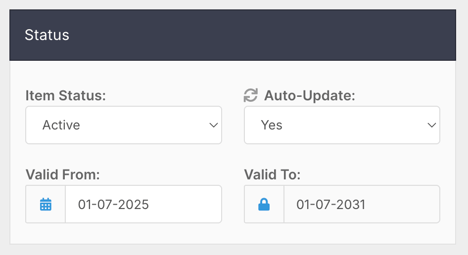
FlowLogic uses these dates to determine which pricing revision to apply during exports.
Price Guide Updates
FlowLogic does not automatically update pricing.
When a new price guide is released:
- FlowLogic will notify your organisation
- You ask our Support team to apply it. See How do I get a new NDIS price guide applied in FlowLogic?
Once applied:
- New prices apply only to future service dates
- Historical services continue using previous rates
Custom or non-NDIS items must be updated manually by your organisation if required.
Why Service Items Matter
The Service Item List acts as both:
- A library of all services your organisation delivers
- A calculation engine that drives billing, claims, and reporting
It directly impacts:
- Rostering billing options
- Funding allocations
- Funding Exchange exports
- Invoice generation
- Financial reporting