
Key Points
FlowLogic doesn't apply a new NDIS price guide to your system automatically, because some organisations aren't ready for their prices to change straight away. When a new price guide is released, FlowLogic sends you an alert and posts an announcement for admins in FlowLogic, and you ask our Support team to apply it.
When you ask, tell Support the date the new prices should start, the service regions you use, and whether new support items should be added as Active or Archived.
Support uploads the new price catalogue into your system and lets you know when it's done.
To keep your own price on a service item, lock it before the update: go to Finance and Payroll > Service Items, click Edit, set Auto-Update to No and click Save Item.
New prices apply from the start date you choose. Each shift is billed at the price for its date of service, so earlier services keep the old price. You don't need to recreate funding allocations.
Do I need to ask Support to apply a new price guide?
Yes. FlowLogic doesn't push a new NDIS price guide to every organisation at once, because some organisations need to finish billing at the old prices or aren't ready for the change. When the NDIS releases a new price guide, FlowLogic sends you an alert, and admins also see an announcement in the Product updates panel in FlowLogic. Contact our Support team when you're ready for it to be applied.
When you contact Support, let them know:
The start date for the new prices, for example 1 July.
The service regions you use, and whether you need Remote or Very Remote prices.
Whether new support items should be Active or Archived. Active items are ready to use straight away. Archived items stay hidden until you make them active. If you don't say, new items are added as Archived.
Support then uploads the new price catalogue into your system and confirms when it's done. Before you ask, lock any service items you want to keep at your own price (see below).
How do I keep my own price on a service item?
The update replaces the price on every service item whose code matches an NDIS support item. If you charge your own price for an NDIS item, lock that item before the update so it keeps your price.
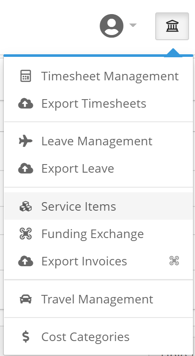
Click the Finance and Payroll menu in the top right and select Service Items.
Click Edit on the item you want to lock.
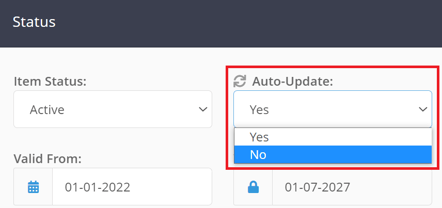
Open the Auto-Update dropdown and select No.
Click Save Item at the bottom of the page.
Items locked this way show an icon in the Service Item List and are skipped by the update.
Which service items does the update change?
Updated: service items whose code matches an NDIS support item, in the regions being updated, with Auto-Update set to Yes. The update adds the new price from your start date, so the old price stays in place for earlier dates.
Not changed: custom or non-NDIS items with their own codes. Update their prices yourself. See How do I create and manage service items?
Status stays the same: the update doesn't make archived items active, or active items archived.
New support items are added as Active or Archived, as you chose. If you can't find a new support item code, it's probably archived. In Service Items, turn on Show Archived, edit the item and set Item Status to Active.
Will existing funding allocations and rostered shifts use the new prices?
Yes, from the start date. Service item prices are date based:
Each rostered shift is billed at the price for its date of service. Shifts before the start date keep the old price and shifts from the start date use the new price, even when a billing period covers both.
You don't need to recreate funding allocations. An allocation that started before the new prices may still show the old price, but the correct price is charged for each date. If you want an allocation to show the new prices, end it the day before the start date and add a new allocation from the start date.
If an allocation line has an override price, it keeps charging that price. Update or clear the override yourself.
Invoices you've already exported don't change. To bill them at the new price, adjust them in your finance software, or revert and export them again.
Staff pay rates aren't part of the price guide. Update them in your Cost Categories.
Can I upload our own price list?
Yes. If your organisation uses its own price list, our Support team can upload it into FlowLogic for you. Contact Support for the CSV template to fill in.