
Key Points
To export invoices, go to Finance and Payroll > Export Invoices, set your filters, click Search Entries, review the results, then click Export Invoices.
Export Invoices is the final step in your billing workflow. It brings together rostering, timesheets, funding allocations and the Funding Exchange, and sends invoices to your accounting or invoicing system.
With an API integration (e.g. Xero or MYOB) invoices are sent automatically. A CSV export generates a file for manual upload.
Review invoices before exporting, on screen or with preview reports such as Full Preview or Clustered Reports, to catch missing billing, incorrect totals and funding mismatches.
If changes are needed after export, click Revert Export to return invoices to new status. With an API integration, also remove them from your external system before re-exporting.
The Export Invoices section is the final step in your billing workflow within FlowLogic. This is where all completed and approved services are converted into invoices and exported to your accounting or invoicing system.
It brings together data from:
- Rostering
- Timesheets
- Funding allocations
- Funding Exchange
Once exported, invoices are ready for reconciliation and payment.
Accessing Export Invoices
To access this screen:
- Go to Finance and Payroll
- Select Export Invoices
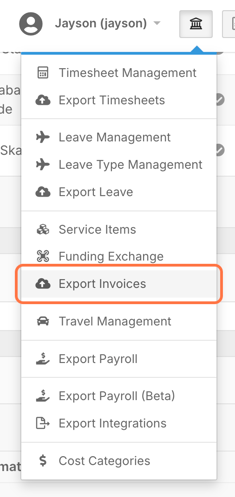
At the top of the screen, you’ll find a filter section that allows you to control exactly what invoices are displayed.
Filtering and Searching
Before exporting, you can refine your results using filters such as:
- Invoicing period (week or fortnight)
- Status (e.g. new items, exported)
- Specific clients
- Funding type (NDIA, plan-managed, self-managed)
- Invoice source or forms
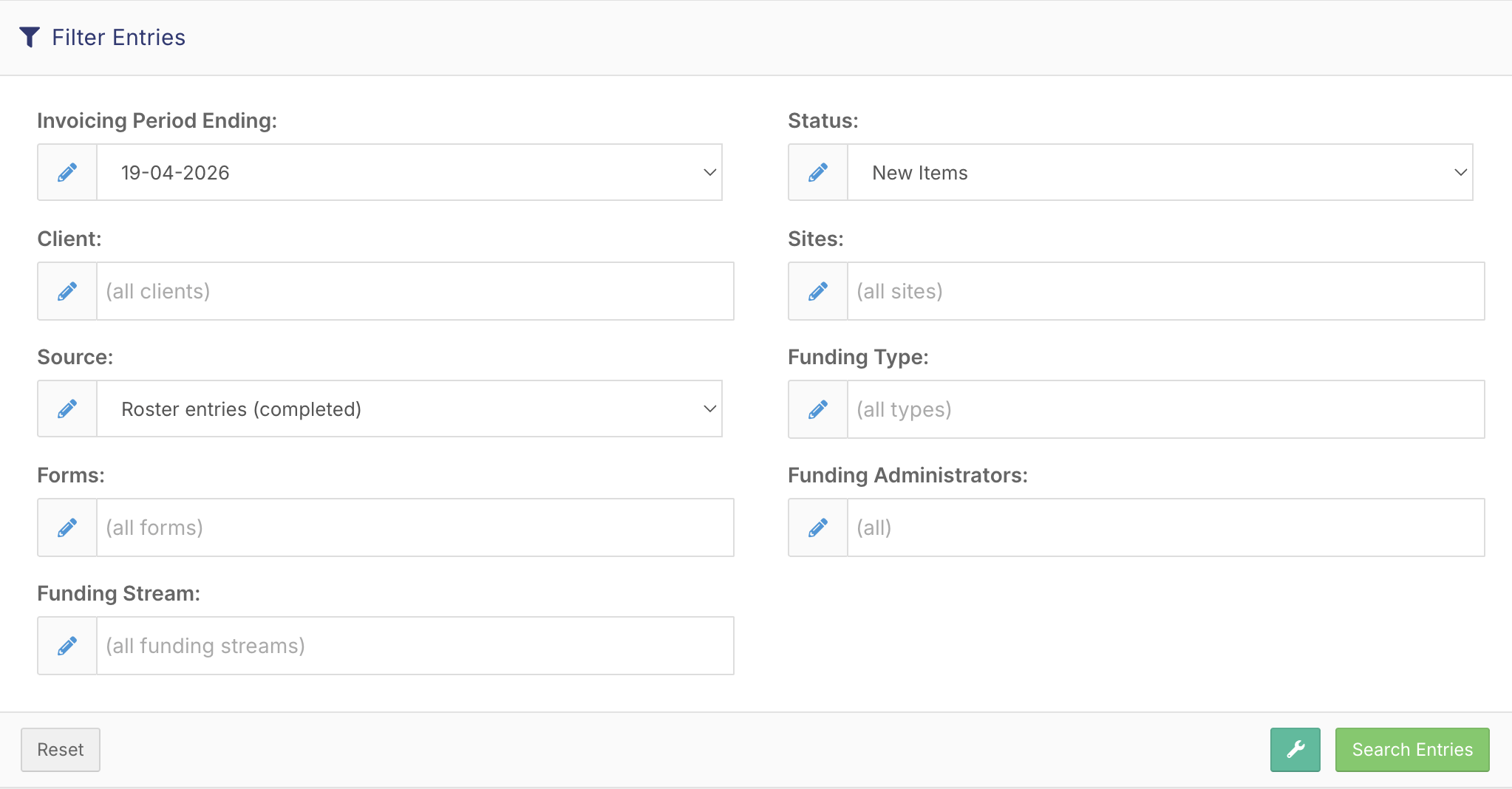
Once your filters are set, click Search Entries to load the relevant invoices.
Understanding the Invoice View
After running a search, FlowLogic displays a summary of invoices ready for export. This includes:
- Invoice period dates
- Number of invoices
- Total value
- Any warnings
Each client is grouped into a collapsible section. Expanding a client shows detailed line items, including:
- Service delivered
- Dates of service and invoicing
- Funding stream and service code
- Quantity, rate, and total value
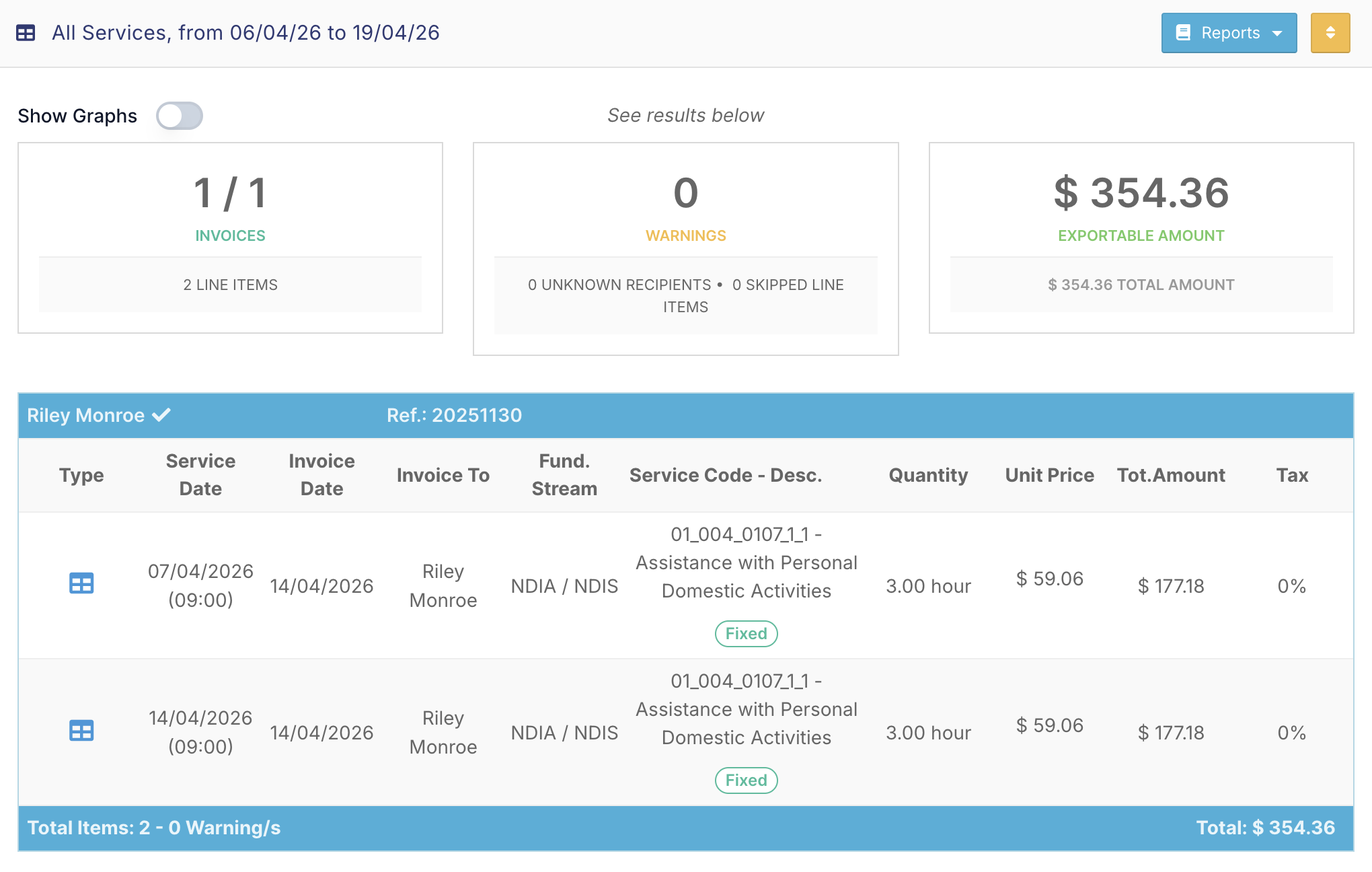
FlowLogic automatically separates invoices based on funding type. For example, a single client may have multiple invoices if they have both NDIA-managed and self-managed supports.
Reviewing Before Export
Before exporting, it’s important to review your data.
You can:
- Manually check invoice lines on screen
- Run preview reports such as Full Preview or Clustered Reports
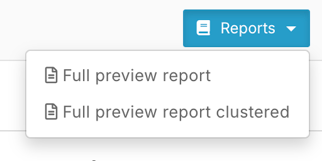
This helps identify:
- Missing billing
- Incorrect totals
- Funding mismatches
Catching issues at this stage prevents problems in your accounting system.
Exporting Invoices
Once everything is confirmed:
- Click Export Invoices (bottom left)

The export method depends on your setup:
- API integration (e.g. Xero or MYOB) will send invoices automatically
- CSV export will generate a file for manual upload
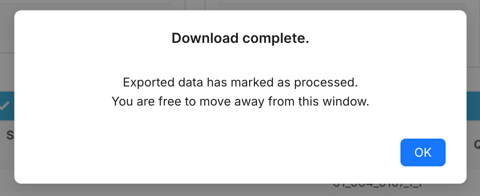
After export, a confirmation message will appear.
Reviewing Exported Invoices
To view exported invoices:
- Change the status filter to Exported

- Click Search again
Exported invoices will appear highlighted (typically in green), confirming they have been successfully processed.
If there are issues, FlowLogic will display warnings or highlight failed items for correction.
Reverting an Export
If changes are needed after export:
- Click Revert Export
This will:
- Return invoices to “new” status
- Allow them to be edited and re-exported
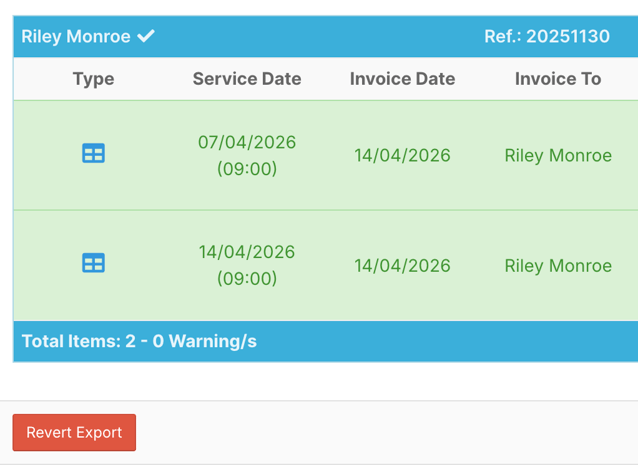
If using API integrations, invoices must also be removed from your external system before re-exporting.
Syncing with Funding Exchange
The Sync to Funding Exchange setting controls which invoices appear.
- When enabled, only paid claims appear
- When disabled, unpaid and pending items are also shown
This ensures that only confirmed funding is invoiced when required.
Additional Configuration Options
The Export Invoices screen includes several configurable settings:
- Invoice reference (auto or manual)
- Invoice date
- Grouping options (by client or funding type)
- Rounding precision
- Inclusion of zero-value items
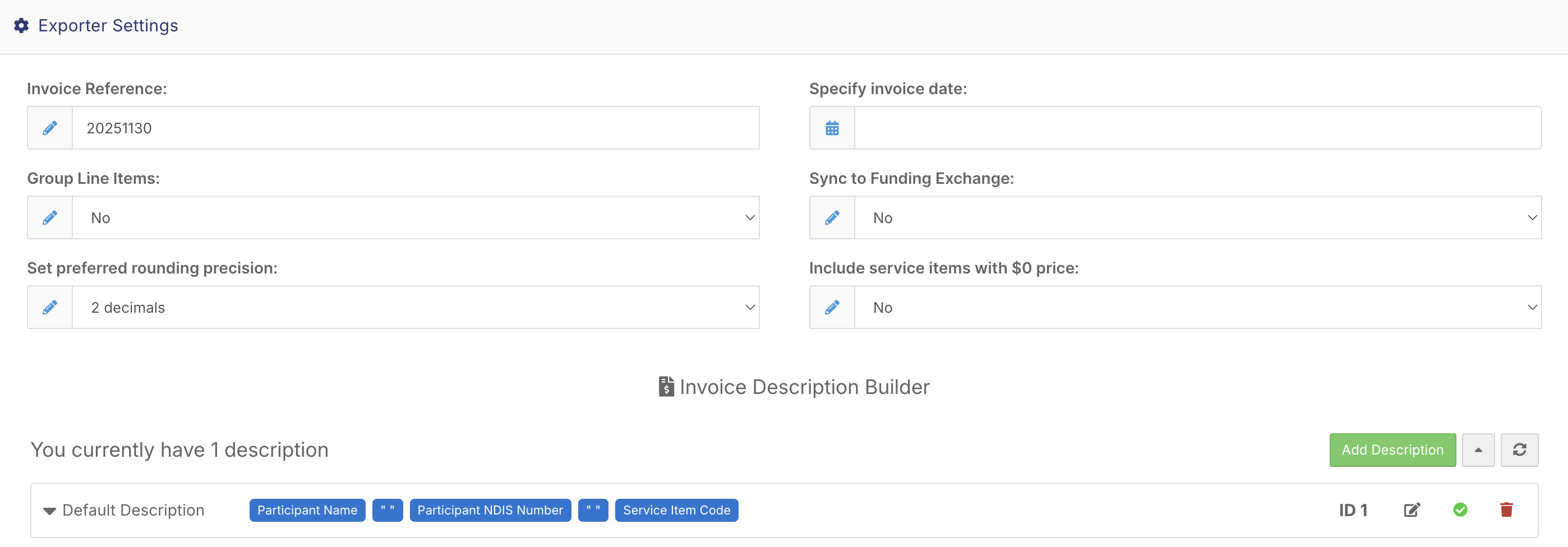
You can also customise invoice descriptions using dynamic placeholders. This allows you to include:
- Client details
- Service information
- Billing data
- Roster notes
These descriptions automatically populate exported invoices, improving clarity for plan managers and finance teams.
Best Practices
- Always review invoices before exporting
- Use preview reports for validation
- Keep Funding Exchange synced where required
- Revert and correct invoices rather than duplicating them
- Ensure descriptions are clear and consistent