Key Points
Use the Invoice Description Builder to customise invoice line descriptions. Go to Finance and Payroll - Export Invoices and scroll down to the Settings section.
The default description is the participant's name, NDIS number and service item code, separated by spaces.
Click Add Description, give it a name and add components in order, using whitespace or a custom character such as a hyphen to separate them.
Including the full service date and time can stop line items grouping together. For more condensed invoices, use just the service date or roster shift start date.
Assign a description to a specific plan manager or set it as the default, and save before navigating away.
The Invoice Description Builder lets you customise the descriptions that appear on your invoices. You can set a single description that applies across all invoices, or configure different descriptions for specific plan managers - all managed from one place.
To access it, go to Finance and Payroll - Export Invoices, scroll down to the Settings section, and continue scrolling until you find the Invoice Description Builder.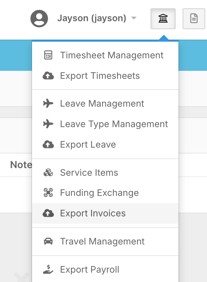
The Default Description
A default description is already in place when you first arrive. It consists of the participant's name, their NDIS number, and the service item code, each separated by a space. You can leave this as-is or customise it to suit your needs.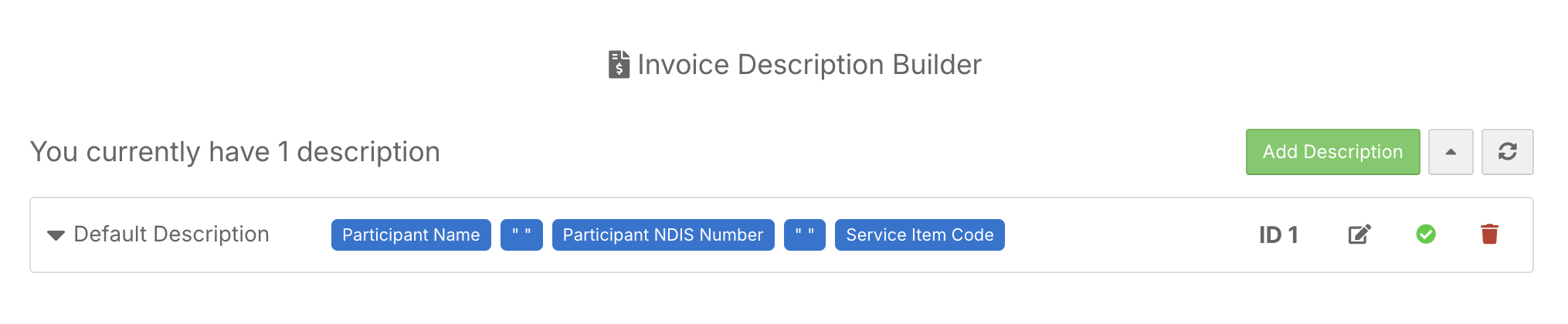
Building a Custom Description
Click Add Description in the top-right corner to open the builder. Start by giving your description a name, then add the components you want to include. You can search for components by typing in the search field. Common options include service date and time, service item code, ratio, participant name, and NDIS number. Click each component to add it to the description in order.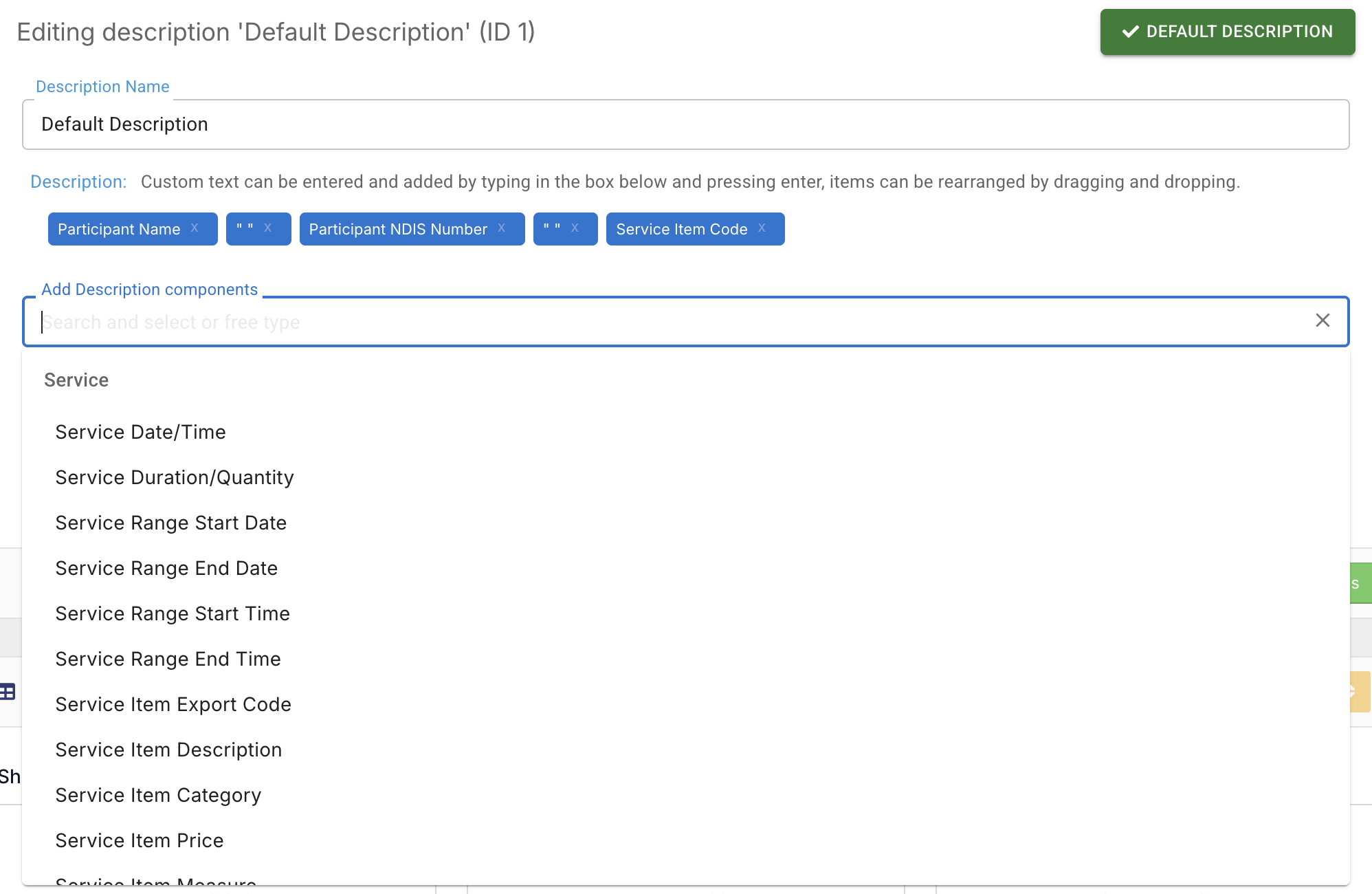
To separate components, add a whitespace from the top of the component list, or type a custom character such as a hyphen directly into the component field and press Enter to add it. You can then click and drag any component to reposition it. Double-clicking an existing item in the builder adds it again, which is useful when reusing separators across a longer description.
Clustering and Invoice Layout
The components you choose can affect how line items are grouped on your invoice. If you include the full service date and time, and those times differ between line items, each line will appear as a separate entry rather than being grouped together. If you want more condensed invoices, consider using just the service date or roster shift start date instead.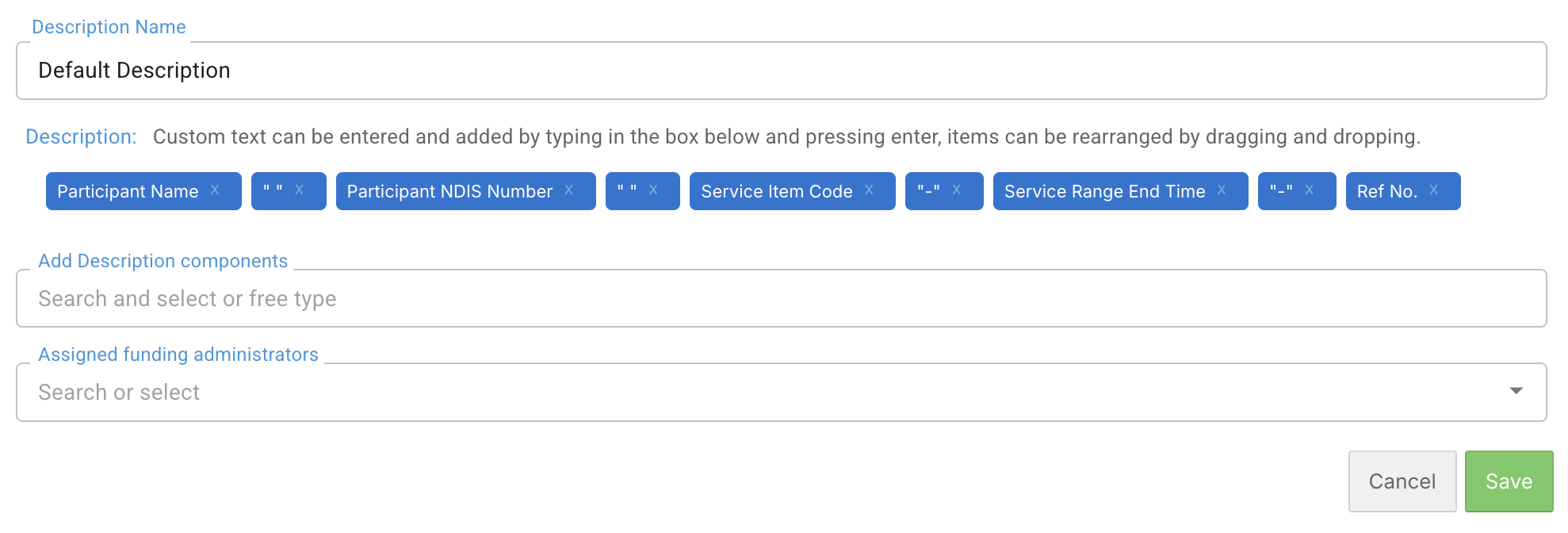
It's worth running a few test exports after setting up your description to check how it looks in your financial software before locking it in. The FlowLogic team can also provide guidance and best practice advice if you're unsure how to configure it.
Assigning to Plan Managers
Each description can be assigned to a specific funding administrator or plan manager using the dropdown in the builder. This means different plan managers can automatically receive invoices in their preferred format without any manual adjustment at export time. You can also set a description as the default to apply it across all invoices regardless of plan manager.
Saving
Once you've finished configuring your description, make sure you save before navigating away. Any unsaved changes will be lost.