
Key Points
Create the Support at Home allocation in the client's Support at Home / Aged Care tab, then click the dropdown arrow beside it and select Create Repeating Record. Set Repeat to Quarterly, the start date to the first day of the next quarter and End Date to Never.
FlowLogic then automatically generates a new allocation every quarter. Request access to the repeating feature from FlowLogic's Customer Success team.
Choose which fields to copy into future quarters - such as the label, classification level, supplements, support categories and funding administrator - so you don't re-enter data each quarter.
If funding or classification changes mid-quarter, edit the allocation and click Save as New, then manually set the old allocation's end date to the day before the new one starts. FlowLogic won't end it automatically.
The repeating series uses the most recent allocation as the template, so you don't need to rebuild the repeating setup.
Creating a Support at Home Allocation
Open the Client Record
Go to Clients/ Participants from the left-hand menu
Select your Client / Participant
Open the Support at Home / Aged Care tab
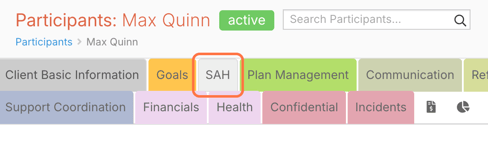
If this tab isn’t visible, contact the FlowLogic team to have it enabled.
Add a New Allocation
Click Add New in the top-right corner of the Support at Home Allocation form.
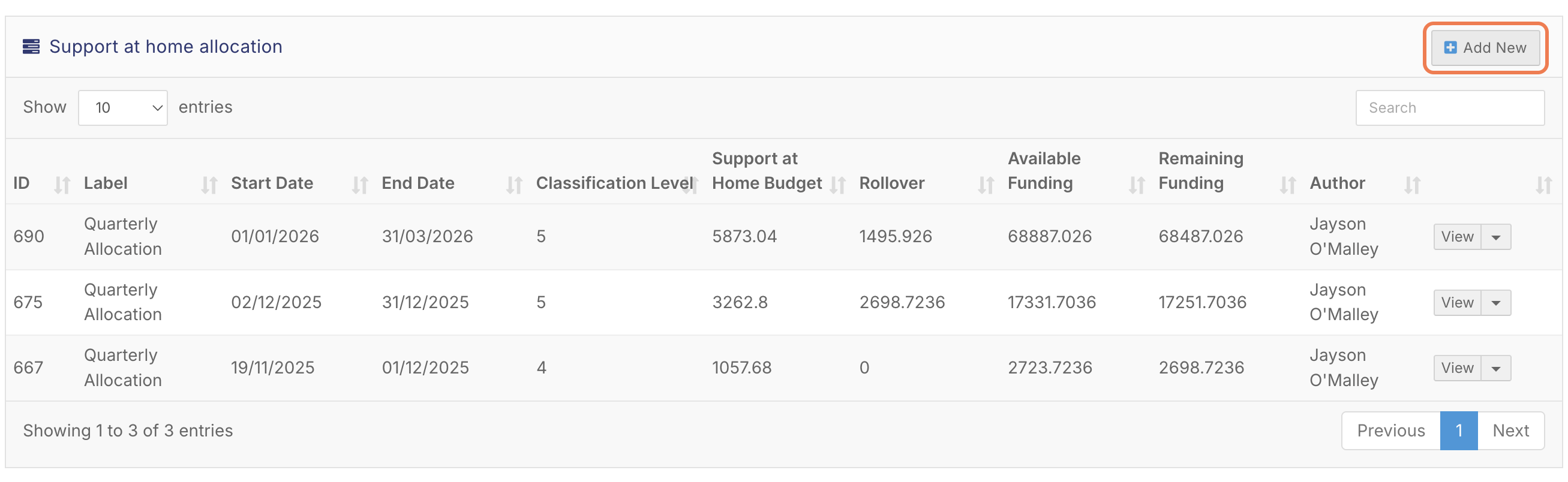
Enter Allocation Details
Label
Give the allocation a clear name (e.g., Quarterly Allocation). This appears in rostering and claiming.
Start & End Dates
Choose the correct funding period
End date should align with the end of the quarter
After saving, FlowLogic calculates the number of days and the daily funding accrual
✔ Double-check dates to avoid reporting and utilisation issues later

Select Classification & Funding Adjustments
Choose the Support at Home classification level
Enter any adjustments (over/undercharges)
MSO Percentage (If Applicable)

Add Supplements
If eligible, type Yes into relevant supplement fields.
Supplements are automatically added to the funding total.

Review the Funding Summary
This section updates after saving and shows:

Total budget
Care management amount
Rollover totals
Supplements
Add Support Categories
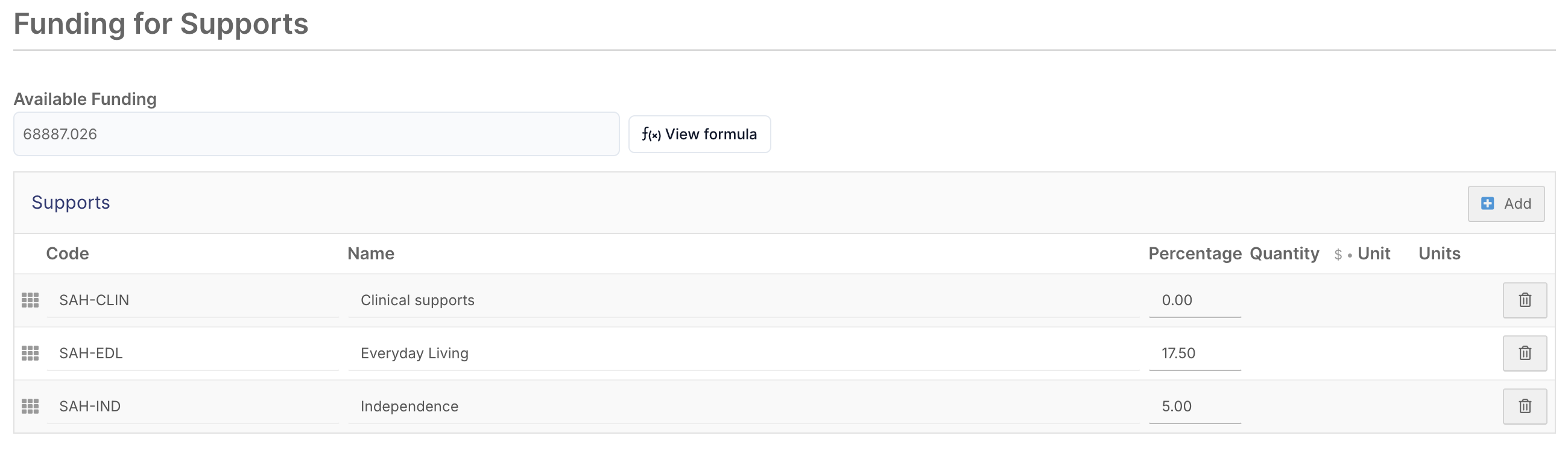
Click Add
Open the Categories tab
Select all relevant support categories
⚠ These categories determine what services can be rostered and claimed.
Client Contribution %
Enter the client’s contribution percentage (e.g., 10%).
FlowLogic uses this to split invoices automatically.
Confirm Claiming Settings
Claim via Funding Exchange → Leave ticked
Funding Administrator → Should be Funding Body
Administrator Name → Usually Aged Care or Support at Home
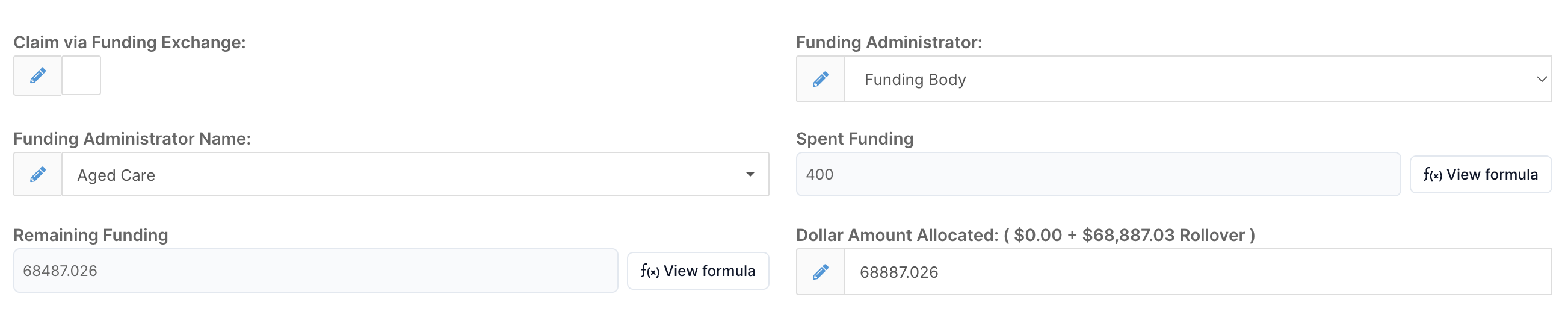
If missing, add it under Funding Administrator in the main menu.
Final Check & Save
Review:
Dates
Classification
Supplements
Categories
Contribution %
Click Save and Close.
Your allocation is now ready for rostering, claiming, and billing.
Setting the Allocation to Repeat Quarterly
These allocations should use Repeating Records to repeat quarterly:
✅ Support at Home Allocation
✅ HCP Unspent Funds Allocation (where applicable)
Quarterly repetition checklist
Frequency set to quarterly
Start date aligns to your quarter boundaries (should be set as the start of the next quarter)
Fields where data remains unchanged are copied; these generally include, but are not limited to:
For the Support at Home Allocation, these are:
- Label
- Classification Level
- MSO Percentage
- Enteral Feeding - Bolus
- Enteral Feeding - Non-Bolus
- Oxygen
- Veterans
- Dementia/Cognition*
- MMM Viability*
- Aria Viability*
- Supports (These are the selected categories)
- Claim Via Funding Exchange
- Funding Administrator
- Funding Administrator Name
For the HCP Unspent Funds Allocation, these are:
- Label*
- Supports
- Claim Via Funding Exchange
- Funding Administrator
- Funding Administrator Name
*These fields are only applicable to some providers
Note - Please request access to this feature from FlowLogic’s Customer Success team
Open Repeating Options
Click the dropdown arrow beside the allocation → Create Repeating Record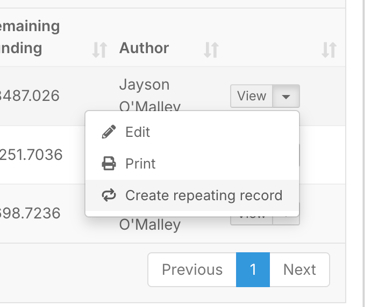
Choose Fields to Copy
Select fields to carry into future quarters. The lists above will help you decide on which fields need to be copied over for the specific allocation being selected.
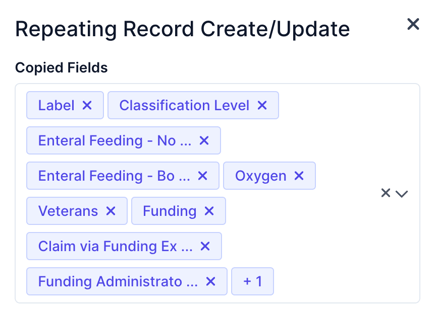
Examples of these are:
Allocation label
Classification level
Supplements
Support categories
Funding administrator
This avoids re-entering data every quarter.
Set Repeating Details
Start Date: First day of next quarter
Start Time: Usually leave as default (SAH allocation time needs to be earlier than the HCP unspent funds allocation)
Time Zone: Confirm correct
Repeat: Select Quarterly
End Date: Choose Never
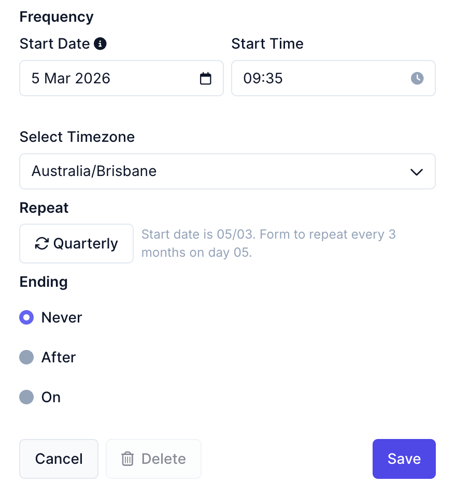
Click Save
FlowLogic will now automatically generate a new allocation every quarter.
Updating an Allocation Mid-Quarter
If the client’s funding or classification changes:
Edit the Current Allocation
Open the allocation and update:
Start date = date change takes effect
Classification level (and any new adjustments/unspent funds)
Category Percentage (new percentage)
Save as a New Allocation
Click Save as New
(This may require admin permissions.)
This creates a new allocation without re-entering all details.
Manually End the Old Allocation
FlowLogic will not do this automatically.
Open the old allocation
Set the end date to the day before the new allocation starts
Example:
New allocation starts 2 Dec → Old allocation ends 1 Dec
✔ Prevents funding overlaps
✔ Ensures accurate reporting
Continue Normal Processing
You can now safely:
Roster services
Enter claims
Process invoices
How Repeating Works After an Update
The repeating series will now use the most recent allocation as the template for future quarters.
You do not need to rebuild the repeating setup — FlowLogic automatically carries the latest funding and classification forward.
You now know how to:
✔ Create a Support at Home allocation
✔ Configure it to repeat quarterly
✔ Update allocations mid-cycle without breaking the repeating series
Your allocations will stay accurate, compliant, and ready for claiming and billing.