
Key Points
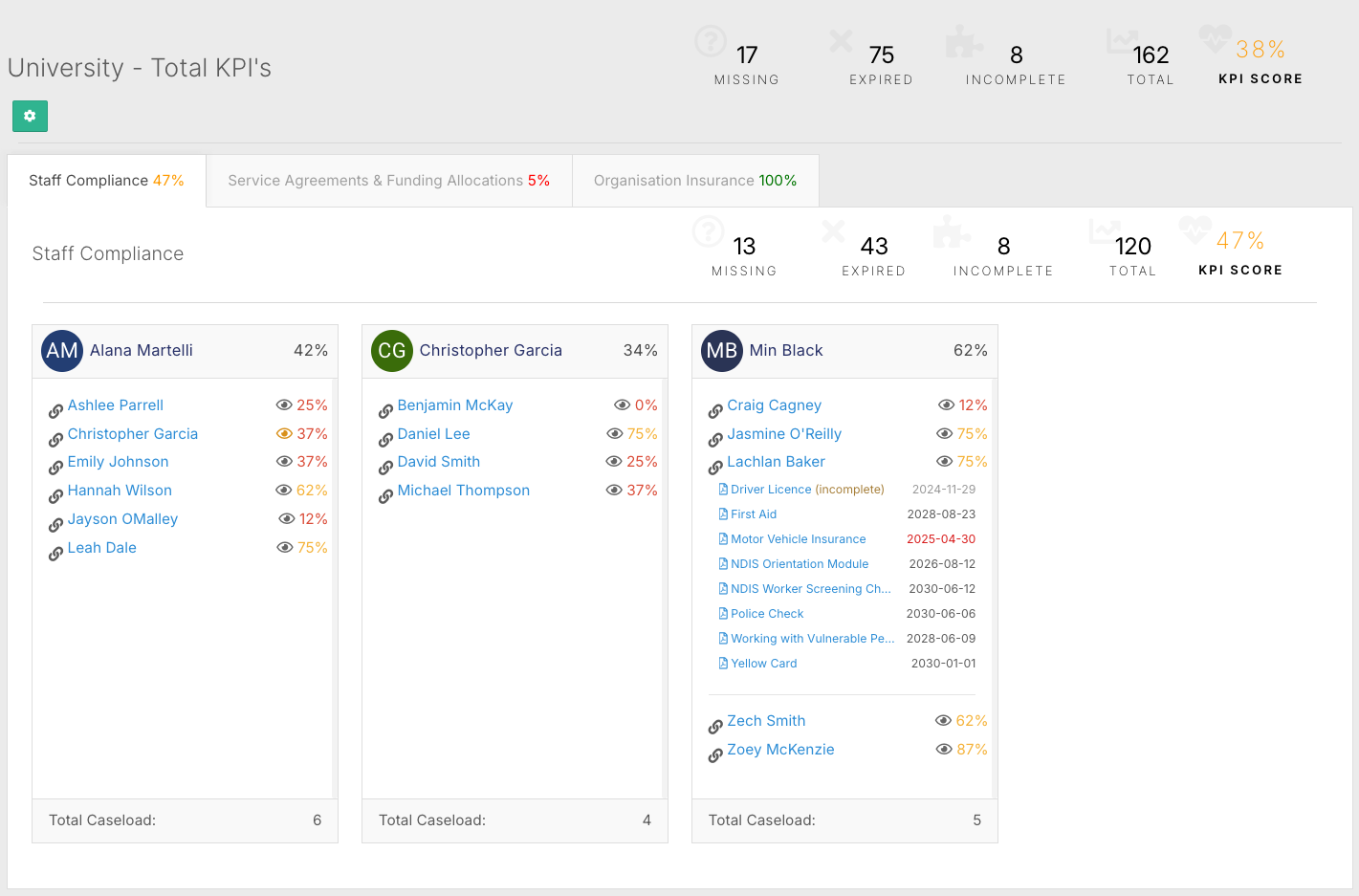
The KPI Widget, also called the document checklist, sits on the FlowLogic dashboard and shows a real-time view of compliance health across staff, clients and the organisation.
It shows how many records are missing, expired and incomplete, plus an overall KPI score as a percentage.
Tabs separate areas such as Staff Compliance or Client Documentation. Green means fully compliant, orange means expiring soon and red means expired.
You can update documents, enter expiry dates and click + to add missing items directly from the checklist.
Only users with the appropriate permissions see the widget on their dashboard.
What Is the KPI Widget?
The KPI widget, also called the document checklist, sits on the FlowLogic dashboard and gives your organisation a real-time view of compliance health. It tracks expiring and missing records across staff, clients, and the organisation itself, so you can stay proactive rather than reacting when something falls overdue.
Only users with the appropriate permissions will see the widget on their dashboard. Staff who don't need access won't see it.
What Does It Track?
The widget can monitor compliance across several areas:
- Staff documentation - police checks, first aid certificates, working with vulnerable people checks, driver's licences, and more
- Client documentation - service agreements and funding allocations
- Organisational requirements - insurance and other internal compliance items
Bringing all of these into one place makes it much easier to stay ahead of important deadlines and meet NDIS and service delivery obligations.
Reading the Dashboard
At the top of the widget, you'll see a summary showing how many records are missing, expired, incomplete, and the total count across all documents. This is displayed alongside an overall KPI score as a percentage, which gives you a quick measure of your organisation's compliance health and helps track improvement over time.

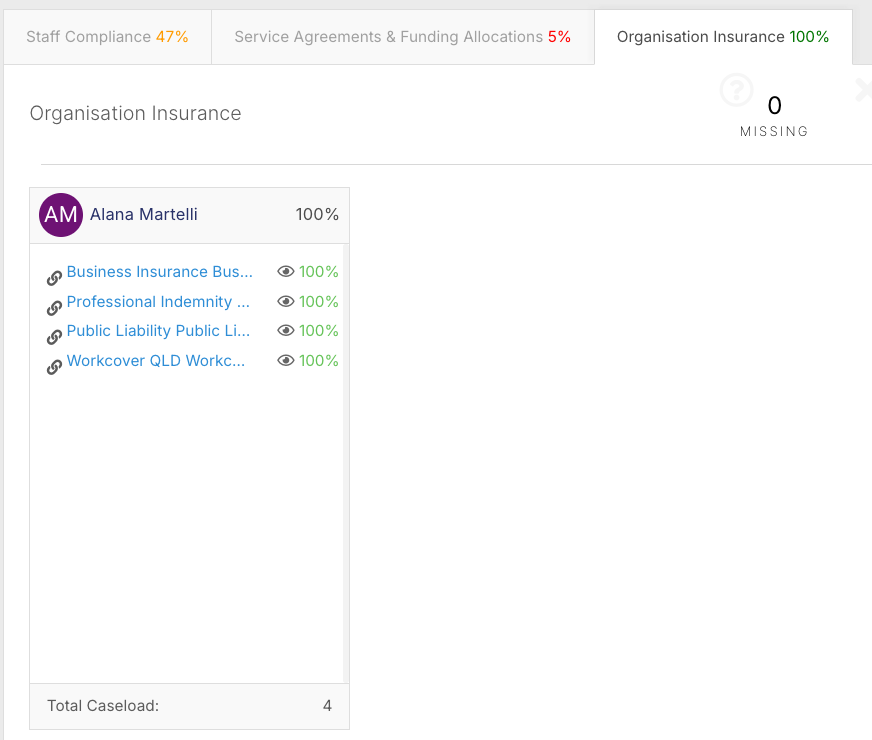
Below the summary, individual tabs separate the checklist into different areas - for example, Staff Compliance, Client Documentation, or Organisational Insurance. This keeps everything manageable without crowding into one long list.
Navigating a Tab
Within a tab like Staff Compliance, you'll see the same summary totals and KPI score, but focused on that area only. Records are grouped into caseloads, typically organised by team leader or HR manager, with a dedicated KPI manager assigned to each group.
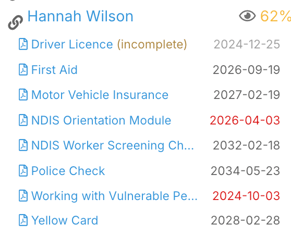
Clicking the percentage next to a staff member's name expands their individual record so you can see exactly which documents are complete, missing, or expiring.
Understanding the Colour Coding
The widget uses colour to indicate urgency at a glance:
- Green / 100% - fully compliant
- Orange - documents expiring soon but still valid; early warning to act before they lapse
- Red - expired documents requiring immediate attention
Taking Action
From within the checklist, you can update documents and enter expiry dates directly without navigating away. Clicking the + button on a record lets you add missing items. Small updates here can quickly improve the compliance score for an individual or an entire group.
Keeping It Useful
You can add as many tabs and documents as needed, but it's worth keeping the setup focused. Too many categories can create clutter and reduce visibility. Limiting the widget to your most critical compliance areas will ensure it stays useful day to day.