
Key Points
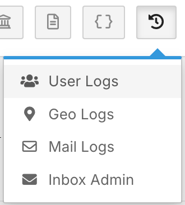
User System Logs give a detailed record of what users have done in FlowLogic, for troubleshooting, auditing user activity and investigating unexpected changes. Open them from the Logs menu in the top right-hand corner by selecting User Logs.
Access is controlled by system permissions. If you can't view User Logs, request access from your system administrator or FlowLogic Support.
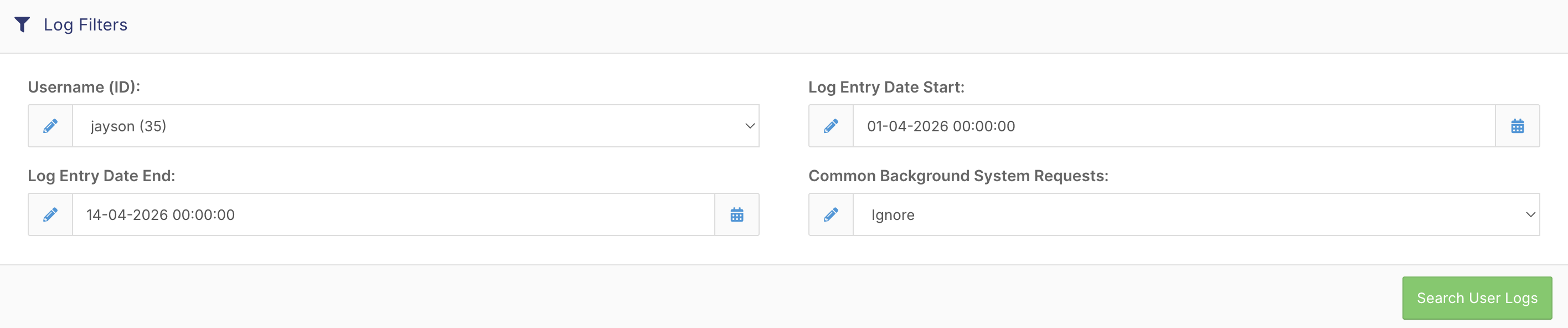
Search by user (or leave it blank for all users) and by date, or search background system requests, then click Search User Logs.
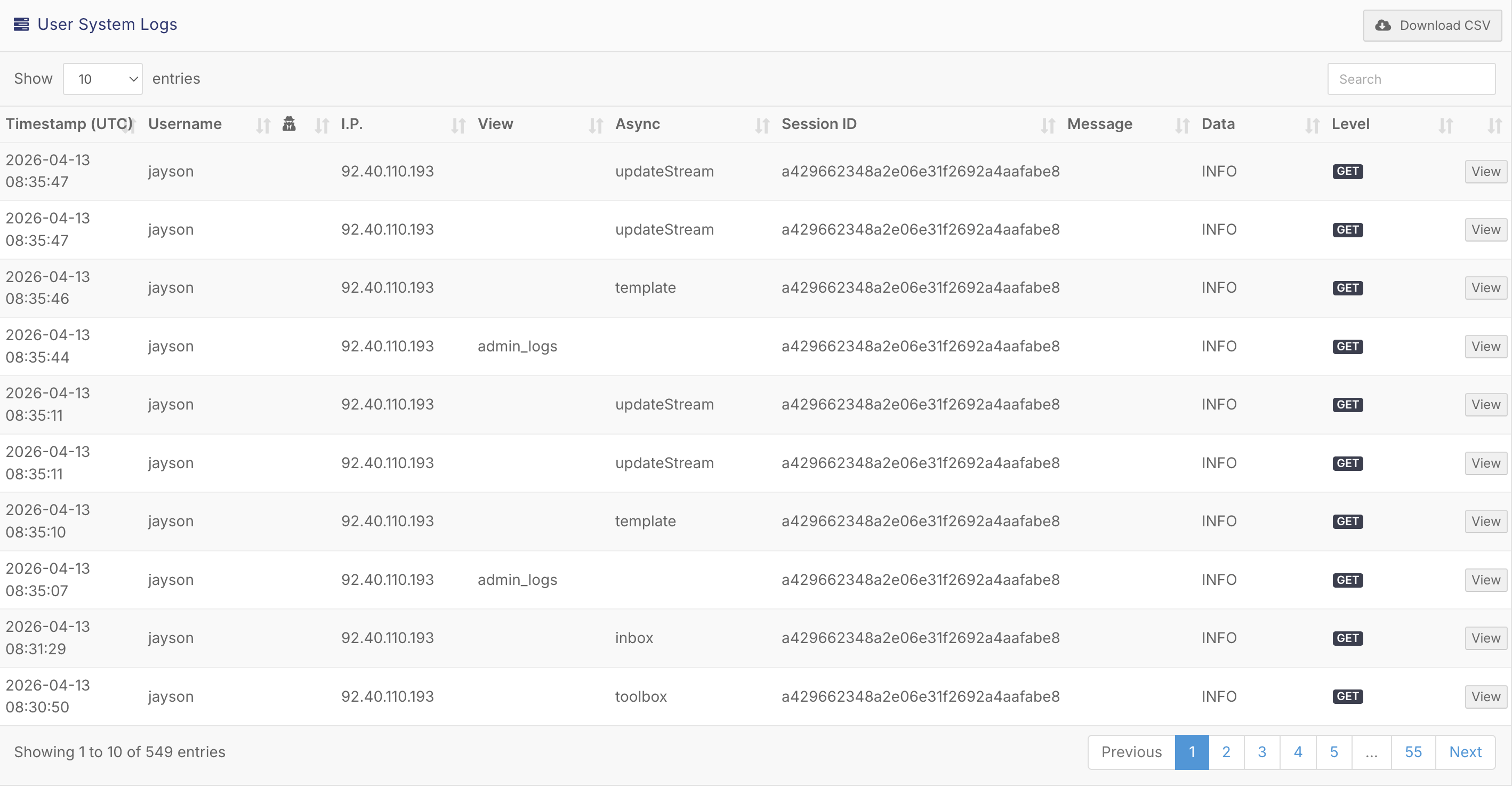
Each entry shows a timestamp in UTC, the username and IP address, and system fields such as View, Async, Session ID and Level (GET for accessing data, POST for editing or adding data).
You can download the logs as a CSV file, or click View on any entry for a more detailed breakdown.
These logs capture both simple actions (like viewing a page) and more complex interactions.
Accessing User Logs
To begin, navigate to the top right-hand corner of the screen and click on the Logs menu. From here, you’ll see several log options available, including User Logs, Geo Logs, Mail Logs, and Inbox Admin Logs. Select User Logs to open the user system log screen.
Once loaded, the screen is divided into three main areas:
- Filters at the top
- User access logs
- User System Log entries below
System permissions control access to this area. If you’re unable to view User Logs, you will need to request access from your system administrator or the FlowLogic team.
Using Filters
At the top of the screen, you’ll find several filters that allow you to refine your search and locate specific activity.
You can search by user to review an individual's activity, or leave this blank to view logs across all users. Date filters are also available, including entry date, start date, and end date, which help you focus on a specific time period.
There is also an option to search for background system requests. This can be useful when investigating a specific action or system behaviour.
Once your filters are set, click Search User Logs to display the results.
Understanding Log Entries
The log results can appear quite technical at first, but each column provides useful insight into user activity.
Each entry includes a timestamp (displayed in UTC), along with the username and IP address associated with the action. If a user is being emulated or has switched accounts, this will also be reflected in the log.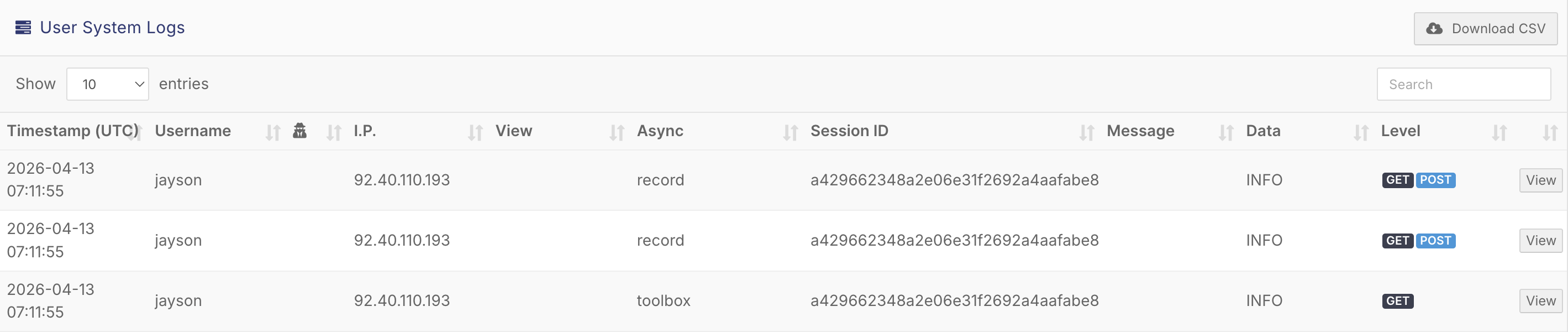
Additional system fields provide further context:
- The View column shows which part of the system was accessed
- The Async column indicates the type of system request or process
- The Session ID helps track activity within a specific session
- The Level shows whether the action was a GET (accessing data) or a POST (editing or adding data)
You may also see message and data fields, which provide more detailed information about what occurred during that action.
Reviewing and Exporting Logs
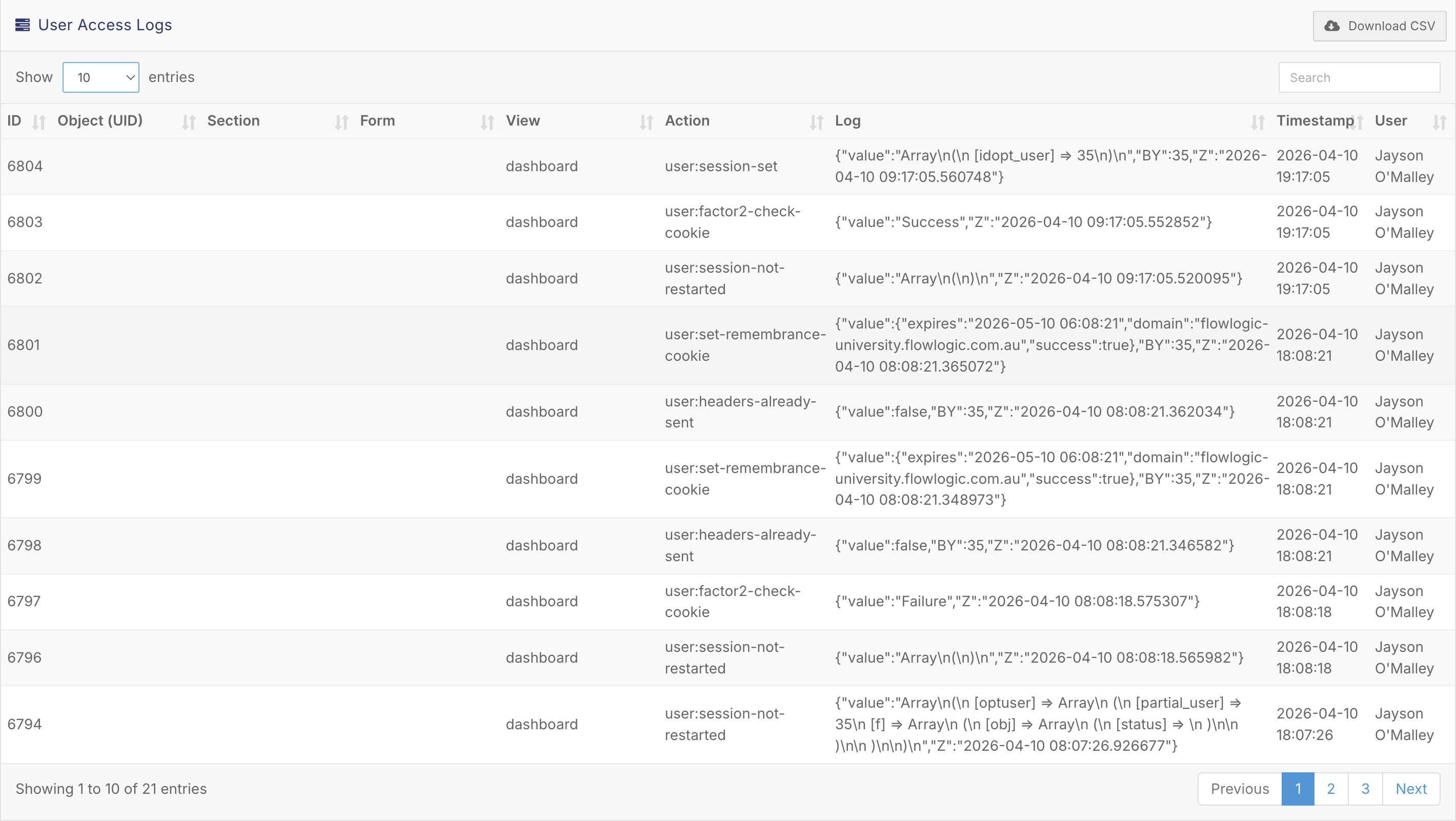
If user access logs are displayed above the results, they can be used alongside system logs to build a clearer picture of user activity.
For further analysis, you can download the logs as a CSV file. This is particularly useful for audits or when reviewing large volumes of data.
You can also click the View button on any individual entry to open a more detailed breakdown, including additional technical information related to that action.
Key Notes
User System Logs are designed primarily for administrators and technical users, so some entries may appear complex or detailed.
If you’re unsure how to interpret specific log entries, it’s recommended to reach out to the FlowLogic support team or an onboarding specialist for assistance.
Overall, this section provides a complete audit trail of user activity, making it a valuable tool for troubleshooting, auditing, and maintaining system accountability.