
Key Points
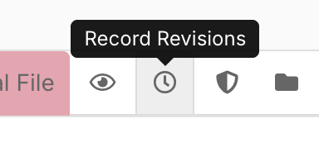
Open a record and click the Record Revisions icon (small clock symbol) at the top, near the record access tab, to see a full history of changes - what was changed, who changed it and when.
Access is controlled by a system right. If you don't have it, the Record Revisions tab won't be visible - contact your FlowLogic administrator to have it assigned to your user or group.
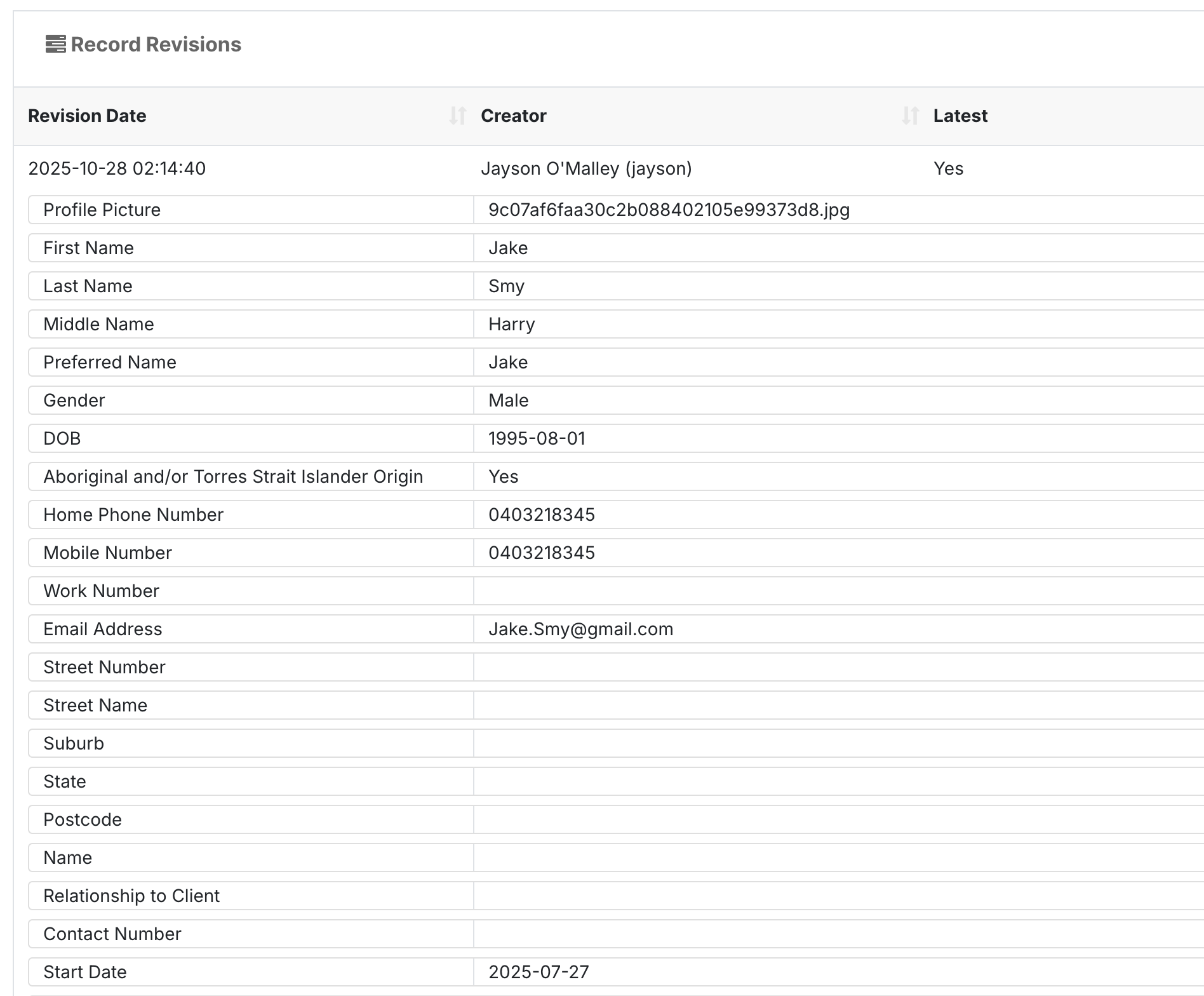
Expand a revision to see field values at that point in time, or click View to open that version of the record. You can also print or export the history as CSV, PDF or PDF with filters.
Revisions can be reviewed for staff records, participant records, case notes, progress notes, assessments and other secondary or linked forms.
Revision history supports accountability, auditing and data integrity, and remains available even after changes are saved.
Enabling Access to Record Revisions
Check Your Rights
Go to the System Menu (top right corner)
Open Rights
Look for the right called View Document Revisions (globe-shaperevisionview).
This right allows users to view documents and record revision history.
If you do not have this right enabled, the Record Revisions tab will not be visible. Contact your FlowLogic administrator to have it assigned to your user or group.
Opening Record Revisions
Open a Record
Once access is enabled, go to any section and open a record.
Example:
Go to the Staff section
Open a staff profile
Click the Record Revisions Icon
At the top of the record, near the record access tab, click the Record Revisions icon (small clock symbol).
This opens the Record Revisions view for that record.
Understanding the Revisions Screen
When the screen loads, you’ll see a list of revisions including:
Revision date
User who created the revision
Indicator showing whether it is the latest version
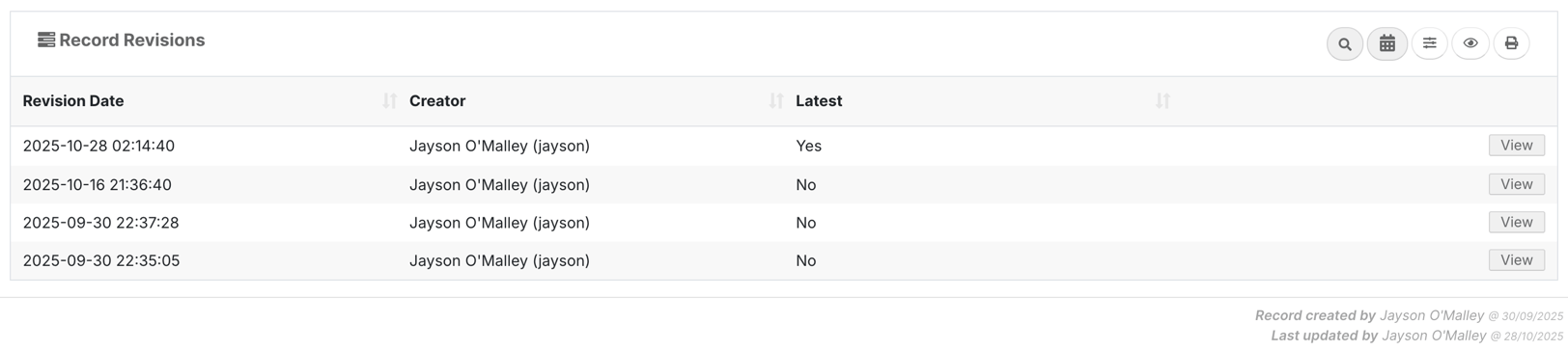
At the top of the screen, you can also:
Use the search bar
Apply filters
Expand rows
Show disabled fields
Choose which columns to display
You can also print or export the revision history in formats such as:
CSV
PDF
PDF with filters
This makes it easy to review changes outside of FlowLogic if needed.
Reviewing What Changed
Expand a Revision
You can either:
Use the expand options at the top, or
Click directly on an individual revision entry
Once expanded, FlowLogic shows:
The fields in the record
The values at that point in time
By comparing revisions, you can clearly see:
Which fields were changed
What the previous value was
What the updated value became
Viewing a Full Revision Version
Click View
On the far right-hand side, click View on a revision.
This opens that specific version of the record so you can inspect it in more detail. You can switch between different revisions to compare versions.
This is especially useful if:
Information was accidentally overwritten
A field was cleared or changed incorrectly
You need an audit trail of historical data
Even after changes are saved, the revision history remains available.
Where Record Revisions Can Be Used
Record Revisions are not limited to staff profiles. You can also use them for:
Participant profile
Case notes
Progress notes
Assessments
Other secondary or linked forms
If someone edits a case note after submission, you can use revisions to see:
What changed
Who edited it
When the edit occurred
You now know how to:
✔ Enable access to Record Revisions
✔ Open and navigate the revisions tab
✔ Compare historical versions of a record
✔ Track who made changes and when
✔ Use revisions across multiple areas of FlowLogic
This feature adds a strong layer of security, accountability, and confidence in your data