
Key Points
-
The Record Access tab shows who has accessed a record and when.
-
Access to this feature is controlled by the Record Access Logs system right.
-
The tab displays:
-
The most recent user to open the record
-
A detailed activity log of record access
-
-
Access logs can include activity on:
-
The main record
-
Secondary forms (e.g. case notes, progress notes)
-
-
This feature supports confidentiality, auditing, and accountability.
Enabling Access to Record Access Logs
Check the Required Right
-
Go to the System Menu (top right corner)
-
Select Rights
-
Search for Record Access Logs (record_access_logs)
This right provides detailed visibility beyond the standard “last seen” information.
If you don’t have this right, you won’t see the full Record Access tab. An administrator will need to assign this right to the appropriate user group.
Opening the Record Access Tab
Open a Record
Go into any record in FlowLogic.
Example:
-
Open the Staff section
-
Select a staff member’s profile
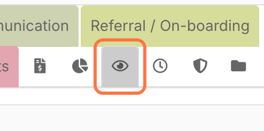
Click the Record Access Icon
At the top of the record, click the eye icon.
This opens the Record Access tab.
Viewing Recent Access
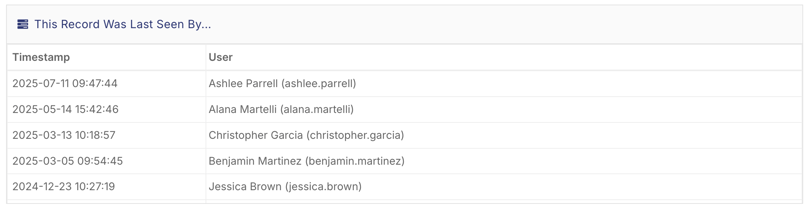
The first section shows:
-
The name of the last user to open the record
-
A timestamp showing when the record was last accessed
This provides a quick way to confirm recent activity.
Using the Record Access Logs
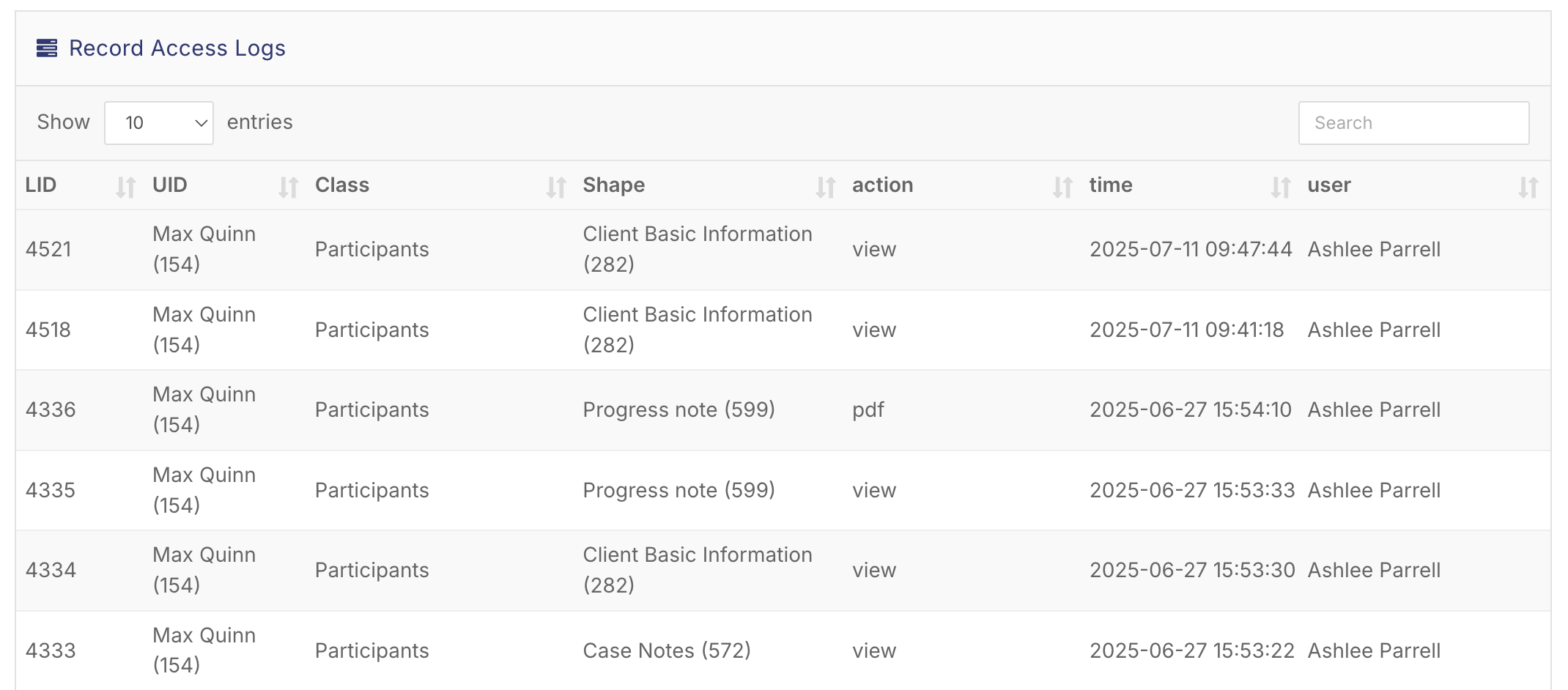
Below the “last accessed” information, you’ll find the Record Access Logs.
This section provides detailed tracking of:
-
Which record was accessed
-
Which form inside the record was opened
-
What action occurred
-
Who performed the action
-
When it happened
For example, you might see that a user:
-
Opened a staff profile
-
Viewed Staff Basic Details
-
Updated a status
-
Opened a linked form
Each entry includes the user and a timestamp.
Record Access in Other Areas
The Record Access feature works the same way across FlowLogic.
Participant Records
If you open a participant file, you can use the same eye icon to view access history for that participant.
Because participant files often contain many linked forms, access logs here can be especially useful.
Secondary Forms
Access logs can also capture activity on forms inside a profile, such as:
-
Progress notes
-
Case notes
-
Assessments
-
Other linked records
This means you can see not just that someone opened a participant file, but exactly which parts of the file they viewed.
You now know how to:
✔ Enable the Record Access Logs right
✔ Open the Record Access tab
✔ See who last viewed a record
✔ Review detailed access activity
✔ Track access across primary and secondary forms
This feature is especially valuable for maintaining privacy, compliance, and audit visibility across sensitive records.