
Key Points
The Support Coordination tab manages notes, claims, documentation, and annual reviews.
The COS Note and Claim Form allows you to record session notes and bill in one step.
Claims automatically flow to invoicing or the Funding Exchange once saved.
Documentation and annual reviews are stored directly within the participant’s profile.
The workflow is designed to be simple and consistent.
Accessing Support Coordination
To begin:
Navigate to the Participants section.
Open the participant’s profile.
Select the Support Coordination tab.
If you do not see this tab:
Check with your FlowLogic administrator.
Permissions may need to be enabled.
If the tab is missing entirely, the FlowLogic team can restore it.
Understanding the Support Coordination Tab
Inside the tab, you will see three main forms:
COS Note and Claim Form
COS Documentation Form
COS Annual Review
We will start with the COS Note and Claim Form.
Creating a COS Note and Claim
Click Add New
This opens a fresh note and claim form.
The form includes:
Session notes
Service details
Billing section
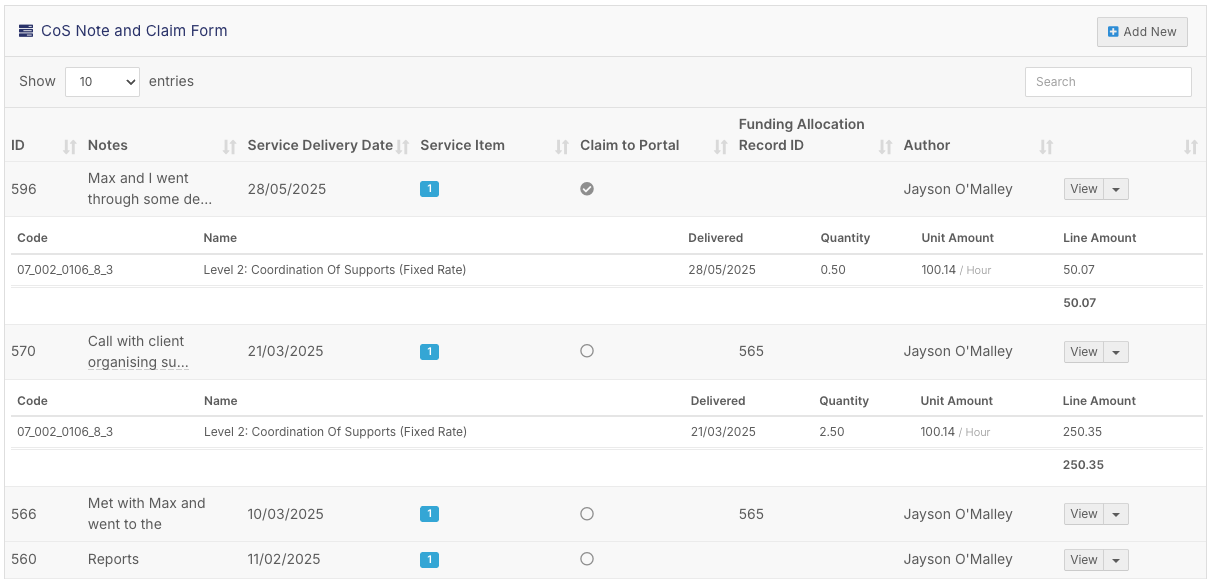
Enter Support Coordination Notes
Record what occurred during the session.
Examples:
Participant discussions
Coordinating services
Contacting providers
Planning next steps
Linking supports
Your notes should:
Reflect time spent
Clearly outline coordination activities
Add Service Date
Enter the date the support occurred.
This ensures accurate billing and reporting.
Select Staff Member
Choose the staff member who delivered the support.
Participant details (name and NDIS number) will auto-fill from the profile.
Selecting Service Items
Every claim must link to a valid support item in the participant’s funding allocation.

If no items appear:
The participant’s funding profile may need updating.
Enter Quantity
Use the legend at the top of the form to convert minutes into units.
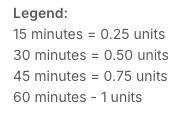
Examples:
1 hour = 1.0 unit
30 minutes = 0.5 units
This ensures billing aligns with NDIS unit definitions.
Claiming Method
You will see the option:
Claim Through Portal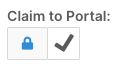
Tick if submitting via NDIS portal.
Leave unticked if invoicing a plan manager or billing directly.
The claim will follow the funding rules set in the participant’s allocation.
Saving the Claim
Click Save.
FlowLogic will:
Mark the claim as completed
Automatically prepare it for billing
Send it to:
Export of Invoices screen
Funding Exchange (if configured)
There is no additional approval step required.
COS Documentation Form
This form is used to upload supporting documents such as:
Reports
Service agreements
Evidence of work
Supporting files
To add documentation:
Click Add New.
Upload the relevant file.
Save.
Documents are stored securely within the participant’s profile.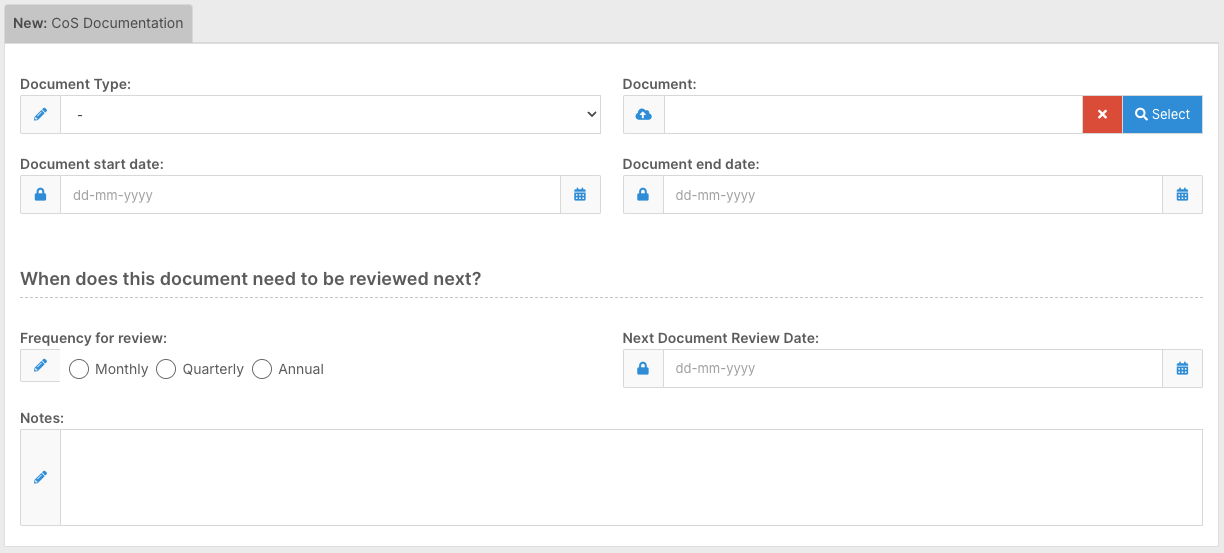
If needed, the form layout can be customised in the Form Editor.
COS Annual Review
The COS Annual Review form allows you to:
Record yearly summaries
Document services delivered
Provide recommendations for the next plan period
Complete declaration sections
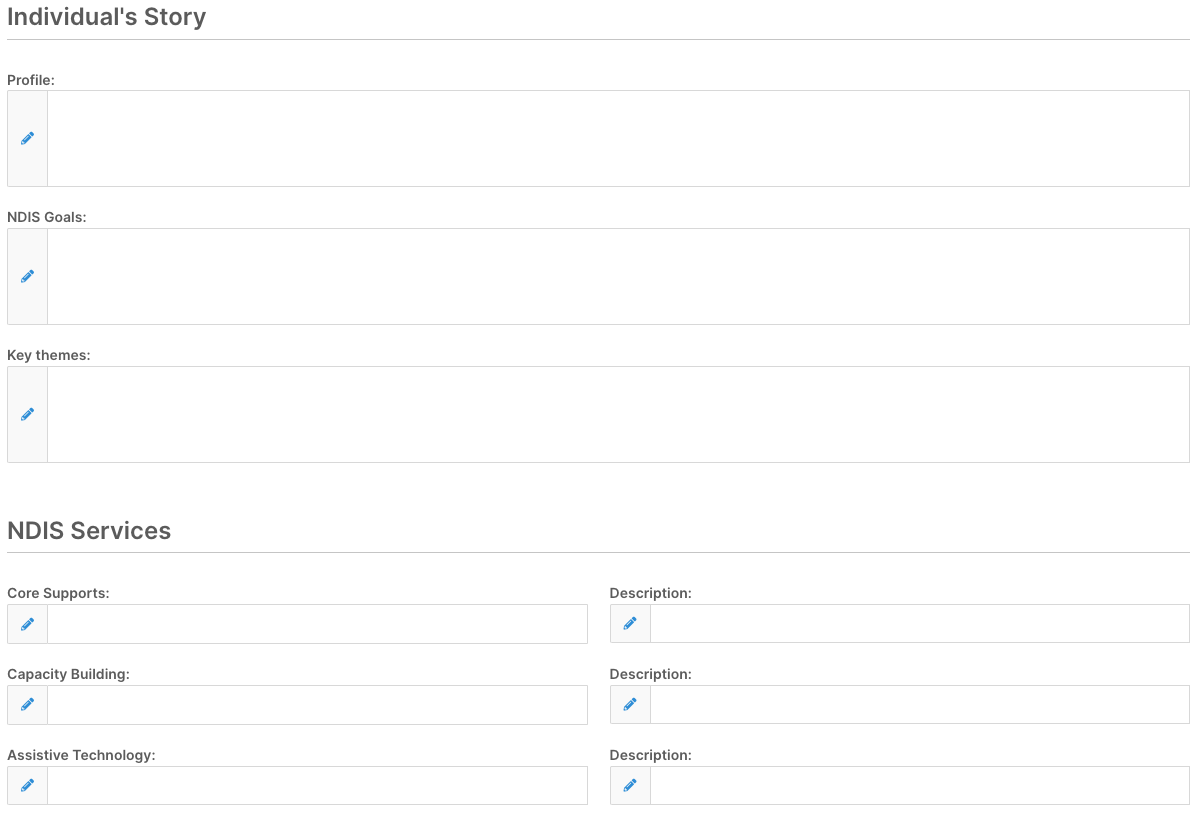
This form can also be customised to match your organisation’s workflow
You now understand:
✔ How to access the Support Coordination tab
✔ How to create a COS note and claim
✔ How billing units are calculated
✔ How claims flow to invoicing or funding exchange
✔ How to upload supporting documentation
✔ How to complete annual reviews
Once set up correctly, Support Coordination in FlowLogic becomes a streamlined process that ensures accurate notes, compliant billing, and organised documentation.