
Key Points
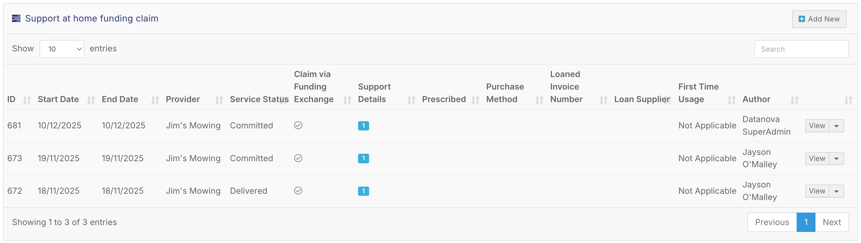
Create a Support at Home funding claim from the client's profile: open the Aged Care / Support at Home tab and click Add New to open a blank funding claim form.
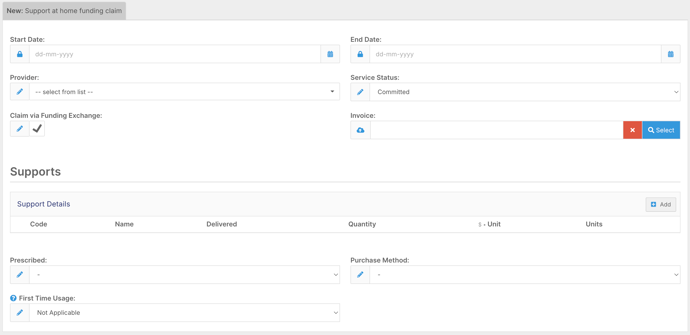
Enter the Start Date and End Date, the provider and the service status (Committed or Delivered). Leave Claim via Funding Exchange ticked so the claim flows through the aged care claiming process.
Choose the support Service Item, then enter the quantity and unit amount. Include any additional charge (for example a 10% admin fee) in the price, not the quantity.
After Save and Close, the claim appears in the client's aged care tab, and their quarterly allocation shows the service under Completed with the exact claimed amount.
If the Support at Home Funding Claim form isn't visible, contact FlowLogic Support to have it added.
Accessing the Claim Form
Open the Client Profile
Go to the client you need to submit a claim for.
Navigate to the SAH or Aged Care Tab
Select the Aged Care / Support at Home tab from the menu.
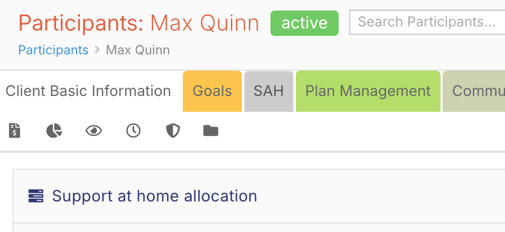
If the Support at Home Funding Claim form is not visible, contact FlowLogic Support to have it added.
Creating a New Claim
Click Add New
This opens a blank funding claim form.
Enter Claim Dates
Add:
Start Date
End Date
Usually, these will be the same day, but the end date allows for multi-day or subscription services.
Enter the Provider
Add the organisation or business that delivered the service.
Example: Jim’s Mowing
Set the Service Status
Choose whether the service is:
Committed, or
Delivered (most common)
Confirm Claim via Funding Exchange
Leave Claim via Funding Exchange ticked.
This ensures the claim flows through the aged care claiming process.
Optional: Upload an invoice for record keeping.
Adding Support Details
Select the Support Type
Click the service item list and choose the appropriate support Service Item.
Example: Gardening
Confirm Delivery Date
Adjust only if different from the start date.
Enter Quantity
Enter the amount of support delivered.
Example: 1 hour
If there is an additional charge (e.g., 10% admin fee), this needs to be included in the price instead of the quantity.
Enter Unit Amount
Add the cost per unit of service.
Other Fields
Other fields, such as prescribed items or purchase methods.
Prescribed for Home Modification and Assistive Technology Service Items
Purchase Method for Assistive Technology
First Time Usage for Home Modifications - When using SERV-0067, you must specify whether the home modification installed is the first time it has been installed for that client.
Saving the Claim
Save and Close
Your claim will now appear in the list inside the client’s aged care tab.
Checking the Allocation Impact
If you open the client’s quarterly allocation, you’ll now see:
The new service is listed under Completed
The exact claimed amount
This confirms the client’s funding balance has been reduced correctly.
You now know how to:
✔ Create manual Support at Home claims
✔ Record non-rostered services
✔ Attach invoices for tracking
✔ Ensure claims reduce the client’s allocation correctly
This form works alongside allocations, rostering, and invoice exports to keep your aged care claiming accurate and complete.