
Key Points
To export Support at Home invoices, go to Finance & Payroll > Export Invoices, choose the invoicing period, set the status to New Items, set Funding Stream to Support at Home and click Search.
Before exporting, make sure all rostered shifts are completed and approved, all Support at Home funding claims are entered and Funding Exchange claims are marked paid.
FlowLogic splits each service into government and client contribution portions automatically, and client contributions appear as separate line items.
Click Export Invoices in the bottom-left corner. Depending on your setup, invoices go straight to your accounting software by API or download as a CSV file, and they move to Exported Items.
After export, complete reconciliation in your financial software.
Preparing for Export
Confirm All Work Is Complete
Before exporting, make sure:
✔ All rostered shifts are completed and approved
✔ All Support at Home funding claims are entered
✔ Funding Exchange claims are marked paid
This ensures everything expected appears in the export.
Opening the Export Screen
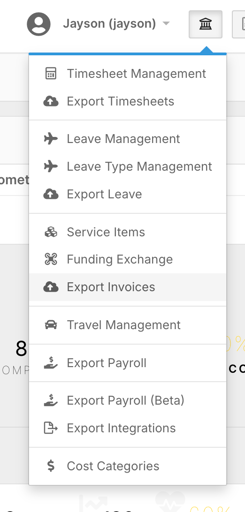
Navigate to Export Invoices
Go to Finance & Payroll
Select Export Invoices
Setting Filters
Choose the Invoicing Period
Select the relevant week or fortnight.

Note: The system settings for invoice exports will determine whether you select a weekly or fortnightly period. Depending on your configuration, you may also have the option to enter custom date ranges.
Set Status
Choose New Items to see invoices that haven’t been exported.

Apply Additional Filters
Optional filters include: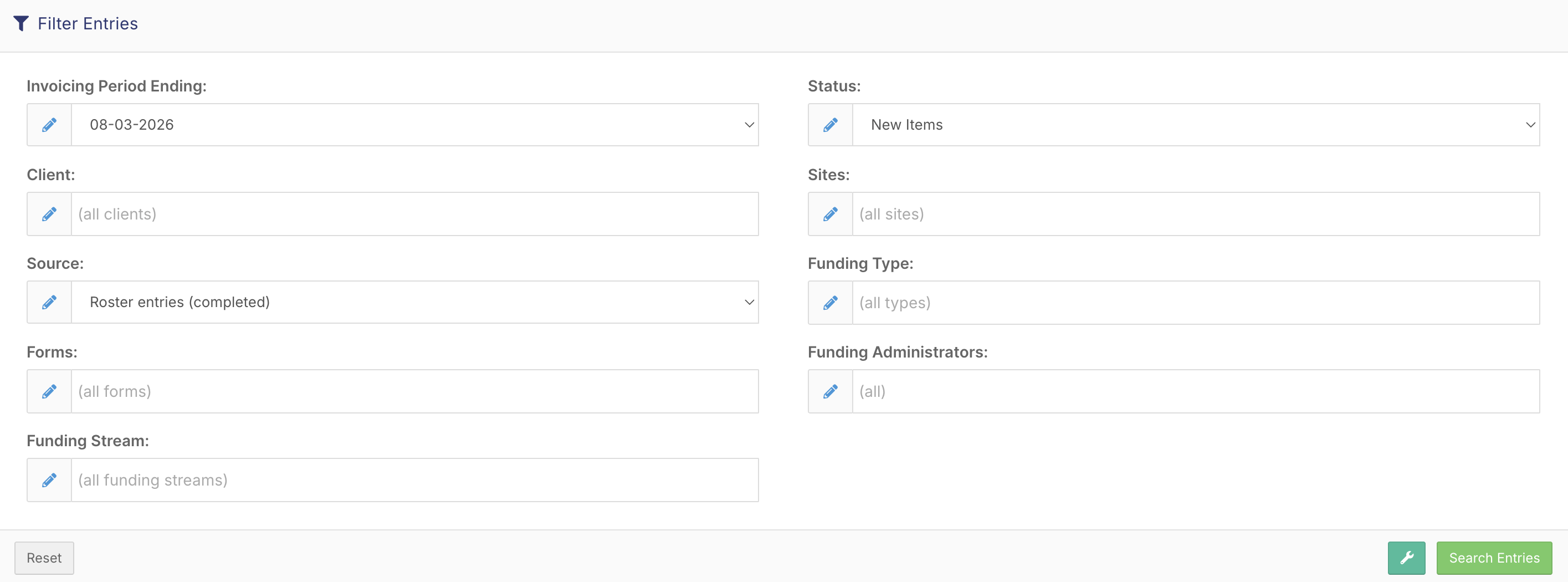
Individual clients
Funding types
Specific forms
Areas in the business
Important: Funding Stream Filter
Set Funding Stream → Support at Home
This ensures only aged care invoices appear.
Click Search.
Reviewing Invoice Results
After searching, you’ll see:
Total number of invoices
Warnings (if any)
Total exportable amount
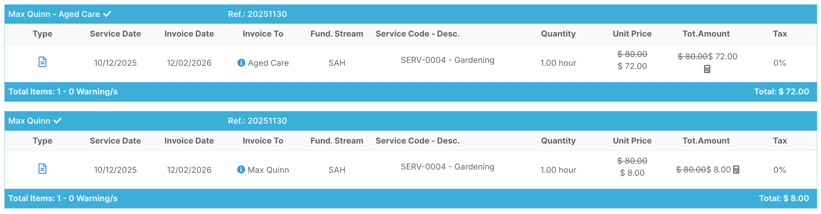
Each invoice appears as a collapsible blue bar.
Expand Invoices
Click a bar to see service details
Or use Expand All (top right)
Use Preview Reports
Full Preview Report
Clustered Preview Report
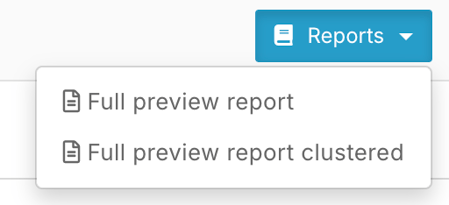
These help verify all services and claims are included before exporting.
Understanding Invoice Breakdown
Expanded invoices show:
Funding Exchange Items
Services already claimed through the funding exchange
Direct Client Billing
Client contribution portions are billed directly to the participant
At the top, you’ll see:
Client name
Financial file the invoice exports to
Client Contribution Splits
You’ll see a calculator icon beside pricing.
Hovering shows the client contribution %.
Example:
$160 service with 10% contribution → FlowLogic splits automatically:
Government portion
Client portion
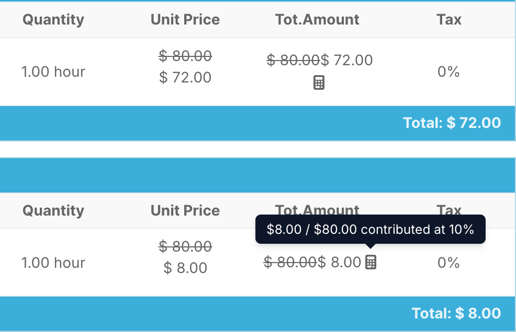
Client contributions appear as separate line items, making accounting clean and simple.
Adjusting References
If needed, adjust invoice references using the Settings icon
(found near the Search button at the top).
Exporting the Invoices
Click Export Invoices
Located in the bottom left corner.
Depending on setup:
API connected → Sends directly to accounting software
CSV export → File downloads for manual upload
After Export
Invoices move from New Items → Exported Items
Lines turn green to show success
Any issues will trigger a warning so you can fix and re-export
Next Steps
After export, complete reconciliation in your financial software.
From the FlowLogic side, invoicing is now complete.
You now understand how to:
✔ Prepare data before export
✔ Filter for Support at Home invoices
✔ Review and verify invoice details
✔ Understand funding vs client contribution splits
✔ Export invoices to your financial software
Your aged care invoicing process should now be accurate, efficient, and easy to manage.