
Key Points
Open the participant or client profile, click the Quick Quote tab and select Create Quote to build a complete participant quote in one place, using a guided, step-by-step workflow. If you can't see the tab, you don't have the required permissions.
Enter the quote details (service dates, quote name, funding type and available funding), then drag service items into the selected items panel and schedule them.
Scheduling, transport, public holidays and special services such as sleepovers can all be included, and the budget totals update as you add services.
Quotes can be saved as drafts and edited later, or approved with Save and Create Funding Allocation to convert them directly into a funding allocation.
Quotes guide service planning, and you can return to Quick Quote at any time to view, edit, approve or delete quotes.
Accessing the Quick Quoter
Navigate to a participant/client profile and click on the Quick Quote Tab
Navigate to the participant or client profile.
At the top of the profile, locate and click on the Quick Quote tab.
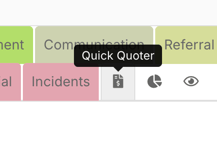
If you cannot see this tab, you do not have the required permissions. Contact your FlowLogic administrator to request access.
Creating a New Quote
Select Create Quote to start the guided quoting process.
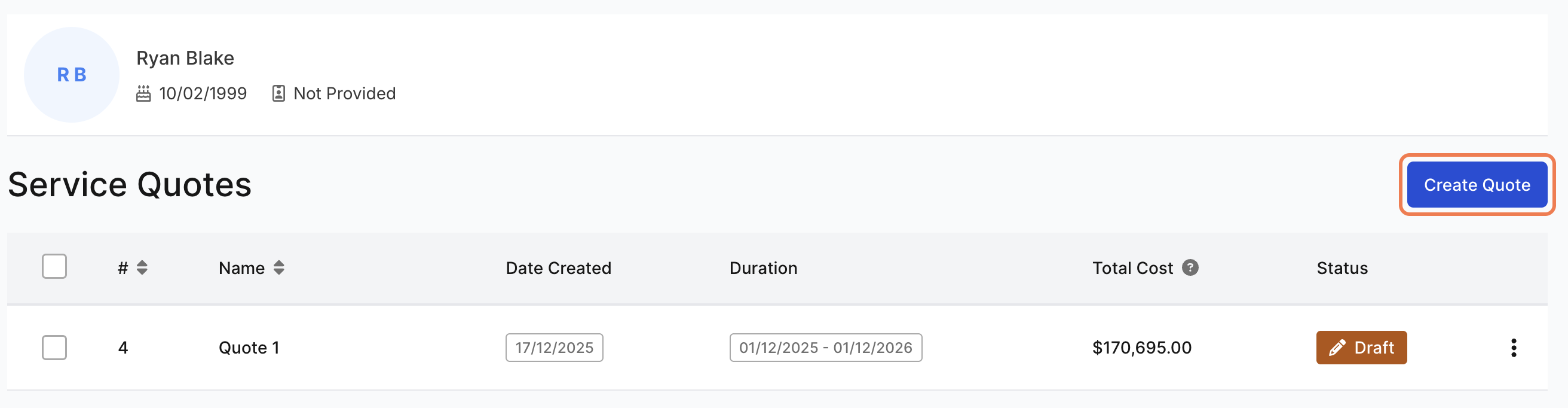
Complete the basic quote information:
-
Service start and end dates (plan period)
-
Quote name (clear and descriptive)
-
Funding type:
-
Self-managed
-
Plan-managed
-
NDIA-managed
-
-
Plan manager/funding administrator (if applicable)
-
Available funding amount (optional but recommended)
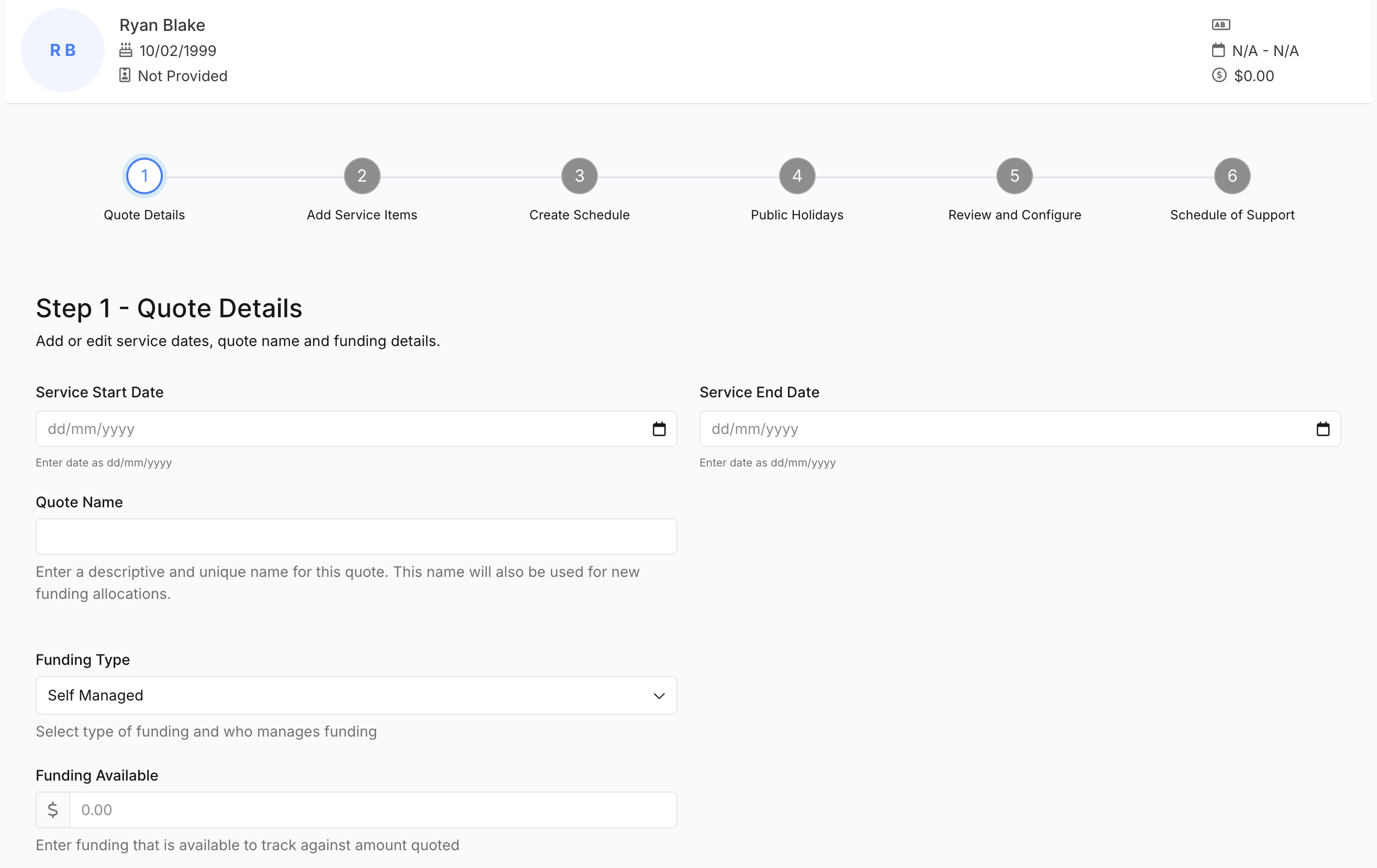
Entering funding helps provide a more accurate view of the budget.
Click Next to continue.
Adding Service Items
In Step Two, find service items using:
-
Search
-
Service category
-
Region filters
Searching by name or code is usually the fastest option.
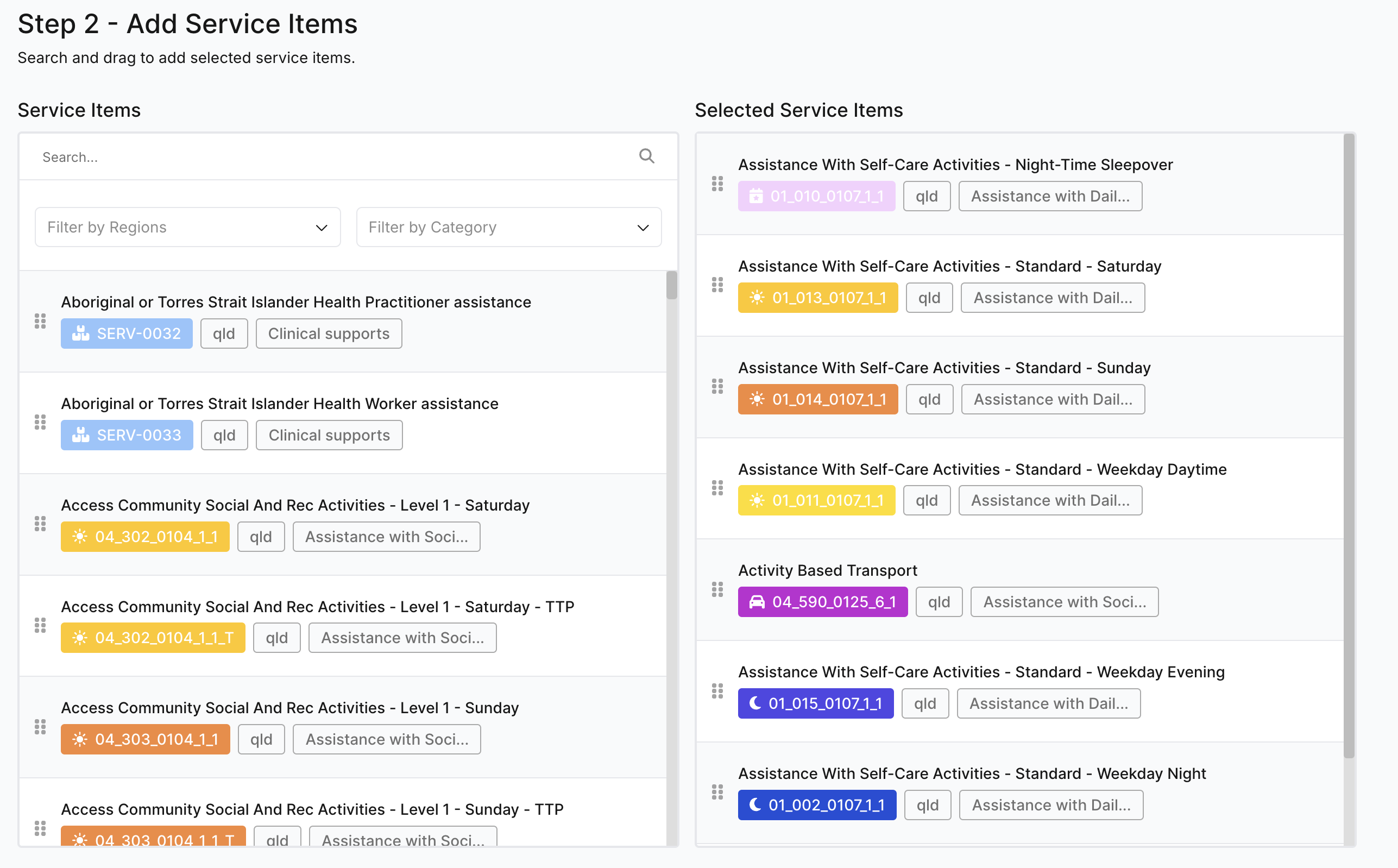
Click and drag service items from the list into the selected items panel.
Remember to include:
-
Core services
-
Travel or transport (if required)
Public holiday items do not need to be added at this stage.
Scheduling Services
Move to the scheduling step.
A dialogue will indicate how many items are available for scheduling. Some items may be added later in the review stage. Service items appear at the top of the scheduler:
-
Day services show with a sun icon
-
Evening/night services show with a moon icon
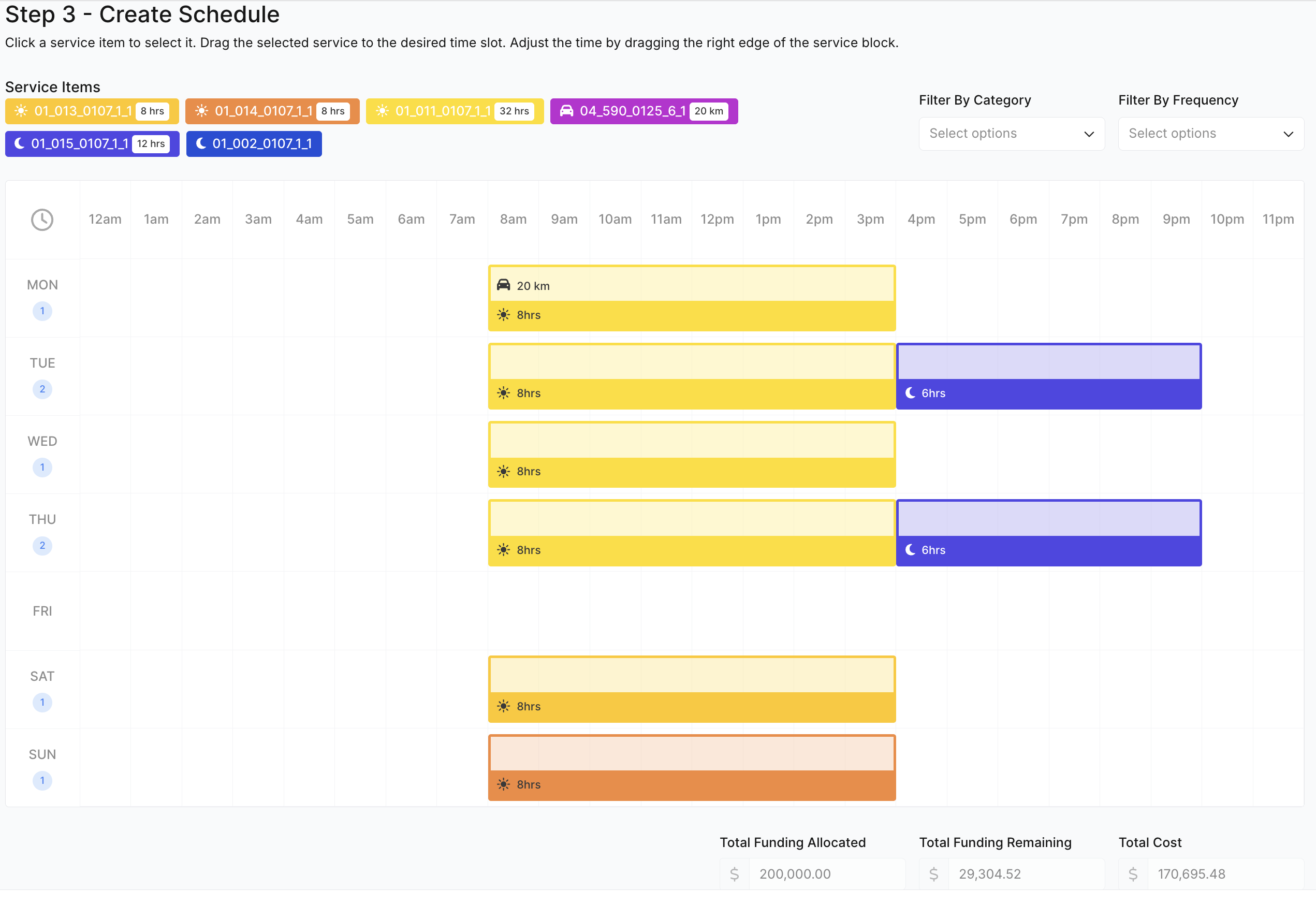
To assign a service:
-
Click the item
-
Drag and drop it into the schedule
Configure Each Service
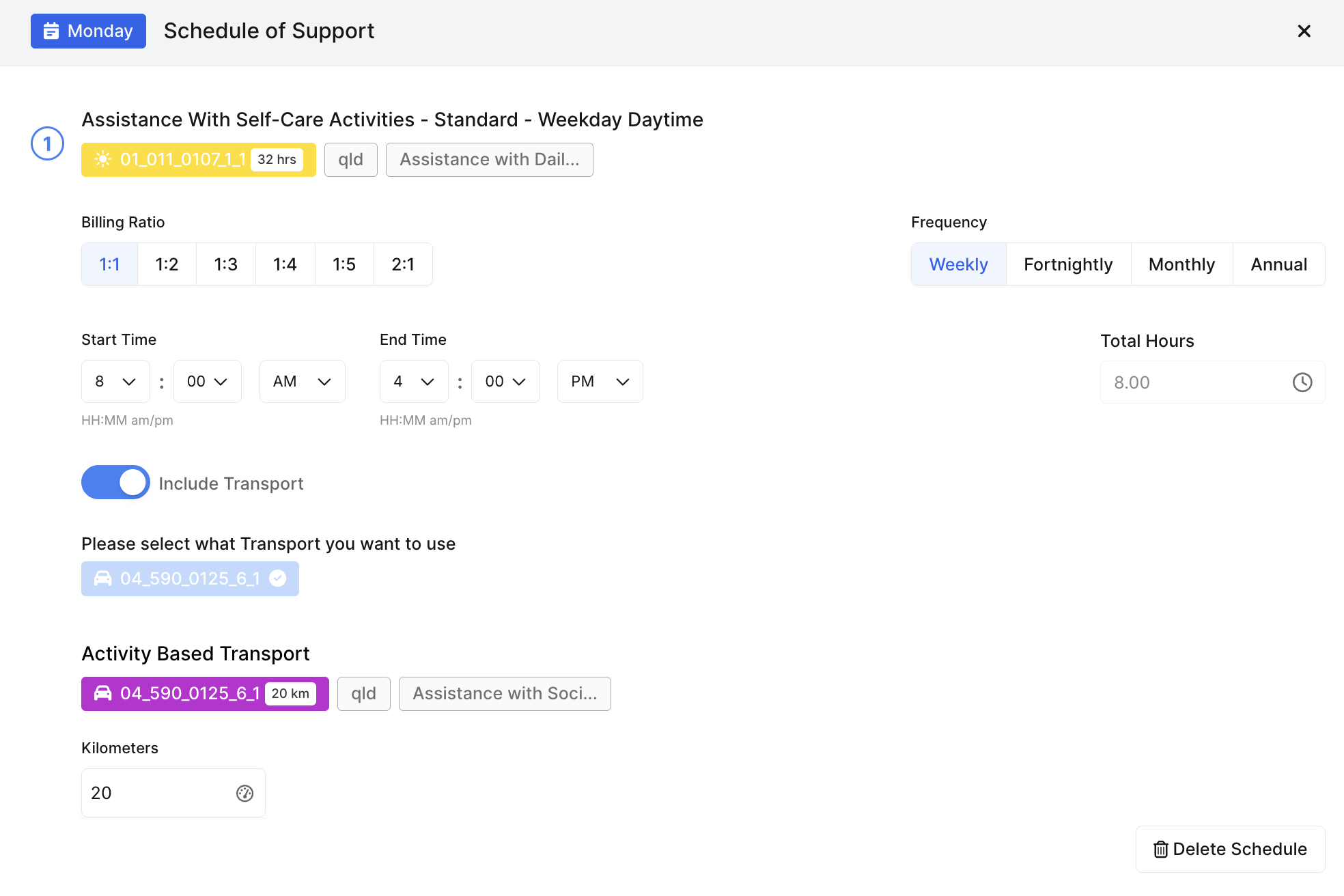
For each scheduled item, set:
-
Billing ratio
-
Frequency (weekly, fortnightly, monthly, annually)
-
Start and end times
-
Total hours
Add Transport (If Required)
If transport is needed:
-
Toggle transport on
-
Select the transport item
-
Enter kilometres
-
Assign it to the service
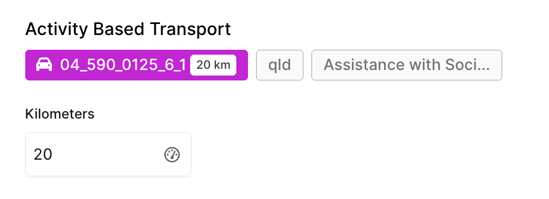
Save and close once confirmed.
Monitor Budget
At the bottom of the scheduler, you can view:

-
Total allocated amount
-
Available funding
-
Cumulative cost
This updates as services are added.
Public Holiday Handling
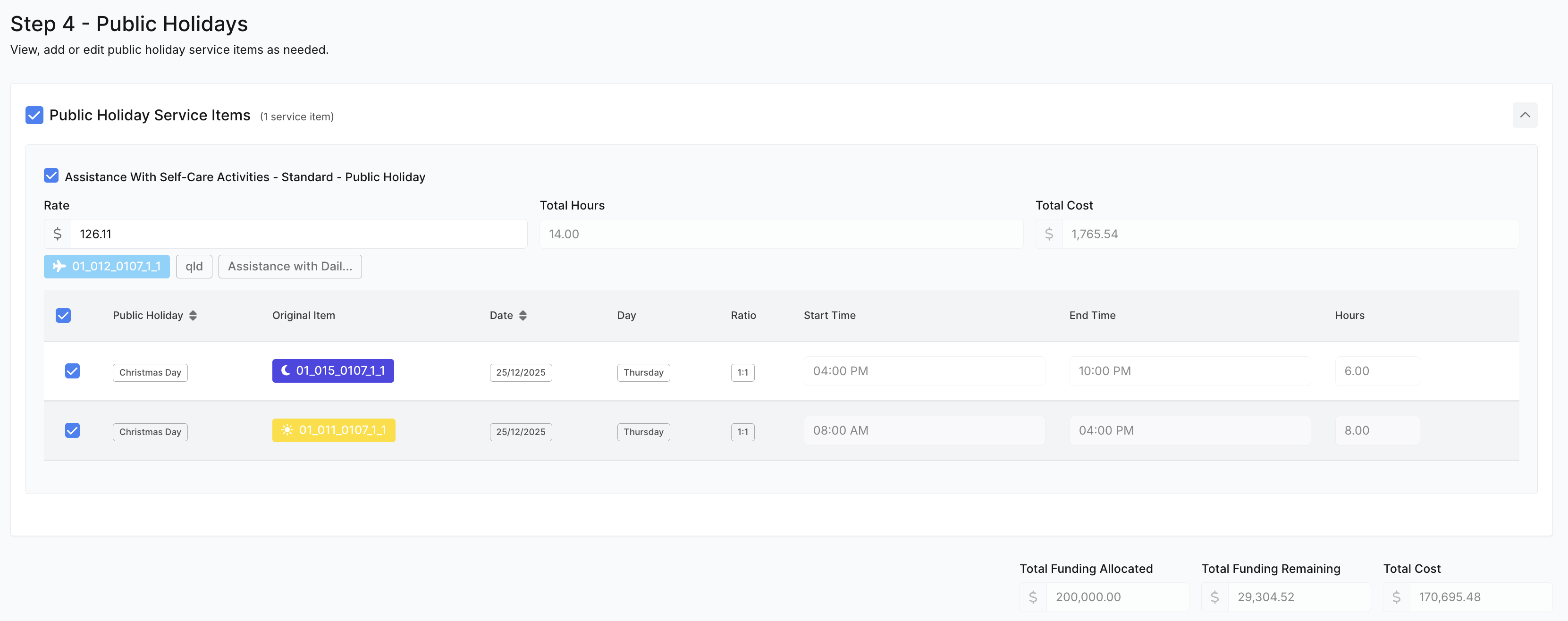
If services overlap with public holidays:
-
The system will prompt you to apply holiday rates
-
You can include or exclude them as required
Holiday costs are automatically added to the total.
Review and Configure
In the review step, you can:
-
Adjust service details
-
Add items such as sleepovers
-
Confirm frequencies and quantities
All totals are recalculated automatically at the bottom of the screen.
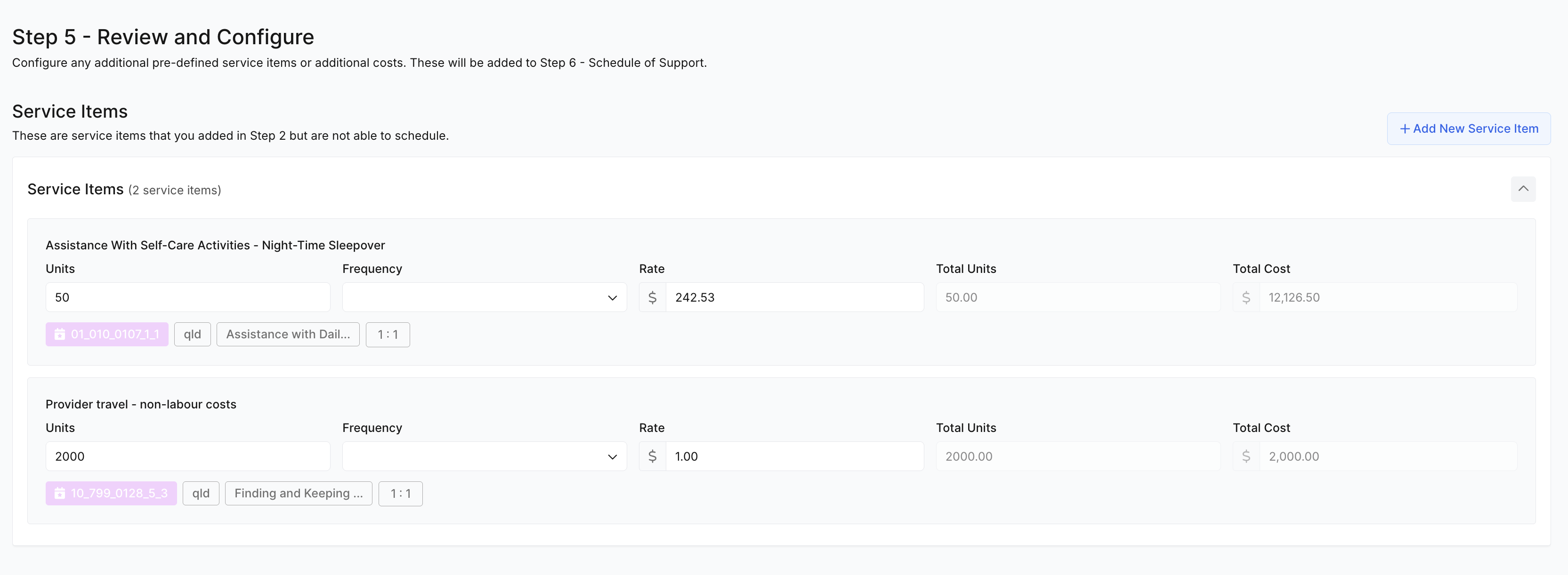
Save as Draft (Optional)
If the quote isn’t ready for approval:
-
Save it as a draft
-
Drafts remain editable and clearly marked
Finalising the Quote
Schedule of Supports
Review all services and allocations in the Schedule of Supports step.
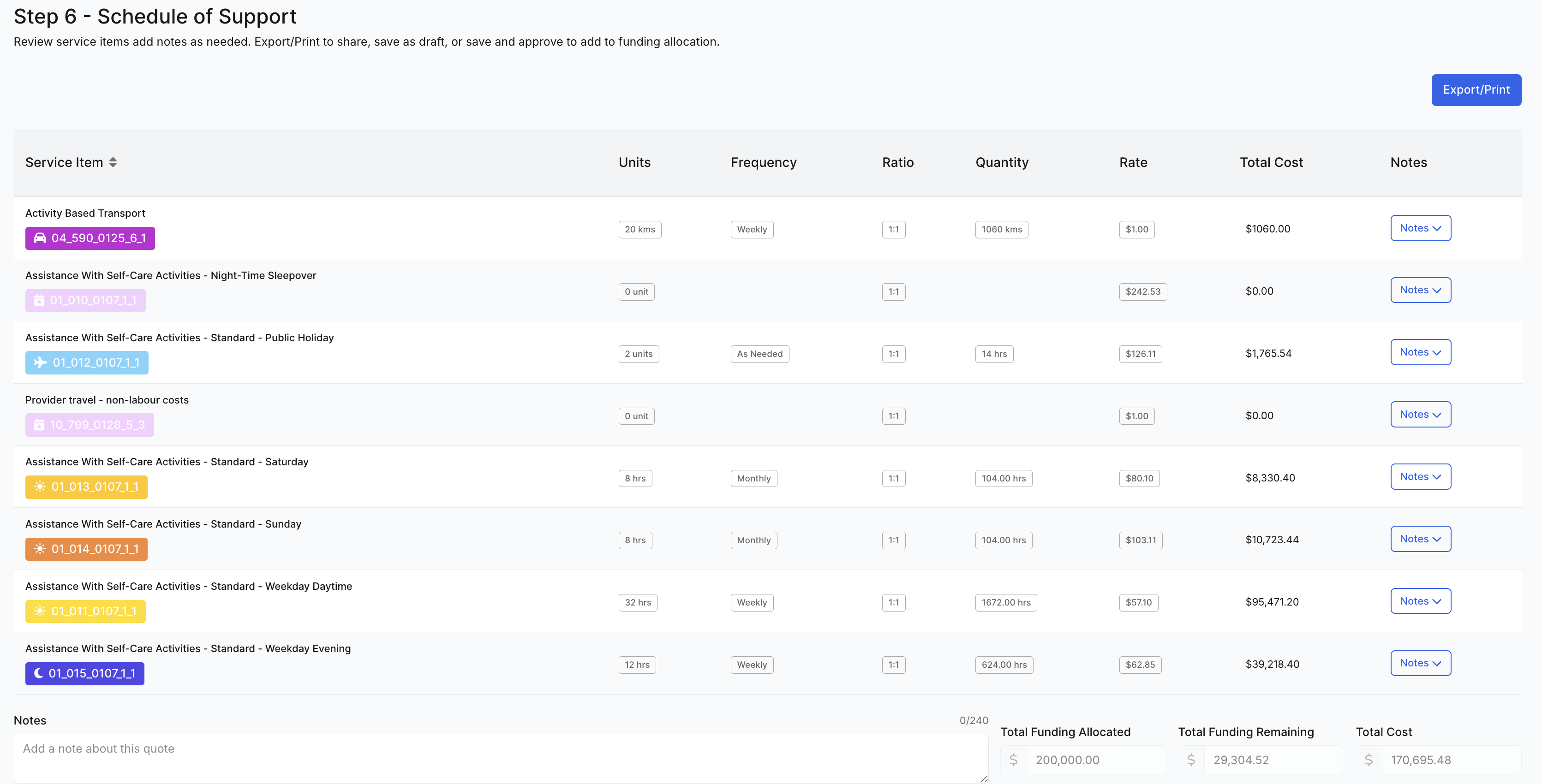
You can:
-
Export or print the quote
-
Add notes to the entire quote or individual items
Save and Approve
When ready:
-
Save and approve the quote
-
Choose Save and Create Funding Allocation
-
Click Go to Funding Allocation
You’ll be taken directly to the new allocation, showing:
-
All service items
-
Quantities
-
Total funding amount
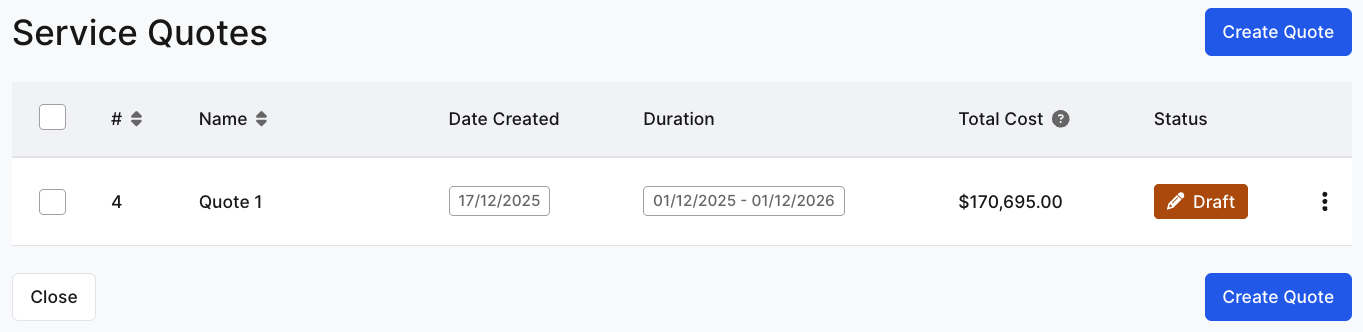
Managing Quotes After Creation
-
You can return to Quick Quote at any time
-
View, edit, or review existing quotes
-
Drafts can be approved later
-
Unneeded quotes can be deleted
You now know how to:
✔ Access and use the Quick Quoter
✔ Build a complete participant quote
✔ Schedule services and transport
✔ Manage public holidays and special services
✔ Save drafts or approve quotes
✔ Generate funding allocations directly from quotes
The Quoting Tool helps ensure participant plans are accurate, flexible, and ready for rostering and service delivery.