
Key Points
A client's Roster of Care (RoC) maps out the support they need across the week, such as one-to-one support, two-to-one support or community access.
Roster of Care is optional. Our Support team switches it on for your organisation.
You paint the support types onto a weekly grid, much like staff availability. The pattern repeats over a cycle of one or more weeks.
When you create a shift, the shift's availability overview shows the client's Roster of Care, so you can check the shift matches it.
Open a client's Roster of Care
Go to the Roster Schedule and switch to Client view using the selector in the top left corner.
Click the client's name on the left-hand side.
Open the Roster of Care (RoC) tab.
If you can't see the Roster of Care tab, it isn't switched on in your system. Contact our Support team.
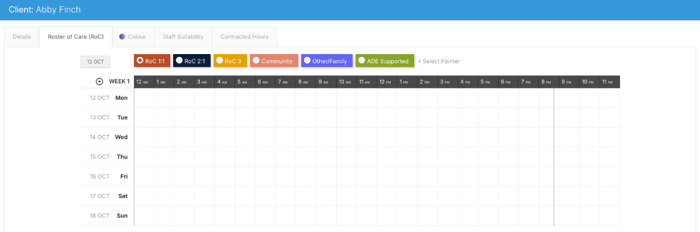
Paint the client's supports
Select a support type from the buttons above the grid, for example RoC 1:1, RoC 2:1 or Community.
Click or drag across the days and times on the grid where the client needs that support.
Repeat for each support type the client needs.
Click Update Resource to save.
The grid shows the weeks in the cycle. Use the date button at the top left of the grid to move between weeks.
The names and colours of the support types are set up for your organisation. Contact our Support team if you'd like to rename them or change how many weeks the cycle runs over.
How the Roster of Care is used
When you create or edit a shift for the client, the Availability Overview on the shift compares the shift time with the client's Roster of Care.
When you save the shift, FlowLogic can warn you if the shift doesn't match the Roster of Care. Whether this warning shows depends on how your system is set up.