
Key Points
Leave accrual lets FlowLogic show a staff member's current balance and forecasted balance at the time of leave when a leave request is submitted.
Leave balances come from your payroll system, through the Xero connection or a CSV import via Mass Add from CSV. FlowLogic doesn't build up balances from timesheets.
Set the default accrual rate in hours per pay period in Finance and Payroll - Leave Type Management, under Additional Options.
FlowLogic doesn't pro-rata the rate for part-time staff, so enter their own rate in Accrual Amount on the user's Leave Accruals tab.
Click How It Was Calculated on a leave request to see the breakdown before you approve or decline it.
Leave accrual allows FlowLogic to track staff leave balances within the system. When a leave request is submitted, the system displays the current balance and forecasted balance at the time of leave, giving managers and payroll staff the information they need to approve or decline requests with confidence.
Getting Leave Balances into FlowLogic
There are two ways to load leave balances into the system: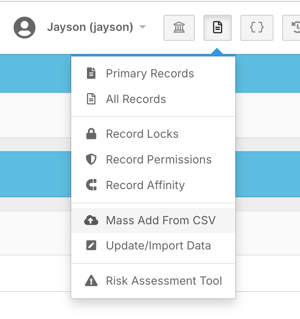
CSV import - Go to the Record Management tab and select Mass Add from CSV. You'll find two import formats available - Leave Balance via MYOB or HR3. If you're not using either of those systems, your data will still need to be structured in one of these formats. Download the relevant template, populate it with your leave balance data, and upload it into FlowLogic. FlowLogic doesn't update CSV balances by itself, so upload a new file whenever you want to refresh them.
Xero connection - If you use the Xero connection, there's nothing to import. FlowLogic gets a staff member's latest balances from Xero when one of their leave requests is exported to Xero. If a staff member hasn't had leave exported for a while, the balance in FlowLogic may be out of date, so check Xero for their current balance.
Configuring Accrual Rates
Go to Finance and Payroll - Leave Type Management. Find the leave type you want to configure - in this example, Annual Leave - and click Edit on the right-hand side.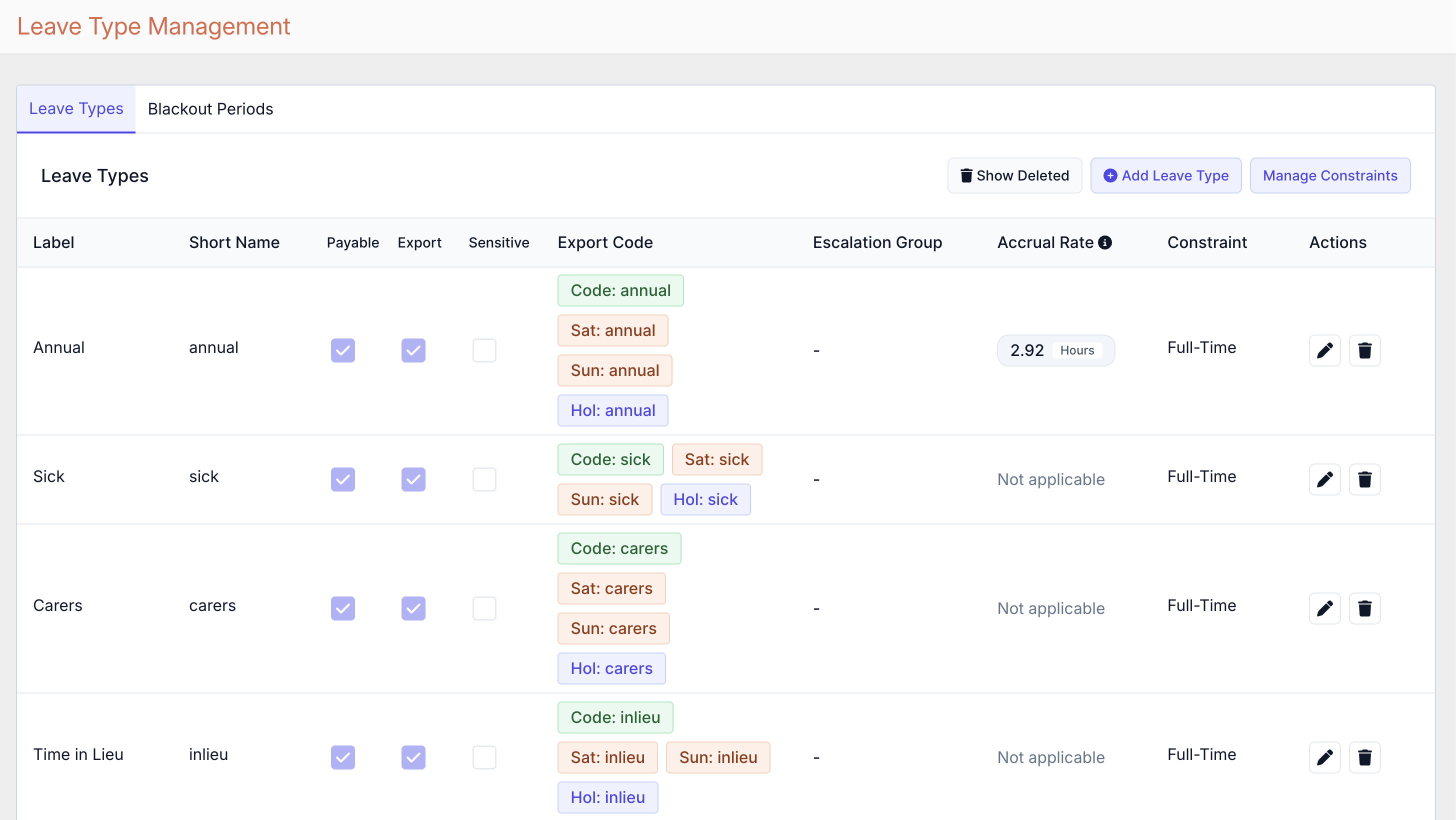
When the drawer opens, scroll down to the Additional Options section and locate the Accrual Rate field. Enter the accrual rate in hours based on your pay period: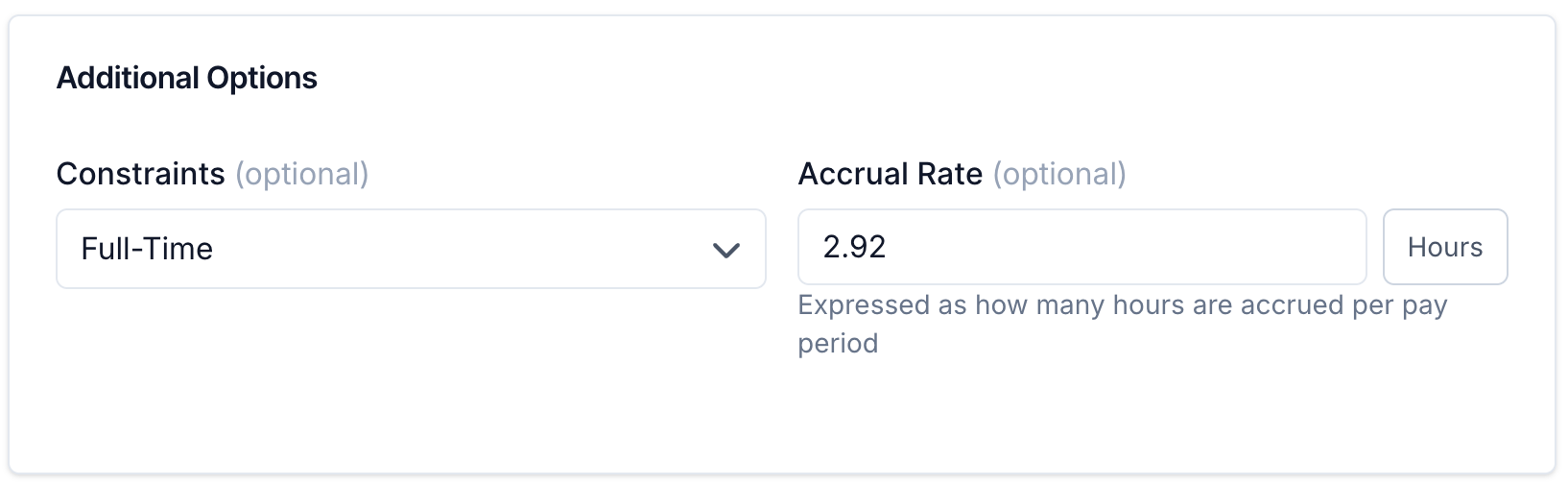
- If you pay weekly, enter the weekly accrual rate
- If you pay fortnightly, enter the fortnightly equivalent
Take care to get this figure right before saving. An incorrect accrual rate will flow through to every leave request that uses that leave type. Once you're confident the figure is correct, click Update to save.
Accrual rates for part-time staff
The rate in Leave Type Management is the default for that leave type. FlowLogic doesn't pro-rata it automatically for part-time staff, so set each part-time staff member's own rate:
Go to System Menu > Users and open the staff member's user. The Edit System User screen opens.
Select the Leave Accruals tab. It lists each leave type the staff member can use, with its Accrual Amount.
Find the leave type, such as Annual, and enter their accrual rate in hours per pay period in Accrual Amount. Use Next at the bottom of the list if the leave type isn't on the first page.
A grey amount is the default rate from Leave Type Management. No default has been set means there's no rate for that leave type yet, so no forecast balance is shown for it.
Work out the part-time rate from the staff member's ordinary hours, the same way your payroll system does. Changing the default rate later doesn't change rates already saved for individual staff.
What constraints do
A leave type's Constraint controls which staff can apply for it. It also controls which leave types appear on a staff member's Leave Accruals tab. See How do I set up and edit leave types?
What the accrual rate is used for
FlowLogic doesn't build up leave balances from timesheets. Balances come from your payroll system, through the Xero connection or a CSV import. The accrual rate is used to show the forecast balance on leave requests, worked out from the current balance, the pay periods until the leave starts, the hours requested and any other approved leave of the same type.
How It Works in Practice
When a staff member submits a leave request and selects a leave type with an accrual rate configured, the system will display:
- Their current leave balance
- Their forecasted balance at the time of the leave
Clicking How It Was Calculated provides a detailed breakdown of how the accrual has been applied, giving full transparency over the figures before you make a decision.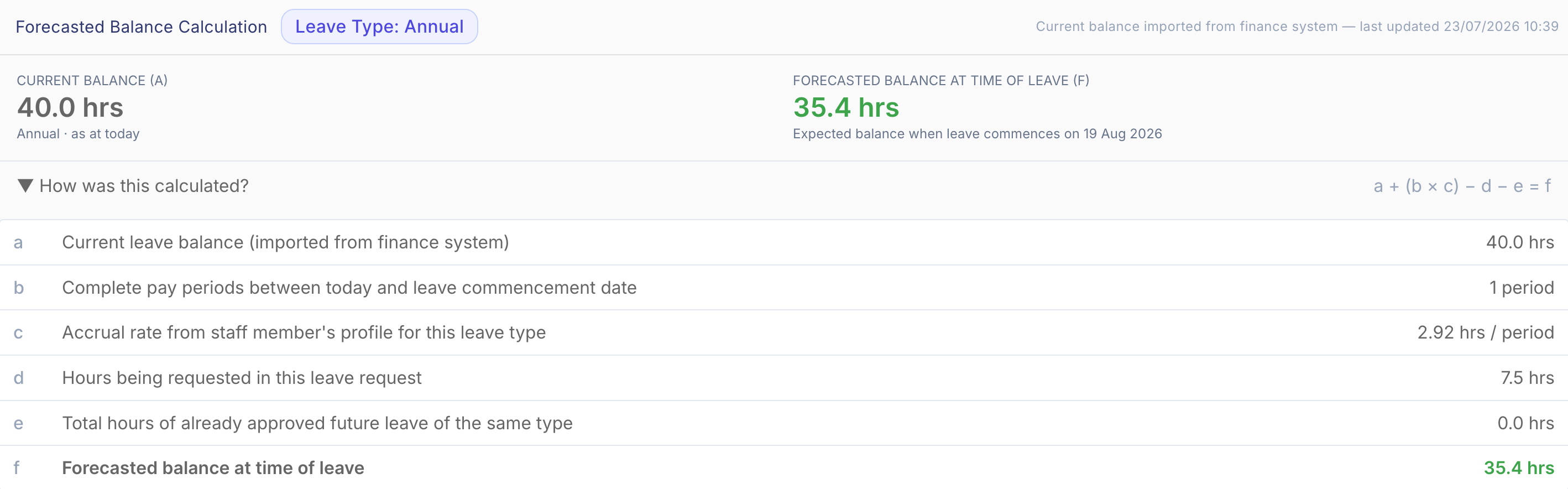
From here you can approve or decline the request based on the balance available. If approved, the system will automatically draw down on the leave hours.