
Key Points
Mass Add allows you to upload multiple records at once using a CSV file.
It helps:
- Save time on bulk data entry
- Maintain consistency across records
- Reduce manual errors
You can import data into:
- Staff records
- Participant records
- Custom forms
- Other record types across the system
Accessing Mass Add
To access Mass Add:
-
Go to Record Management (top right)
-
Select Mass Add from CSV
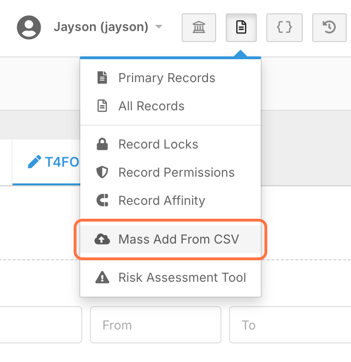
If you cannot see this option, you do not have the required permissions and will need to contact your admin or FlowLogic support.
Importing Records
Selecting the Destination Form
Choose where the data will be uploaded.

Example -
Staff Basic Details
This determines:
Which form receives the data
How the CSV fields are mapped
You can select any form available in your system.
Downloading the Template
Before uploading data:
-
Download the CSV Template
-
Populate it with your data
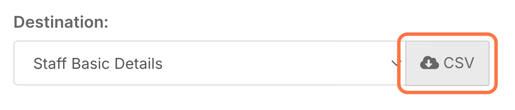
The template ensures:
Correct column structure
Proper field formatting
Reduced import errors
Preparing Your CSV File
When completing the CSV:
✔ Match column headers exactly
✔ Enter data in the correct format
✔ Ensure required fields are filled
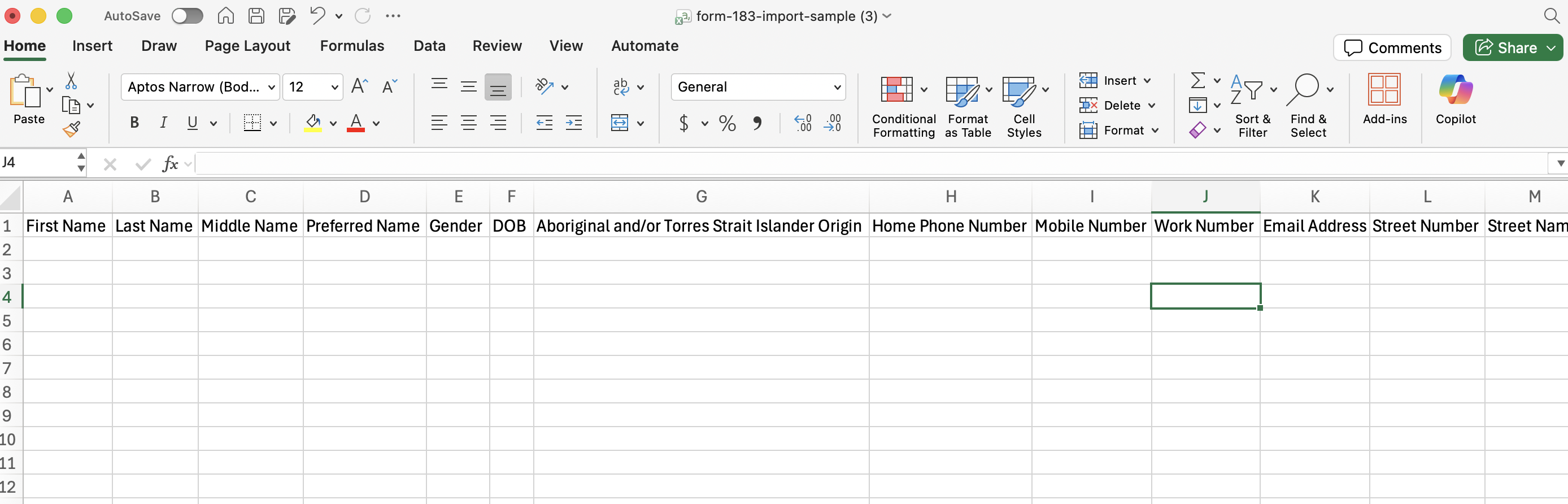
Some fields are not supported for import, such as:
- Profile picture uploads
- Certain lookup or system-generated fields
Data in unsupported columns will be ignored.
Uploading the File
Once your CSV is ready:
-
Select the destination form again
-
Upload your CSV file
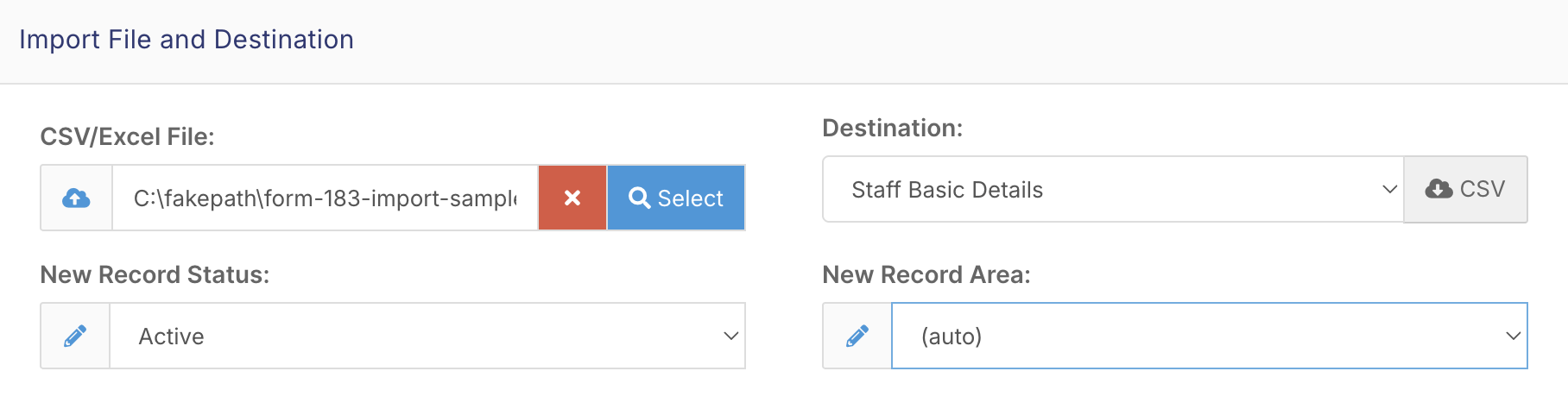
You can also configure:
Record Status (e.g. Active)
Area assignment
Assigning Areas
You have two options:
Option 1 - CSV Includes Area
FlowLogic assigns records automatically
Option 2 - Manual Selection
Choose an area during upload
This ensures records are correctly categorised.
Validating the Data
Click:
Submit and Validate
The system will:
Check for errors
Confirm valid rows
Highlight issues before import
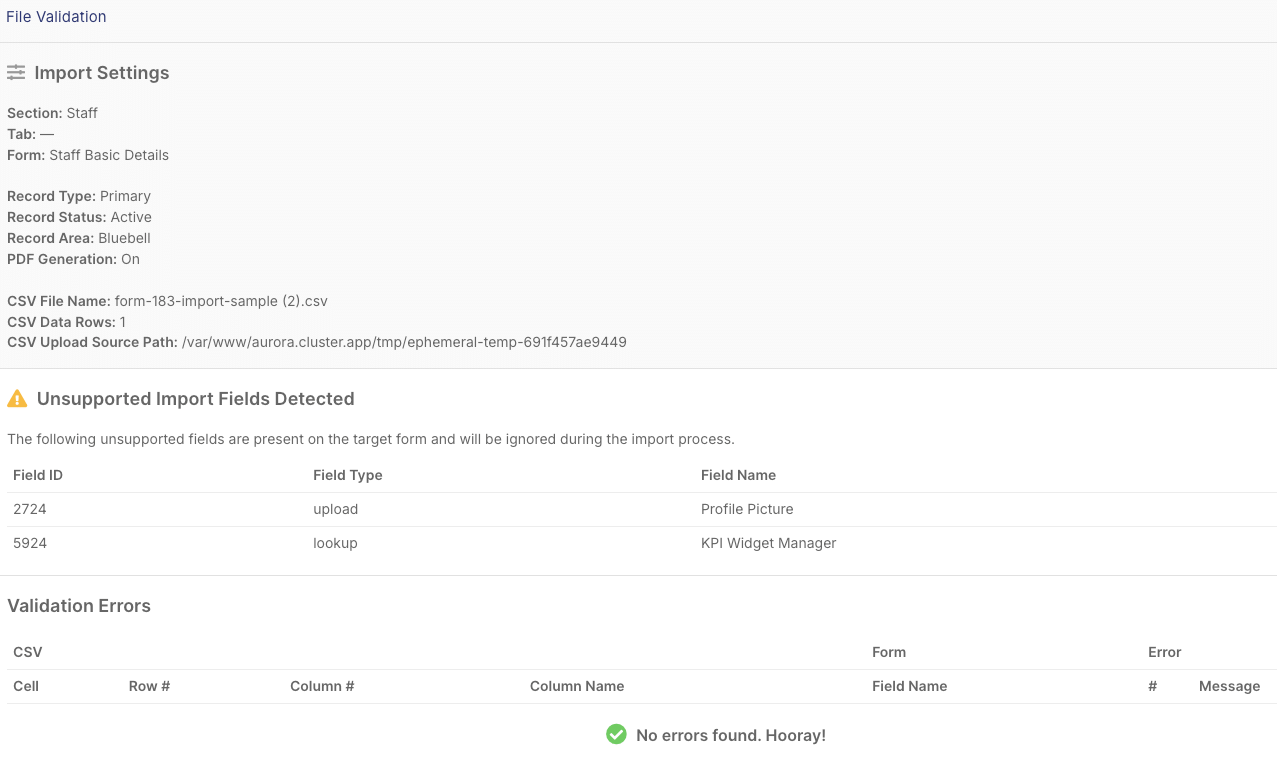
Important to note that there is a Limit -
Maximum 1000 rows per import
Reviewing Validation Results
After validation, you will see:
Number of records to be created
Any errors or warnings
Unsupported fields
Only proceed once all data is correct.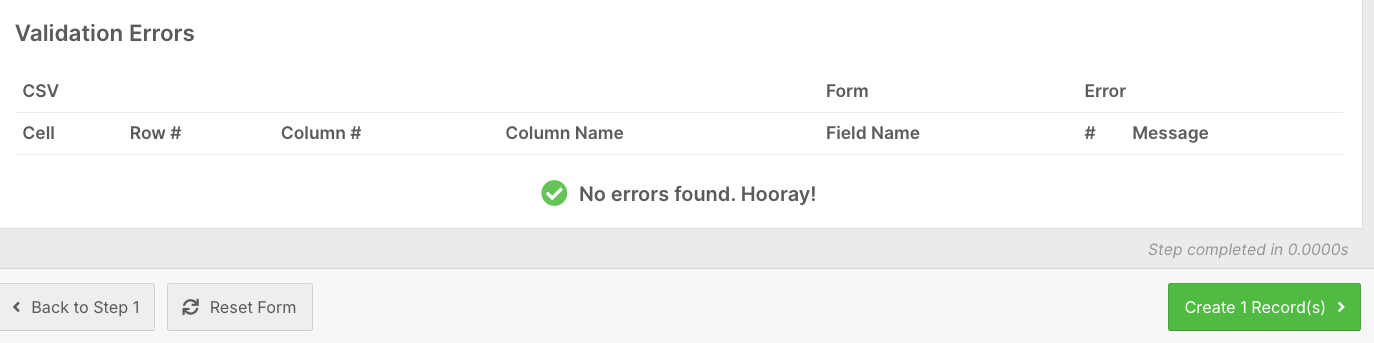
Creating Records
Click:
Create Record
FlowLogic will:
Import the data
Generate records in the system
Confirm successful upload
Importing Secondary Records
For secondary records (e.g. case notes):
You must link them to an existing record using:
UID
First Name + Last Name
Templates for these records will include the required linking fields.
Best Practice Recommendations
✔ Always use the template provided
✔ Validate data before importing
✔ Keep imports under 1000 rows
✔ Avoid editing system or unsupported fields
✔ Use consistent naming conventions
✔ Test with a small batch before large uploads