
Key Points
Leave types control how staff leave behaves across payroll, rostering, and reporting.
Correct setup prevents payroll errors and visibility issues.
Settings include:
Payable and exportable rules
Privacy and sensitivity
Export codes
Constraints for staff access
Deleted leave types can be restored.
Constraints ensure only the correct staff can access specific leave types.
Accessing Leave Type Management
You need the globe_leavemgmt Right to see Leave Type Management in the menu. If you can't see it, an administrator can add it, otherwise ask FlowLogic Support.
To manage leave types:
Go to the Finance and Payroll tab.
Select Leave Type Management.
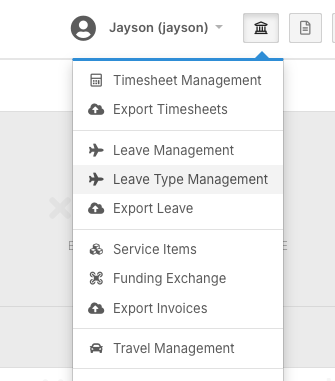
This will display all leave types available in your system.
These represent the categories staff can request or that managers can submit on their behalf.
Understanding Leave Type Fields
Each leave type includes key configuration settings.
Leave Labels and Short Names
On the left-hand side, you will see:
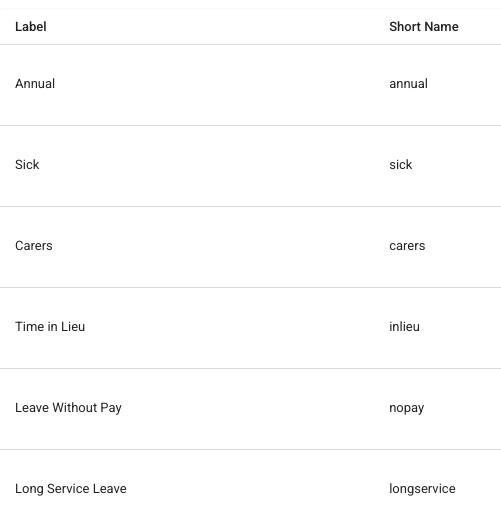
Label – the full leave name displayed throughout the system
Examples:Annual Leave
Sick Leave
Time in Lieu
Leave Without Pay
Short Name – a compact version used in reports or summaries.
Behaviour Settings
In the middle of the screen, you will see three important options:
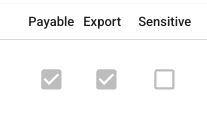
Payable
Indicates whether the leave is paid or unpaid.
Exportable
Determines if the leave should be included in payroll exports.
Sensitive
If enabled, the leave type will appear as “Leave” on the roster and other visible areas.
This protects staff privacy for sensitive categories.
Export Codes
Each leave type can include separate export codes for:
Weekdays
Saturdays
Sundays
Public holidays
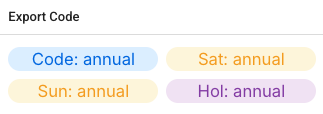
These codes ensure that the correct payroll items are used on each day.
This is especially useful if your organisation uses different pay rates for different days.
Editing and Deleting Leave Types
On the right-hand side, the Actions button allows you to:
Edit leave types
Update export codes
Adjust privacy settings
Change payable or exportable rules
Delete leave types
Restoring Deleted Leave Types
If a leave type is deleted:
Click Deleted Leave Types (top right).
View the deletion history.
Restore the leave type if required.
This provides a safety net and prevents permanent loss.
Adding a New Leave Type
To create a new leave type:

Click Add Leave Type.
Enter:
Leave name
Short name
Configure:
Payable
Exportable
Sensitive
Add export codes.
Assign constraints if available.
Click Save.
The leave type will then be available for staff.
Managing Leave Constraints
Constraints control who can see and request each leave type.
This ensures:
Casual staff do not see full-time leave
Contractors have limited leave options
The correct leave types appear in the system
Accessing Constraints
Click Manage Constraints.
Review existing rules.
Expand a constraint to view its setup.
Example Constraint
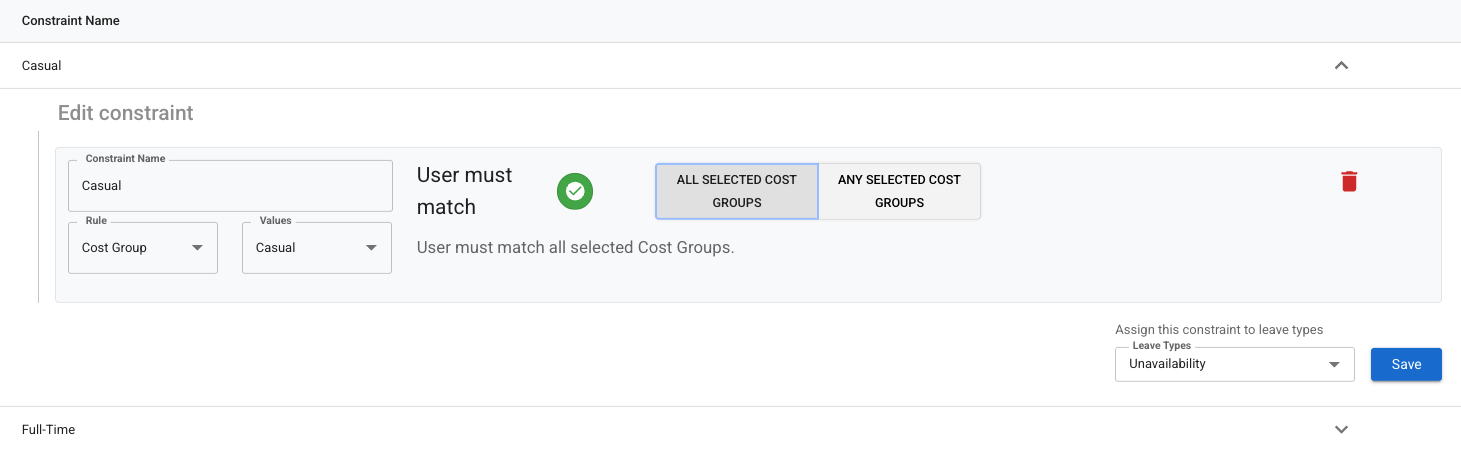
A casual staff constraint may:
Use the rule Cost Group
Link to the Casual Staff cost group
Allow only specific leave types
Cost groups are assigned to pay levels and are commonly used for leave eligibility.
Creating a New Constraint
Add New Constraint
Click Add New Constraint.
Name the Constraint
Example: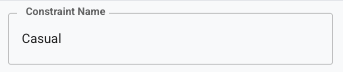
Casual or Full-Time Staff Access
Select Rule Type
You can create constraints using: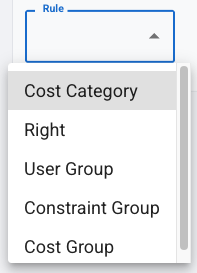
Cost category
Rights
User groups
Constraint groups
Cost groups
Most organisations use Cost Groups.
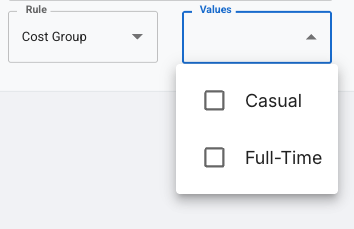
Select Matching Values
Choose the relevant group.
Example:
Full-Time Employees
You can configure:
Must match all values
Must match any value
Must match or must not match
Most commonly, you will choose User must match.
Assign Leave Types
Select which leave types the constraint applies to.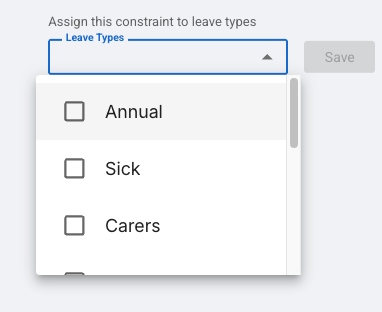
Example:
Annual Leave
Sick Leave
Long Service Leave
Time in Lieu
Leave Without Pay
Exclude leave types not relevant to the group.
Save
The constraint applies immediately.
The main leave type screen will update.
Best Practice for Leave Setup
To maintain an organised system:
Keep leave types simple and consistent.
Use clear naming conventions.
Review constraints regularly.
Test leave access with different staff.
Confirm payroll exports work correctly.
Why Leave Types Matter
Correct setup ensures:
Payroll accuracy
Privacy compliance
Clear rostering
Smooth leave approvals
Reliable reporting
You now understand:
✔ How to manage leave types
✔ How payable and exportable settings work
✔ How sensitive leave protects privacy
✔ How export codes affect payroll
✔ How to restore deleted leave types
✔ How to create and manage constraints
Well-configured leave types help ensure your payroll, rostering, and leave processes remain accurate, secure, and efficient