
Key Points
Geo Logs track where users access FlowLogic from.
Data is based on network and browser information, not exact GPS.
Logs can be filtered by:
- User
- Date
Geo Logs are primarily used for security monitoring and auditing user activity. The data can be exported for further analysis.
What Are Geo Logs?
Geo Logs record the approximate location of users when they access FlowLogic.
They provide visibility into:
- Login locations
- User activity patterns
- System access points
This helps organisations monitor system usage and identify unusual behaviour.
How to Access Geo Logs
To access Geo Logs:
- Go to the Logs Menu (top right menu)
- Select Geo Logs
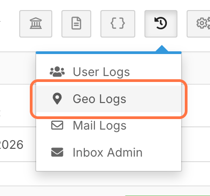
This opens the Geolocation Logging Screen.
Using Filters
At the top of the screen, you’ll find filter options.

Available Filters
User Search
- Username (User ID)
- All users
Date Filter
- Select a specific date
- Default is the current day
How to Apply Filters
- Select your user or all users
- Choose a date
- Click Show Geolocation Logs
This loads the filtered results.
Understanding Log Data
Each row represents a single system access event.
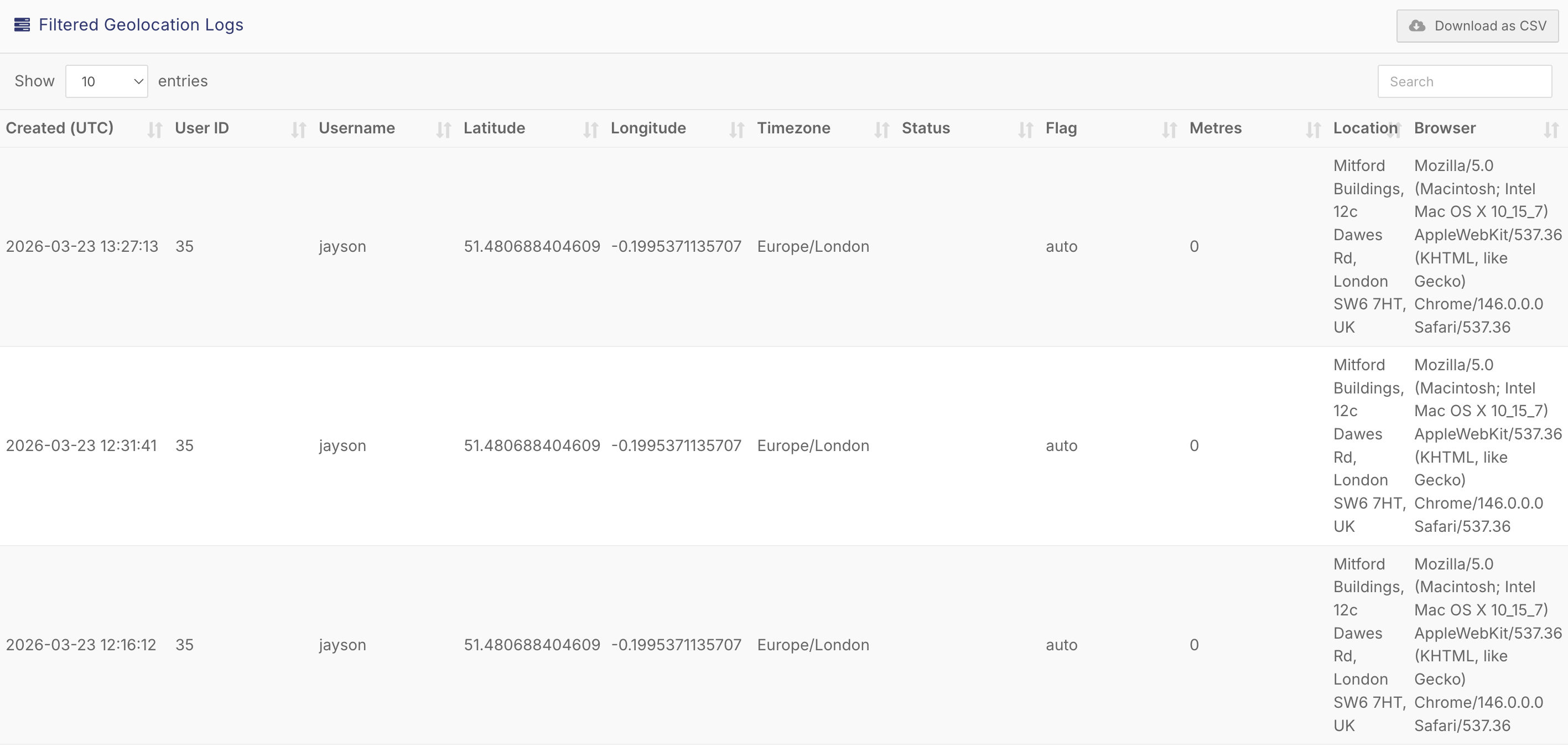
Key Fields Explained
Timestamp (UTC)
- When the activity occurred
User ID / Username
- Identifies the user
Latitude / Longitude
- Approximate geographic coordinates
Time Zone
- User’s detected timezone
Location Name
- Approximate area (city/region)
Distance (Metres)
- Distance from detected reference point
Status / Flag
- System indicators for the log entry
Browser
- Browser used to access FlowLogic
Accuracy of Geo Logs
Geo Logs are approximate, not exact.
Why Accuracy Varies
Location is determined by the IP address, network provider, and browser data, not by GPS.
VPN Considerations
If a user is using a VPN, the location shown will reflect the VPN server location, NOT the user’s real location
Export Options
CSV download
This allows you to:
- Audit user activity
- Share logs with management
- Perform deeper analysis in Excel