
Key Points
Export Integrations in FlowLogic allow you to fully customise how data is exported from the system. This includes invoicing, payroll, leave, and funding exports.
Rather than using a fixed format, FlowLogic gives you the flexibility to design exports that match the exact requirements of your accounting software, payroll system, or funding processes.
Accessing Export Integrations
To access this feature:
- Navigate to Finance and Payroll
- Select Export Integrations
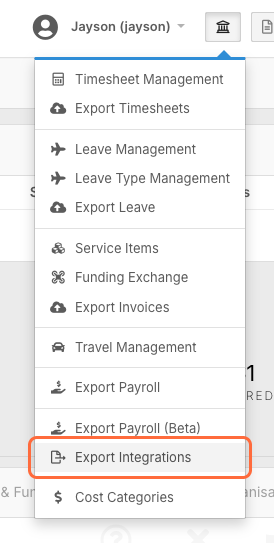
This section is permission-based. If you cannot see it, you will need a FlowLogic administrator to enable access for your user account.
Purpose of Export Integrations
Export Integrations are designed to give organisations control over:
- The structure of CSV exports
- The columns included in each export
- The format of the data being sent
Every organisation processes data differently, so this tool ensures your exports align with your internal processes and external system requirements.
Types of Exports Available
FlowLogic supports multiple export types, including:
- Invoicing exports
- Payroll exports
- Leave exports
- Funding Exchange exports
Each export type pulls from different areas of the system and provides its own set of available fields.
Using Pre-Built Templates
At the top of the screen, you’ll find a selector with pre-built integrations.
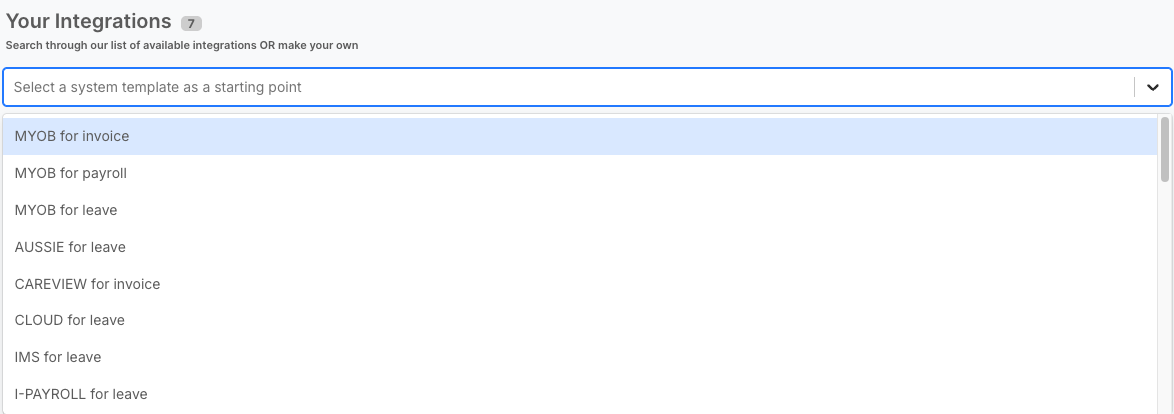
These templates:
- Are created by the FlowLogic team
- Can be added instantly
- Provide a quick starting point
This is useful if you want a working export without building one from scratch.
Creating a Custom Integration
If you need a fully tailored export, you can create your own.
To do this:
- Click Add Custom Integration
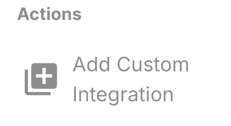
- Enter a name for the integration and select the export type (for example, invoicing)
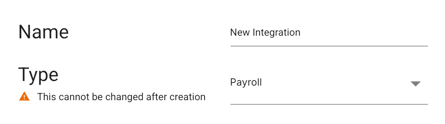
- Click Create
This will open a blank layout ready for configuration.
Building Your Export
Exports are built column by column.
To begin:
- Click Add Column
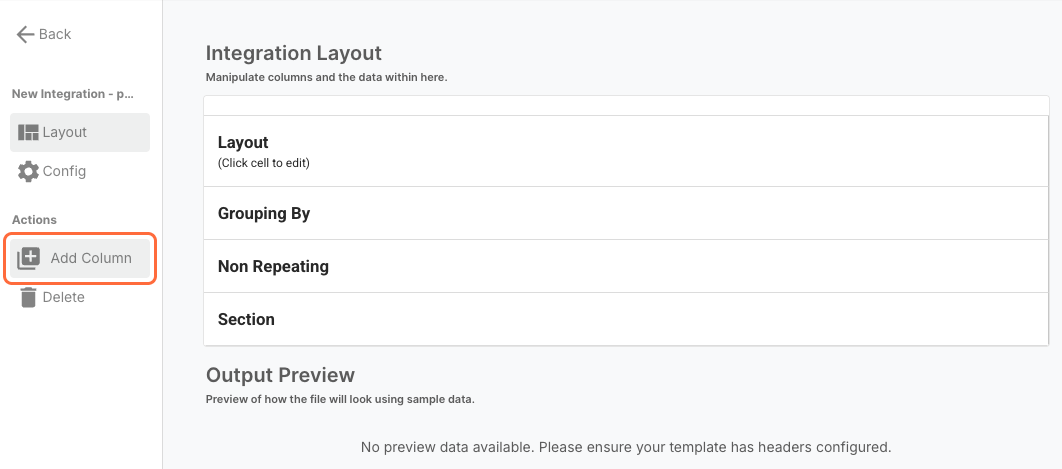
- Enter a column name

- Define the layout using FlowLogic fields
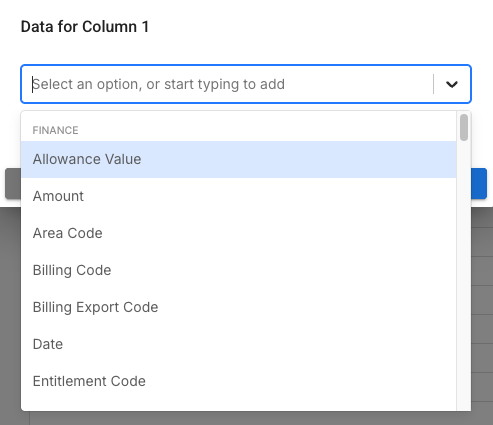
Each column represents one piece of data in your export file.
Selecting Fields
Within each column, you can select fields from FlowLogic to populate the data.
For example:
- Client first name
- Client last name
- Service date
- Item codes
- Quantities
You can combine multiple fields into a single column.
Custom Formatting
The layout builder allows you to manually format how data appears.
For example, you can:
- Add spaces between fields
- Insert commas or symbols
- Control how values are displayed
This ensures your export matches the format expected by external systems.
Previewing the Export
As you build your integration, a preview will appear at the bottom of the screen.
This preview:
- Updates automatically
- Shows how your data will appear
- Helps confirm your structure
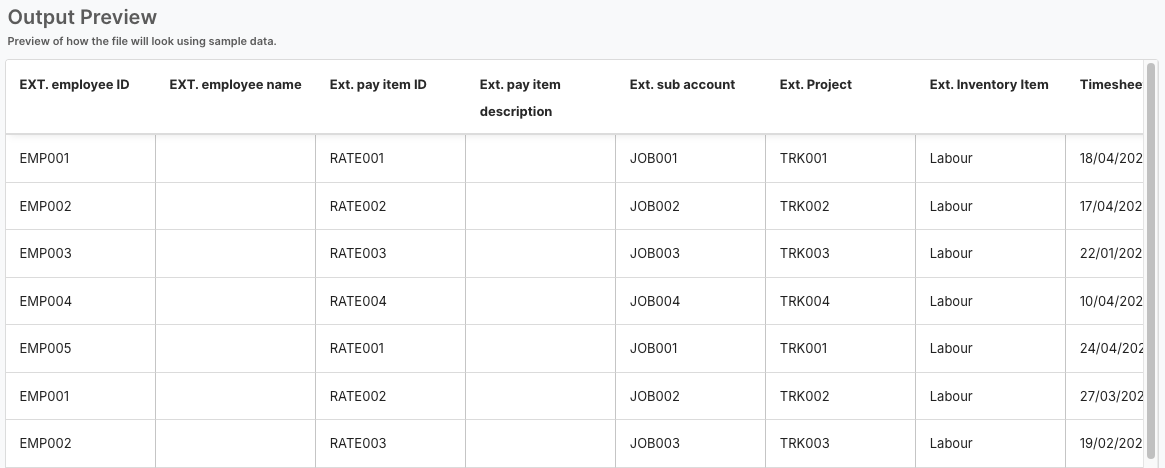
While it may not reflect every advanced rule, it provides a reliable guide during setup.
Advanced Options
Within each integration, you’ll also see additional options such as:
- Grouping
- Repeating settings
- Sections
These allow you to:
- Combine similar rows
- Control how data repeats
- Structure more complex exports
For more advanced Export Integrations configurations, click here
More advanced grouping behaviour is covered in the next section.
Configuration Settings
On the left-hand side, the Config menu includes:
- Integration name
- Grouping behaviour
- Custom header and footer settings
These options are typically used when:
- Working with strict import formats
- Creating more complex exports
- Adding required system-specific formatting
Activating an Integration
Once your export is ready:
- Toggle the integration on
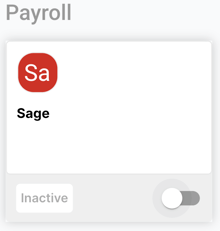
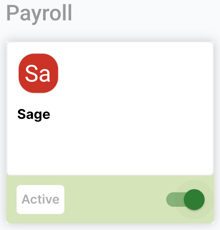
This makes it available within the export areas of FlowLogic.
Any active integration can then be selected when exporting data.
Editing or Removing Integrations
If changes are required:
- Edit columns directly within the integration
- Delete individual columns
- Remove the entire integration if needed
It is common to refine exports multiple times during setup to ensure they match your organisation’s requirements.
Best Practices
When setting up export integrations:
- Start simple and build complexity gradually
- Use the preview to validate your layout
- Match formatting to your external system requirements
- Test exports before using them in production
- Keep naming clear and consistent