
Key Points
Export integrations in FlowLogic allow you to control how your data is structured when exporting invoices or financial information. These advanced settings are designed to help you clean up your exports, reduce duplication, and ensure the final output matches the requirements of your accounting system or plan manager.
For an Overview of Export Integrations, click here
By configuring these options correctly, you can significantly improve the readability and usability of your exported files.
Accessing Export Integration Settings
To access these settings:
- Navigate to the Integrations page, located in the Finance and Payroll menu.
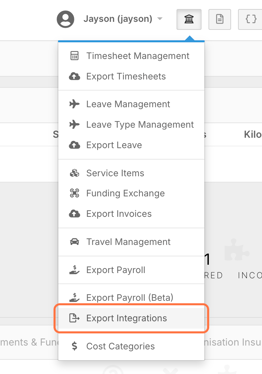
This will display the full list of available export settings.
Grouping Data
One of the most important settings is Grouping By.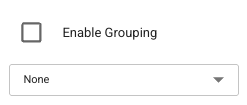
Grouping allows you to combine rows that share the same values. Instead of exporting multiple lines for identical services, the system can merge them into a single row.
For example, if you group by:
- Client
- Service item code
- Description
- Quantity
Any matching entries will be consolidated into one line.
This is particularly useful when:
- Services are delivered across multiple days
- The same item appears repeatedly
- You want cleaner, shorter invoices
Grouping helps reduce clutter and makes exports easier to read and process.
Aggregating Values (Sum)
When grouping is enabled, you can also control how values behave.
For fields like quantity, you can set them to Sum, which will:
- Add all matching quantities together
- Display a single total value
This ensures that grouped rows still reflect the correct totals, rather than losing detail.
Non-Repeating Fields
The Non-Repeating option removes duplicated values within a column.
For example:
- Invoice numbers
- Client names
- Reference fields
Instead of repeating the same value on every row, it will only appear once.
This improves readability and creates a cleaner export format, especially in larger files.
Section Grouping
The Section option allows similar data sets to be grouped together visually.
This is another way to:
- Reduce repetition
- Improve structure
- Make exports easier to interpret
It is commonly used when preparing reports or invoices for external systems.
Invoice Number Grouping
Within the configuration settings, you’ll find Invoice Number Grouping.
This setting controls how auto-generated invoice numbers are grouped. It is particularly useful when:
- Exporting multiple invoices in a batch
- Organising invoice numbers by a specific field or tag
This helps keep your invoice structure consistent and organised.
Custom Headers
Custom headers allow you to insert a line at the top of your export file.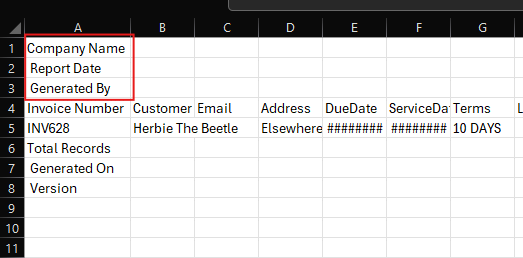
These are often required when integrating with accounting platforms such as MYOB or other systems with strict import formats.
Headers must be:
- Comma-separated
- Formatted exactly as required by the target system
You might use this for:
- Company identifiers
- System-specific formatting
- Required import labels
Custom Footers
Custom footers work the same way as headers but appear at the bottom of the file.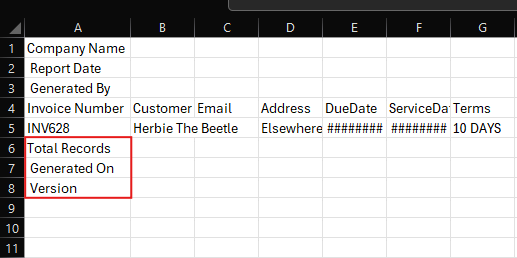
They can be used for:
- Notes or disclaimers
- Summary lines
- Additional required formatting
Both headers and footers are optional and can be left blank if not needed.
Example: Before and After Grouping
Without grouping, an export may contain:
- Multiple rows for the same client
- Repeated service items across different dates
- Long, cluttered invoice files
After applying grouping and sum:
- Duplicate rows are merged
- Quantities are combined
- The file becomes shorter and easier to read
For example, seven rows may be reduced to five, with repeated items consolidated into a single line.
This is especially useful when:
- Submitting to plan managers
- Working with large datasets
- Reducing manual review effort
Best Practices
When configuring export integrations:
- Start with a simple setup, then refine
- Use grouping to reduce unnecessary rows
- Apply Sum to ensure accurate totals
- Test exports before sending externally
- Keep formatting consistent across exports
- Only use headers or footers when required