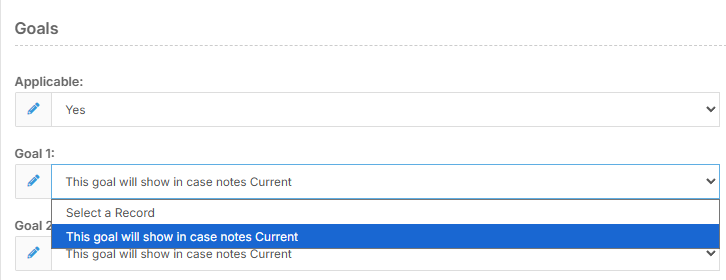
Goals and medications sometimes need to expire. This article will show how to set up expired records
There will be two forms required for this set up. Typically, this is used for Case Notes and Goals/Medication. You are welcome to utilise this for other setups.
1. Setting up Case Notes
A form called 'case notes', 'communication notes', 'progress notes', etc should be in your FlowLogic system already. Every system is different, so check yours to confirm.
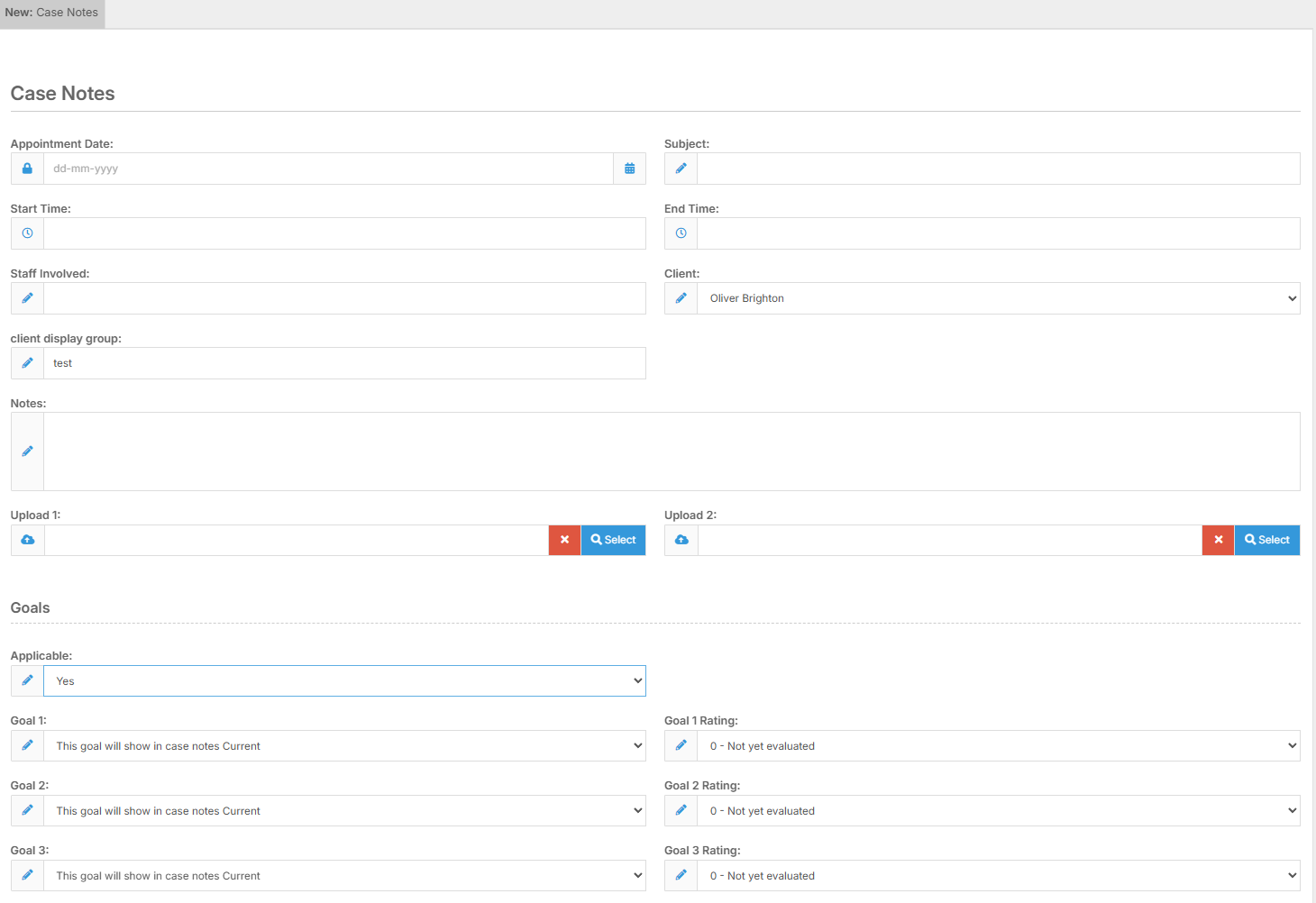
The Case Notes form should have a lookup field. the setup needs to pull in at least one label from the goal form, and 'Condition: Ignore Expired Records'.
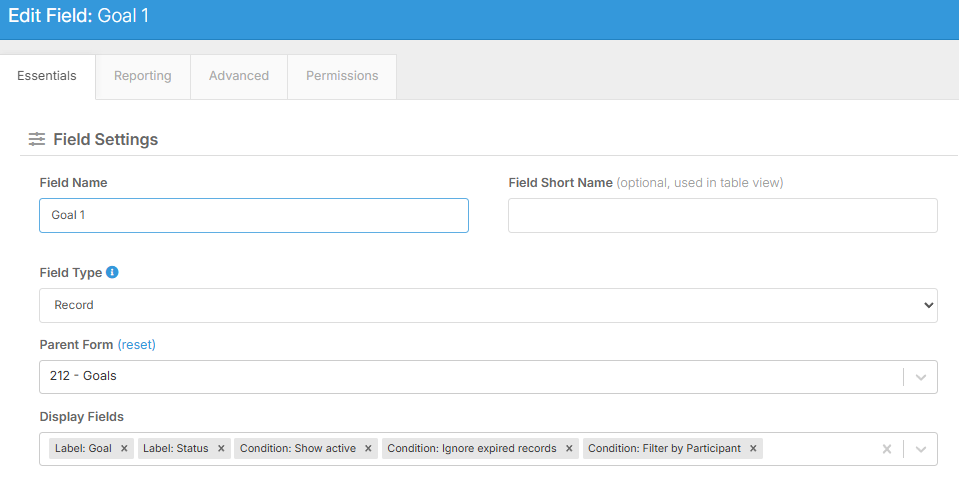
Make sure to Apply Settings and Save Form after configuration
Note: the 'Condition: Ignore expired records' does not reference the status of a record.
2. Setting up Goals
Your goals form should be set up in your FlowLogic system. If you do, please ensure that it has the 'Goal expired?' field. the field can be named differently, but configuration should remain the same.
Form view
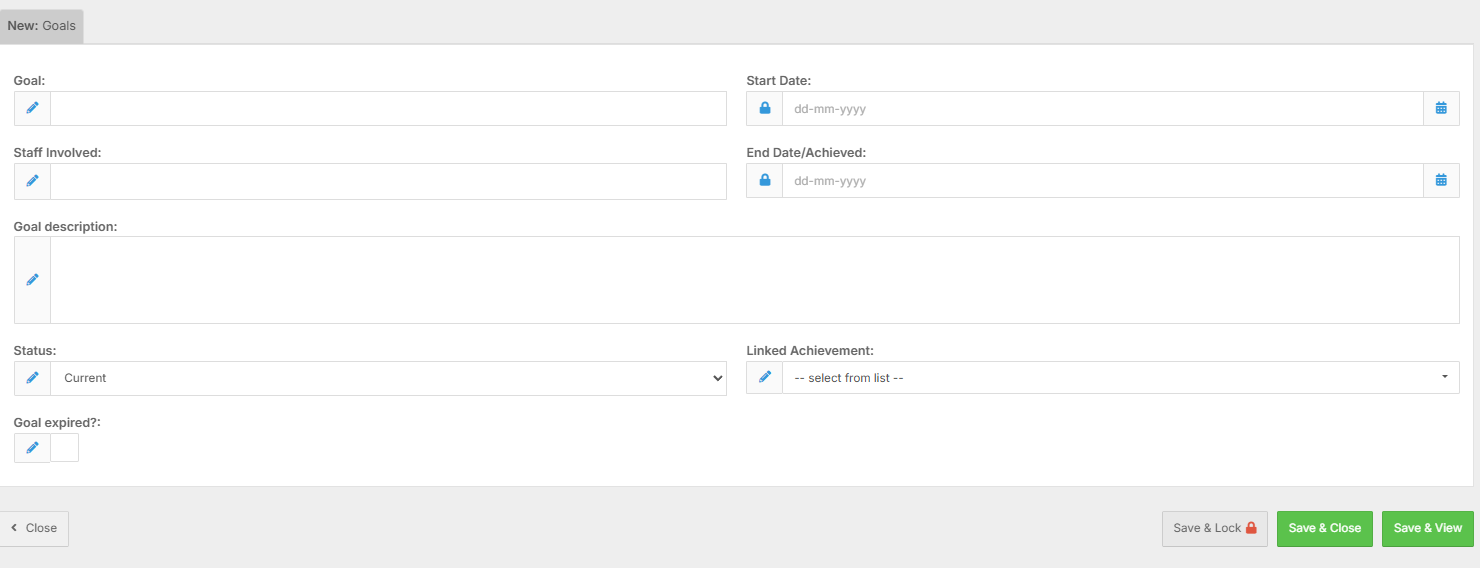
2.a 'Goal expired?' field settings - Checkbox setup
Edit the field, please configure it as a checkbox (single). You can optionally select 'Show Value in Table View' and 'Replace Value with Input'
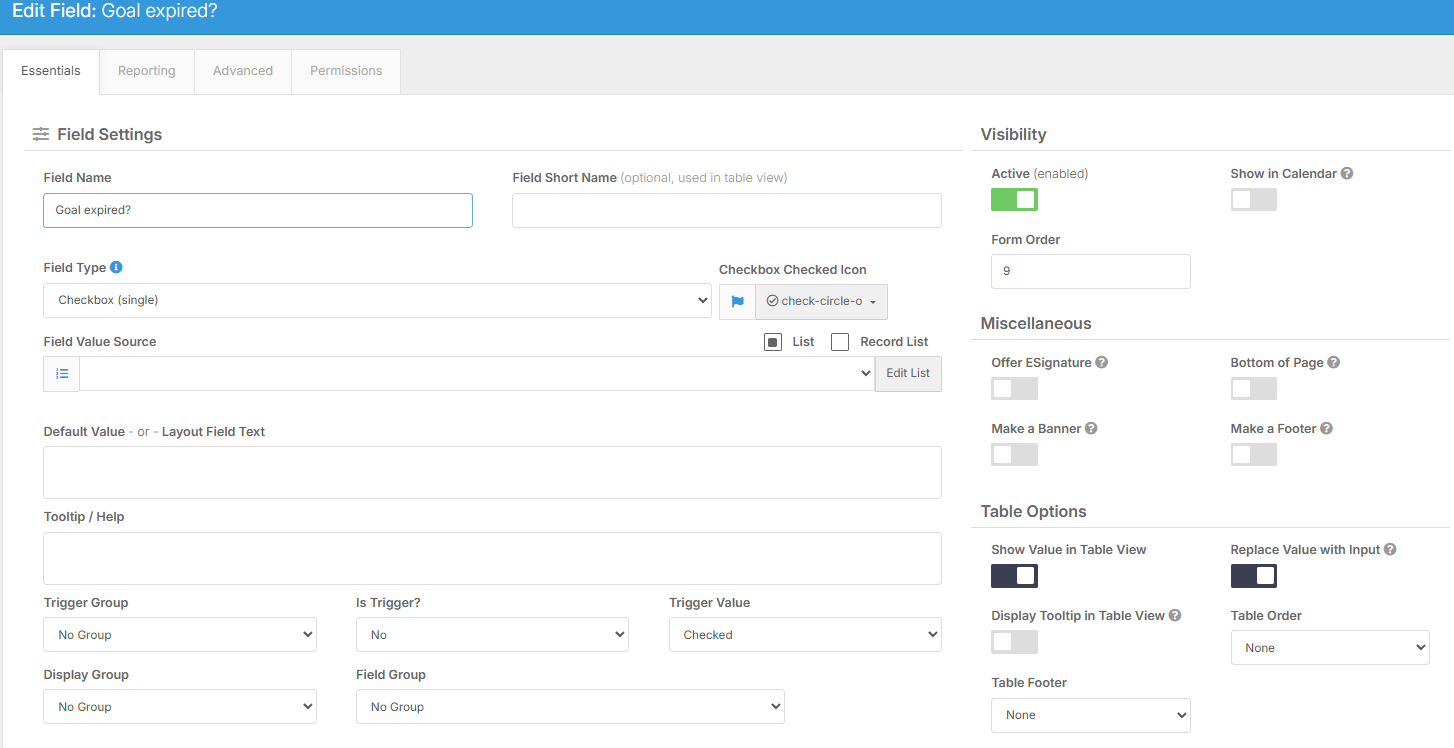
The 'Show Value in Table View' allows you to see from the record table if this is expired. The 'Replace Value with Input' allows you to change specific fields from the same table view - just remember to save!
2.b 'Goal expired?' field settings - Checkbox setup
Next go to the 'Advanced' tab. Please choose 'expiry' and 'record' system tags so that they show up under 'selected'
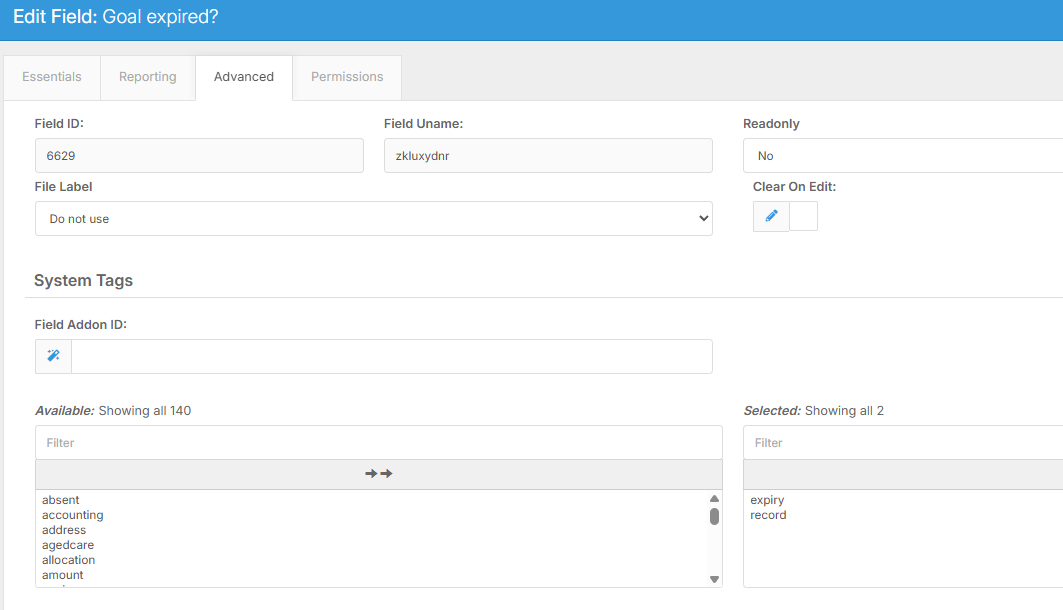
Make sure to Apply Settings and Save Form after configuration
3. Test it out
The next stage is to ensure it works. Set up one record as expired and show another as not expired.

When you test in your case note/progress note, you should see one, and not the other.