
Key Points
Shift notes are a Form. Depending on your setup they may be called shift notes, progress notes, case notes or file notes.
Who can write, view and edit shift notes is controlled by Section and Form permissions, which you give to Groups.
You can make individual fields on the shift note Form required or optional. Whether a shift note must be completed before a timesheet can be submitted is a system setting, so contact our Support team to change it.
Shift notes are different from the Notes and Comments you see in the rostered shift screen.
All clients use the same shift note Form.
You can report on shift notes and export the results to PDF, Excel or CSV. Attachments aren't included in exports.
Shift notes, notes and comments: what's the difference?
There are three places to write about a shift. Only one of them is a shift note.
Shift notes (also called progress notes, case notes or file notes) are what your support workers write about the client during or after a shift. They are saved as a Form on the client's record and can be reported on. Workers add them from the purple shift note icon.
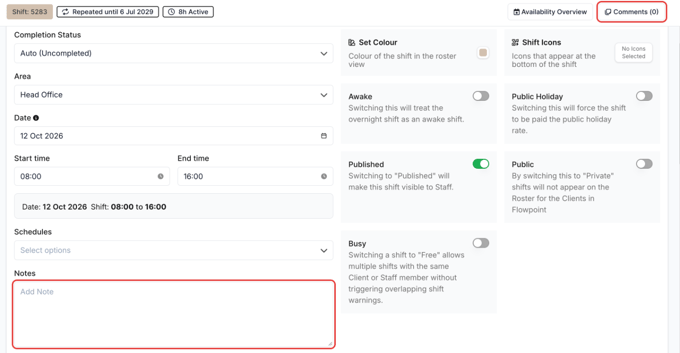
Notes are written in the rostered shift screen when the shift is created or edited. Use them to give the staff member working the shift information they need. In the FlowLogic Workforce app they show as notes from your rostering team.
Comments are also in the rostered shift screen. They are for your office team to talk to each other about the shift, for example between rostering and billing. See How do I add comments to a shift?
The rest of this article covers shift notes.
Who can add shift notes
Because a shift note is a Form, access is controlled the same way as any other Form in FlowLogic. You give permissions to Groups, not to individual users.
Section and Form permissions
Each Form has its own permissions, so you can control access to shift notes separately from the rest of the client record. For each Group you can allow:
Read: view shift notes.
Edit: update existing shift notes.
Add: write new shift notes. This is the permission a support worker needs to write one.
You can also use two extra rules that are commonly applied to shift notes:
Read Own: users can only view the shift notes they created.
Edit Own: users can only edit their own shift notes.
To check or change who has access:
Click the System Menu and select Sections.
Click Edit on the Section that holds your shift notes, for example Clients.
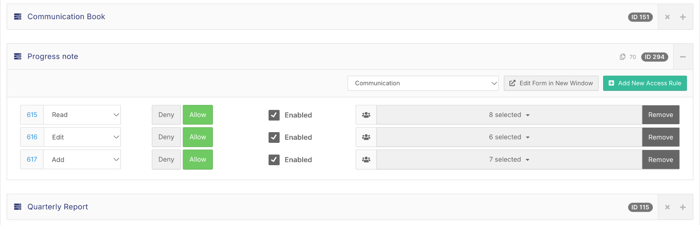
Select the Tab Forms tab, then the Tab your shift note Form is on (for example Communication).
Click the plus (+) on the right of the shift note Form. Its access rules open, showing each permission (Read, Edit, Add, Read Own or Edit Own), whether it's Deny or Allow, and the Groups it applies to.
Change the Groups on a rule, or click Add New Access Rule to add one.
Click Save at the top right.
You can also control who can read or write a single field on the Form. Edit the field in the Form editor and open its Permissions tab to choose Groups under Read Permissions and Write Permissions.
To remove access, remove the Group from the access rule rather than adding a hard deny. This lowers the risk of locking people out by accident.
Rights related to shift notes
Rights add access to related features. Rights are given to Groups in System Menu > Groups. The ones most relevant to shift notes are:
widget_scheduler_event_notes (Dashboard Widget: Shift Note Submissions): shows the Shift Note Submissions widget on the dashboard.
reports and admin_reports: let users run and create reports, including shift note reports.
revisionview: lets users see previous versions of a record, including edited shift notes and progress notes.
record_access_logs: shows who has opened a record, including shift notes and progress notes.
If you aren't sure which Right you need, contact our Support team before making changes.
Making shift notes required or optional
Required fields on the shift note Form
You decide which fields a worker must fill in. When a field is Mandatory, the worker can't save the shift note until it's complete.
Click the System Menu and select Forms.
Search for your shift note Form and click Edit, then open the Fields tab.
Hover over the field you want to change and click Edit.
On the Essentials tab, under Validation, turn Mandatory on or off.
Click Apply Settings, then Save Form.
Editing existing fields can affect data that's already stored. If you're not sure, contact our Support team first.
Requiring a shift note before a timesheet is submitted
FlowLogic can stop workers from submitting a timesheet until a shift note has been completed for each client on the shift. It can also stop a timesheet from being approved automatically if no shift note is present. These are system settings, so contact our Support team to turn them on or off.
If a shift has more than one client, or it's a sleepover with separate shift segments, workers need to complete a shift note for each one.
Turning shift notes on or changing the shift note Form
Whether shift notes appear on roster shifts, and which Form is used for them, are also system settings. Contact our Support team to change them.
Following up missing shift notes
If you'd rather keep shift notes optional at submission, you can still keep track of them:
On the Roster Schedule, icons show whether a shift has shift notes or not. You can also use the quick filter for shifts with case notes.
In Timesheet Management, the Case Note column shows 0/0 if no note was created, or 1/1 if one was submitted.
A Roster Automation can send workers a reminder when a shift note hasn't been submitted. See How do I create a roster automation?
Can different clients have different progress notes?
No. All clients in your system use the same shift note Form. You can't set up a different progress note Form for a client, Area or service.
You can still make the one Form fit different situations. Use Display Groups to show or hide fields based on a dropdown, for example a note type or support type, so workers only see the fields that apply. See How do I show or hide fields on a Form using Display Groups?
Shift notes can also pull through details that are specific to each client, such as their goals and active medications.
Reporting on and exporting shift notes
Use a report to pull shift notes together for a client, a date range or your whole organisation. Depending on your naming, the built-in report may be called Case Notes, File Notes or Shift Notes.
Build a shift notes report
Go to Reports at the bottom of the left-hand menu and click Create New Report.
Give the report a title, category and description.
Add Client Basic Information as the primary Form, then your shift notes, case notes or file notes Form as the secondary Form.
Choose your columns, starting with the client's first and last name, then the shift note fields you need.
Add filters if you need them, for example a date range or a single client, then click View Report.
Click Save to keep the report so you can run it again.
For the full steps, see How do I report on shift notes?
Export the results
Open the report in New View.
Hide any columns you don't need, such as UID and SID.
Set the report to show all rows. If only ten rows are showing, only those ten will be exported.
Export to PDF, Excel or CSV.
The export matches exactly what you see on screen, including filters and grouping. Grouping by client puts all of each client's notes together, which makes it easy to export one client's notes.
Attachments aren't included in exports
Report exports only include the data in each column. Files attached to a shift note, such as photos or documents, aren't included. To get an attachment, open the shift note record and download it from there.