
Key Points
Open FlowLogic in your phone's web browser. To clock on, tap the green Clock On button in the top left corner of the dashboard and click Yes to confirm. When your shift is complete, tap the red Clock Off button and click Yes.
After you clock off, you're taken to the timesheet screen. Add any breaks and wake-ups, shift notes and travel, then click Submit.
If you have multiple clients or a sleepover shift with separate shift segments, complete a shift note for each.
If the Rostered Shifts section is blank, your clock on and off times may not match your roster. You may still be able to submit, but add a note to explain the difference.
Submitted timesheets show on the Timesheet Entries screen with a status of Approved, Sent, Declined or Returned.
Using the FlowLogic Workforce app instead? Clock On is in the app's bottom bar - see How do support workers use the FlowLogic Workforce app?
How to Clock On/Off, Add Shift Notes & Submit a Timesheet
This article walks you through clocking on and off for a shift, completing shift notes and submitting your timesheet using FlowLogic in your phone's web browser.
Step 1: Clock On
From the dashboard, you can see your upcoming shifts, including the client name, shift times, any notes, kilometres, and shift type indicators (such as overnight or sleepover symbols).
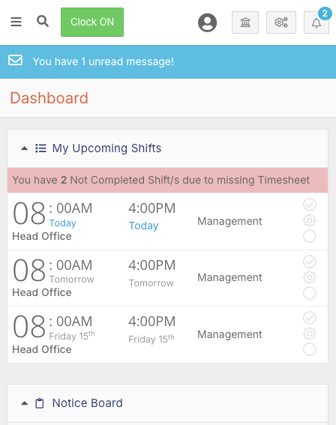
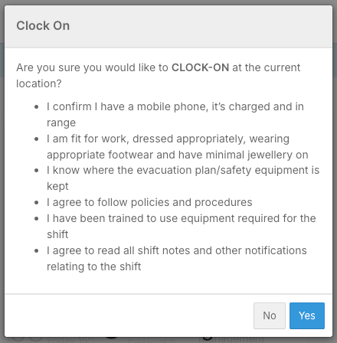
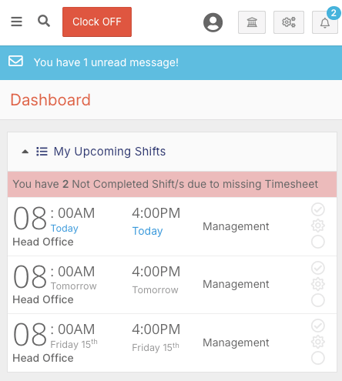
To clock on, tap the green Clock On button in the top left corner. A confirmation pop-up will appear - click Yes to confirm. The button will change to a red Clock Off button, indicating you are now clocked on.
Step 2: During the Shift
While clocked on, you can continue using FlowLogic as normal. This includes viewing the participant's profile, submitting incident reports, or logging feedback and complaints.
Step 3: Clock Off
When your shift is complete, tap the red Clock Off button. A confirmation pop-up will ask whether you have completed everything for the shift - click Yes to proceed.
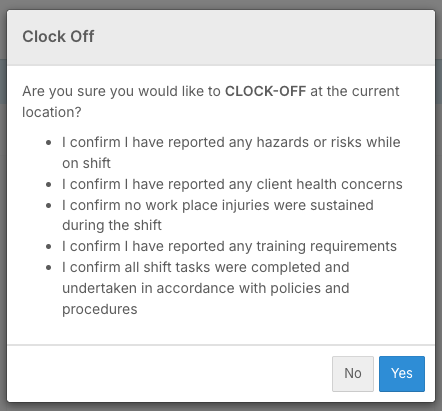
You will then be taken to the timesheet submission screen.
Step 4: Complete Your Timesheet
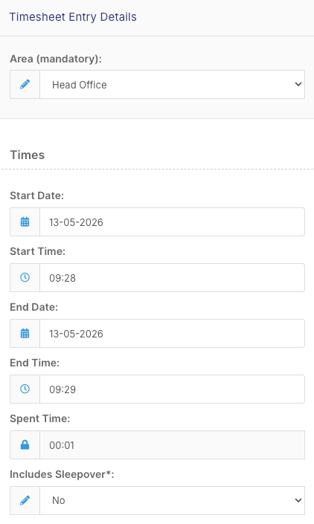
At the top of the timesheet screen you will see your clock on/off timestamps and geo-location, which helps the admin team verify you were in the correct location. Scroll down to complete the remaining fields:
Start & End Times
Pre-filled based on when you clocked on and off. In most cases these cannot be changed.
Breaks & Wake-ups
Click the Add button (or select from the dropdown) to log break times or wake-ups. Enter the start and end time for each. You can add multiple entries.
Rostered Shifts
Shows which rostered shift your timesheet is matched to. If blank, your clock on/off times may not align with your roster. You may still be able to submit, but add a note to explain any difference.
Step 5: Add Shift Notes
In the rostered shifts section, look for the purple shift note icon. Click it to open a pop-up and select the client you are submitting notes for.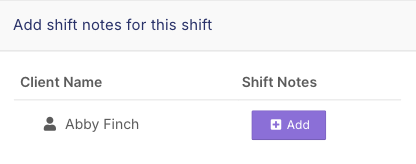
Fill in all relevant fields on the shift note screen. Some fields allow multiple selections, others are single-select dropdowns. Certain fields may be mandatory depending on your company's setup. Some information may be pre-filled based on the roster and client profile.
Once complete, click Save. If you have multiple clients or a sleepover shift with separate shift segments, you will need to complete a shift note for each.
Shift notes can also be submitted from the dashboard or roster before reaching the timesheet screen.
Step 6: Add Travel/Transport
The travel section allows you to log kilometres travelled during the shift. Depending on your company's setup, you may need to:
Odometer readings
Enter start and end odometer readings to calculate kilometres automatically.
Actual kilometres
If no odometer fields are present, enter the total kilometres travelled directly.
Photos & notes
You may be prompted to upload photos (e.g. odometer or fuel receipts) and fill in a reason for travel or notes field.
You can add multiple travel entries if you completed more than one trip.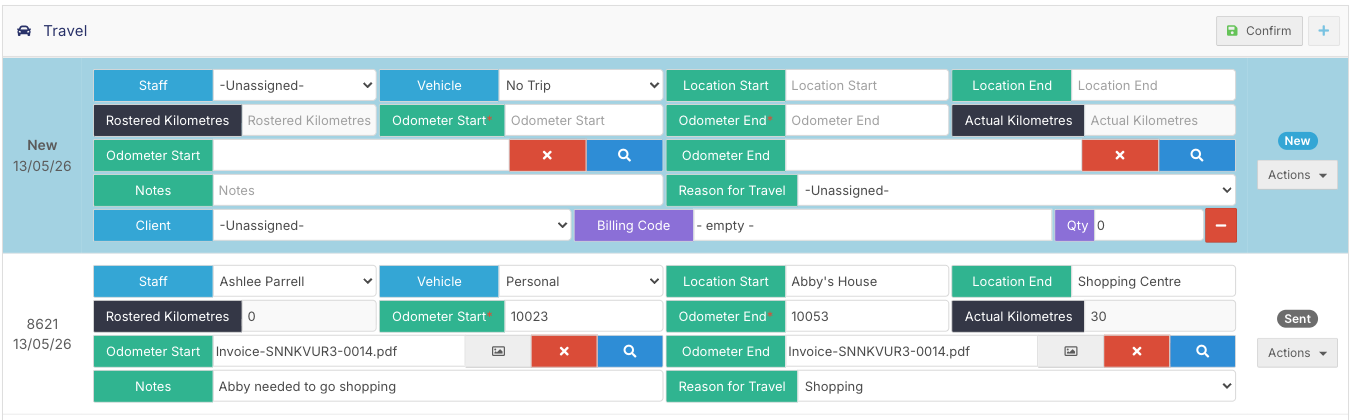
Step 7: Submit Your Timesheet
Before submitting, there is a general notes field where you can add any additional comments about the shift, particularly if anything differs from the rostered hours.
Review the signature section, then click Submit in the bottom right corner.
Viewing Submitted Timesheets
After submitting, you will be taken to the Timesheet Entries screen, which lists all timesheets submitted for the current payroll period. Scroll right to see the status of each timesheet. The available statuses are:
Approved
Sent
Declined
Returned
Approved means the timesheet has been reviewed and accepted. Sent means it is submitted and awaiting review. Declined means it was not approved - check with your admin team. Returned means it has been sent back for changes before resubmission.