
Key Points
Existing forms can be edited at any time.
Fields can be rearranged visually using arrows.
Field order can also be adjusted manually using the Form Order setting.
You can update field types, names, and visibility.
Changes take effect immediately once saved.
A Form or field with no records yet can be deleted. Once it has records, it can't be deleted: set it to Inactive instead.
Opening the Form for Editing
To edit an existing form:
Go to the Form List.
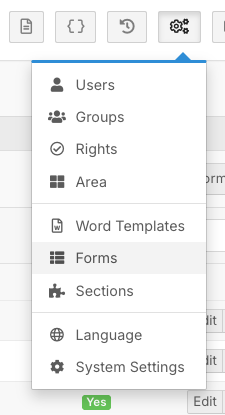
Click the Edit button on the far right-hand side of the form.

This will open the Form Details page.
Here you can:
Edit the form name
Update the description
Adjust system tags
Activate or deactivate the form
Removing a Form you no longer need
A new Form or field that has no records yet can be deleted. To delete a Form, go to System Menu > Forms, click the arrow next to Edit and choose Delete. Once a Form has any saved records, it can't be deleted. To stop it being used, set it to Inactive on the Form Details page and click Save. An inactive Form is hidden from its Sections and tabs, and its records are kept. You can make it active again at any time. Test records can be marked as deleted in Record Management.
Editing the Form Layout
To adjust field placement:
Click the Fields tab.
You will now see all fields currently in the form.
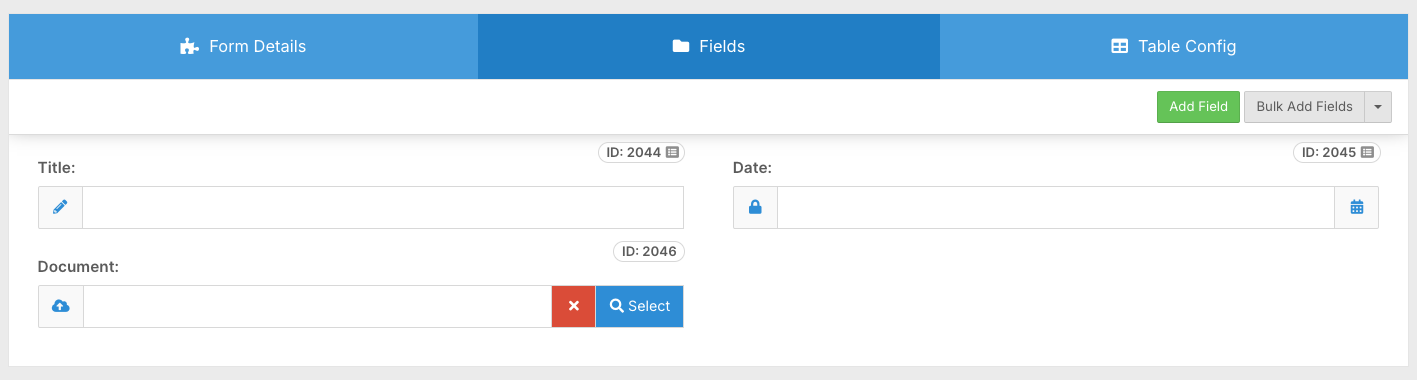
Understanding Form Layout
FlowLogic forms use a two-column layout:
Some fields take up one column.
Others span both columns (full-width fields).
Full-width fields are typically used for:
Large text boxes
Notes
Descriptions
Rearranging Fields Using Arrows
To move a field:
Hover over the field.
Click the arrow icons in the top right corner.

Move the field:
Up
Down
Left
Right
This is the quickest method for small forms.
Changing Field Order Using Form Order
If your form has many fields, using arrows may be time-consuming.
Instead, you can manually adjust the field position.
Click Edit on the Field
Open the field settings.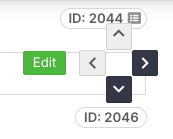
Locate Form Order
On the right-hand side under Visibility, you will see Form Order.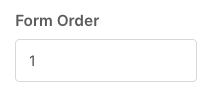
Change the Number
The number determines the field’s position.
For example:
Setting Form Order to “2” moves the field to the second position.
The list will update immediately.
Editing Additional Field Settings
While editing a field, you can also:
Change the field type
Update the field name
Modify visibility settings
Adjust required settings
Update default values
These allow you to refine the form structure without rebuilding it.
Saving Your Changes
Once you are satisfied with the layout:
Click Save in the bottom right-hand corner.
The updated form will be ready for use immediately.
You now know how to:
✔ Open and edit an existing form
✔ Rearrange fields visually
✔ Adjust field order using Form Order
✔ Modify field settings
✔ Save and apply layout changes
Editing and reorganising forms allows you to continuously improve your workflows and keep your forms clean, logical, and easy to use.