
Key Points
To hide expired records from a lookup field, add the Expiry and Record system tags to the expiry checkbox field (such as Ceased), then add the Ignore Expired Records condition to the lookup field.
The most common use is medications: once a medication is marked as ceased, it disappears from the shift note medication list automatically.
If the system tags are missing, the feature won't work regardless of what's configured elsewhere.
The same setup works on any lookup field where records need to expire or be hidden over time.
FlowLogic can automatically hide records that are no longer active from appearing as selectable options in lookup fields. The most common example is medication management - when a medication is marked as ceased, it stops appearing in the shift note medication list, preventing staff from accidentally logging it. This same setup can be applied to any lookup field across the system where records may need to expire or be hidden over time.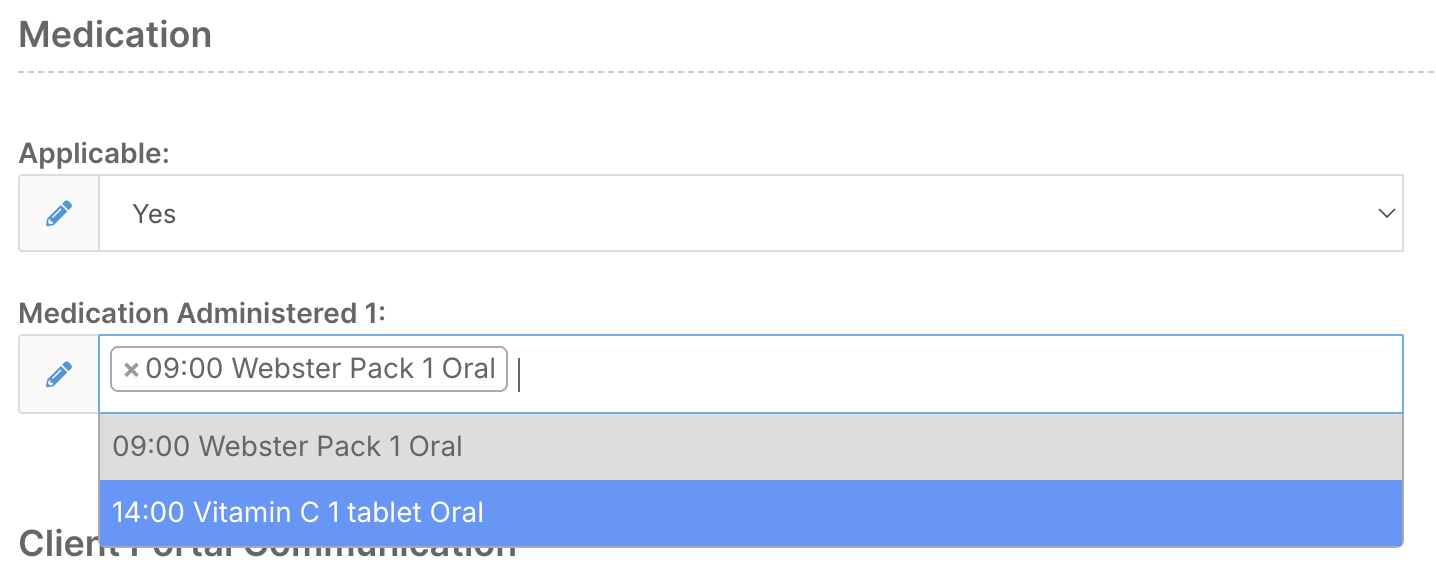
How It Works in Practice
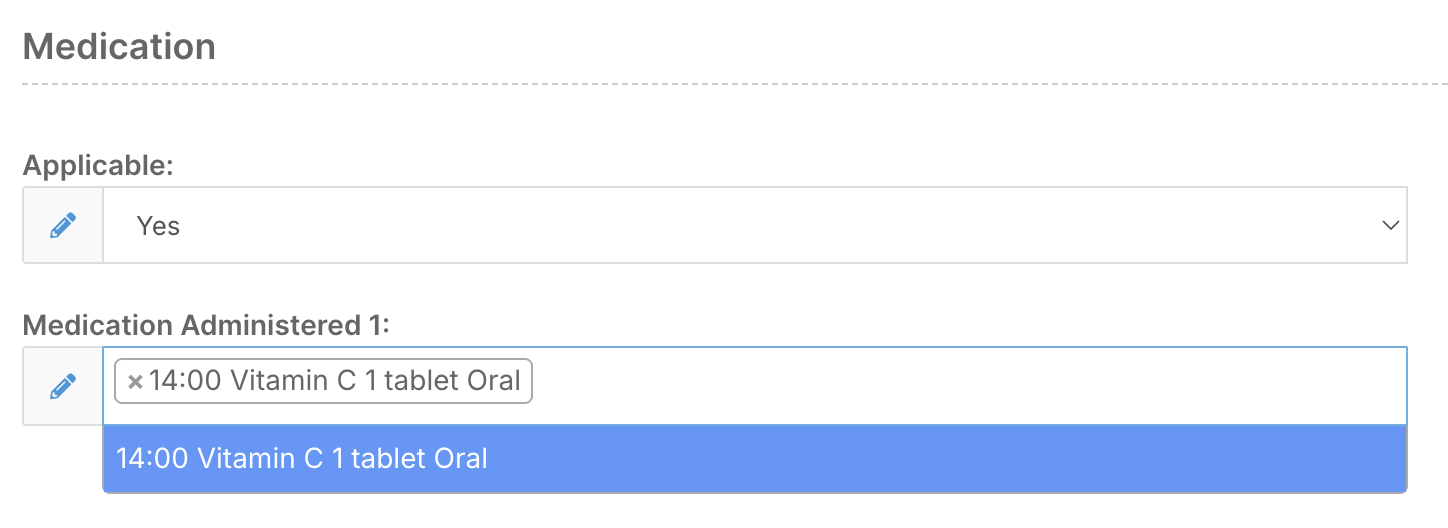
Within a client's profile, the Medication Basic form stores details like medication name, dosage, time, route, and a Ceased checkbox. When staff complete a shift note, a medication lookup field pulls through that client's active medications for them to select from. Once a medication is marked as ceased, it disappears from that list automatically.
Setup
The setup involves two changes - one to the medication form and one to the shift notes form.
Step 1 - Medication Basic form
Go to System Menu - Forms and open the Medication Basic form. Navigate to the Fields tab and find the Ceased checkbox field. Click Edit and scroll to the Advanced section. You need two system tags to be present on this field: Expiry and Record. These are what power the expiry functionality. If they're missing, the feature won't work regardless of what's configured elsewhere.
Step 2 - Case Notes / Shift Notes form
Go back to Forms and open your Case Notes or shift notes form. Find the Medication lookup field and click Edit. Add the condition Ignore Expired Records - this works in combination with the system tags on the ceased checkbox to filter out ceased medications. While you're in this field, also check that it's filtered by client so only that client's medications appear, and enable multiple selection if staff need to log more than one medication per shift note entry. Save the form.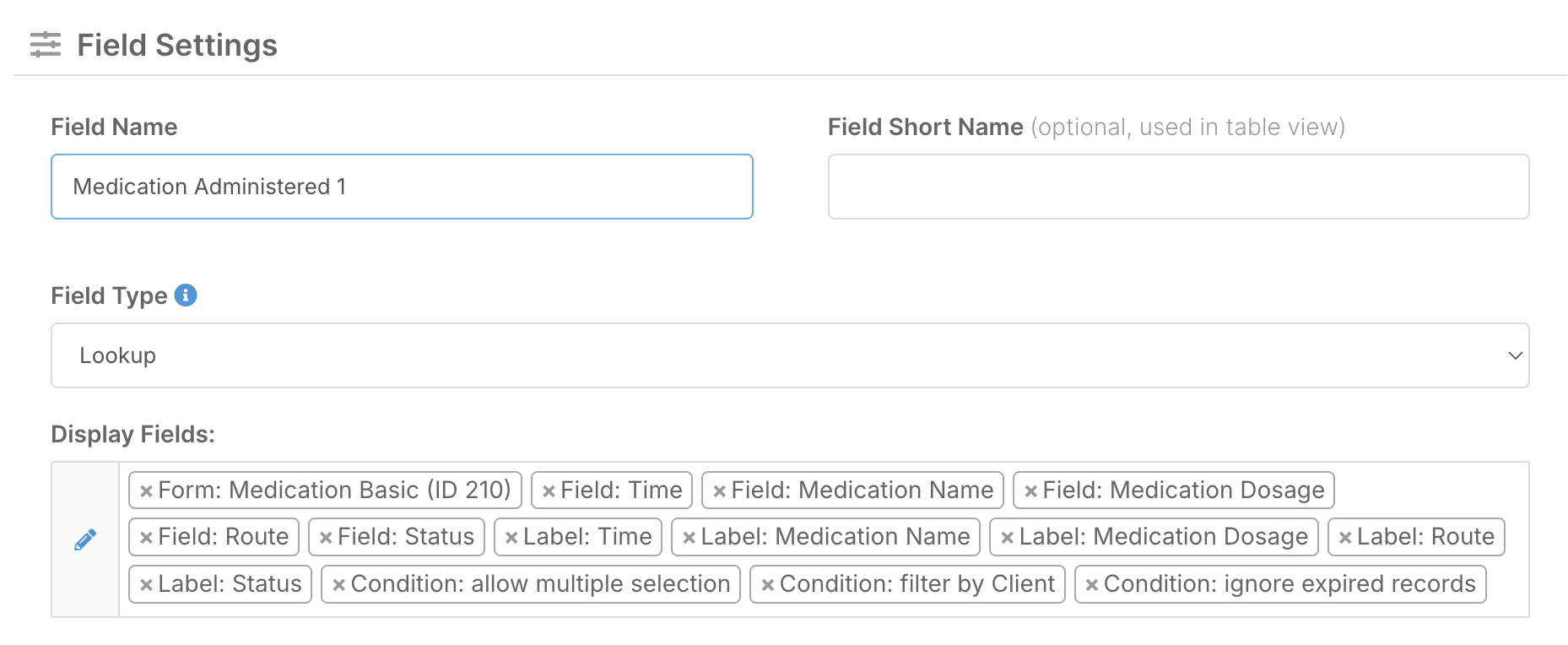
Once both steps are complete, any medication marked as ceased will automatically disappear from the shift note lookup without any further action needed.
Applying This Elsewhere
This setup isn't limited to medications. Any lookup field in your system can use the same combination of system tags and the Ignore Expired Records condition to hide records that are no longer active.