
Key Points
Shift Summary lets you send staff or clients an overview of their upcoming shifts in bulk, rather than sending details one by one, sending constant individual alerts or manually printing and emailing rosters.
Select shifts using the bulk select options in the top-right corner of the Roster Schedule, click the lightning bolt icon and select Send Shift Summary.
Choose the recipient (staff or client), the delivery method (SMS, email or both) and a template - use Default or click Add to build your own. Each recipient automatically gets their own shift details.
Click Save and Preview to check the message, then click Send.
Selecting Shifts
In the roster schedule, go to the bulk select options in the top-right corner. You can select shifts in a few different ways depending on how broad or specific you want the summary to be:
- Select all shifts currently visible on the roster
- Hand-pick individual shifts
- Select entire rows or columns to capture a broader range
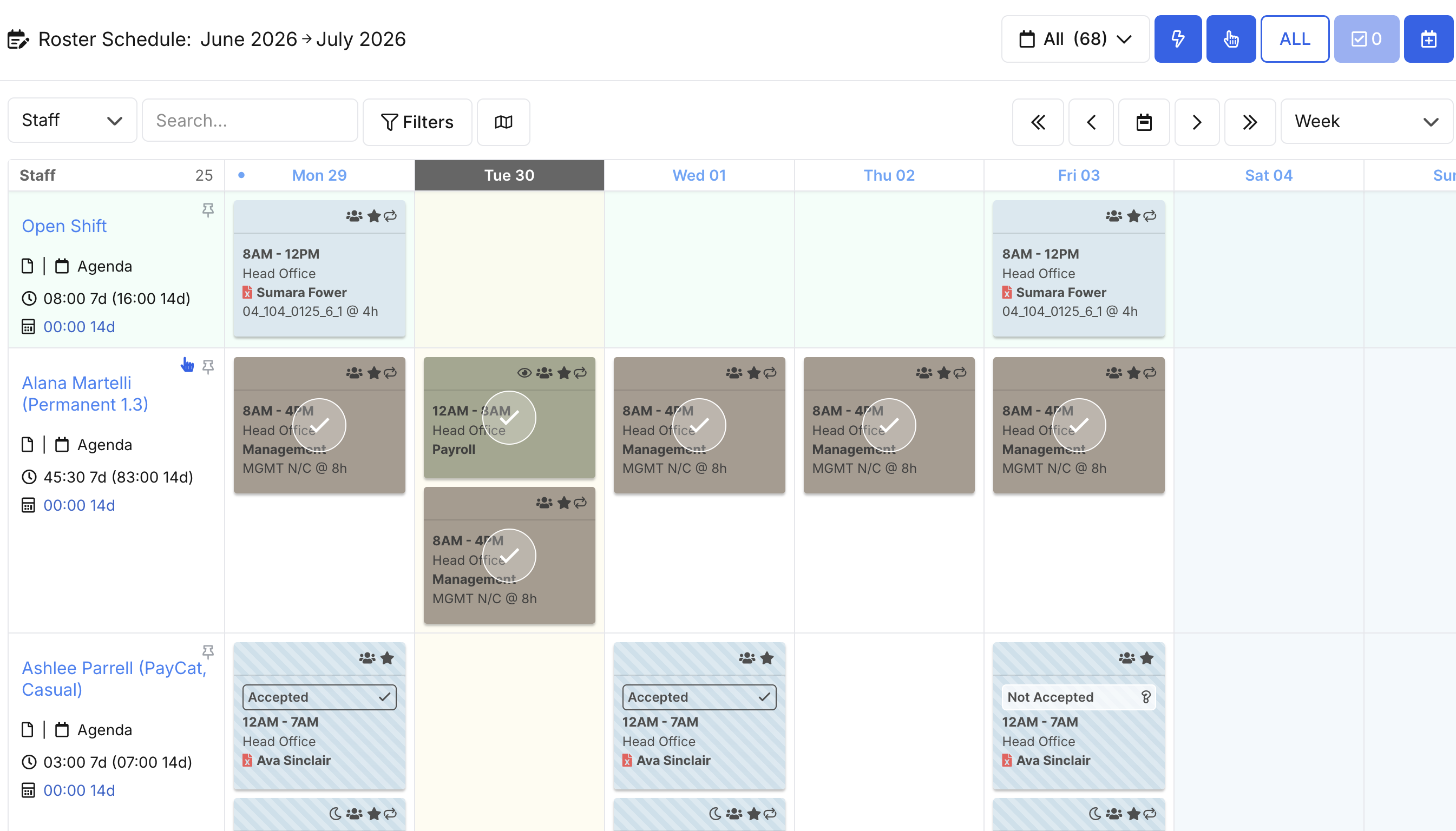
Once you've selected the shifts you want to include, click the lightning bolt icon next to the other bulk action buttons, then select Send Shift Summary from the list.
Setting Up the Summary
The shift summary template will load on screen. From here you can choose:
- Recipient - staff or client
- Delivery method - SMS, email, or both
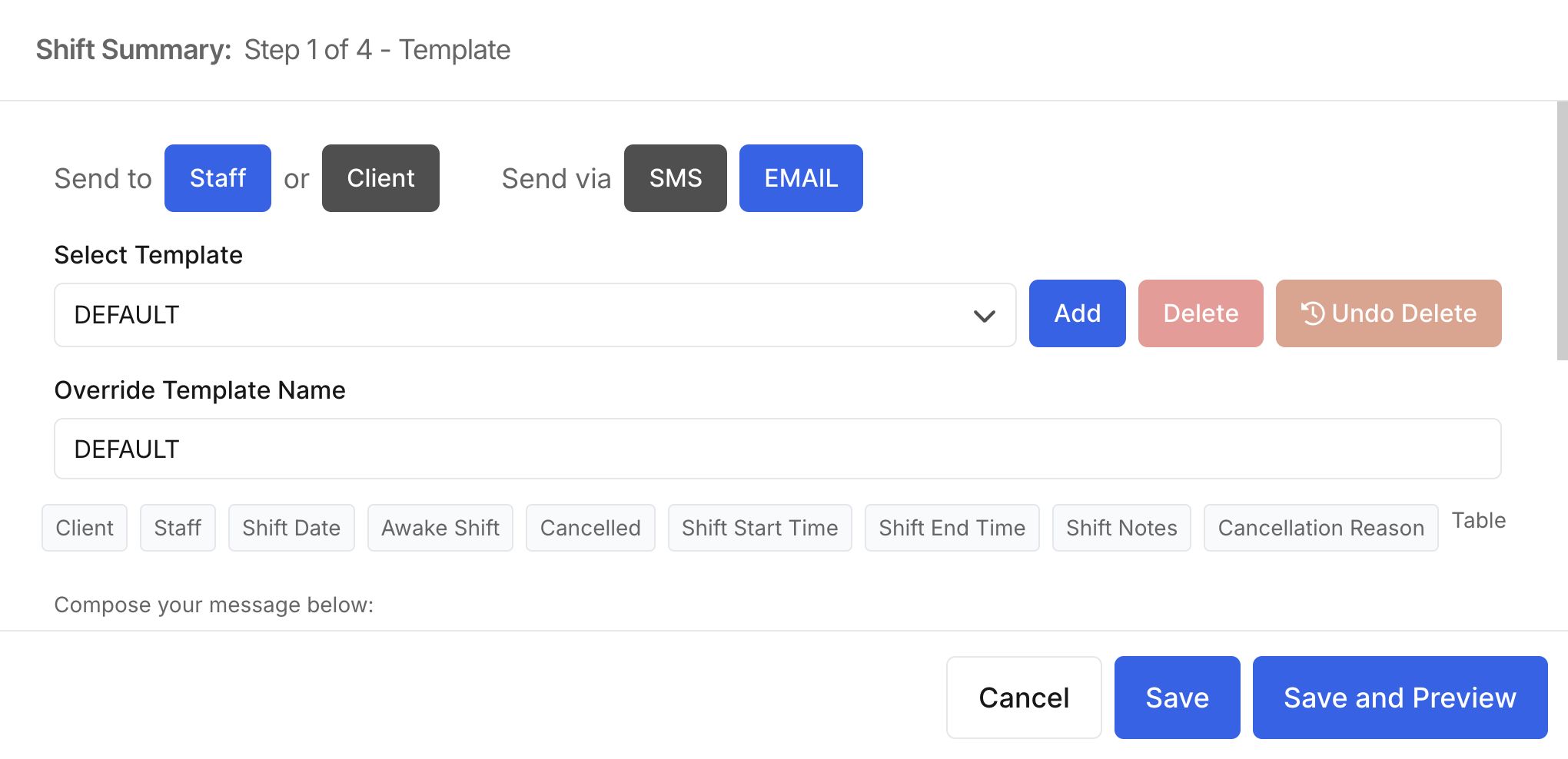
For this example we're sending to staff via email. Next, choose the template you'd like to use. The system defaults to the Default template, but you can build your own by clicking Add and giving it a unique name.
Building a Custom Template
To build your own template, type the message you'd like to send, then click and drag any of the pre-fill options into the message box. These pull through specific shift details automatically - for staff, this might include their name, shift dates, shift times, cancellation reasons, and any relevant notes.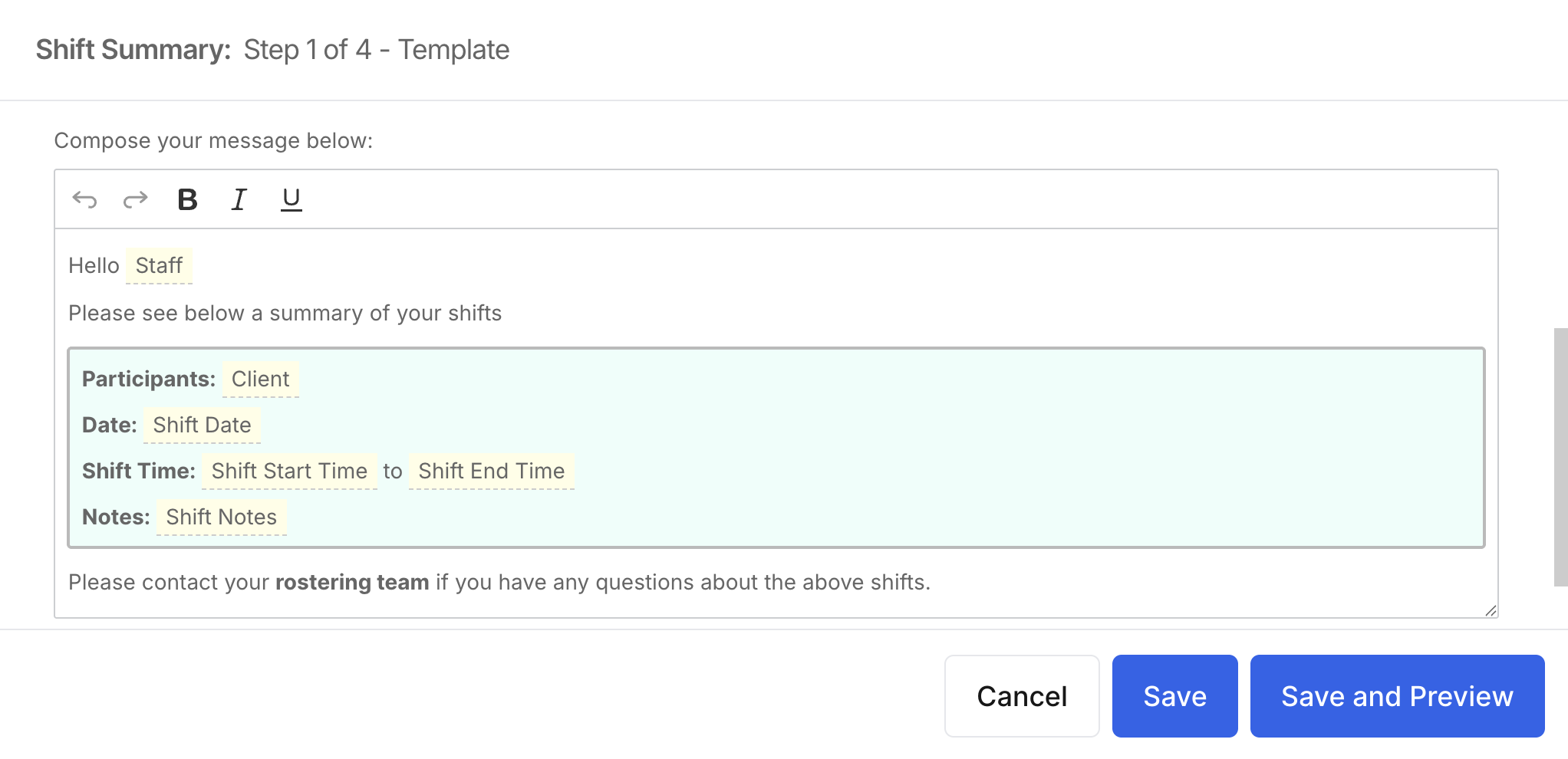 If you're sending the summary to multiple staff at once, you don't need to do anything extra to personalise it. The system automatically pulls the correct shift details for each individual and populates their email accordingly, so a single bulk send results in a personalised message for everyone included.
When building your own template, make sure to use the table option for displaying shift details and dates rather than plain text. This compiles all shifts into a clean, organised layout instead of listing them messily.
Previewing and Sending
Click Save and Preview to see a live preview of the email exactly as the recipient will see it, including the greeting, a table of their shifts, dates, times, notes, and a closing message. This is a good opportunity to fine-tune the wording and layout before sending live.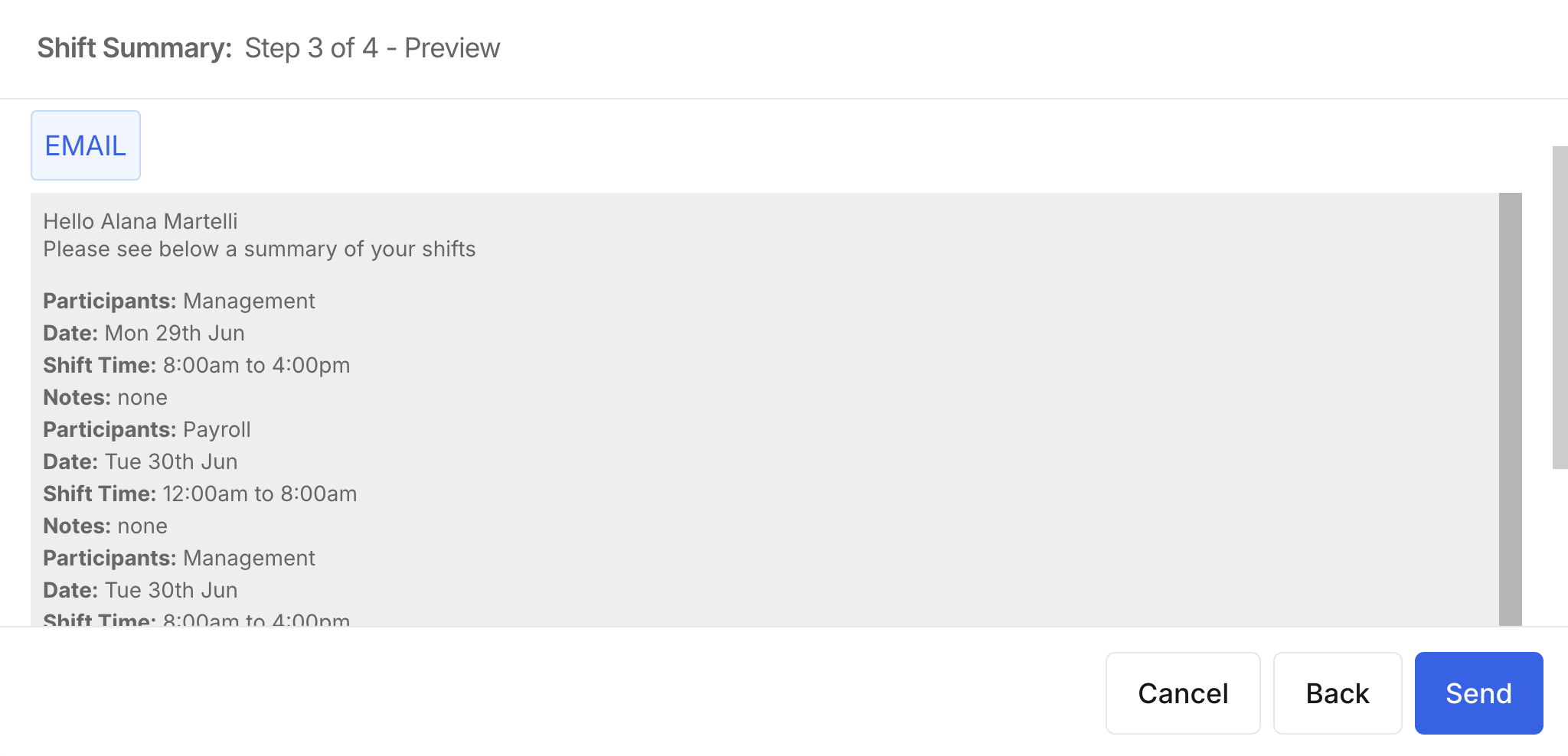 Once you're happy with the template, return to the message screen and click Send. The system will confirm once the summaries have finished sending, and you can close the window once complete.