
Key Points
Open a shift in the Roster Schedule, click Comments in the top-right corner, then click Add Comment, type your message and click Save.
Comments let teams leave notes directly within the roster - commonly between the rostering team and the billing team when adjustments are made - and build up a useful audit trail over time.
Comments are different from the shift's Notes section, which is typically used between the roster creator and the staff member working the shift. Using each for its intended purpose helps avoid confusion.
Two rights under System Menu - Rights - I-Notes control comments: roster_view_inotes gives read-only access (view and copy), and roster_create_inotes gives full access to create, edit, delete and copy.
There's no limit to the number of comments on a shift, and the Comments button shows how many have been added.
Permissions
Comments are controlled by two rights, found under System Menu - Rights - I-Notes:
- roster_view_inotes (Roster View Comments) - Read-only access. Users can view and copy comments, but cannot create, edit, or delete them. Suitable for staff who just need to stay informed.
- roster_create_inotes - Full access to create, edit, delete, and copy comments. Assign this only to team members who actively manage shifts.
If your organisation doesn't use the comments section, it's worth removing these rights to keep things tidy.
Using the Comments Section
Open any shift in the roster schedule and click the Comments button in the top-right corner. A drawer will slide out showing any existing comments or a message indicating none have been added yet.
To add a comment, click Add Comment in the top-right corner of the drawer. 
A box will appear showing your name, the date and time, and a field to type your message. Type your comment and click Save. There's no limit to how many comments can be added to a single shift.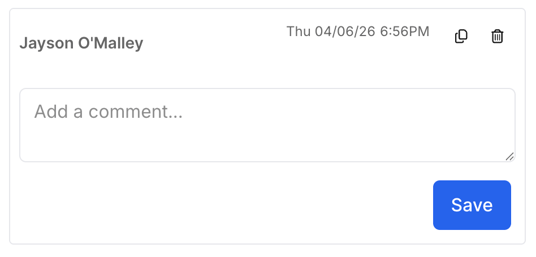
To edit a comment, click on it and make your changes before saving again. To delete one, click the trash icon in the top-right corner of that comment. You can also copy the contents of any comment directly from the comment box - useful when you need to reference the information elsewhere in the system.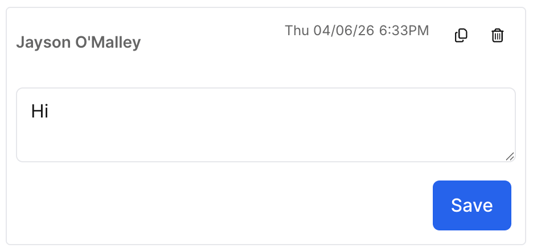
Once you close the drawer, the Comments button will display the number of comments on that shift, giving other staff a quick visual cue to check for notes.
View-Only Access
Users with view-only rights can see and copy comments but cannot edit or delete them. This protects notes left by other team members from accidental changes and ensures important context is preserved.