
Key Points
Public holidays can be applied to individual shifts or entire roster days.
The Public Holiday toggle on a shift allows a single shift to be paid at public holiday rates.
Public holidays configured in the Admin Tools automatically apply to all shifts on that day.
Public holidays can be set as full-day or partial-day holidays.
Public holidays can be restricted to specific locations or regions.
Public holiday billing may need to be updated manually depending on your setup.
Setting an Individual Public Holiday Shift
In some cases, you may need to apply public holiday rates to a single shift rather than an entire day.

To set an individual shift as a public holiday shift:
Locate the shift in the Roster Schedule.
Click the shift to open the Shift Details screen.
On the right-hand side, locate the Public Holiday toggle.
Turn the toggle on.
Save the shift.
Once enabled, the shift will be treated as a public holiday shift for payroll purposes.
The toggle only affects that shift and the timesheet it's on. Other shifts and timesheets on the same day are paid as normal. To pay public holiday rates for the whole day, set up the public holiday in Admin Tools instead.
Important
Do not confuse the Public Holiday toggle with the Public button, which serves a different purpose.
Note: public holidays, whether they're set up in Admin Tools or with the Public Holiday toggle on a shift, only change what staff are paid. They never change billing. Update the billing on each public holiday shift as described below.
Updating Billing for Public Holiday Shifts
When the public holiday toggle is applied, billing items will not automatically update.
If your organisation uses specific public holiday service items, you may need to manually update the billing lines to the correct public holiday billing codes.
Always review the billing attached to the shift to ensure it reflects the correct public holiday rate.
Identifying Public Holidays in the Roster
When a public holiday is configured for the roster, the day will be visually highlighted.
Public holidays appear with a purple background across the roster.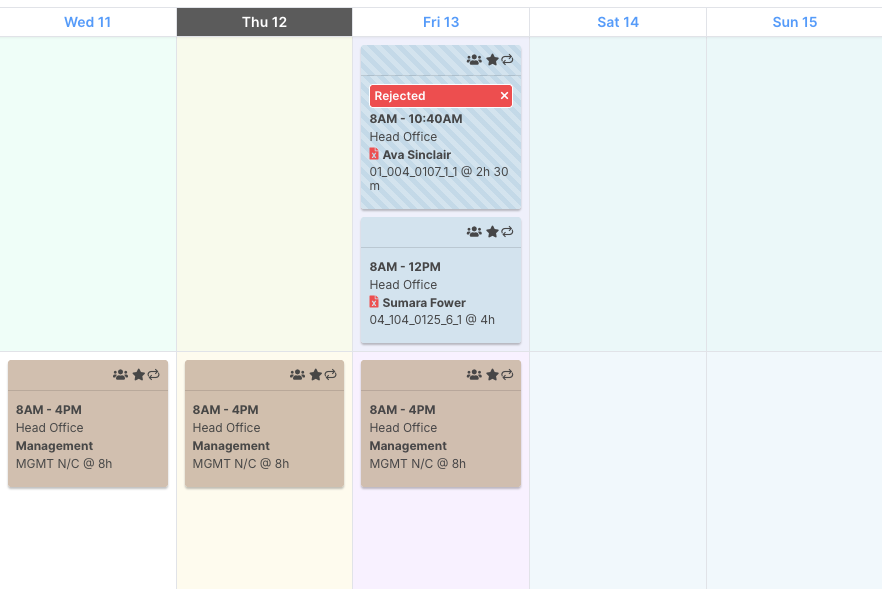
This highlight will appear:
Across the entire day
Across all staff rows
Across all roster views
This makes it easy to identify shifts that may require public holiday rates.
Configuring Public Holidays
Public holidays can be configured in the Admin Tools section.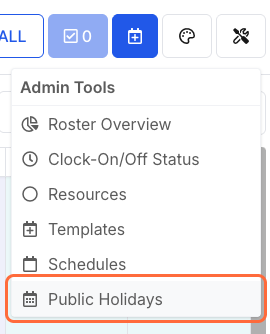
To configure a public holiday:
Navigate to the Admin Tools in the top-right corner.
Open the Public Holiday section.
Create a new public holiday entry.
You will then configure the holiday details.
Full-Day Public Holidays
For a full-day public holiday:
Select Full Day.
Choose the holiday date using the calendar.
Enter a holiday name or label.
Example:
Christmas Day — 25th December
Once saved, the entire roster day will be treated as a public holiday.
Partial-Day Public Holidays
FlowLogic also allows partial-day public holidays.
To configure a partial-day holiday:
Select Partial Day.
Choose the start and end time.
Enter the holiday name.
Example:
Christmas Eve — 6:00 PM to 12:00 AM
This allows organisations to apply public holiday rules only during specific hours.
Setting Holiday Locations
Public holidays can be applied to:
All locations
Specific locations
Entire regions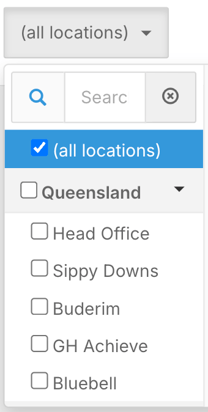
By default, public holidays apply to all locations.
However, some holidays may only apply to certain areas.
Example:
A regional Show Day holiday may only apply to a specific location.
To restrict a public holiday:
Select the Location option.
Choose the relevant site or region.
FlowLogic checks the area on each staff member's record. Staff whose record area matches one of the holiday's areas get public holiday rates, wherever their shifts are. Staff in other areas are paid at normal rates.
Saving Public Holiday Settings
After configuring a public holiday:
Click Save in the top-right corner.
To add additional holidays:
Use the Add button located below the save option.
Multiple public holidays can be configured throughout the year.
Editing or Removing a Public Holiday
Open Admin Tools > Public Holidays. Change the details in the holiday's row, or click Remove next to it, then click Save Changes.
To add several holidays at once, click 1, 2 or 5 next to Add to add that many new rows.
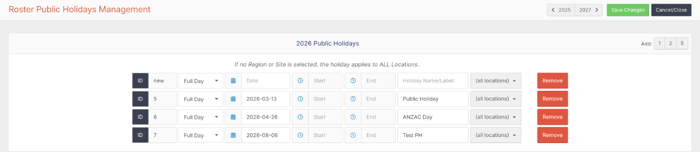
Setting Up Future Years
Use the year arrows at the top right of the Public Holidays screen to move to another year. You can set up public holidays as many years ahead as you like.
Annual Public Holiday Setup
Public holidays are not automatically created each year in FlowLogic.
Organisations must manually configure public holidays annually.
This ensures that public holiday dates remain accurate each year.
It is recommended to set up public holidays at the start of each calendar year.