
Key Points
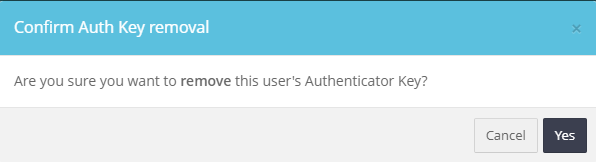
To reset a user's 2FA, a staff member with access to edit User Accounts opens Users from the System Menu, clicks the Enabled button for the user and selects Reset Auth Key, then clicks Yes to confirm.
Reset a user's 2FA when they have a replacement device or no longer have access to the device they originally set up.
Once a 2FA authentication device is activated, it's linked directly to the user's account.
The next time the user logs in, they'll be prompted to set up 2FA on a new device.
Resetting a user's 2FA
Once a 2FA authentication device has been activated for a user, the device they use to Authenticate will be directly linked to their User Account. To reset a staff member's Multi-Factor Authentication in the case of a replacement device or not having access to the originally setup device, a staff member with access to edit User Accounts in FlowLogic should follow the below steps:
1. Access the Users from the System Menu as shown below:
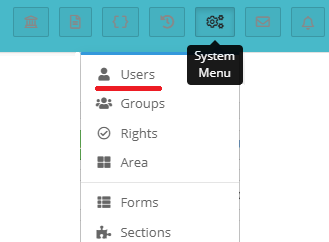
2. Click the Enabled button for the FlowLogic user in question, and select "Reset Auth Key" as shown below: 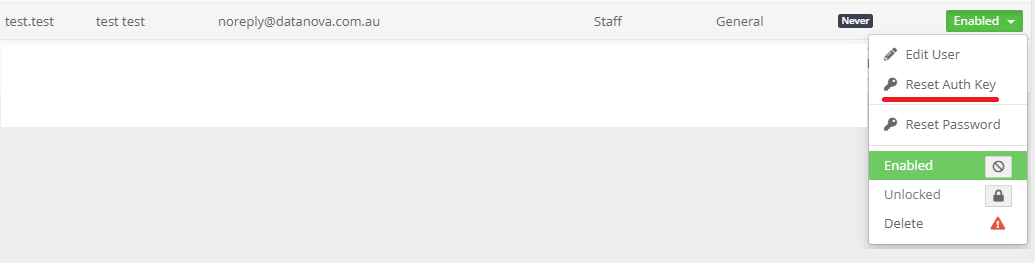 3. Click "Yes" to Confirm that you want to remove this user's Authenticator Key, as shown below:
The next time that the user logs in to FlowLogic, they will be prompted to setup their 2FA account on a new device.